How to Change Time Format in Ubuntu: 12h or 24h

The time format in Ubuntu changes how your top bar clock displays time between a 12-hour AM/PM layout and a 24-hour clock. You can switch between these two formats at any time using either the desktop settings app or a single command in the terminal.
Open Settings , go to System, then Date & Time, and select your preferred Time Format from the dropdown. Alternatively, use the terminal command gsettings set org.gnome.desktop.interface clock-format 12h or 24h.
Quick Settings Menu
You can quickly change the time format in Ubuntu using the Quick Settings menu, which is the fastest way to access your clock settings.
Change system time format using the Settings app
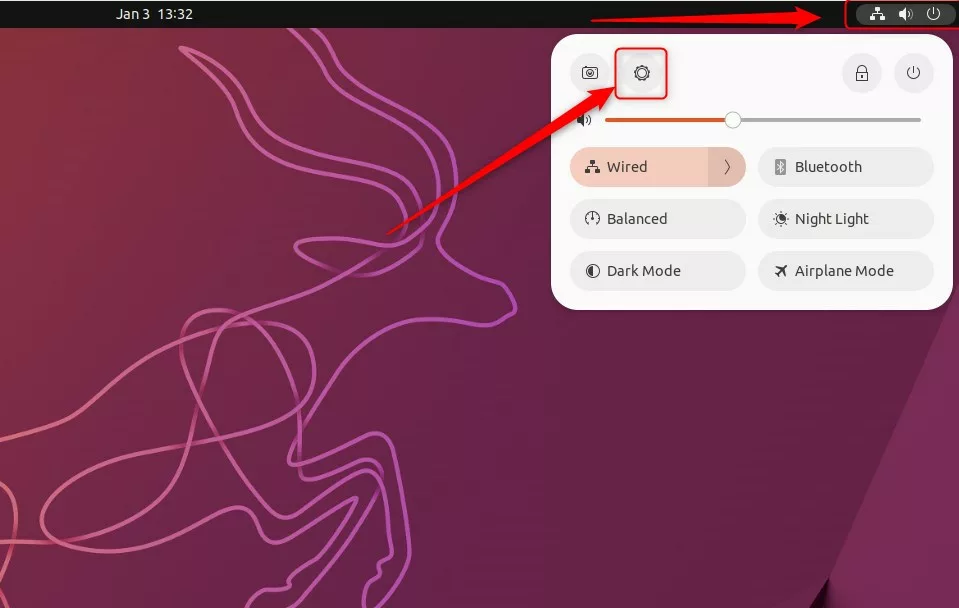
You can change time format Ubuntu preferences directly through the main Settings app to switch between a 12-hour and 24-hour clock display. Open the system menu from the top-right corner of your screen, click the gear icon to open Settings, and go to the Date & Time tab where you can toggle the 24-hour time switch on or off.
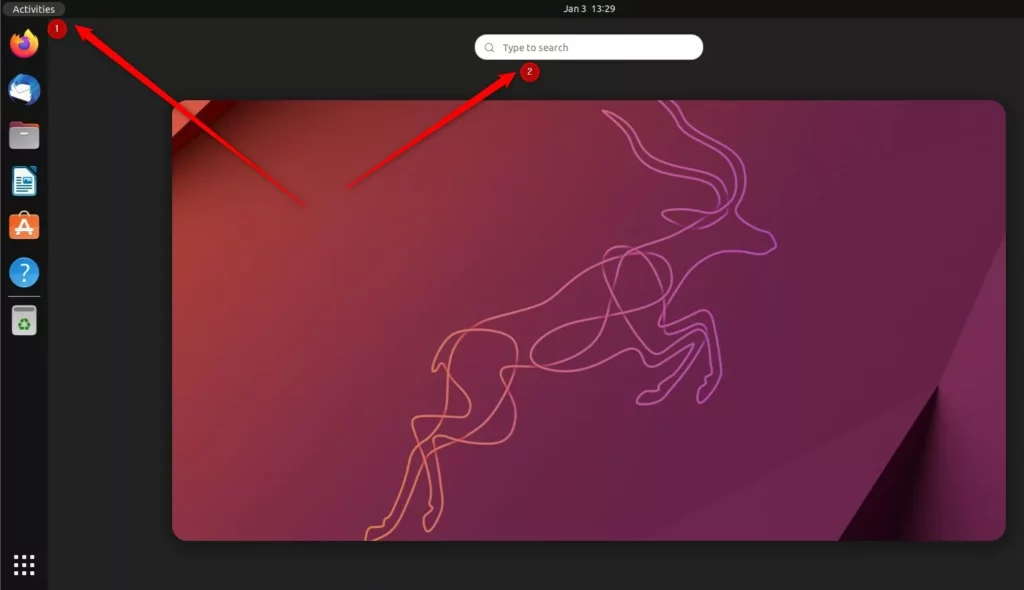
Alternatively, click the Quick Settings menu at the top-right and select the gear icon.
In the Settings sidebar, scroll down and click on System, then select Date & Time.
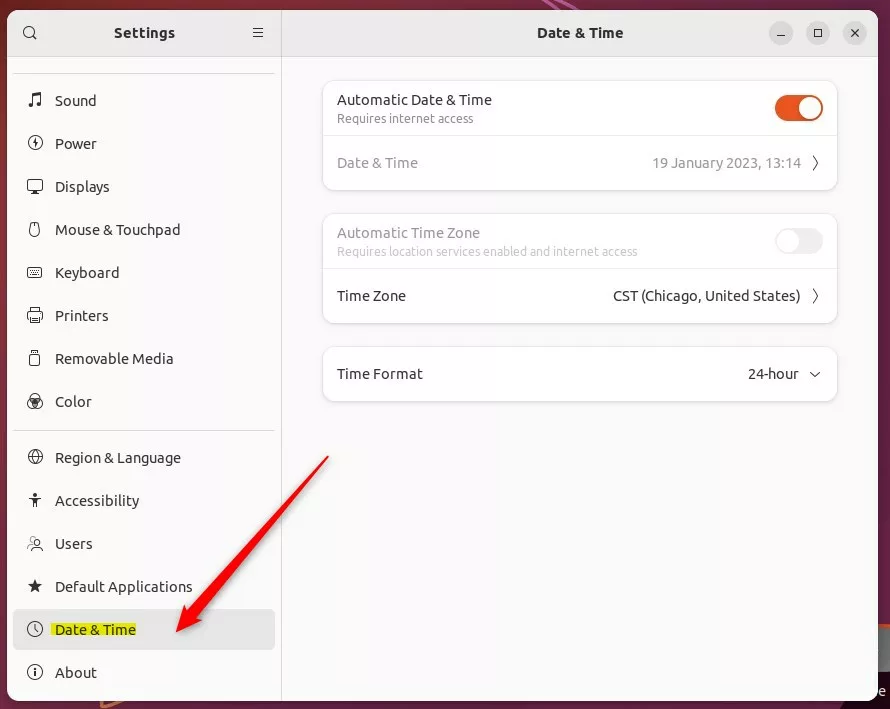
Look for the Time Format section. Click the drop-down menu to choose between 24-hour or AM/PM.
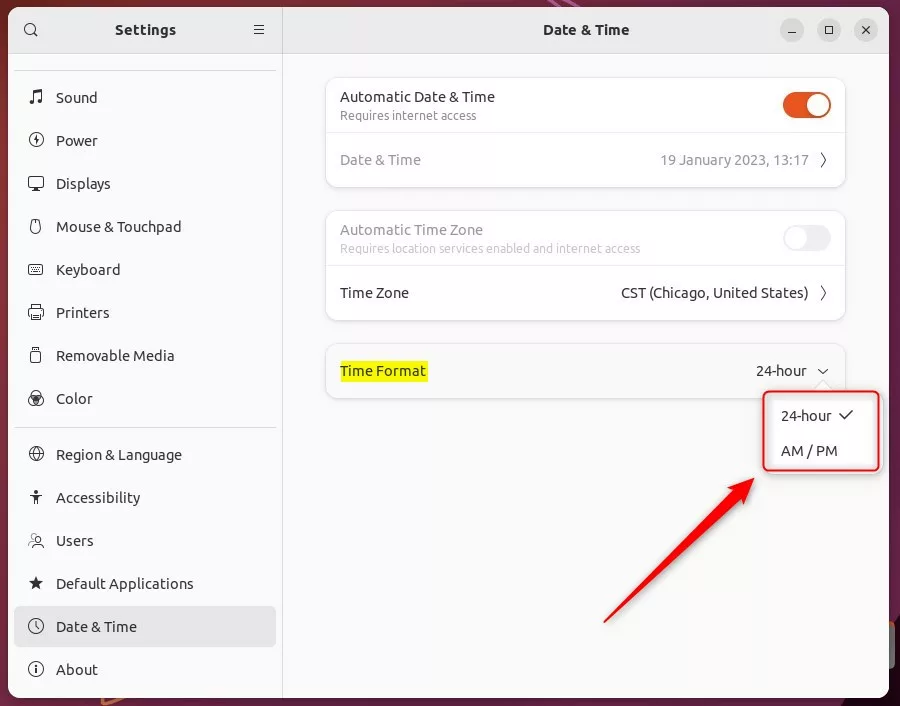
Your choice takes effect instantly.
Change system time format using the command terminal console
You can change time format Ubuntu configurations quickly using the command terminal if you prefer typing commands instead of using the graphical menu. Press CTRL + ALT + T to open your terminal window, then paste the specific gsettings command to switch your clock between a 12-hour and 24-hour format instantly.
Open the terminal by pressing CTRL + ALT + T.
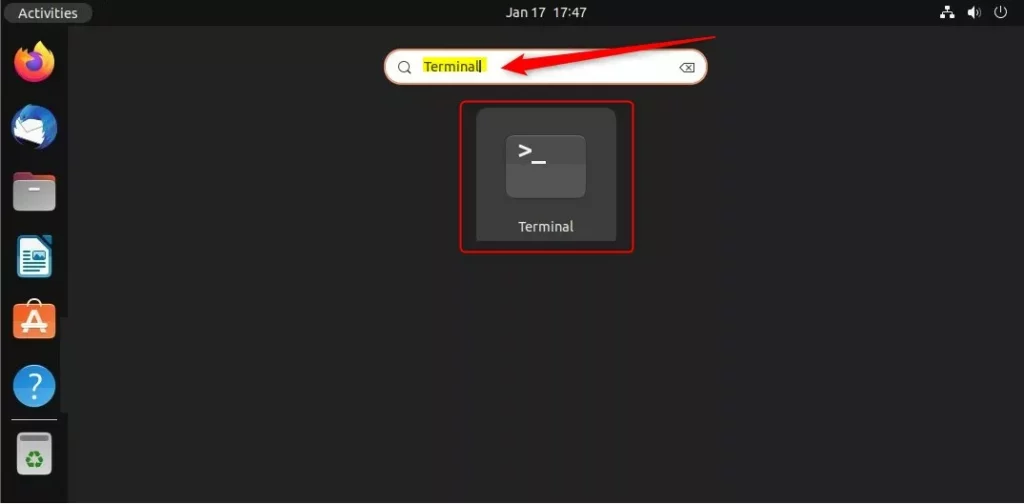
To set your clock to a 12-hour format, type this command and hit Enter:
gsettings set org.gnome.desktop.interface clock-format 12h
To switch back to a 24-hour format, type this command and hit Enter:
gsettings set org.gnome.desktop.interface clock-format 24h
Change system time format using the Dconf Editor
You can change time format Ubuntu settings using Dconf Editor, which is an advanced low-level configuration tool for tweaking core system options. This method requires you to install the editor first and navigate through specific system paths to adjust the clock display if you prefer a graphical tool for deeper system tweaks.
Dconf Editor is an advanced tool that lets you change core system settings. Incorrect changes can harm system stability.
Learn how to install software here: How to add or remove software on Ubuntu Linux.
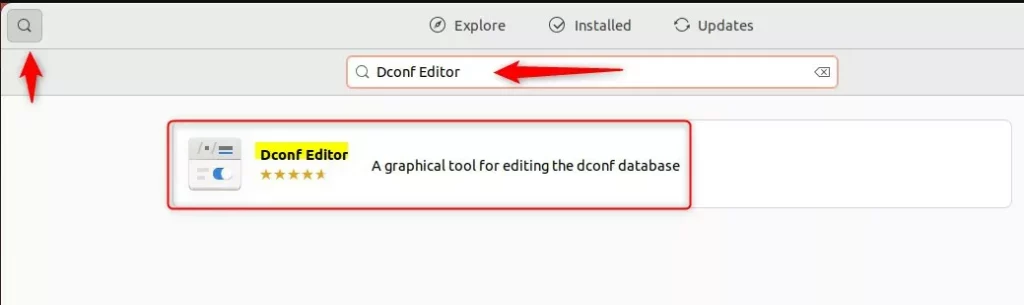
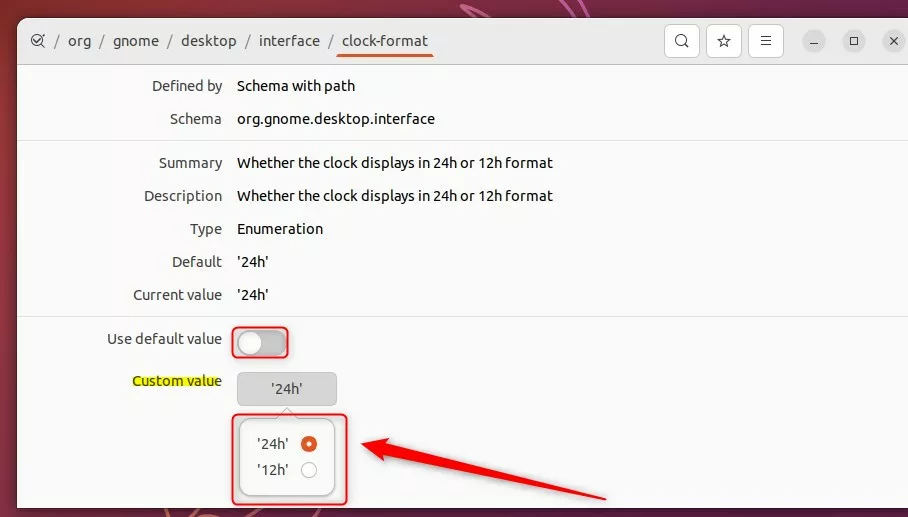
After launching Dconf Editor, navigate to this path:
Turn the "Use default value" switch off. Then, enter '12h' or '24h' into the Custom value box to set your preference.
Conclusion
You've learned how to toggle your time display using the Settings app, the terminal, or the Dconf Editor. Choose the method that feels most comfortable for you.
```Was this guide helpful?

About the Author
Richard
Tech Writer, IT Professional
Richard is a writer at Geek Rewind who turns complex IT tasks into clear, step-by-step guides. He draws on years of hands-on experience in system administration and enterprise IT operations, focusing on Windows, Linux and WordPress: the problems people actually run into, and the fixes that work. His server and WordPress guides come from systems he runs himself. Richard builds and maintains the platform behind Geek Rewind, from its Ubuntu servers and Nginx configuration to its custom WordPress plugins. Many new tutorials start with readers' questions, and he's always glad to answer them in the comments.




[…] Linux default displays the system time in a 24-hour or military time format. Therefore, the only information on the Top menu bar is the clock. If you want, you can also add […]