
This guide will help you easily change the look of your Windows 11 by switching themes. A theme changes things like your desktop background, colors, sounds, and even mouse pointers.
What Is a Theme?
A theme is a set of styles that changes how your computer looks and sounds. It includes:
- Desktop background (the picture on your screen)
- Lock screen background (the image you see when you start your PC)
- Colors used in windows and menus
- Sounds like notifications and alerts
- Mouse pointers (the arrow or cursor)
Types of Themes
| Theme Type | What It Means |
|---|---|
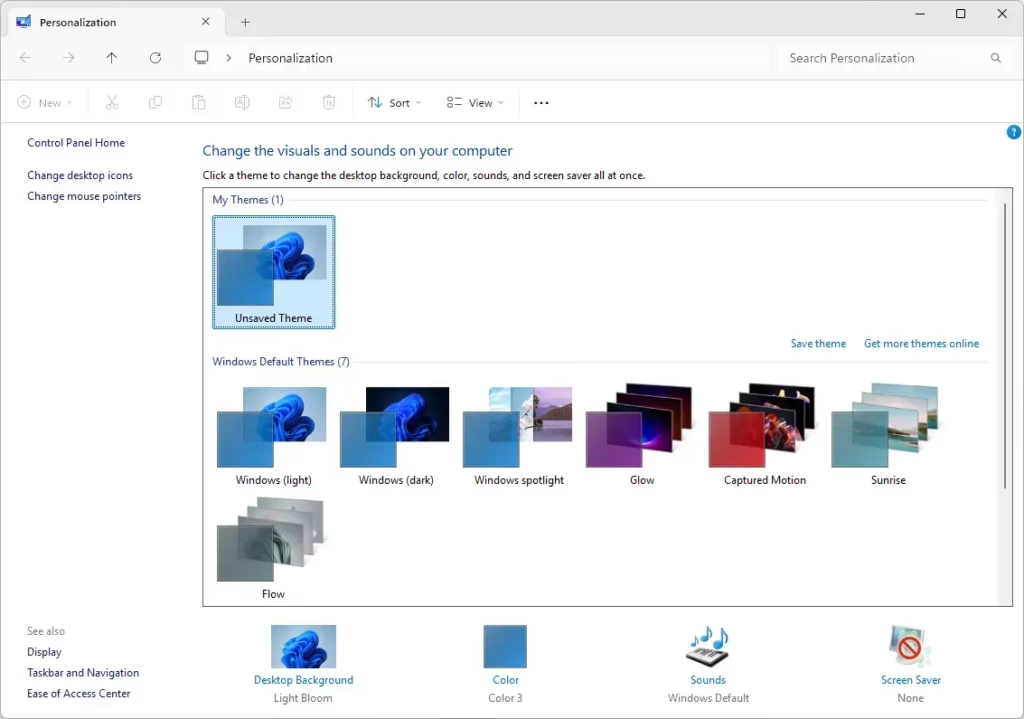
| My Themes | The themes you create, change, save, or download. When you change a theme, it appears here until saved. |
| Windows Default Themes | Pre-installed themes that come with Windows 11 for a quick and easy style change. |
| High Contrast Themes | Special themes designed to help people with vision problems by using strong color contrasts. |
New: Windows Spotlight Themes
If your Windows 11 is updated to build 25169 or 22000.1515, you can use Windows Spotlight. This shows beautiful, changing pictures on your desktop automatically. You can even create your own Spotlight themes!
Before You Start
Make sure your Windows 11 is activated. You cannot change themes if Windows is not activated.
Where to Get More Themes
You can download extra themes from Microsoft here:
- Desktop Themes | Windows Support
- Windows Themes | Microsoft Store
How to Change Your Theme
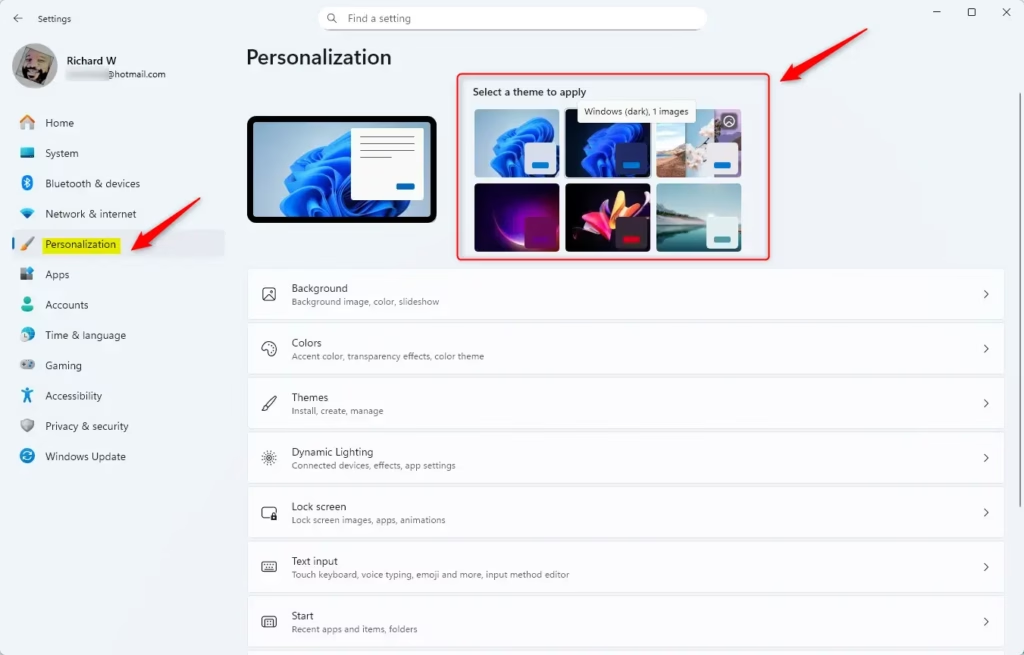
Option 1: Using Personalization Settings
- Press Win + I on your keyboard to open Settings.
- Click Personalization on the left menu.
- At the top, click on the theme you want to use.
- Close the Settings window when you’re done.
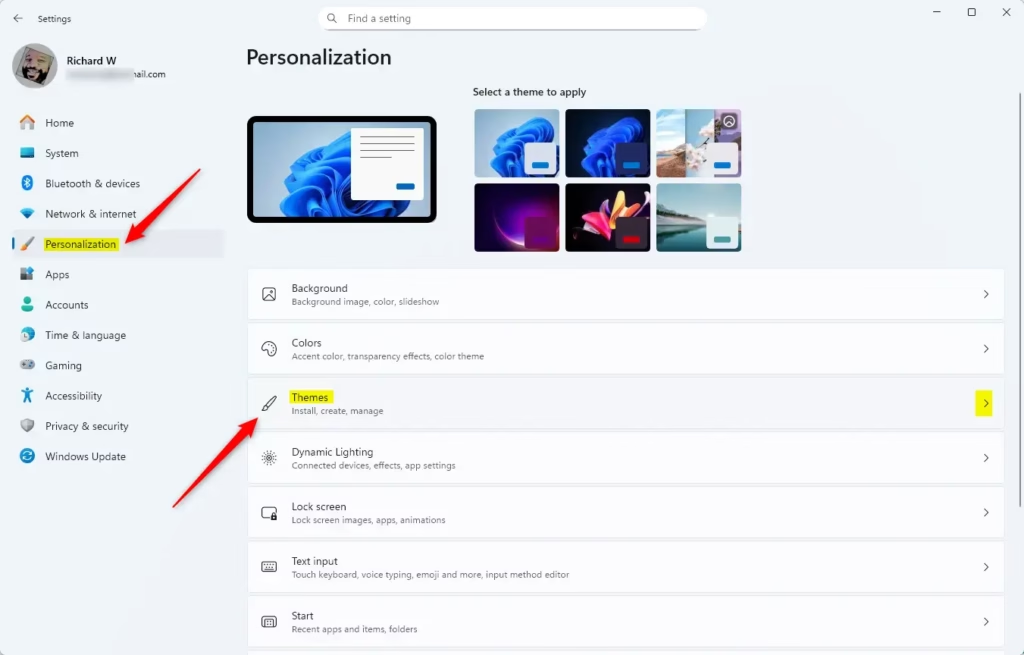
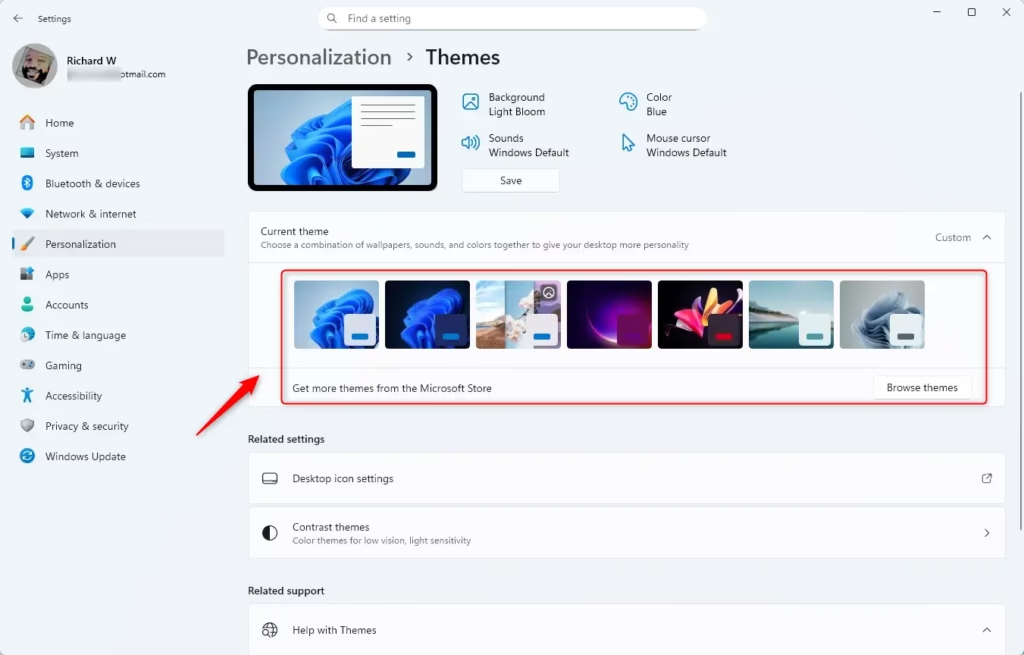
Option 2: Using Themes Settings
- Open Settings by pressing Win + I.
- In the left menu, click Personalization, then click Themes on the right.
- Click on any theme shown to apply it.
- Close Settings when finished.
Option 3: Using Control Panel
- Press Win + R to open the Run box.
- Copy and paste this command into the box and press Enter:
shell:::{ED834ED6-4B5A-4bfe-8F11-A626DCB6A921} - This opens the old Personalization window in Control Panel.
- Click on a theme under “My Themes,” “Windows Default Themes,” or High Contrast Themes to apply it.
- Close Control Panel when done.
Summary
- Themes let you customize how your PC looks and sounds.
- There are three main types of themes: your own, Windows default, and high contrast for easier viewing.
- You can change themes through the Settings app or Control Panel.
- Make sure your Windows 11 is activated before changing themes.
- Explore more themes online from official Microsoft websites.
Want to Learn More?
Check out the official Microsoft page about Education Themes for Windows 11 and how to set them up:

Leave a Reply