How to Change Font Size in Microsoft Edge


Changing font size in Microsoft Edge lets you enlarge text on web pages without zooming in on pictures and buttons. You can set a default font size from the browser appearance settings or pick a specific zoom level like 110% or 125% to make reading easier on your eyes.
Adjust the zoom level in Edge settings under Appearance to change font size for all websites. You can also use Ctrl + Plus or Ctrl + Minus for temporary adjustments on a single page. For articles, F9 activates Immersive Reader with text size options.
Using the Zoom Feature
The fastest way to change font size in Microsoft Edge for a single page involves the built-in zoom feature.
Change the text size in Microsoft Edge
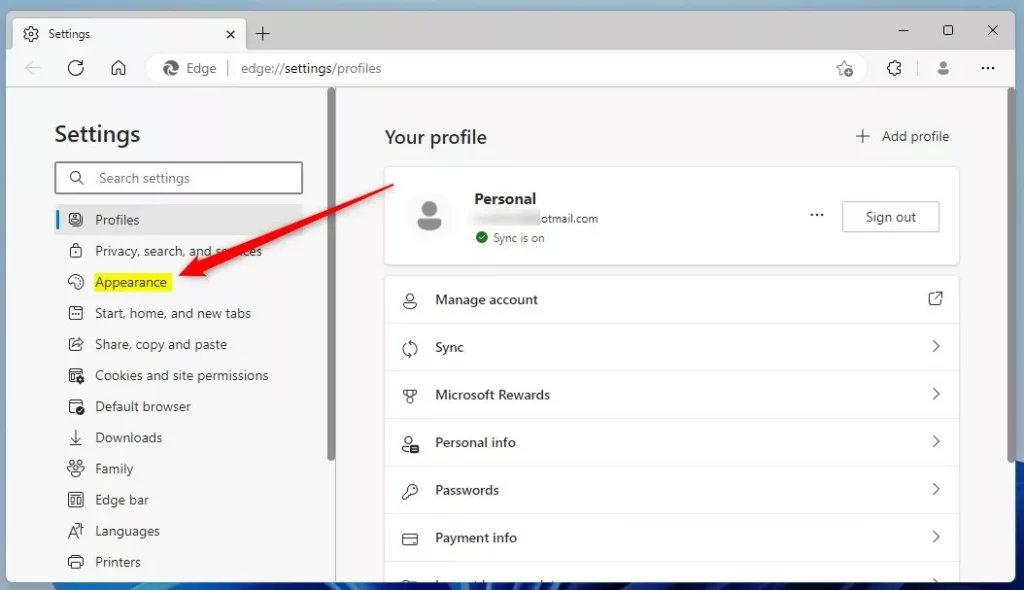
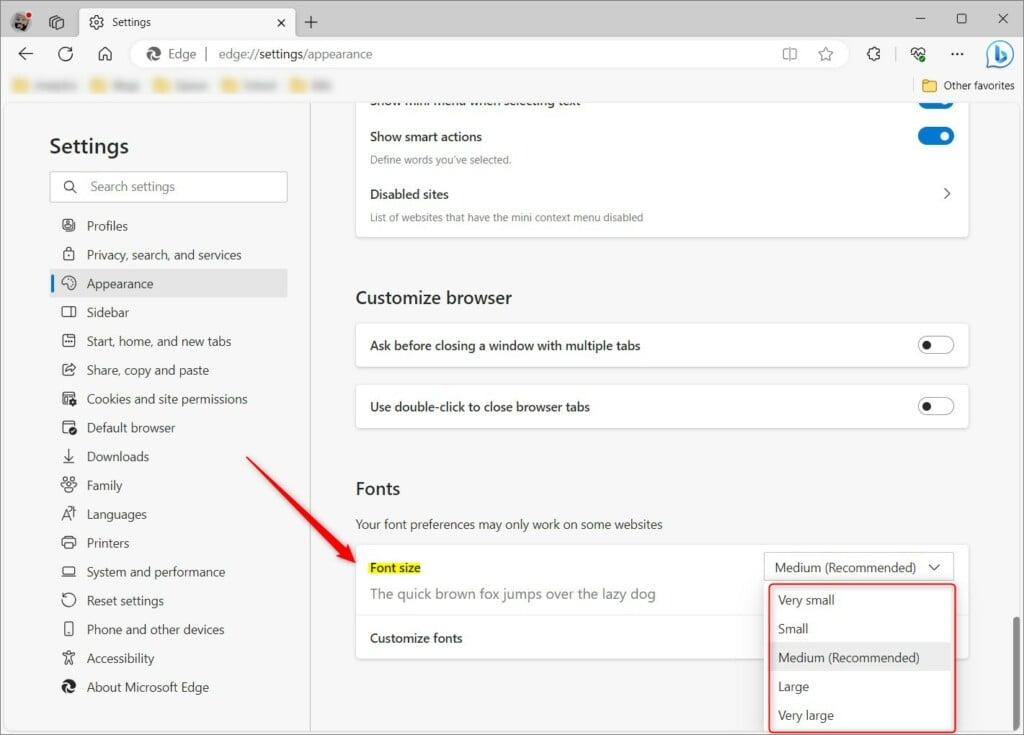
You can change font size Edge by opening the browser settings and adjusting the appearance controls. Click the three dots menu, open Settings , and select Appearance. Scroll down to the Fonts section where you can drag the Font size slider to the right to make all website text larger and easier to read across every page you visit.

Click Appearance in the left sidebar.
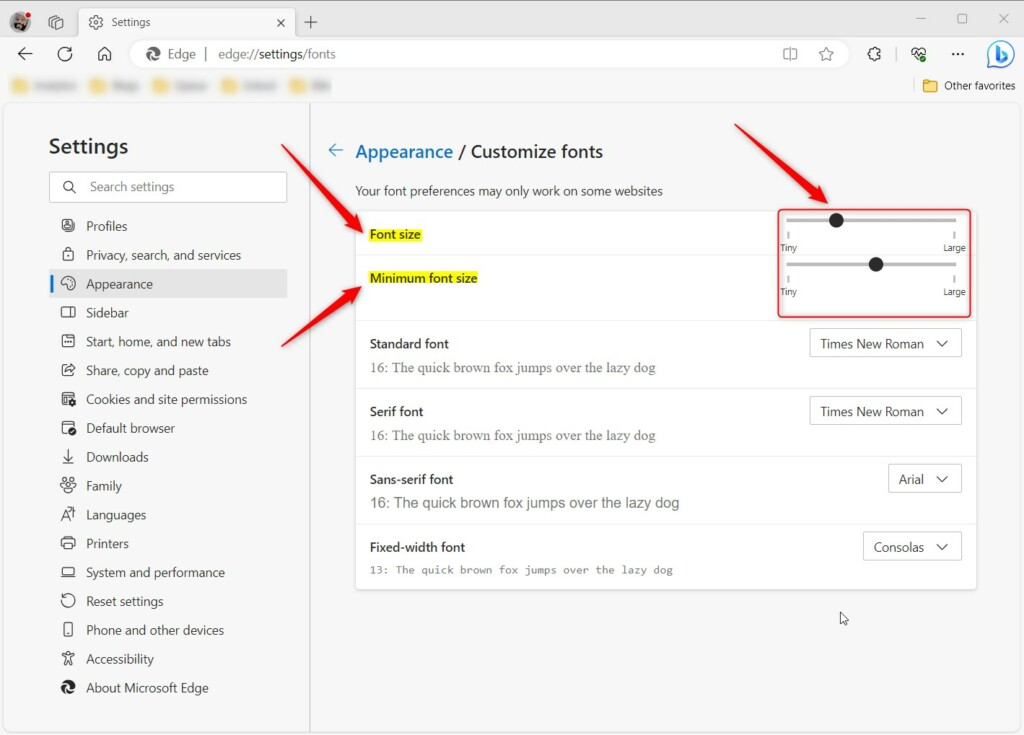
Scroll down to the Fonts section. Drag the Font size and Minimum font size sliders to the right to enlarge the text. This applies a consistent font size across nearly every website you visit. Text readability improves on every page.
Customize Font in the Microsoft Edge browser
You can customize font Microsoft Edge settings beyond basic sizing to change the actual font style for your web pages. Open Settings , click Appearance, and select Customize fonts. From this menu, you can pick specific typefaces for standard text, serif text, and fixed-width text so everything on your screen matches your personal reading preferences.
Return to Settings, select Appearance, and click Customize fonts for granular control. Specific font styles apply directly to the browser interface. Text renders in the exact style and size you choose.
These adjustments help tailor your browsing experience to match your eyesight.
Reference:
Conclusion:
Default font and text sizes in Microsoft Edge require only a few menu clicks to adjust. Tailoring these parameters creates a more comfortable reading environment. Drop questions or extra details into the comments section below.
How to change display size in Edge?
Display scaling in Microsoft Edge takes minimal effort. Click the three horizontal dots in the top right corner of the browser window. Locate the Zoom option in the menu, then click + to zoom in or - to zoom out.
Was this guide helpful?

About the Author
Richard
Tech Writer, IT Professional
Richard, a writer for Geek Rewind, is a tech enthusiast who loves breaking down complex IT topics into simple, easy-to-understand ideas. With years of hands-on experience in system administration and enterprise IT operations, he’s developed a knack for offering practical tips and solutions. Richard aims to make technology more accessible and actionable. He's deeply committed to the Geek Rewind community, always ready to answer questions and engage in discussions.


No comments yet — be the first to share your thoughts!