

Changing your default search engine in Microsoft Edge switches the search provider that handles every query you type into the address bar. Microsoft Edge version 90 or newer lets you swap Bing for Google, DuckDuckGo, or Yahoo in under a minute.
Edge stops sending searches to Bing and uses your new provider as soon as you pick it in Settings. No browser restart is needed. If you change your mind later, you can switch back the same way. The steps below are numbered 1 to 13 straight through, even though the headings split them into sections.
To change your default search engine in Microsoft Edge, open Settings , go to Privacy, search, and services, then choose Address bar and search. Pick your provider from the Search engine used in the address bar dropdown. Edge uses the new provider right away, and no restart is needed.
Step 1Use the Search Engine You Want First
Edge needs to see the provider at least once so it can register it and add it to its list of available choices. Only then can you select it as your permanent default.
Doing it first costs about thirty seconds and saves a hunt for a missing entry later. Steps 1 to 3 cover this part.
Start by opening Microsoft Edge from the taskbar , the Start menu or a desktop shortcut.
These 13 numbered steps show how to change the search engine in Edge, from registering the provider to testing the new default.
- Open Microsoft Edge. Use the taskbar, the Start menu or a desktop shortcut. A browser window should appear with a new tab or your home page.
- Go to your preferred search engine's website. Click the address bar at the top of the browser, type the address, such as google.com or duckduckgo.com, and press Enter. The provider's home page should now load.
- Run a search in the site's own search box. Click the box on the page, type something like "weather today" and press Enter. A results page from that provider should appear. Do not type the search into Edge's address bar. Edge would send it to your current default, which is still Bing at this point, and the new provider would never get registered.
Step 2Go to Edge's Settings
Next, open the browser settings in Microsoft Edge. The three dots in the top-right corner of the window open a menu, and Settings on that menu opens the screen where you manage how the browser behaves.
Steps 4 to 6 continue the numbering from above and take you to the Settings page:
- Locate the three dots in the top-right corner of Edge. You do not need to be on the search results page from step 3. These dots open the Settings and more menu.
- Click the three dots. A menu drops down below them. If you prefer the keyboard, Alt+F opens the same menu.
- Select Settings from the menu. Edge opens the Settings page in a new tab, with a list of categories down the left side.

Step 3Find the "Address bar and search" Settings
The search engine setting sits on a page that is easy to miss. In the Settings tab, the path is Settings Privacy, search, and services > Address bar and search, and the last link is at the bottom of the page. That page controls how your web searches and address bar queries behave.
Steps 7 to 9 get you to the right page:
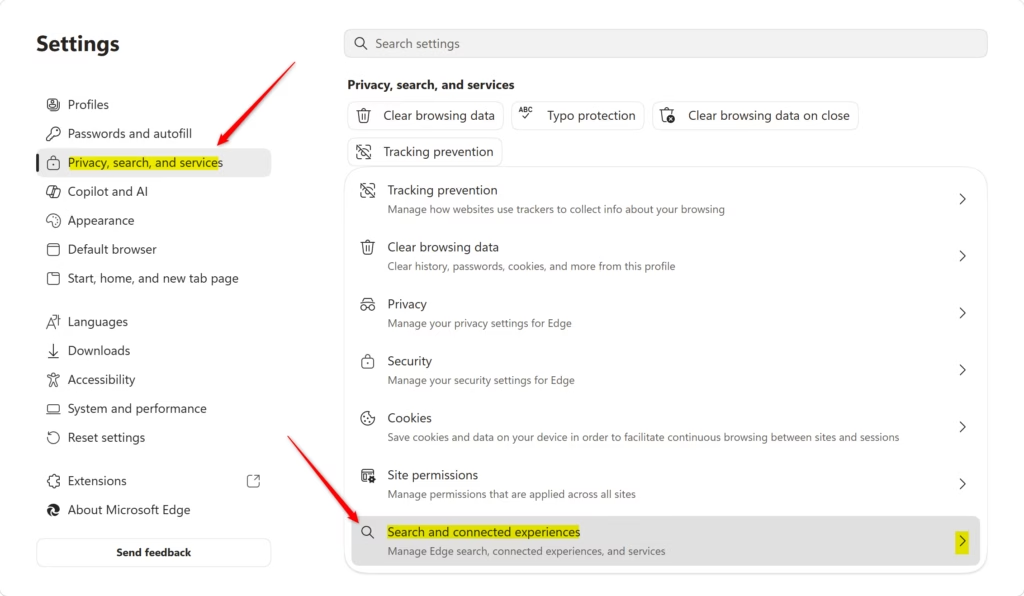
- Click Privacy, search, and services in the left-side menu. This section controls how Edge handles your information and browsing. If the left-side menu is missing, the window may be too narrow. Widen it, or click the menu icon at the top left of the Settings page.
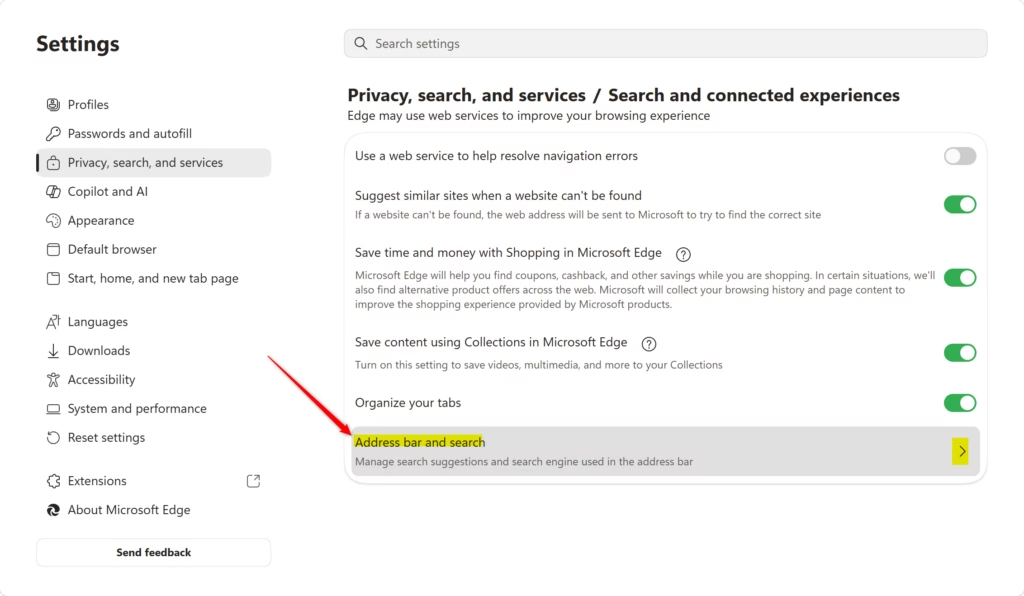
- Scroll to the bottom of the Privacy, search, and services page. Keep going until you reach the last section, which holds the services settings. Depending on your Edge version, the heading may read Services or Search and connected experiences.
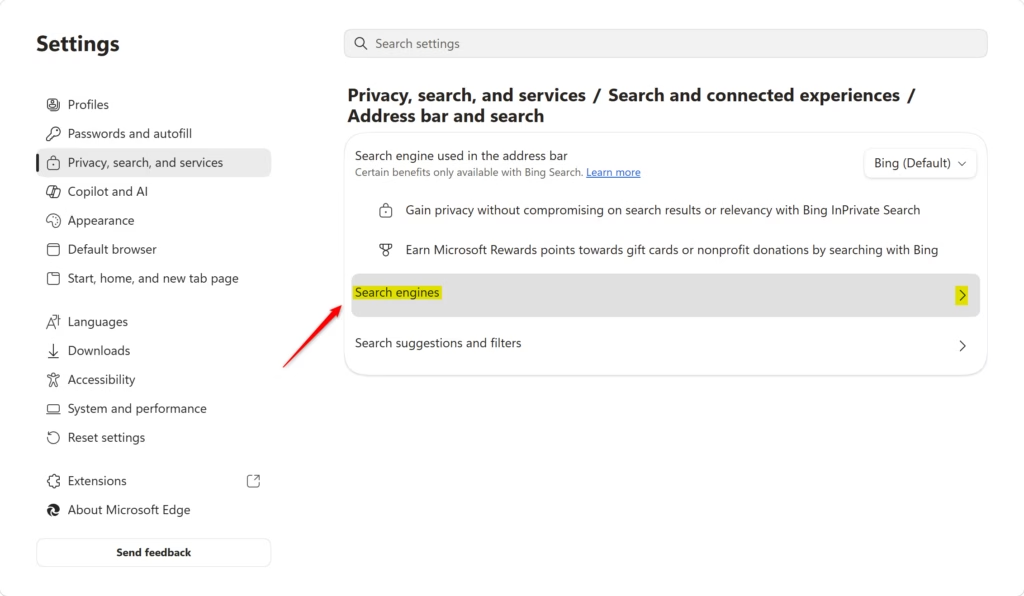
- Click Address bar and search in that section. This page lists the options for the address bar and search suggestions. It is the page that holds the default search engine setting.
Step 4Pick Your New Default Search Engine
The setting you want is called Search engine used in the address bar. It is a dropdown, and it lists the search engines Edge has registered.
Steps 10 to 12 set the provider you registered in steps 1 to 3 as your new default:
- Find Search engine used in the address bar on the Address bar and search page. It shows Bing unless someone changed it earlier.
- Click the dropdown menu to the right of that option. A list of search engines opens.
- Choose the search engine you want as your new default. The list shows the engines Edge knows about. Because you searched with your preferred engine in step 3, it should be there. The dropdown now shows your choice. Edge saves it straight away, with no Save button and no restart.
If the engine you want is missing, repeat steps 2 and 3 and search on that provider's own site, then come back to this list. If the dropdown is greyed out, or Edge shows a "Managed by your organization" note, a work or school policy controls the setting. Only your administrator can change it. Home PCs that are not joined to a work or school account normally do not have this restriction.
The New Tab page search box can behave differently from the address bar. If new tabs still search with Bing, look further down the same Address bar and search page for the setting that controls which box new tabs use.
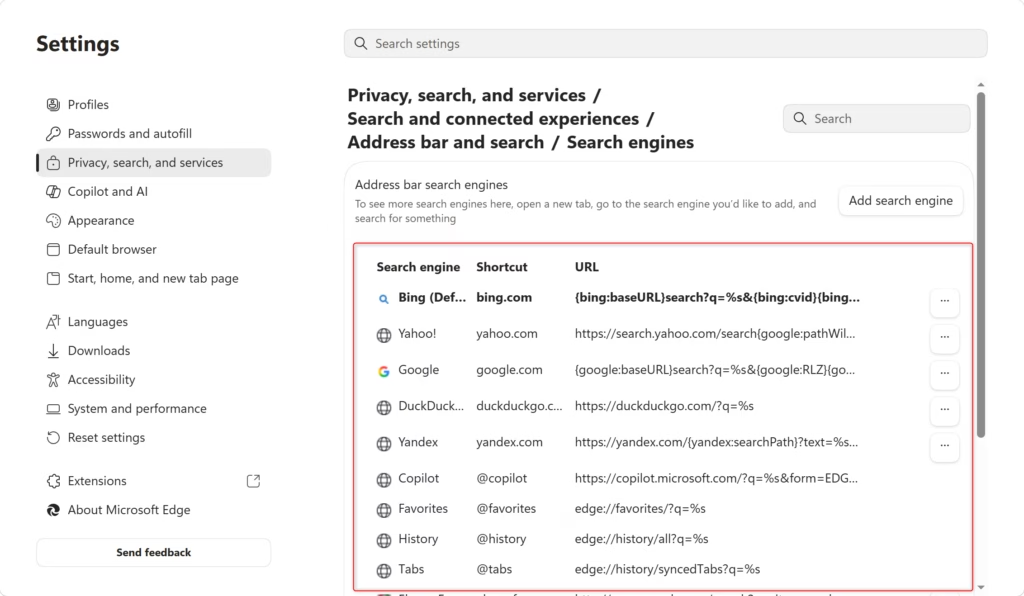
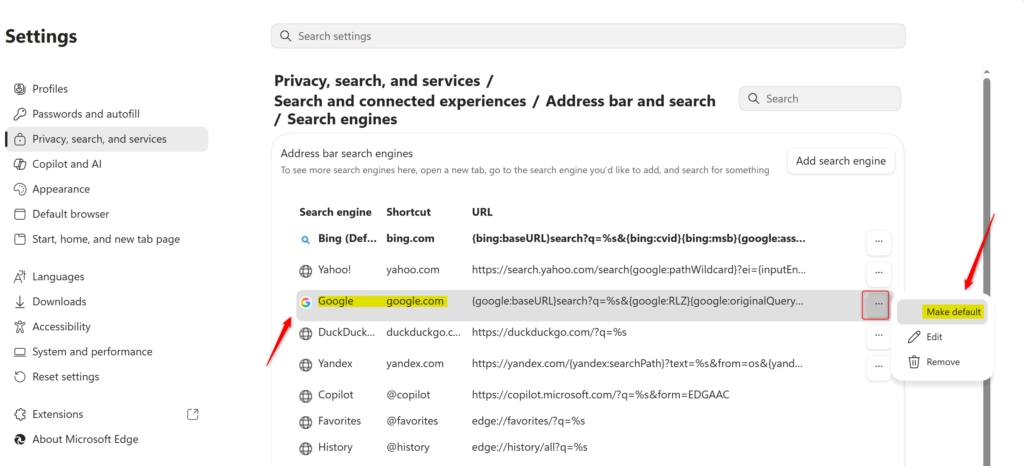
The chosen search engine now works as the default for the address bar in Microsoft Edge. One last step confirms it:
- Search from the address bar to test the new default. Click the address bar, type a few words and press Enter. The results page should come from your new provider. If Bing appears instead, go back to the dropdown in step 11 and check your choice.
To go back to Bing, return to the same dropdown and select it again. The change takes effect at once, just like the first one.
Summary
In short: visit your preferred provider's website and run a search so Microsoft Edge recognizes it. Then open Settings, go to Privacy, search, and services, scroll to the bottom and open Address bar and search. Select your provider from the Search engine used in the address bar dropdown. The change applies immediately, and you can reverse it at any time from the same menu.
Have a question about this guide?
Answered by AI from this guide. Good questions may be added to this page — please don't include personal details.
Did this guide fix your problem?

About the Author
Richard
Tech Writer, IT Professional
Richard is a writer at Geek Rewind who turns complex IT tasks into clear, step-by-step guides. He draws on years of hands-on experience in system administration and enterprise IT operations, focusing on Windows, Linux and WordPress: the problems people actually run into, and the fixes that work. His server and WordPress guides come from systems he runs himself. Richard builds and maintains the platform behind Geek Rewind, from its Ubuntu servers and Nginx configuration to its custom WordPress plugins. Many new tutorials start with readers' questions, and he's always glad to answer them in the comments.
No comments yet — be the first to share your thoughts!