

This article explains how to change the SafeSearch filter settings in Windows 11.
Windows 11 has a built-in search feature that lets users search and find help content, apps, files, folders, settings, and quick answers from the web like weather reports, stock prices, currency converter, and much more directly from the taskbar or Start menu.
While searching across the web for answers to your questions, sometimes these searches might return results or links that might not be age-appropriate. Windows search can also preview web content that might include adult content, especially when searching keywords with adult content references.
You can SafeSearch in Windows settings to change your search filter levels to Strict, Moderate, or Off. Windows built-in SafeSearch setting will override your Bing SafeSearch setting when looking up web results from your desktop.
Turning SafeSearch on helps to ensure that inappropriate content is not displayed when conducting web searches. This is especially important if you have children or other individuals using your device who should not be exposed to adult content.
However, if you are an adult and don’t want to have restrictions on your search results, you can turn SafeSearch off. It’s important to note that SafeSearch is not a foolproof solution and may not filter out all inappropriate content. Still, it can drastically reduce the chances of appearing in search results.
Adjust SafeSearch settings in Windows
As mentioned, you can adjust the SafeSearch filter in Windows 11 to restrict adult content.
Here’s how to do it.
First, open the Windows Settings app.
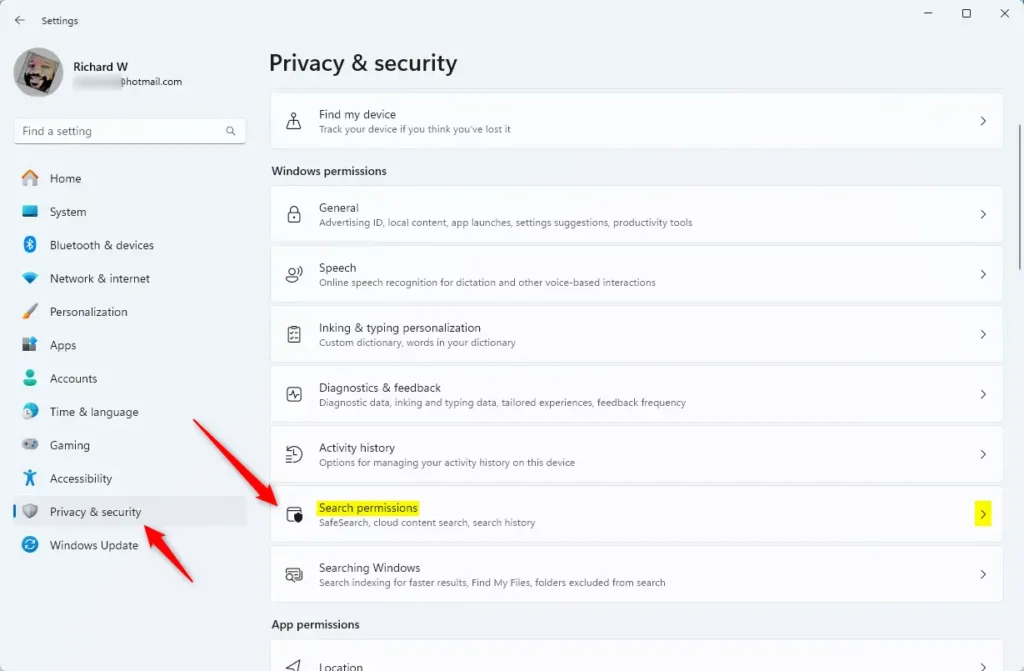
Then, select Privacy & security on the left and the Search permissions tile on the right to expand it.
Next, select the “SafeSearch” mode for your account. Your options are:
- Strict
- Moderate
- Off
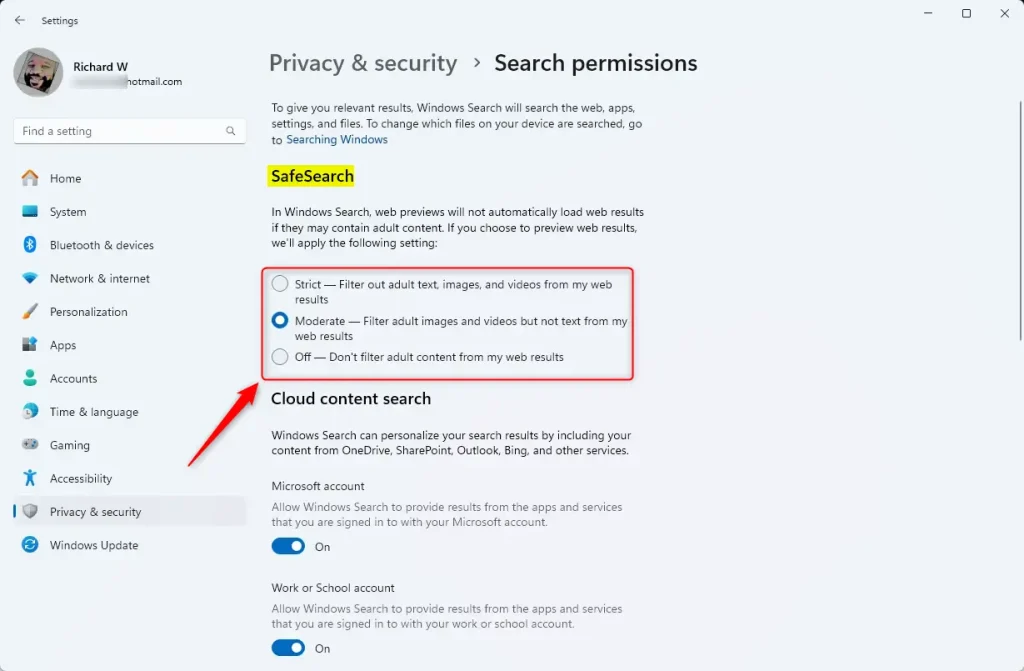
Exit the Settings app when done.
Adjust the SafeSearch filters using the Windows Registry Editor
Yet another way to use the SafeSearch filter is the Windows Registry editor.
First, open the Windows Registry and navigate to the folder key path below.
ComputerHKEY_CURRENT_USERSOFTWAREMicrosoftWindowsCurrentVersionSearchSettings
Next, double-click the SafeSearchMode (REG_DWORD) name on the SearchSettings’ right pane to open it.
Then, use the table below to adjust the SafeSearch settings.
- Type
0to turn off SafeSearch. - Type
1to enable Moderate mode. - Type
2to enable Strict mode.
If you do not see the “SafeSearchMode” item, right-click a blank area and create a new DWORD (32-bit) registry item.
Then, enter the name “SafeSearchMode” and the value you want.
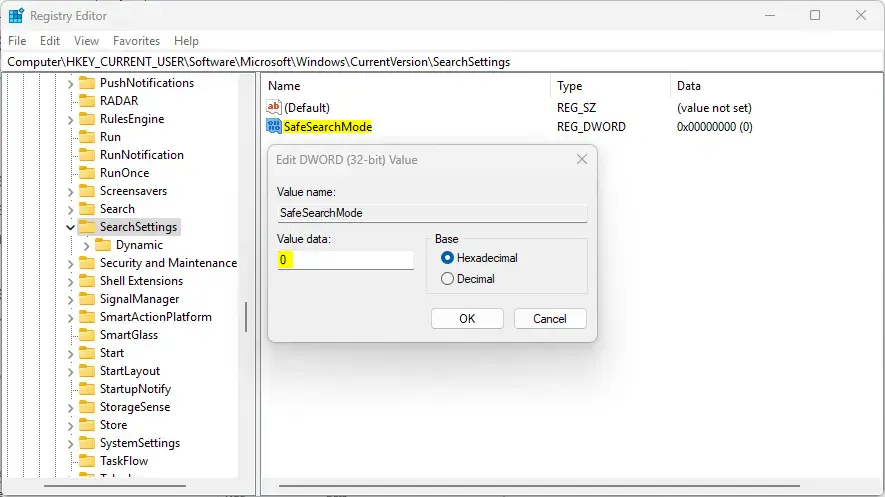
Save your changes and restart your computer.
That should do it!
Conclusion:
- Adjusting the SafeSearch settings in Windows 11 provides a customizable way to filter out adult content during web searches.
- Users can select from three different modes: Strict, Moderate, and Off, depending on their needs.
- The Windows Registry Editor offers an alternative method for those comfortable making advanced changes.
- Implementing SafeSearch is particularly beneficial for families and shared devices, ensuring a safer online experience.
- Always remember that while SafeSearch helps minimize exposure to inappropriate content, it may not be entirely foolproof.
- Regularly review and adjust your settings as necessary to suit your browsing preferences and safety requirements.



Leave a Reply