

This post describes changing your device’s region and format in Ubuntu Linux.
Ubuntu Linux supports multiple countries and regions, influencing how date/time, numeric, and currency data types appear when you apply formatting options.
You can control the formats used for dates, times, numbers, currency, and measurements to match the local customs of your region.
Ubuntu Linux also supports various languages. When you set your country and region, your device will also select the correct currency and date/time formats supported for those regions and languages.
All of the above are related to regions and formats. The steps below will show you if you want to change formats and regions in Ubuntu Linux.
How to choose regions and formats in Ubuntu Linux
As mentioned above, you can control the formats used for dates, times, numbers, currency, and measurements to match the local customs of your region.
These settings are based on the country and region you configured in Ubuntu Linux.
Prerequisite for changing region and format in Ubuntu Linux
Before you change your region and format, make sure to read and follow these posts:
Once you have completed the steps in the posts above, continue below to learn how to change your device’s region and formats.
Ubuntu Linux has a centralized location for the majority of its settings. From system configurations to creating new users and updating, all can be done from the System Settings panel.
To get to System Settings, open the Activities overview and start typing Settings.

Alternatively, click on the System menu at the top-right corner of the top bar on your desktop.
On the System menu, select Settings, as highlighted below.

Click on the Region & Language tile in the Settings app to open the penal.
In the System Settings -> Region & Language settings pane, click on Formats to open the panel.
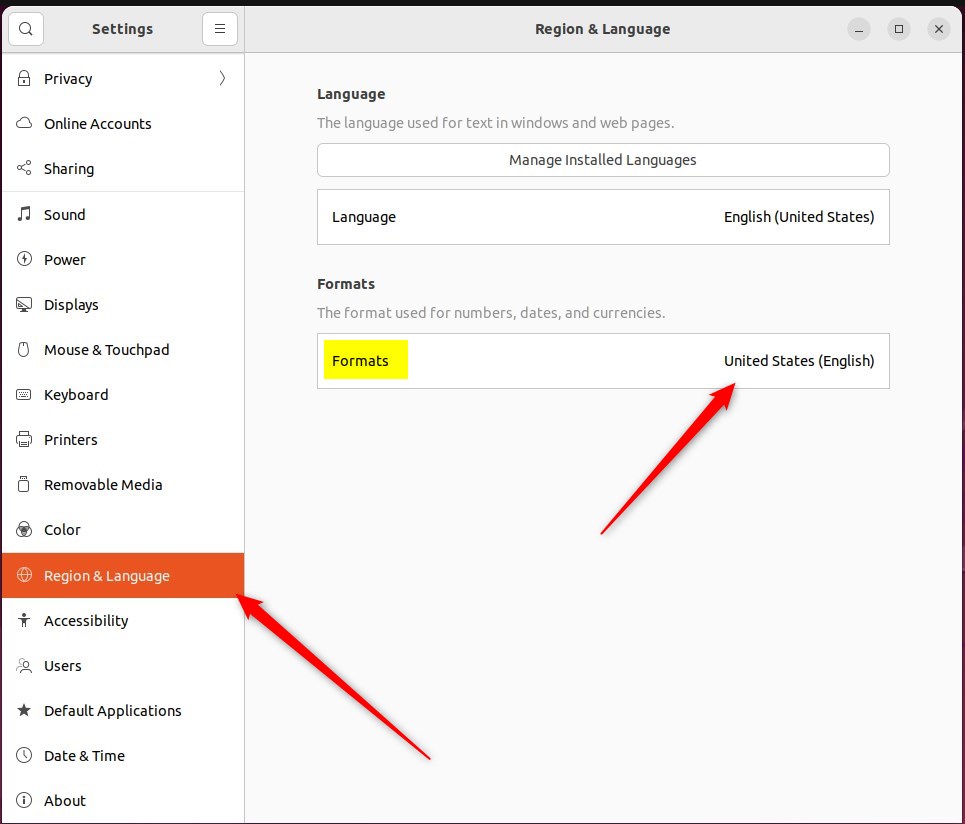
Under Common Formats, select the region and language that most closely matches the formats you want to use.
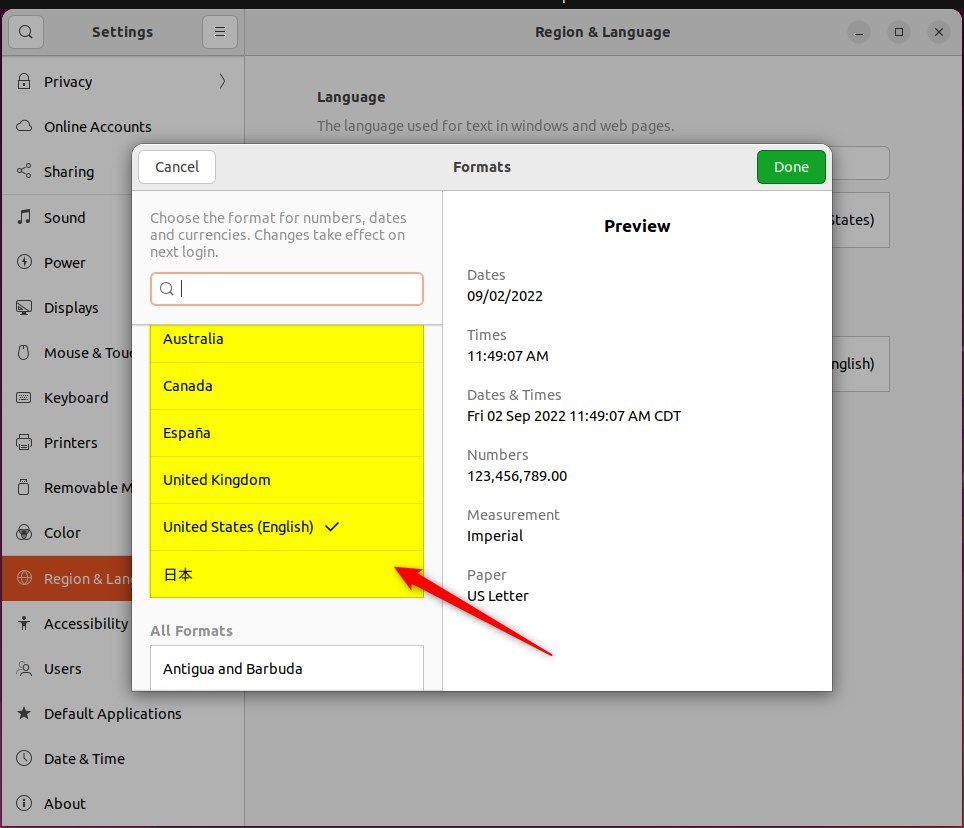
After selecting a region, the area to the right of the list shows various examples of how dates and other values are shown.
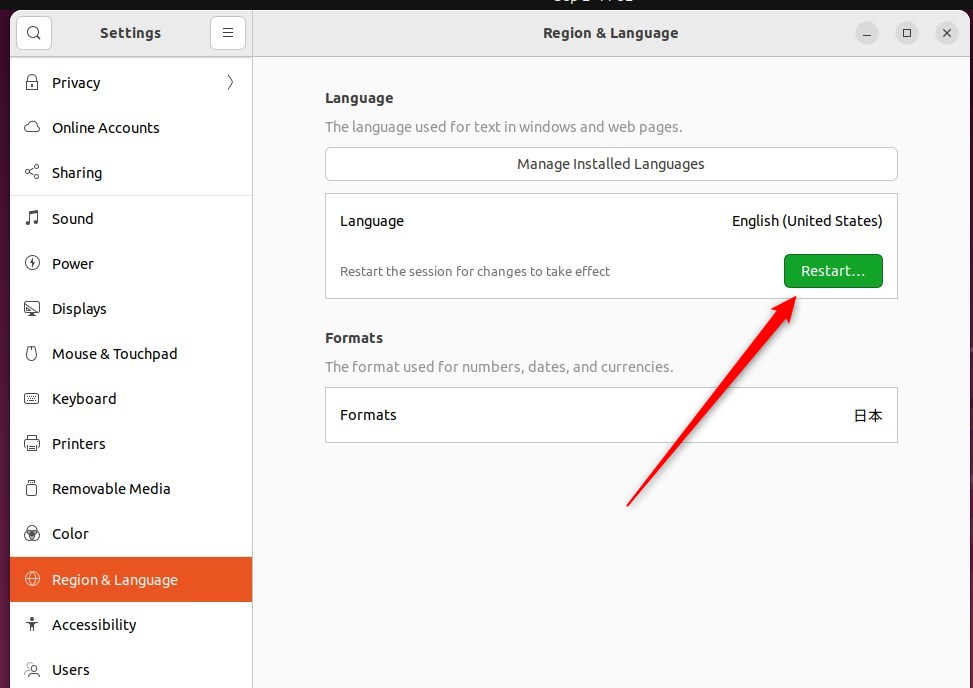
Restart or log out and back in to apply the changes.
That should do it! You can now close the Settings app.
Conclusion:
- Ubuntu Linux provides comprehensive support for configuring regions and formats to match the local customs and languages.
- Users can easily change their device’s region and formats by accessing the System Settings panel according to their preferences.
- Following selecting a region and language, it is important to restart or log out and back in to apply the changes successfully.

Leave a Reply