
If you use a digital pen (like a Surface Pen) with your Windows 11 computer, you can make the pen’s shortcut button do different things — like opening an app or taking a screenshot. This guide will show you how to change what that button does, so it works the way you want.
Step 1: Make Sure Your Pen is Connected via Bluetooth
Your pen connects to your PC using Bluetooth, just like a wireless mouse or keyboard. To check if Bluetooth is on, you can follow this guide:
How to Turn Bluetooth On or Off in Windows 11
Once Bluetooth is on, pair your pen with your PC. If you need help linking your devices or phone, see:
How to Link Your Android Mobile Device to Your Microsoft Account on Windows 11
Step 2: Open Windows Settings
To change the pen button settings, you need to open the Settings app. Here’s how:
- Click the Start menu (the Windows icon in the bottom-left corner) and select Settings.
- Or press Windows key + I on your keyboard to open Settings instantly.
More on resetting or opening settings here: How to Reset the Settings App in Windows 11
Step 3: Find the Pen Settings
In the Settings window, do the following:
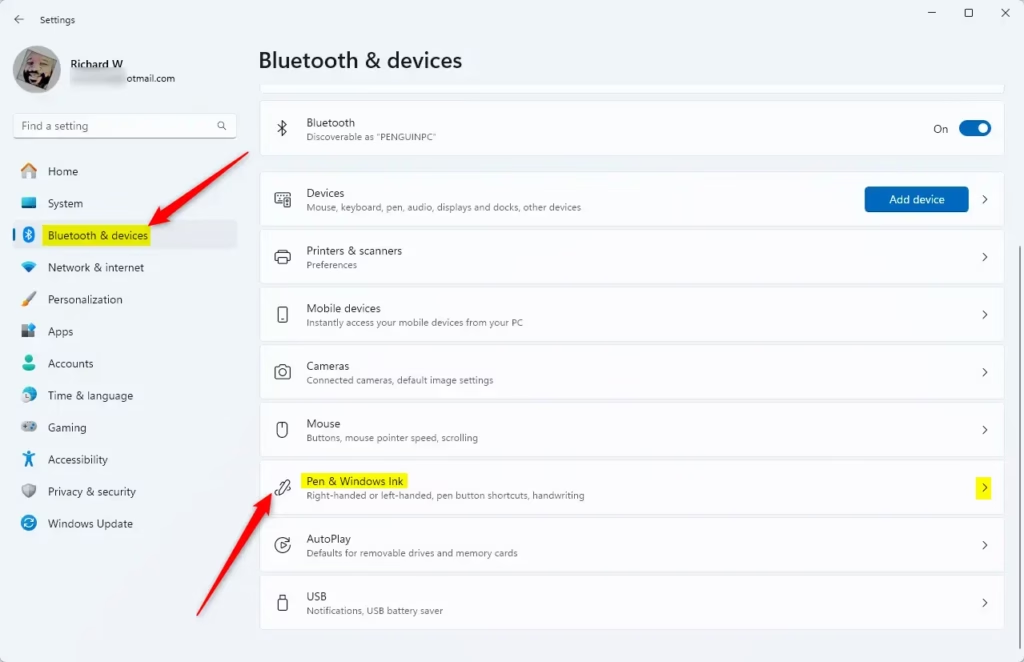
- From the menu on the left, click Bluetooth & devices.
- On the right side, find and click on Pen & Windows Ink.
Step 4: Change What the Pen Shortcut Button Does
Now, scroll down and click on Choose what your shortcut button does to see your options.
You can set different actions for:
- Single-click – What happens when you press the button once.
- Double-click – What happens when you press the button twice quickly.
- Press and hold – What happens when you press and hold the button.
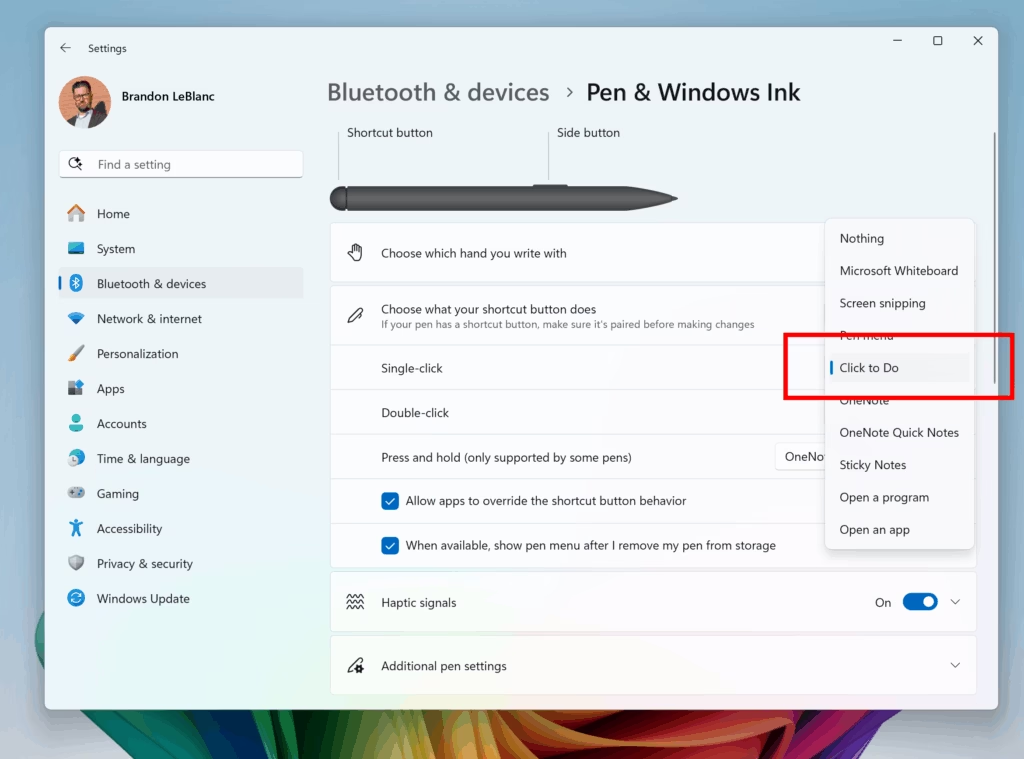
Pick your favorite actions from the list for each type of press.
Step 5: Close Settings
Once you’re done choosing, just close the Settings app. Your pen button will now work the way you set it!
Summary
Changing your pen button’s actions can make using your pen easier and faster. Here’s a quick recap:
- Bluetooth: Make sure your pen is connected to your PC through Bluetooth.
- Settings: Use the Windows Settings app to customize your pen button.
- Options: Choose different actions for single-click, double-click, and press-and-hold.
- Quick Access: Find these settings under Bluetooth & devices > Pen & Windows Ink.
- Better Workflow: Customizing helps you get more done with less effort.
Enjoy using your pen your way!


Leave a Reply