

This post describes the steps to change a mouse double-click speed in Ubuntu Linux.
There are many mouse settings one can configure in Ubuntu Linux. For example, one can change their primary mouse button, show the mouse pointer location, change the size of their mouse pointer, and many more.
Ubuntu Linux default allows users to open an item by double-clicking using the primary mouse button. In addition, a mouse double-clicks speed settings to change how quickly one can double-click to open an item.
If the second press is too long after the first, your computer may think they are two separate clicks, not a double click, and may get two separate windows instead.
If you have difficulty pressing the mouse button quickly, you should increase the timeout.
This might be handy for people who can not use the default mouse settings during regular operations.
How to change a mouse double-click setting in Ubuntu Linux
As mentioned, Ubuntu Linux allows users to open an item by double-clicking the mouse. A mouse speed setting changes how quickly one can double-click the primary button to open an item.
Below is how to change mouse double-click settings in Ubuntu Linux.
Ubuntu Linux has a centralized location for the majority of its settings. From system configurations to creating new users and updating, all can be done from the System Settings panel.

Alternatively, click on the System menu at the top-right corner of the top bar on your desktop.
On the System menu, select Settings, as highlighted below.

In the Settings app, click on the Accessibility tile to open the panel.

In the System Settings -> Accessibility panel, under Pointing & Clicking, adjust the Double-Click Delay slider to a value you find comfortable.
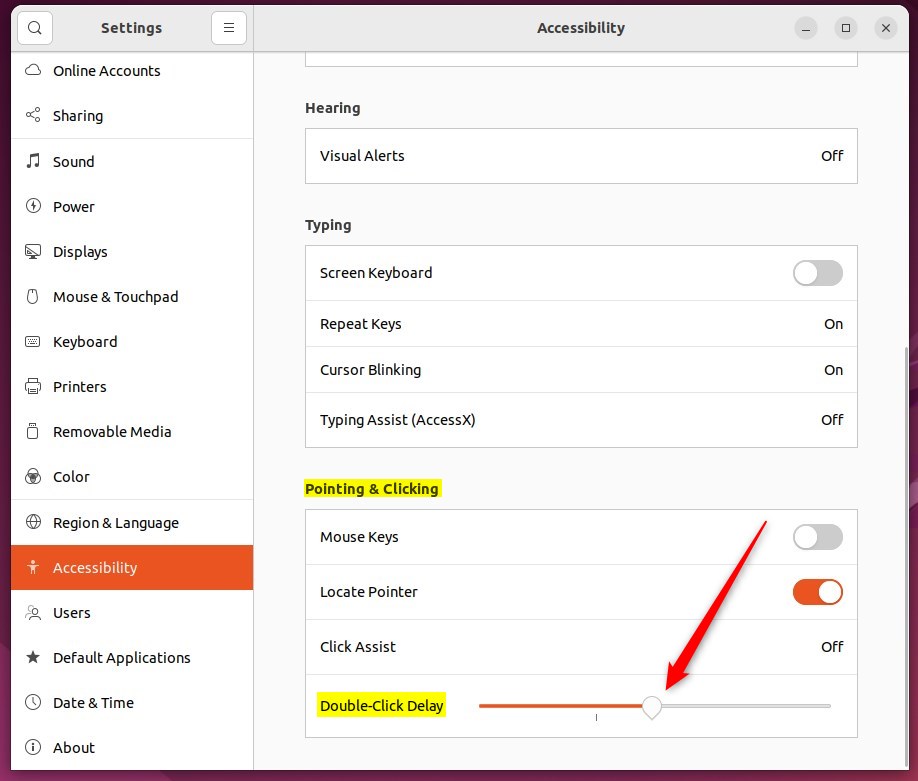
This setting will affect your mouse, touchpad, and other pointing devices.
That should do it! You can now close the Settings app.
Conclusion:
- Changing the mouse double-click setting in Ubuntu Linux is a simple process through the System Settings panel.
- The Double-Click Delay slider under Pointing & Clicking in the Accessibility panel allows users to adjust the double-click speed according to their preference.
- This setting applies to the mouse and affects the touchpad and other pointing devices connected to the system.
- Following these steps, users can customize their mouse settings to improve their overall user experience with Ubuntu Linux.
Leave a Reply to How to Enable or Disable Single Click in Ubuntu Linux – Geek Rewind Cancel reply