
Does your mouse wheel feel too slow or too fast? You can change how many lines scroll with each wheel click in Windows 11. This guide shows you three simple ways to do it.
Change Mouse Scroll Speed Using Windows Settings
Why: Windows Settings is the easiest way to adjust your scroll speed. Your mouse normally scrolls 3 lines at a time, but you can make it faster or slower.
What happens: You’ll control exactly how many lines move on your screen with each wheel turn.
Steps:
- Open the Settings app:
- Click the Start menu (Windows icon) and select Settings.
- Or press
Windows key + Ion your keyboard to open Settings quickly.
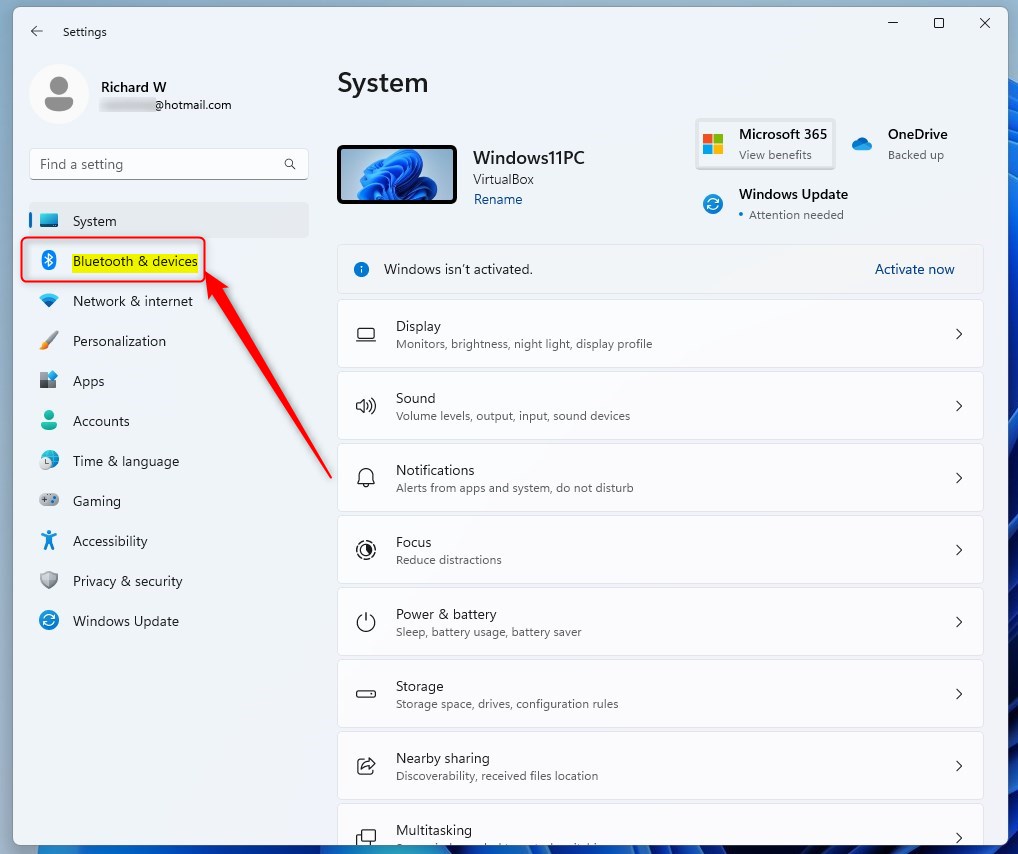
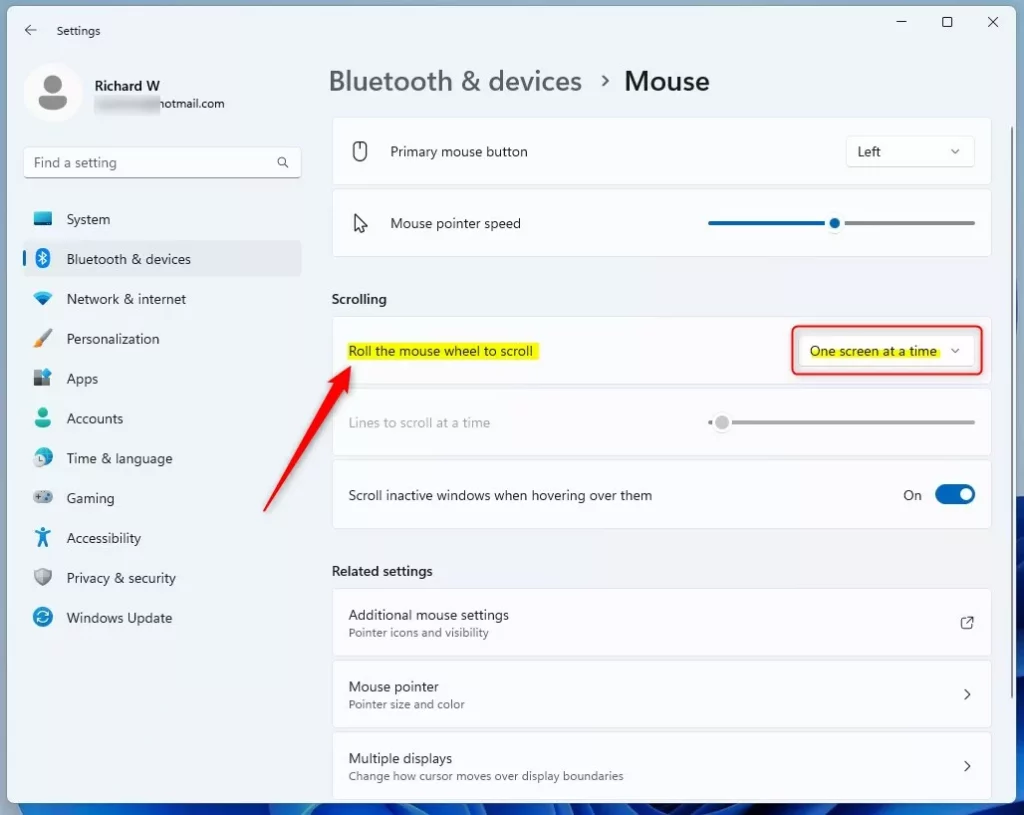
- In Settings, click on Bluetooth & devices on the left side.
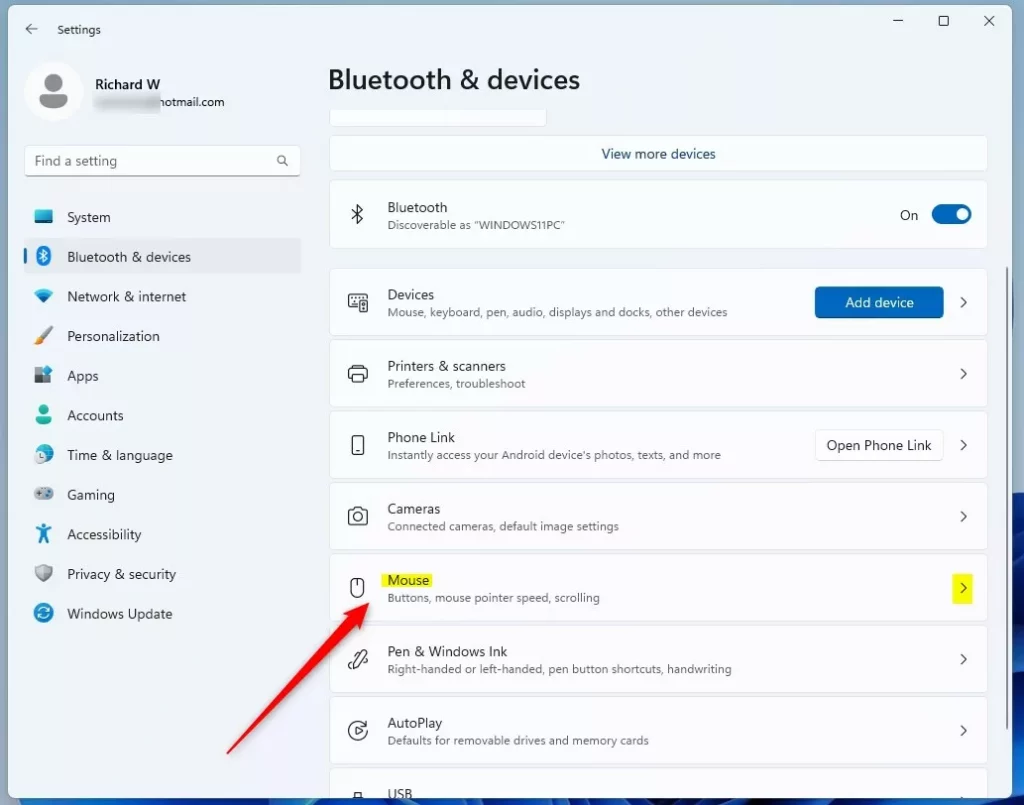
- On the right, click Mouse.
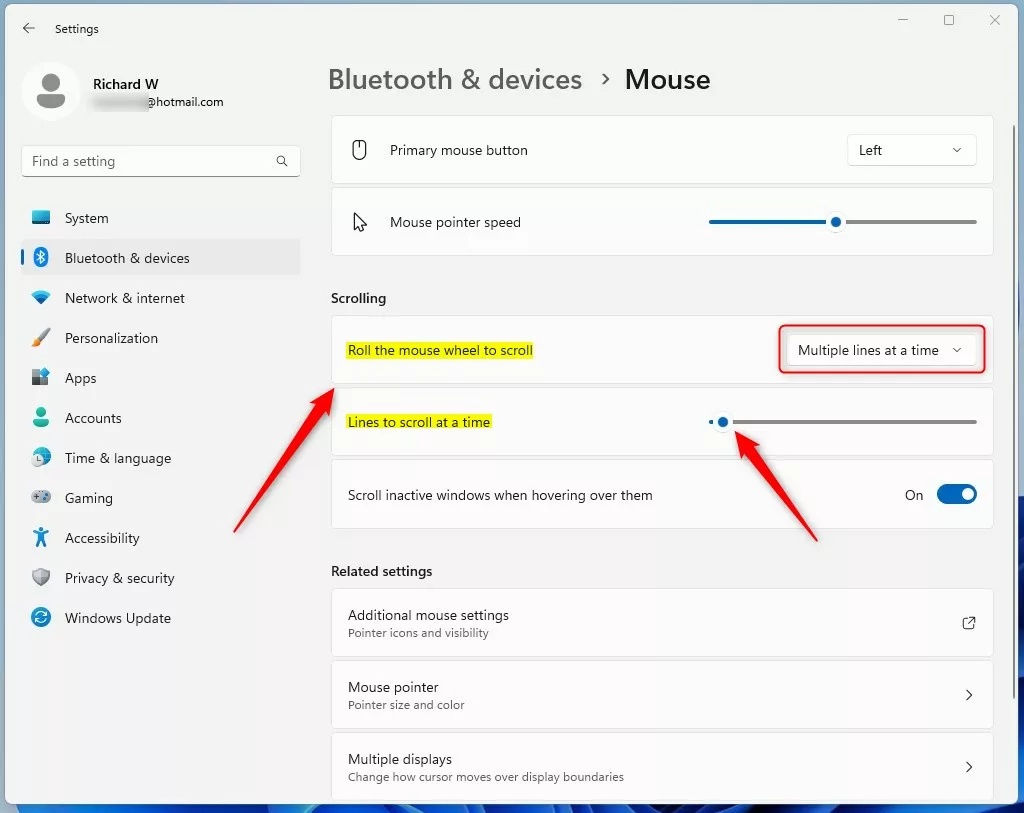
- Under Scrolling, you will see an option called “Roll the mouse wheel to scroll” with two choices:
- Multiple lines at a time (default): You can adjust how many lines to scroll using the slider.
- One screen at a time: Scrolls a whole screen with each wheel move.
- Adjust the slider to set how many lines you want to scroll per wheel click. Try different numbers to find what feels best!
Change Mouse Scroll Speed Using Control Panel
Why: If you like the older Control Panel style, you can adjust scroll speed there too.
What happens: You’ll open a window with mouse settings and change the scroll behavior.
Steps:
- Open the Control Panel:
- Click Start, type
Control Panel, and press Enter.
- Click Start, type
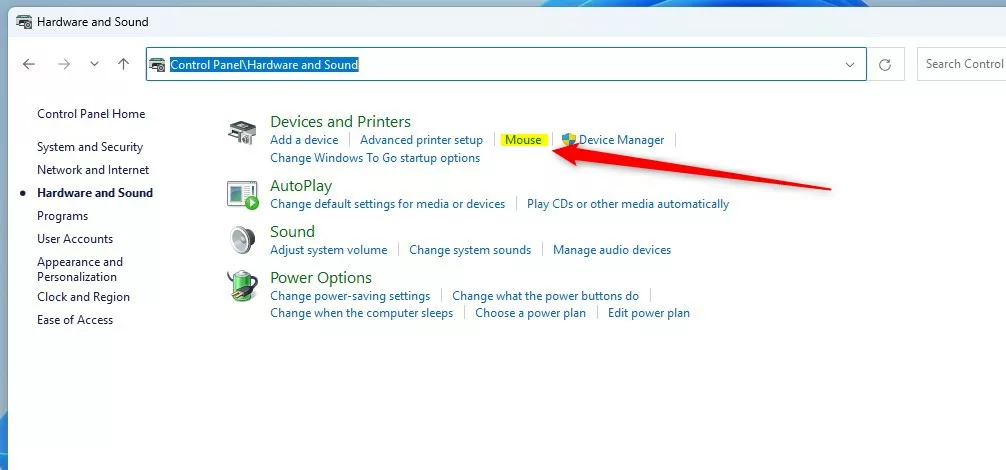
- Click Hardware and Sound.
- Click Mouse under Devices and Printers.
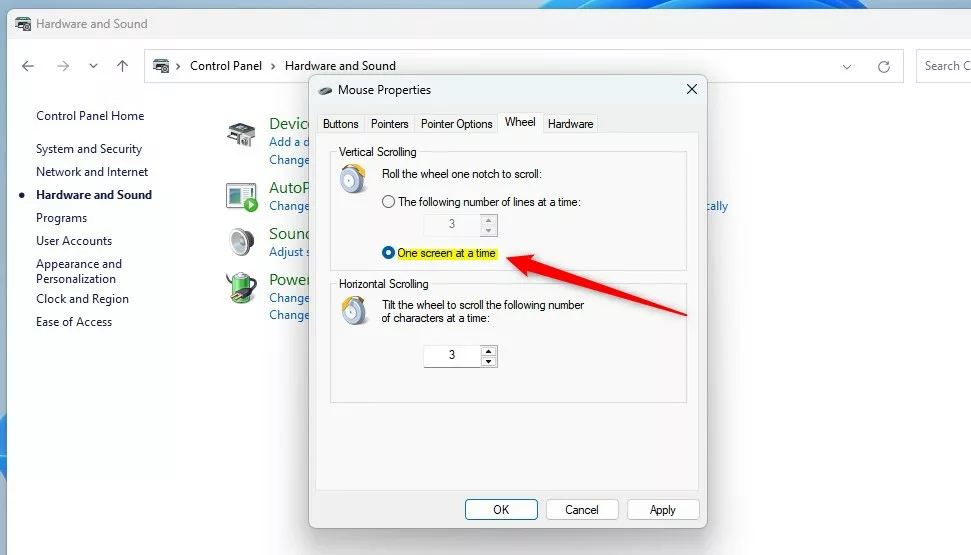
- In the Mouse Properties window, go to the Wheel tab.
- Under Vertical Scrolling, you can:
- Choose how many lines to scroll at once by changing the number (1 to 100).
- Or select One screen at a time.
- Click Apply and then OK to save your changes.

Change Mouse Scroll Speed Using Windows Registry (For Advanced Users)
Why: Advanced users can fine-tune scroll speed directly in the Windows Registry for more control.
What happens: You’ll edit a hidden system file that controls your mouse behavior. Be careful — wrong changes can cause problems.
🔧 These steps require admin privileges.
Steps:
- Press
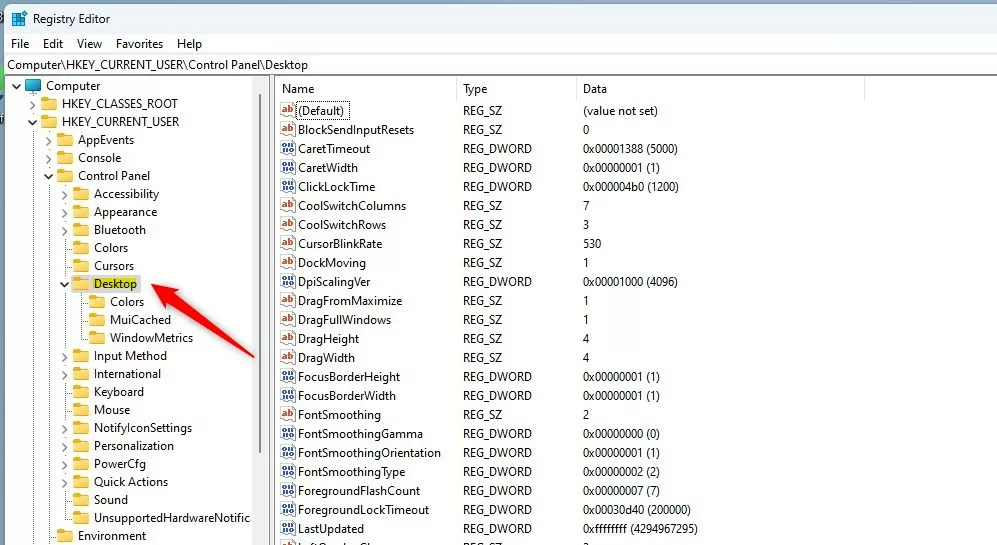
Windows key + R, typeregedit, and press Enter to open the Registry Editor. - Navigate to this folder:
HKEY_CURRENT_USER\Control Panel\Desktop - On the right side, find the WheelScrollLines entry and double-click it.
- Change the value to a number between 1 and 100 to set how many lines the wheel scrolls.
- To scroll one whole screen at a time, enter
-3. - Click OK, then close the Registry Editor.

Summary
You can easily change how fast your mouse scrolls in Windows 11. The easiest way is through the Settings app, where you can pick how many lines or screens to scroll. The classic Control Panel also lets you adjust scroll speed with similar options. Advanced users can use the Registry Editor to fine-tune the scroll speed directly. Try these methods to find the scroll speed that feels best for you and makes using your PC more comfortable.



Leave a Reply