How to Change Mouse Cursor Size in Ubuntu Linux

You change the mouse cursor size in Ubuntu Linux through the Accessibility settings.
This adjustment allows you to make your pointer larger or smaller, a feature particularly useful for high-resolution displays or users with visual impairments.
For instance, Ubuntu 22.04 LTS provides multiple predefined cursor sizes, giving you flexibility to find the perfect scale for your monitor.
Making your cursor larger helps you track it more easily, especially on expansive screens or when using multiple monitors.
You’ll find this straightforward option within the main Settings application, under the Accessibility tab.
Open Settings and navigate to Accessibility, then Cursor Size. Choose your preferred cursor scale from the available options to adjust the size immediately.
How to change your mouse pointer size in Ubuntu Linux
As we’ve seen, the default small cursor size often isn’t ideal, particularly for those with less-than-perfect vision.
Ubuntu Linux lets you change the cursor size so it’s easier to see on your screen. Here’s how to do it.
Ubuntu Linux keeps most of its settings in one place. You can manage everything from system configurations to user accounts and updates in the System Settings panel.

Alternatively, click on the System menu at the top-right corner of the top bar on your desktop.
On the System menu, select Settings, as highlighted below.

In the Settings app, click on the Accessibility tile to open the panel.

In the System Settings -> Accessibility panel, under Seeing, select the Cursor Size tile to expand.
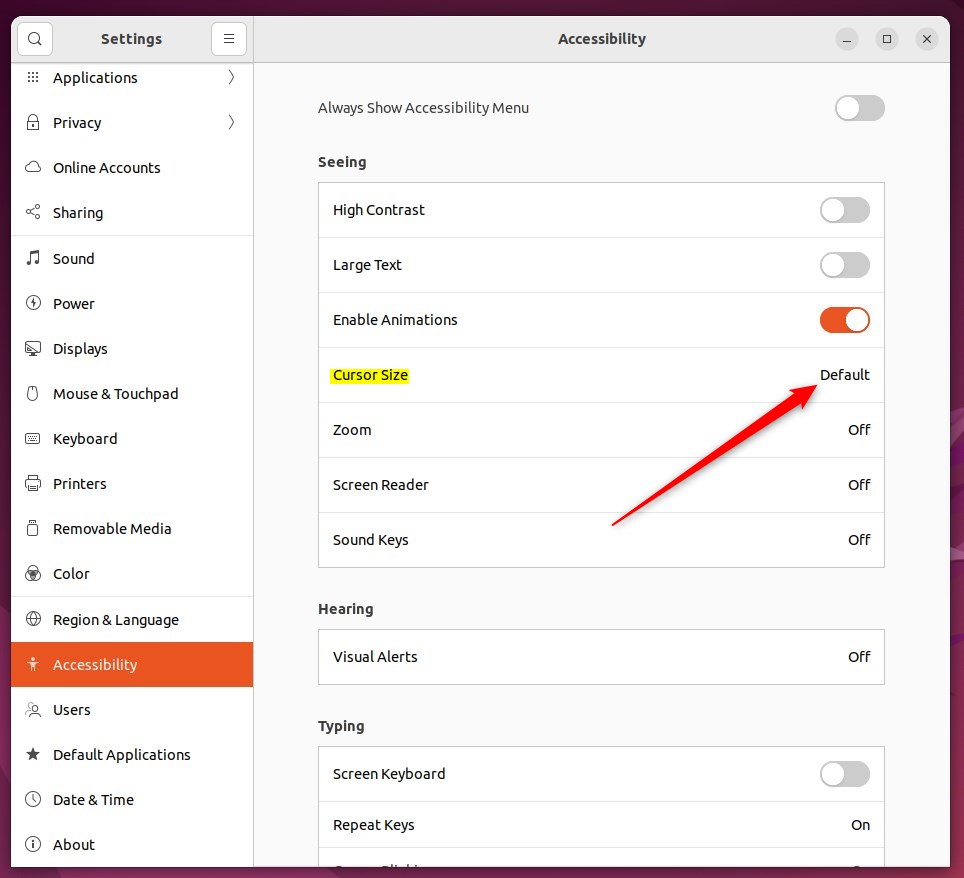
On the pop-up window, choose a cursor size that fits your needs. Your selection should apply immediately.
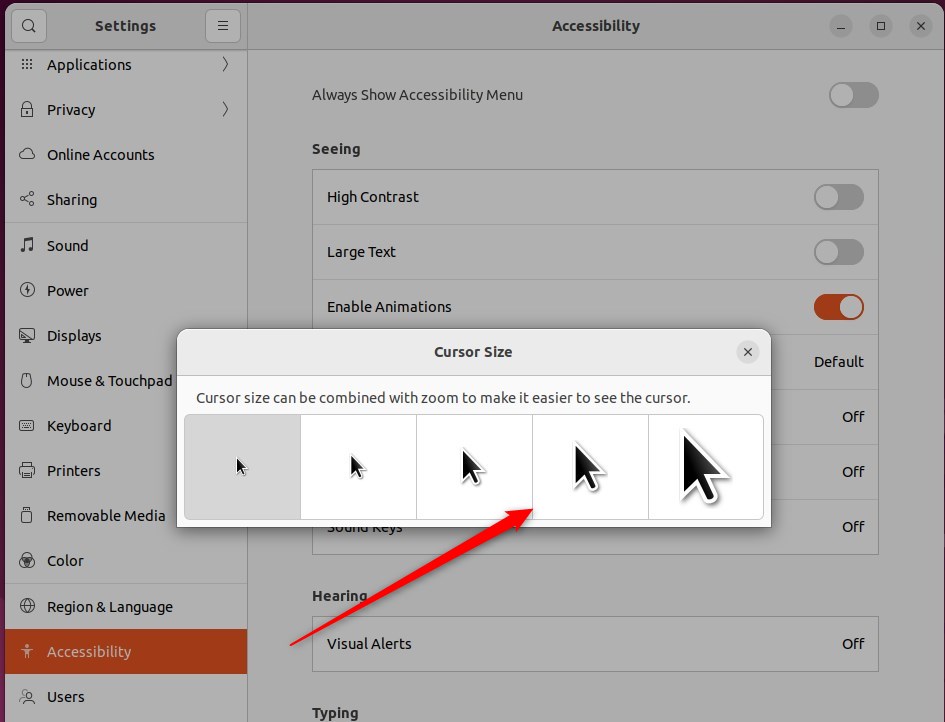
That should do it! You can now close the Settings app.
Conclusion:
- Adjusting the cursor size in Ubuntu Linux can significantly improve visibility for users with poor vision or vision impairments.
- The cursor size can be modified through the Accessibility settings in the System Settings panel, providing a centralized location for customizing various system configurations.
- By following the outlined steps and selecting a cursor size that suits individual needs, users can enhance their overall experience and productivity on the Ubuntu Linux platform.
Was this guide helpful?

About the Author
Richard
Tech Writer, IT Professional
Richard, a writer for Geek Rewind, is a tech enthusiast who loves breaking down complex IT topics into simple, easy-to-understand ideas. With years of hands-on experience in system administration and enterprise IT operations, he’s developed a knack for offering practical tips and solutions. Richard aims to make technology more accessible and actionable. He's deeply committed to the Geek Rewind community, always ready to answer questions and engage in discussions.



Very useful. Didn’t realize it was hidden in the settings lol. I just needed 1 scale bigger cursor. I am browsing comfortably now. So thanks to you!
[…] on or off a mouse ClickLock, change their primary mouse button, show the mouse pointer location, change the mouse pointer size, and many […]