Customize End of Focus Alarm Sounds in Windows 11

Focus (a built-in tool in the Windows 11 Clock app that blocks notifications and tracks work time) plays an audio alert when a timed session or break finishes. You can change this alert sound or turn it off entirely.
When your timed work block or break finishes, Windows plays a short audio alert to signal the change. You can change this alert sound or turn it off completely if you find it annoying.
Customize Focus alarm sounds by opening the Clock app, clicking the Settings gear, and selecting your preferred sound from the “End of focus session sound” or “End of break sound” dropdown menus. You cannot upload custom audio files; only built-in presets are available.
Change the alarm sound for Focus end of session and break
As mentioned, you can turn Focus alarms on or off after a session or break. You can change the alarm tune to something different. Here’s how.
These settings can be changed in the Clock app in Windows 11.
To do that, open the Window Clock app.
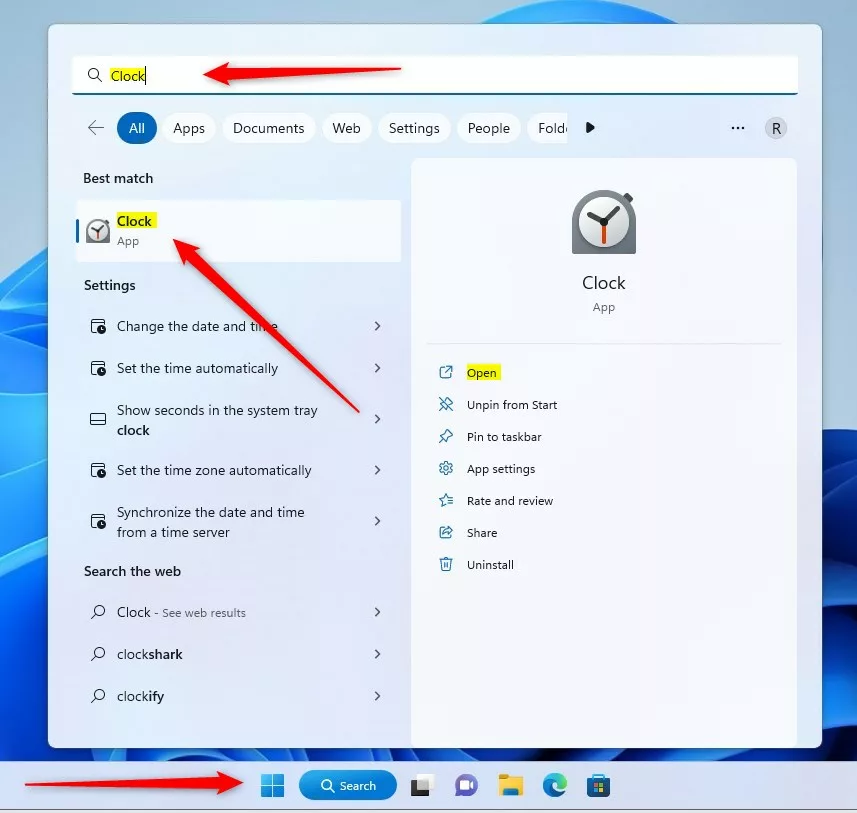
Press the Start key, type Clock, and open the app from the search results.
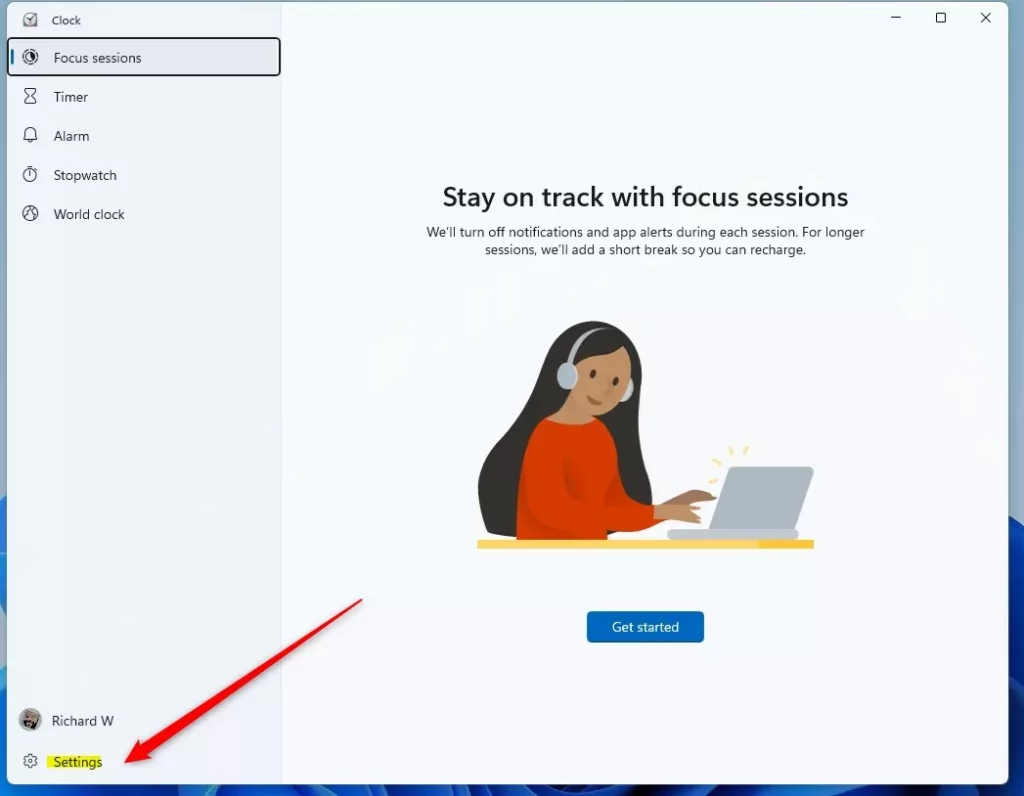
Once the app opens, click the Settings button at the bottom left.
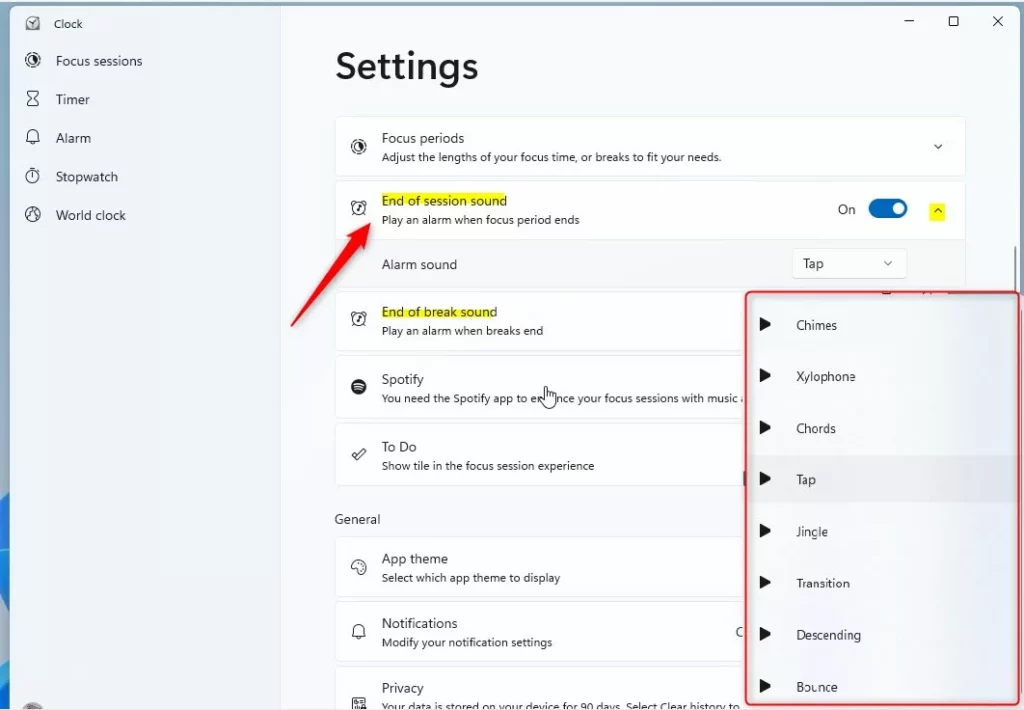
Select the "End of session sound" and "End of break sound" options in the Clock Settings pane. Then, expand each tile and select a different Alarm sound using the dropdown option.
The default alarm sound is Tap.
That should do it
Conclusion:
- Users can easily customize the alarm sounds for both the end of a Focus session and the end of a break in Windows 11 by following the steps outlined in this article.
- Personalizing the alarm sound can further enhance the Focus feature's effectiveness in minimizing distractions and facilitating time management.
- By incorporating music integration and customizable alarm sounds, Windows 11's Focus feature offers a tailored approach to enhancing productivity and maintaining a balanced work environment.
Was this guide helpful?

About the Author
Richard
Tech Writer, IT Professional
Richard, a writer for Geek Rewind, is a tech enthusiast who loves breaking down complex IT topics into simple, easy-to-understand ideas. With years of hands-on experience in system administration and enterprise IT operations, he’s developed a knack for offering practical tips and solutions. Richard aims to make technology more accessible and actionable. He's deeply committed to the Geek Rewind community, always ready to answer questions and engage in discussions.



No comments yet — be the first to share your thoughts!