Change Desktop Background in Ubuntu Linux


Changing the desktop background in Ubuntu Linux lets you personalize your workspace using any image file you want. Ubuntu 22.04 and newer versions give you multiple ways to update your wallpaper, including choosing a built-in picture or right-clicking an image in your file manager.
Change your Ubuntu desktop background by opening Settings and clicking Background, then selecting a new image. You can also right-click an image file in your file manager and choose “Set as Wallpaper.
How to set background wallpaper in Ubuntu Linux
You can change your desktop background in Ubuntu Linux by opening the Settings app, choosing the Appearance menu, and picking a new image from the built-in options or your own pictures folder. This built-in tool lets you update your wallpaper in just a few clicks without needing any extra software. Changing your background is a quick way to personalise your screen and make your computer feel like your own.
Below is how to change your background desktop in Ubuntu Linux.
Open the Settings app from the system menu to manage your desktop background.

Alternatively, click on the System menu at the top-right corner of the top bar on your desktop.
On the System menu, select Settings, as highlighted below.

In the Settings app, click on the Background tile to open the panel.
The currently selected wallpaper is shown at the top of the screen.
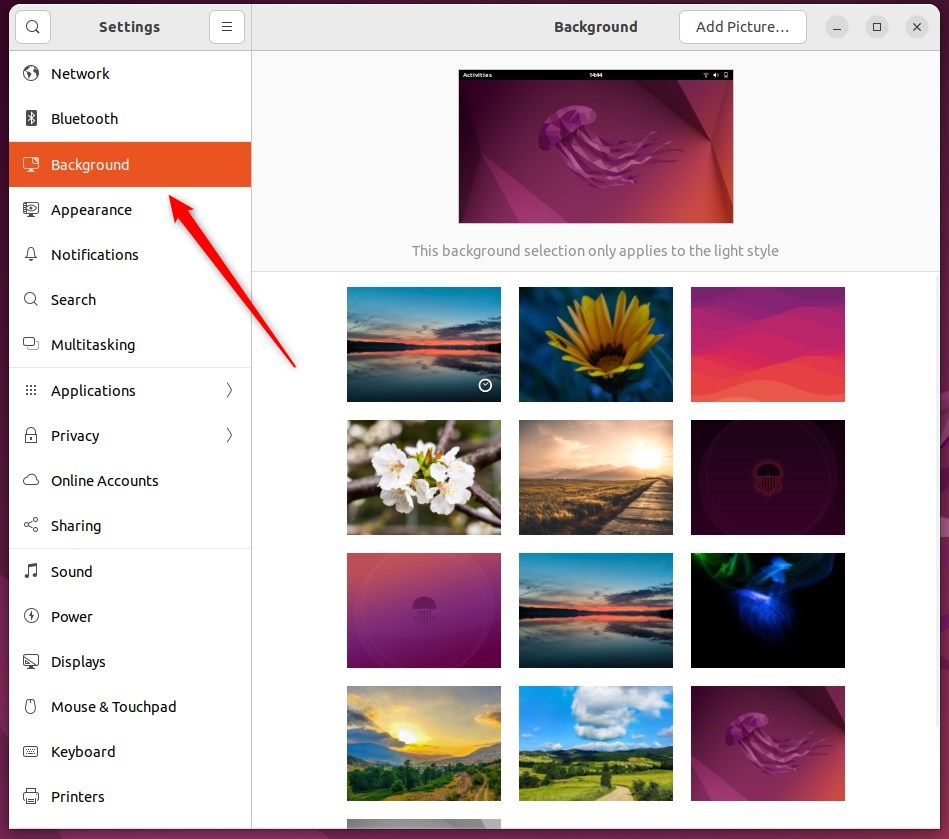
To change the desktop background, click one of the background images shipped with the system.
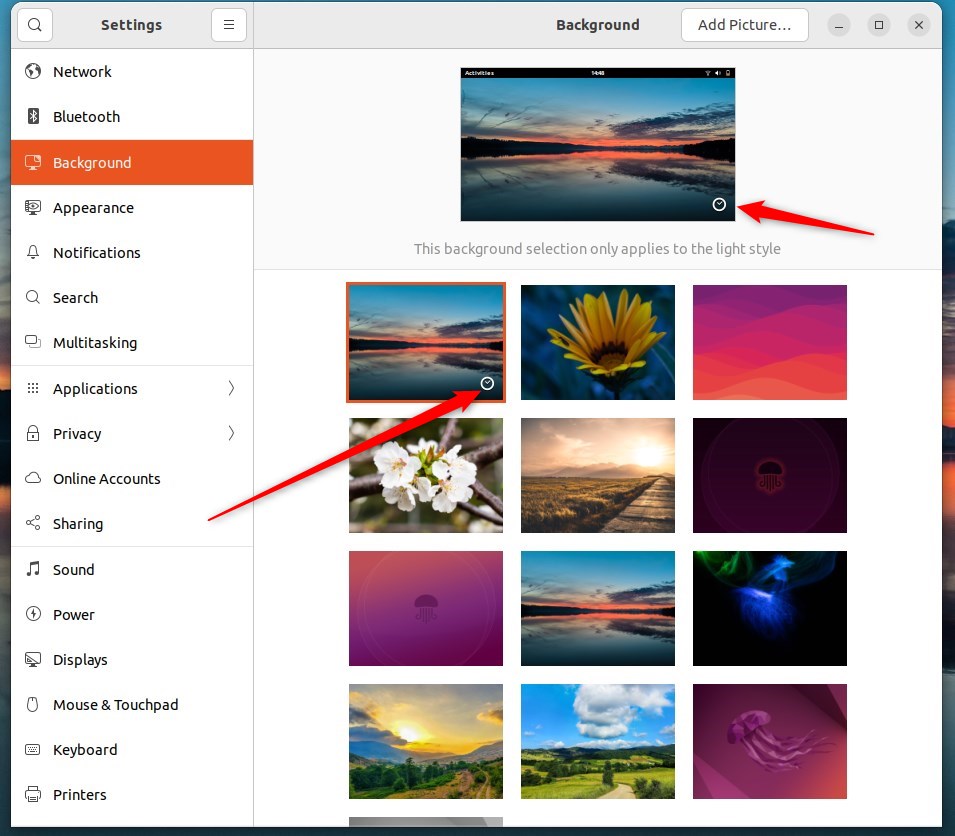
The image you select applies immediately, and the background changes right before your eyes.
Wallpapers featuring a small clock in the bottom-right corner are dynamic options. These wallpapers change throughout the day.
Personal photos work well if default system images do not fit your style.
Click Add Picture… to use one of your photos. The Pictures folder opens by default since most photo management applications store photos there.
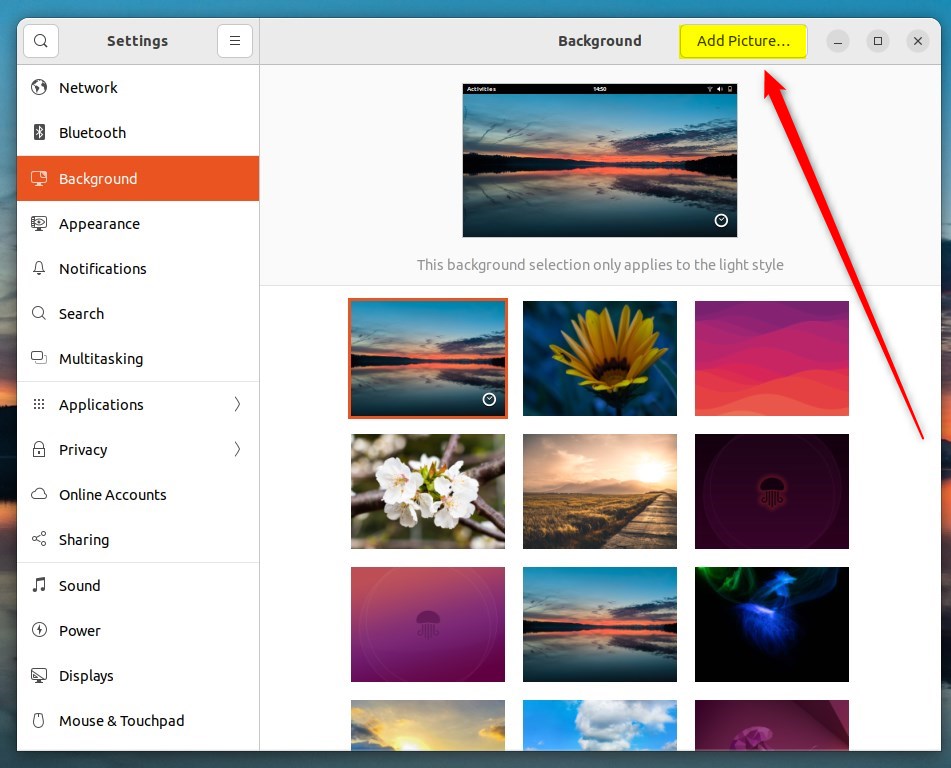
To set a new desktop background, choose a folder with your preferred images. This could be the default "Pictures" folder or another location where you saved pictures. This action makes the images within the chosen folder available for use as your desktop background.
That completes the process, and closing the Settings app finishes the task.
Conclusion:
- Changing your desktop background in Ubuntu Linux is a simple way to personalize your computer and display meaningful images.
- Whether it's photos of family, pets, or memorable places, Ubuntu Linux allows you to set your images as the desktop background easily.
- With the centralized System Settings panel, users can quickly navigate to the Background tile and choose from system images or add their pictures.
- Additionally, users can opt for dynamic wallpapers that change throughout the day or select personal photos to customize their desktop experience further.
Was this guide helpful?

About the Author
Richard
Tech Writer, IT Professional
Richard is a writer at Geek Rewind who turns complex IT tasks into clear, step-by-step guides. He draws on years of hands-on experience in system administration and enterprise IT operations, focusing on Windows, Linux and WordPress: the problems people actually run into, and the fixes that work. His server and WordPress guides come from systems he runs himself. Richard builds and maintains the platform behind Geek Rewind, from its Ubuntu servers and Nginx configuration to its custom WordPress plugins. Many new tutorials start with readers' questions, and he's always glad to answer them in the comments.



No comments yet — be the first to share your thoughts!