How to Change Currency Format in Windows 11

You can change the currency format in settings-of-library-in-windows-11/" class="sal-link" rel="noopener" target="_blank" data-sal-id="38797">Windows 11 to display monetary values with your preferred symbols and separators.
This setting controls how currency appears in applications like File Explorer, calculator, and even Microsoft Store purchases, ensuring clarity for your specific region or preference.
For instance, you can switch from the default US Dollar format ($1,234.56) to the UK Pound format (£1,234.56) or Euro format (€1.234,56) with just a few clicks.
Regional format settings, which Windows 11 manages, dictate the appearance of dates, times, numbers, and currency based on your location and user-defined choices.
How to Change Currency Format in 🪟 Windows 11
Follow these simple steps to change your currency format:
- Open Windows Settings: Click the Start menu (the Windows icon in the bottom-left corner) and select Settings. Or, press Windows key + I on your keyboard to open Settings directly.
- In the Settings window, click on Time & language in the left menu.
- Then, click on Language & region on the right side.
Windows 11 Settings: Time & language and Language & region
- Under Language & region, find the Regional format section and click it to open.
- Next, click on Currency format to see your currency options.
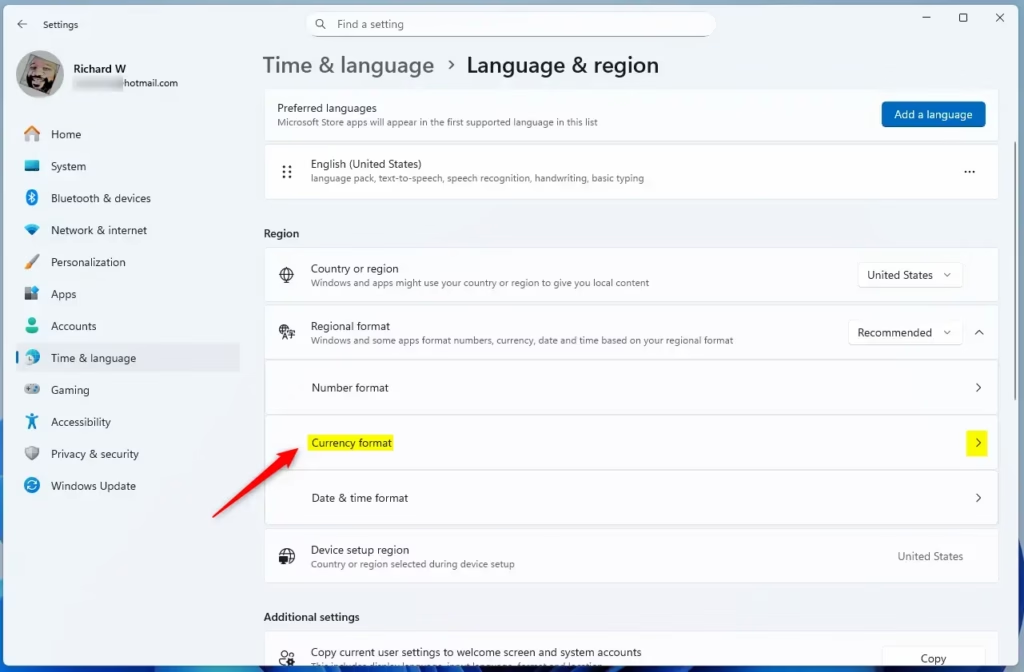
Click Currency format to choose your preferred currency
- From the drop-down menus, pick the currency symbol and format you want to use (for example, $, £, €, etc.).
- When you’re done, simply close Settings. Your changes will save automatically.
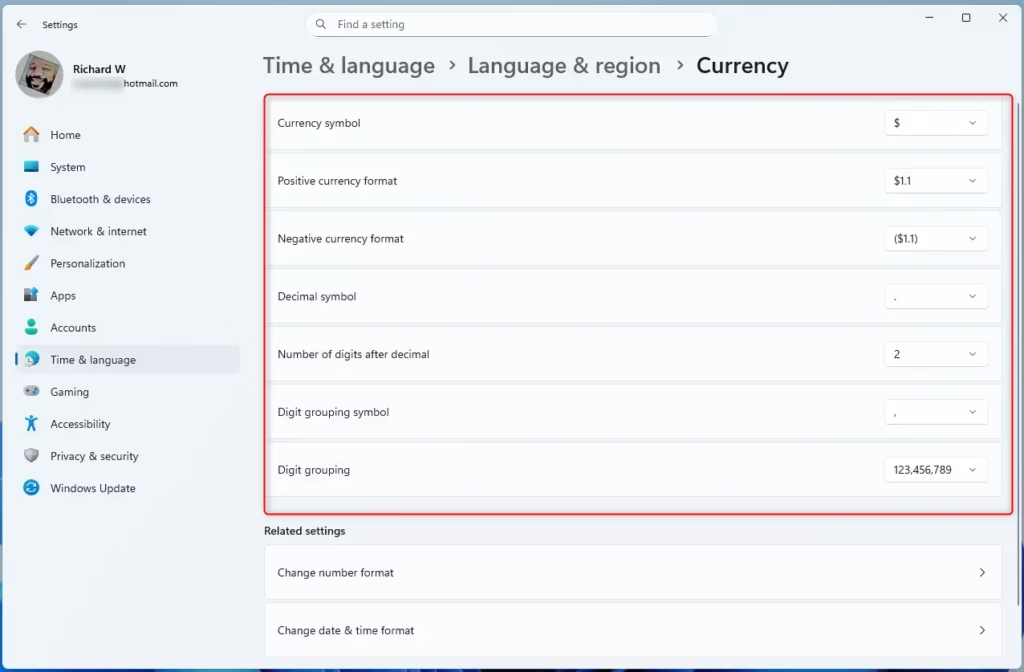
Choose the currency format from the drop-down list
That’s it! Your Windows 11 computer will now show currency in the format you selected.
Summary
- Changing currency format in Windows 11 is easy using the Settings app.
- The Regional format controls how money and numbers look on your PC.
- You can pick your preferred currency symbol from a simple drop-down menu.
- Setting the correct currency format helps apps show money amounts correctly.
- Following these steps makes sure your computer matches your local money style.
If you want more tips on Windows 11 settings, check out these helpful guides:
How to Change System Locale in Windows 11
Was this guide helpful?

About the Author
Richard
Tech Writer, IT Professional
Richard, a writer for Geek Rewind, is a tech enthusiast who loves breaking down complex IT topics into simple, easy-to-understand ideas. With years of hands-on experience in system administration and enterprise IT operations, he’s developed a knack for offering practical tips and solutions. Richard aims to make technology more accessible and actionable. He's deeply committed to the Geek Rewind community, always ready to answer questions and engage in discussions.

No comments yet — be the first to share your thoughts!