How to Update Regional Settings for Windows 11

You update your Windows 11 regional settings to ensure correct date, time, and currency formats are displayed on your PC.
Windows 11 regional settings tell your computer how to present location-specific information, such as date formats (e.g., MM/DD/YYYY vs. DD/MM/YYYY) and currency symbols ($ or €).
Setting your region correctly ensures accurate time zones and location-specific data across all your applications. For example, selecting “United States” for your region defaults your currency to USD ($) and uses a period as the decimal separator in apps like Calculator.
You can easily change your Windows 11 location setting to match your current or a new country, making all your PC’s displays accurate and familiar.
Update your Windows 11 region by going to Settings > Time & Language > Language & region. Select your country from the Region dropdown menu to adjust date, time, and currency formats.
Prerequisites
Before you begin, ensure you are logged in with an account that has administrative privileges (permission from an administrator). Some changes to system locale settings require elevated permissions. Ensure your system is fully updated to avoid errors during language pack installation.
How to update your Region in 🪟 Windows 11
You can change your region in Windows 11 easily through the Settings app to make sure your computer shows the right date, time, and currency formats.
1. Open the Settings app. You can do this by pressing the Windows key + I on your keyboard, or by clicking Start and then selecting the Settings icon.
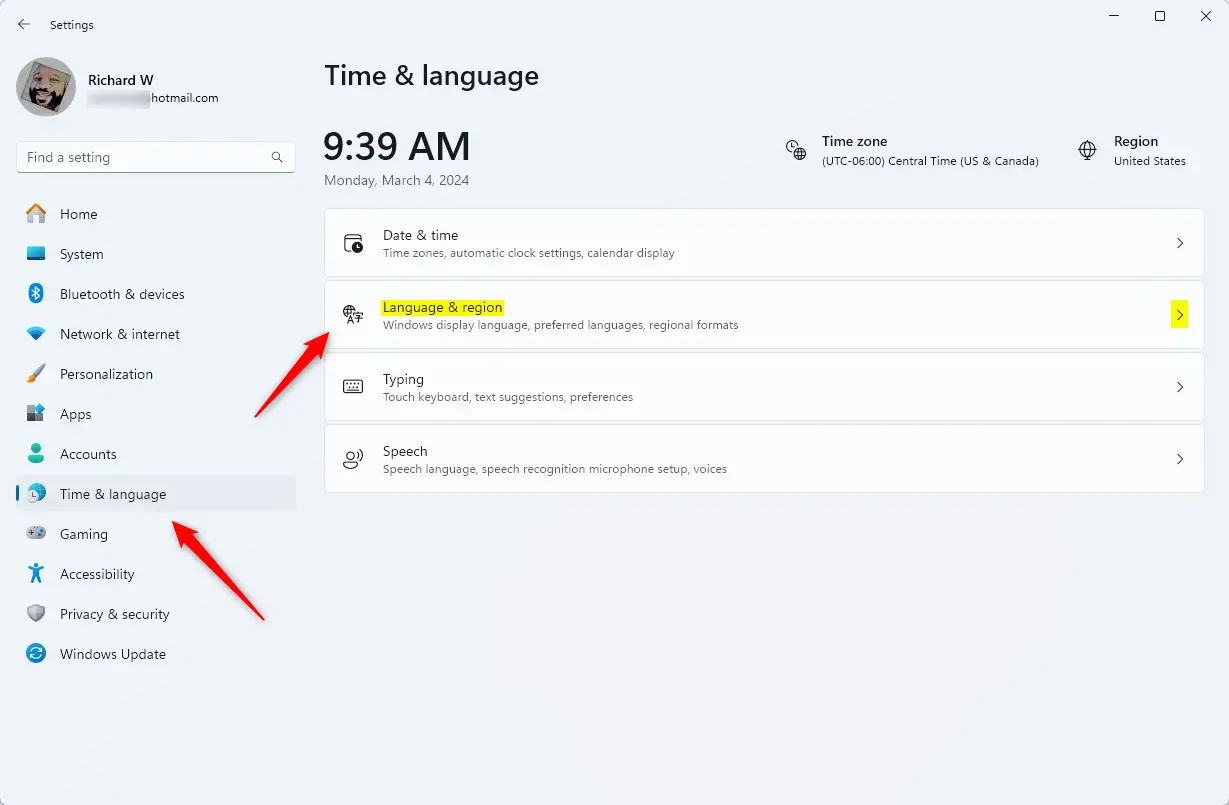
2. In the menu on the left, click on Time & Language.
3. On the right side of the screen, click on Language & region to see more options.
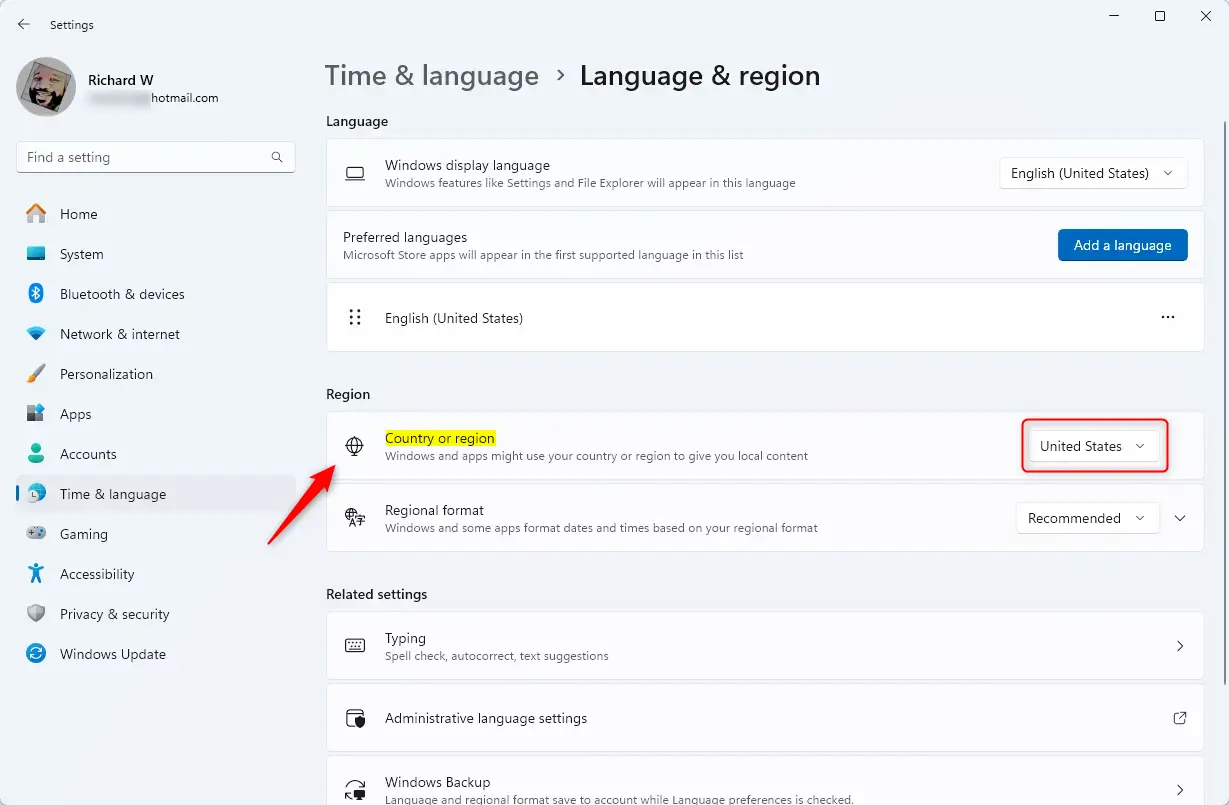
4. Look for the section labeled Region. Click the dropdown menu next to Country or region and select your current location from the list.
5. Windows will automatically suggest a Regional format based on your choice. If you prefer a different format for that country, you can change it using the dropdown menu provided.
Advanced Administrative Language Settings
Changing advanced administrative language settings in Windows 11 lets you apply your chosen region and language to the login screen and new user accounts, making sure everyone sees the same formats.
- Open Control Panel and go to Clock and Region.
- Click Region and then select the Administrative tab.
3. Click Copy settings… to apply your current regional format to the Welcome screen and new user accounts.
4. To change the system locale – which affects how older, non-Unicode programs display characters – click Change system locale… and select your preferred language. Note that this may require a system restart.
Troubleshooting Setup Errors
If you encounter errors when changing regions, check your internet connection. Windows may need to download a language pack. Ensure your firewall is not blocking access to Microsoft servers. If the settings appear grayed out, your organization might be managing them using Windows Autopilot or Group Policy.
Enterprise and IT Management
For IT administrators, managing regional settings across many computers is done via PowerShell. You can use the LanguagePackManagement module to deploy settings. Registry paths like 🗝️HKEY_LOCAL_MACHINE\SYSTEM\CurrentControlSet\Control\Nls\Language can be modified via scripts to enforce standards across a fleet of devices.
Summary
Updating your region in Windows 11 is a simple way to ensure your computer’s date, time, and currency formats are correct for your location.
Can I change my region after the initial Windows setup?
Yes, you can change your region in Windows 11 anytime after the initial setup by going to Settings, then Time & Language, and selecting your new Country or region.
Does changing the region affect my Microsoft Store access?
Yes, changing your region in Windows 11 can affect your Microsoft Store access because the store shows apps, games, and pricing based on your selected region.
Was this guide helpful?

About the Author
Richard
Tech Writer, IT Professional
Richard, a writer for Geek Rewind, is a tech enthusiast who loves breaking down complex IT topics into simple, easy-to-understand ideas. With years of hands-on experience in system administration and enterprise IT operations, he’s developed a knack for offering practical tips and solutions. Richard aims to make technology more accessible and actionable. He's deeply committed to the Geek Rewind community, always ready to answer questions and engage in discussions.

No comments yet — be the first to share your thoughts!