How to Change Your Country or Region in Windows 11

You change your country or region in Windows 11 using the Settings app. This helps you see local content and features that make sense for where you are.
This setting, sometimes called your Geographic ID or GeoID (which is short for Geolocation Identifier), tells Windows and your apps where you are. It’s crucial for getting accurate recommendations for apps, games, movies, and services tailored to your region.
Updating your country or region is especially important if you move to a new location or travel frequently. For instance, if you’re using Windows 11 version 22H2, changing this setting can affect which Microsoft Store apps are prioritized for download.
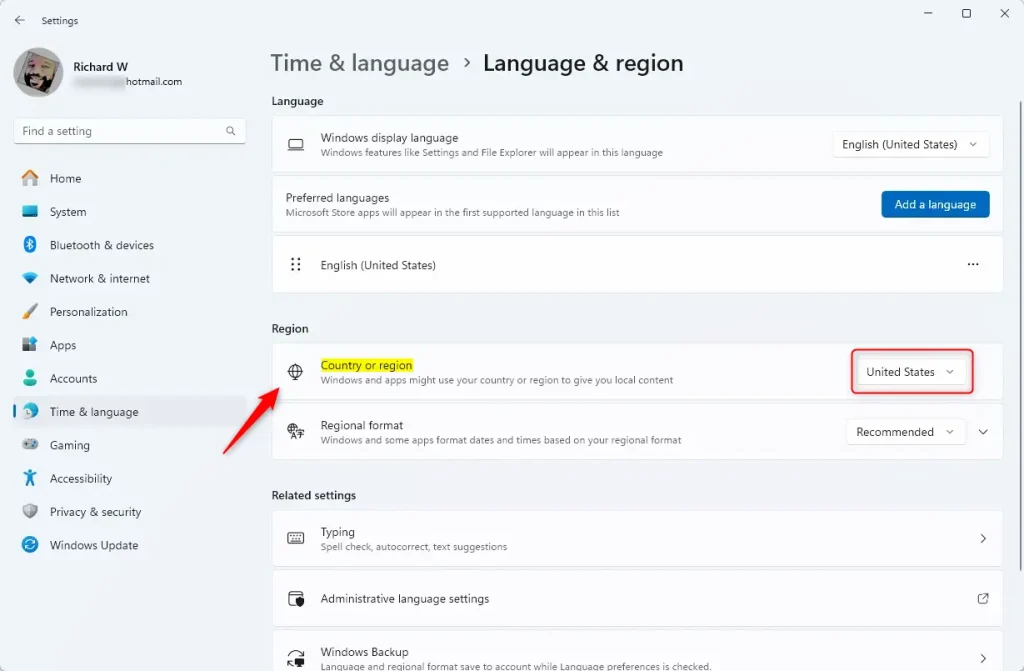
Open Settings, go to Time & language, then Language & region. Select your new country or region from the dropdown menu under “Country or region.” This ensures you see local content and features.
Option 1Change Country or Region in Settings
- Press Windows key + I to open Settings.
- Click on Time & language on the left side.
- Then click Language & region on the right side.
- Under Country or region, click the drop-down menu and pick your new location.
- Close Settings when you’re done.
You can change your country or region in Windows 11 easily through the Settings app, which is the most straightforward way for most users to update their location.
Option 2See Your Current Country or Region Using a Command
- Open Windows Terminal by searching for it in the Start menu.
- Choose either Windows PowerShell or Command Prompt tab.
- Type or paste this command and press Enter:
Get-WinHomeLocation - You will see your current country or region code.
- Close Windows Terminal when done.
Option 3Change Your Country or Region Using a Command
If you’re comfortable with commands, you can change your country or region in Windows 11 using PowerShell or Command Prompt, but this method needs administrator rights.
If you want to change your location using a command, follow these steps:
- Open Windows Terminal and pick PowerShell or Command Prompt.
- Type this command and press Enter:
Set-WinHomeLocation -GeoID <GeoID number> - Replace <GeoID number> with the correct number for your country.
- Close Windows Terminal when finished.
You can find a full list of GeoID numbers on Microsoft’s website. For example, to set your location to the United States, you’d use:
Set-WinHomeLocation -GeoID 244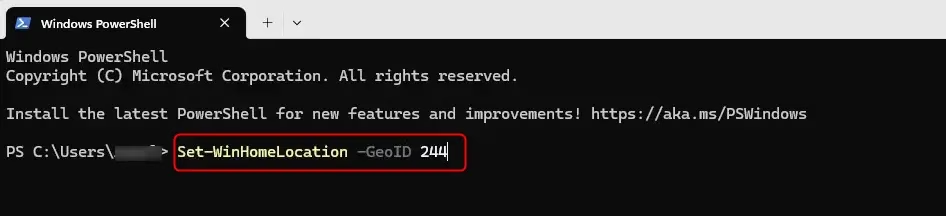
Summary
- Your country or region setting controls what apps and services you can access in Windows 11.
- You can change it easily in Settings or by using commands in Windows Terminal.
- Make sure to pick the correct location so Microsoft Store, Xbox, and other apps show the right content for you.
- When using commands, check the official GeoID list to find the right number for your country.
Changing your country or region in Windows 11 is important because it affects which apps and services you can use, ensuring you get the right content from the Microsoft Store and other apps.
Can you change region on 🪟 Windows 11?
Open Settings (press Windows key + I, or click Start and then click Settings). Click Time & language, and then click Language & region. Under Regional format, select the format that matches your country/region from the drop-down list.
Does region matter in 🪟 Windows 11?
The Country or Region setting in Windows 11 impacts your device more than you might think. It determines the type of content you’ll find in the Microsoft Store, the default settings of applications, and how specific licenses are applied. That’s why IT administrators often lock this setting.
Can you change your PC region?
And language. Option. Select the region tab. In the region. Section you’ll see an option to change your country or region click on the drop-own menu under country or region. And select your desired.
Was this guide helpful?

About the Author
Richard
Tech Writer, IT Professional
Richard, a writer for Geek Rewind, is a tech enthusiast who loves breaking down complex IT topics into simple, easy-to-understand ideas. With years of hands-on experience in system administration and enterprise IT operations, he’s developed a knack for offering practical tips and solutions. Richard aims to make technology more accessible and actionable. He's deeply committed to the Geek Rewind community, always ready to answer questions and engage in discussions.



No comments yet — be the first to share your thoughts!