How to Change Camera Resolution in Windows 11

Want your webcam videos or photos to look sharper and clearer? You can adjust your camera’s resolution in Windows 11. Resolution tells you how much detail and clarity your image or video has. The good news? Windows 11 makes this a quick process.
Windows 11 also gives you extra features. You can add background blur, use fun filters, and try different camera modes. These can help make your video calls and recordings look even better.
Your privacy matters too. Windows 11 lets you pick which apps can use your camera. You can turn your camera on or off whenever you need to. Want to learn more about camera privacy and permissions? Check out these guides:
Which apps can use your camera
How to turn your camera on or off
The latest Windows 11 update (build 27758) introduced Advanced Camera Options. This feature lets you fine-tune your camera settings, including resolution and other details.
Open Settings, go to Bluetooth & devices, then Cameras, select your camera, and click Advanced camera options. Use the Media type drop-down to choose your desired resolution. Click Apply to save.
How to Set Your Camera Resolution in 🪟 Windows 11
Changing your camera resolution in Windows 11 is simple and helps you get the best video quality for calls and recordings.
- Open Settings: Click the Start menu (Windows icon at the bottom left) and select Settings. Or press
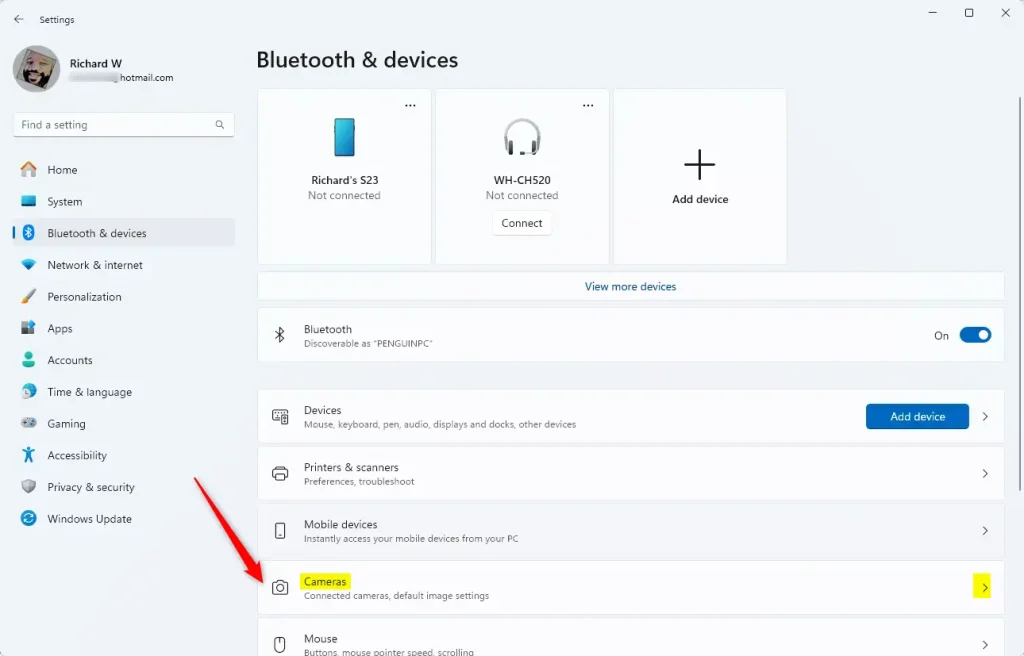
Windows key + Ion your keyboard to open Settings quickly. - Go to Bluetooth & devices: In the Settings window, click on Bluetooth & devices from the left side menu.
- Open Camera settings: On the right side, find and click the Cameras tile.
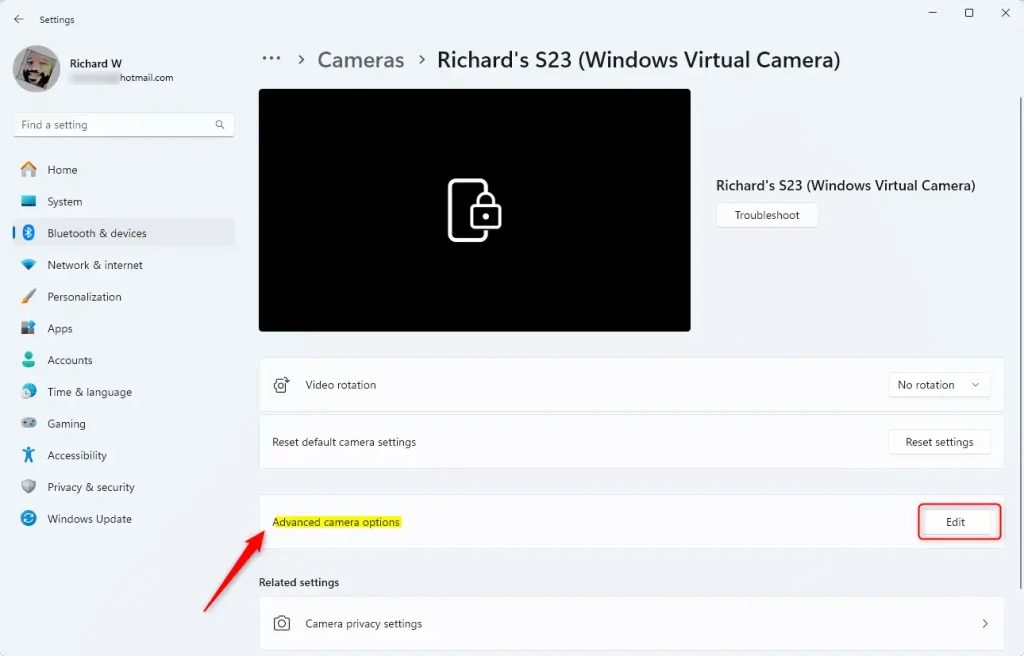
- Pick your camera: Look for Connected cameras. Select the camera you want to adjust.
- Open Advanced camera options: Click the Advanced camera options tile. Then click the Edit button.
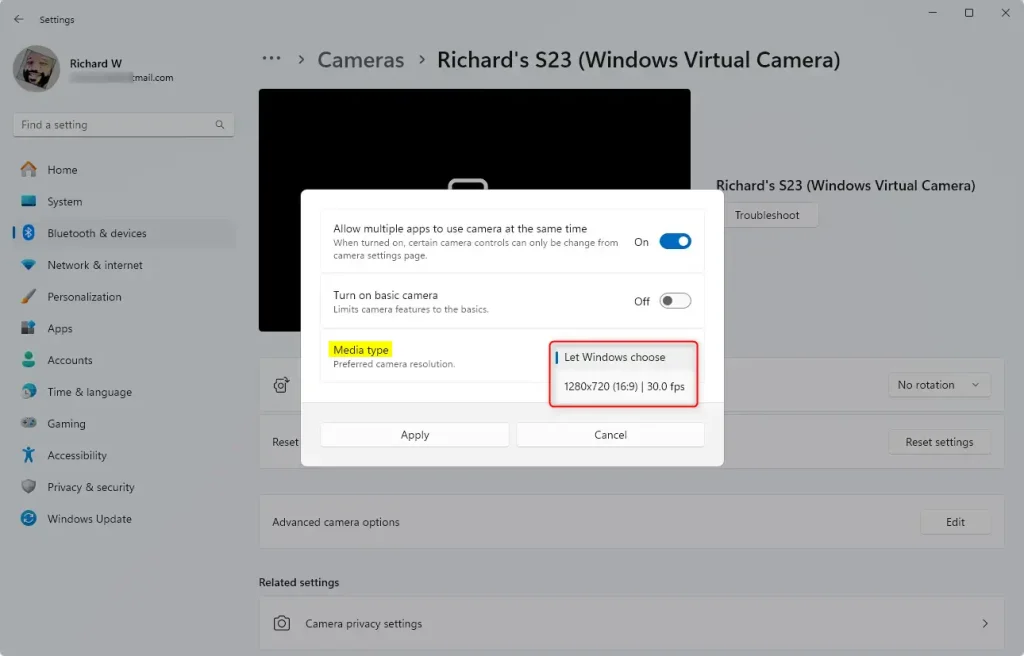
- Allow multiple apps (if needed): Make sure the option Allow multiple apps to use camera at the same time is turned on. This lets you change the media type resolution.
- Choose resolution: Use the drop-down menu under Media type. Pick the resolution you want. The default is Let Windows choose, which works well for most people.
- Save changes: Click Apply to save your settings. Then close the window.
That’s it! Your camera will now use the resolution you picked.
Why Change Your Camera Resolution?
You might want to change your camera resolution in Windows 11 for a few good reasons, like getting clearer video or saving storage space.- Better video quality: Higher resolution means clearer and sharper pictures or videos. Everyone on your call will see you better.
- Save space: Lower resolution uses less storage and less internet bandwidth during video calls. This is helpful if you have a slow connection.
- Customize for apps: Different apps might work better with different resolutions. You can adjust based on what you’re using.
More Tips
- Keep your camera drivers up to date. Updated drivers help your camera perform its best.
- Try different resolutions to see what looks best on your screen and camera.
- Use privacy settings to control which apps can access your camera. This keeps you safe.
References
For more details about Windows 11 camera updates, visit the official Windows Insider Blog.
Summary
Adjusting your camera resolution in Windows 11 is a quick and simple process that can improve your video calls and recordings.
How do I adjust the camera resolution on 🪟 Windows 11?
To adjust your camera resolution on Windows 11, go to Settings and then select Bluetooth & devices, followed by Cameras.
Was this guide helpful?

About the Author
Richard
Tech Writer, IT Professional
Richard, a writer for Geek Rewind, is a tech enthusiast who loves breaking down complex IT topics into simple, easy-to-understand ideas. With years of hands-on experience in system administration and enterprise IT operations, he’s developed a knack for offering practical tips and solutions. Richard aims to make technology more accessible and actionable. He's deeply committed to the Geek Rewind community, always ready to answer questions and engage in discussions.
📚 Related Tutorials



No comments yet — be the first to share your thoughts!