How to Change Browser Theme in Google Chrome

You change your Google Chrome browser theme by selecting and installing a new one from the Chrome Web Store.
A Chrome theme is a customization that alters the visual appearance of your browser, including its colors, images, and overall design. It affects elements like the toolbar, the background of your new tab page, and the browser frame itself.
Personalizing your browser with a new theme is a quick process, achievable in just a few clicks. This allows you to tailor the look of Chrome to your personal style.
Your chosen themes automatically sync with your Google Account, so your custom look travels with you to any computer when you sign in.
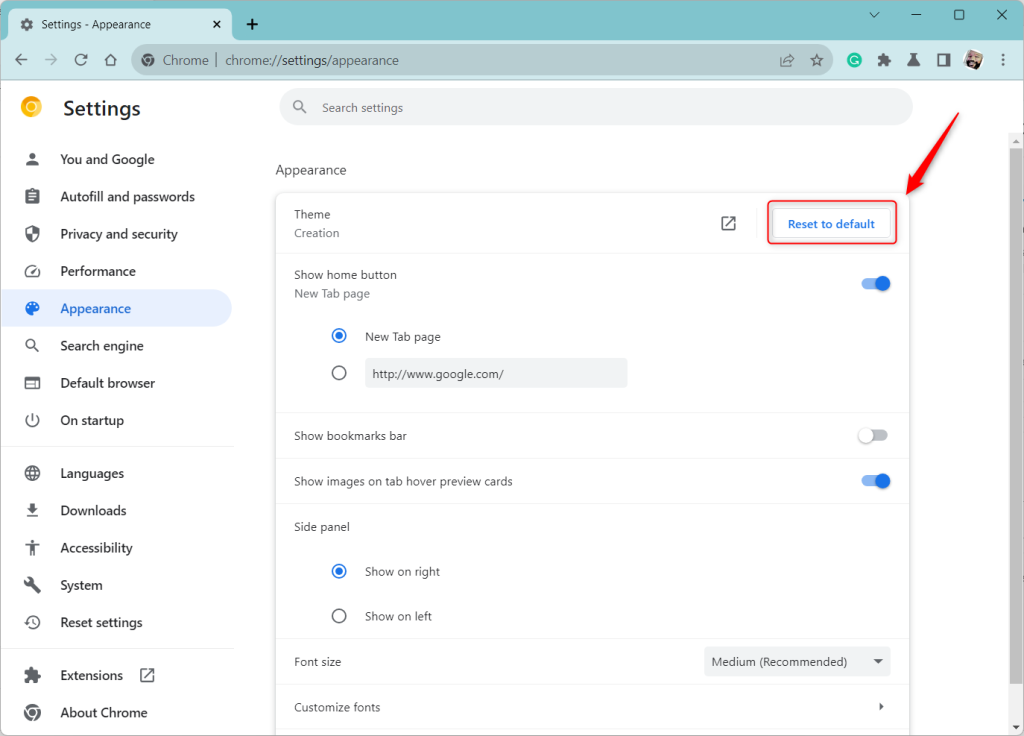
Visit the Chrome Web Store and select a theme. Click “Add to Chrome” to apply it immediately. To revert, go to Settings, Appearance, and click “Reset to default.
Change browser theme in Google Chrome
As mentioned, you can change your Google Chrome browser theme to create a more visually appealing and comfortable web browsing environment.
Here’s how to do it.
First, open the Google Chrome browser.
Then, click the Customize and Control button (the three vertical dots) in the top right corner and select Settings.
On the Settings page, find ‘Appearance‘ in the left panel.
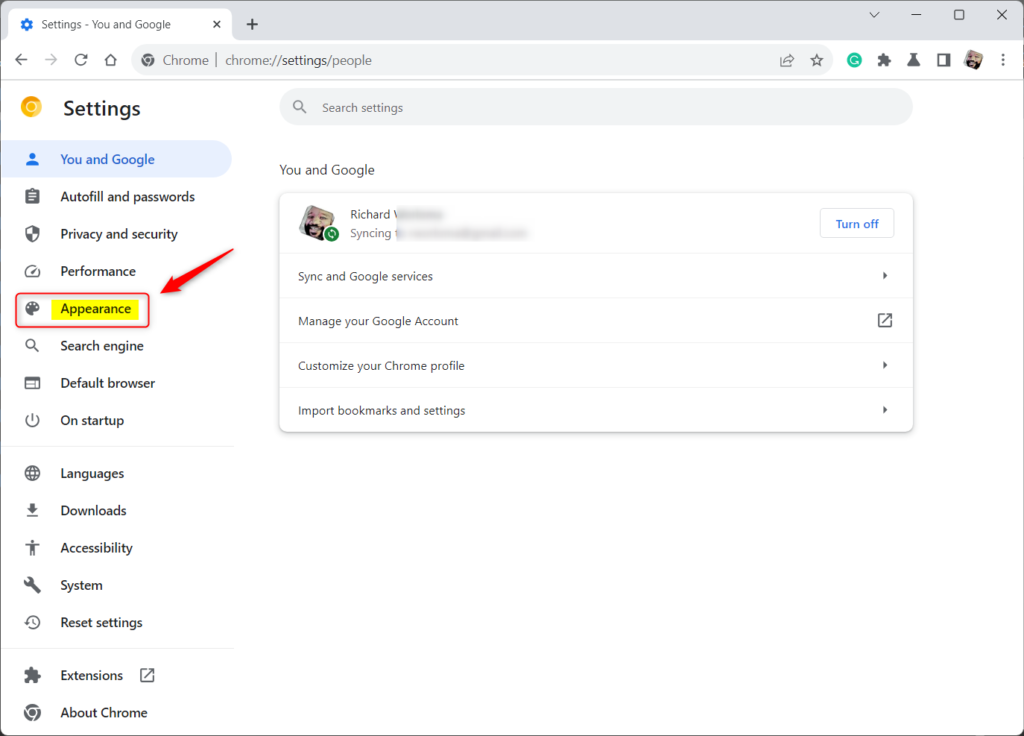
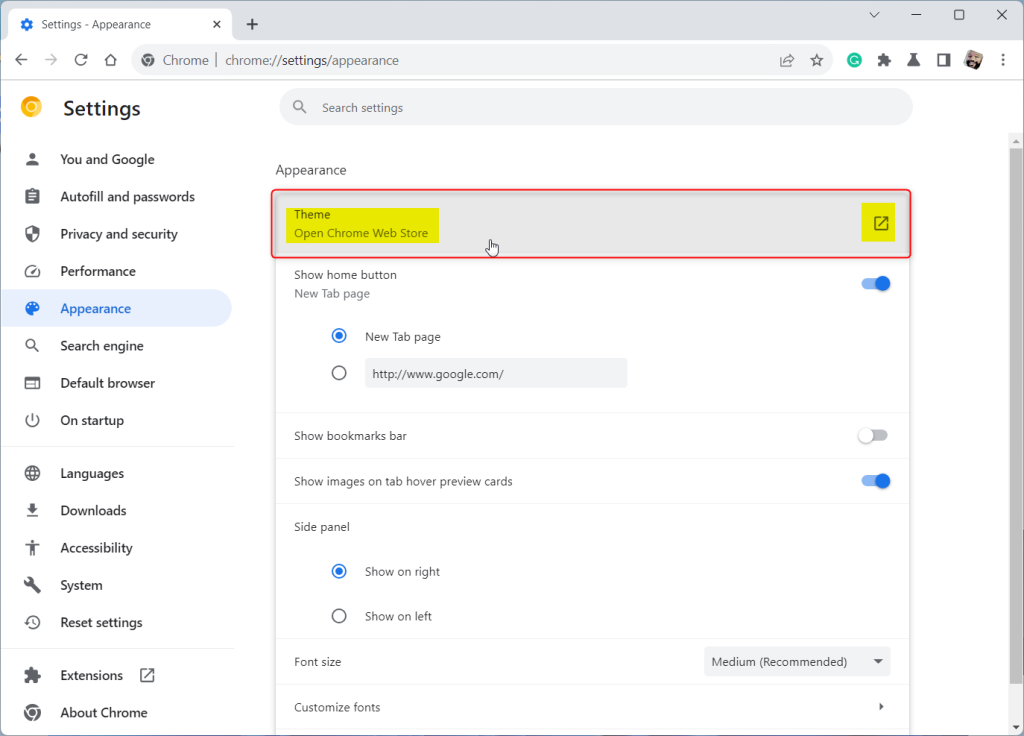
On the right, under “Appearance,” click Themes to open the themes store. You can also go directly to the gallery by visiting Chrome Web Store Themes.
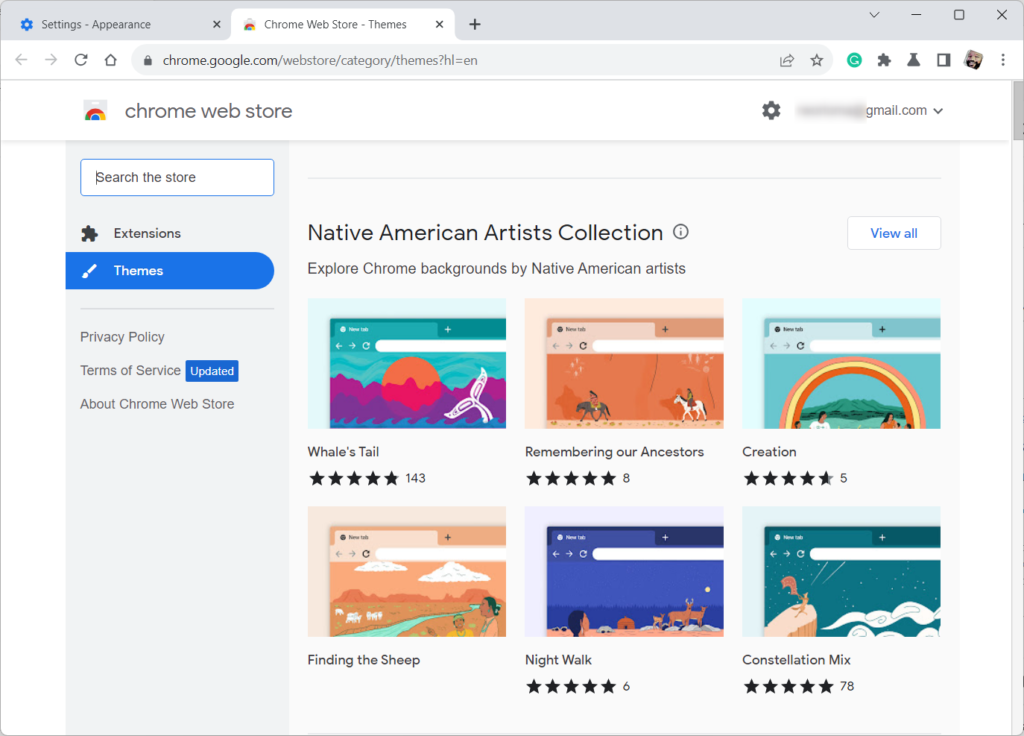
Browse the store to find a theme you like. Click on the thumbnails to preview different themes. When you find one you’d like to use, click Add to Chrome.
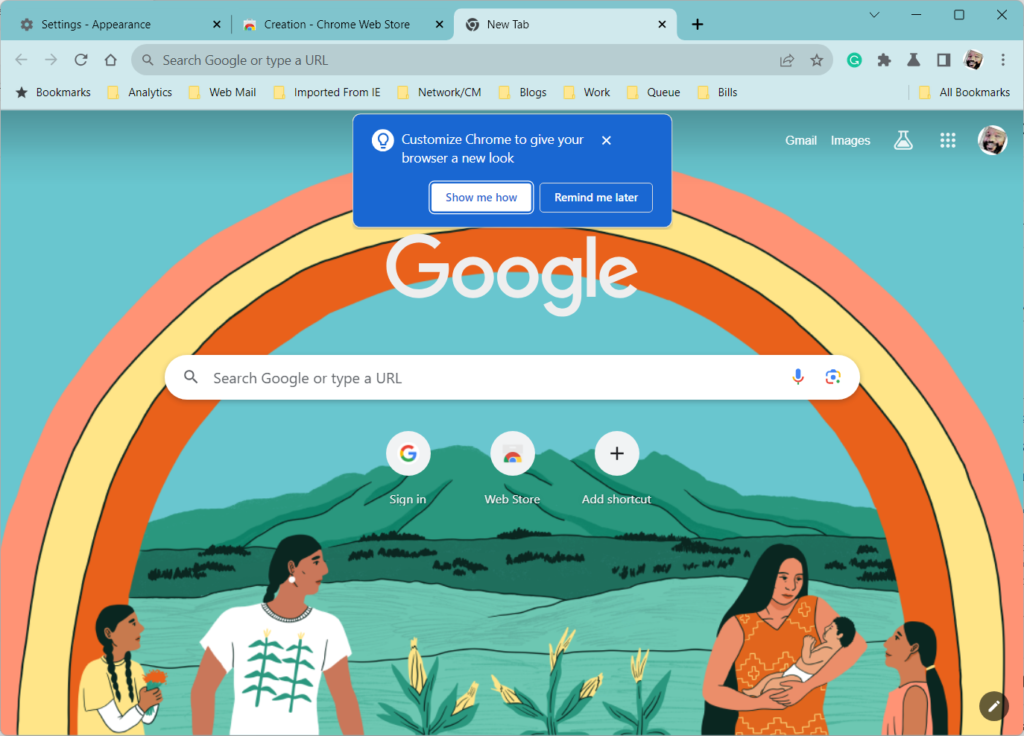
The theme will apply immediately. If you change your mind, click the Undo button that appears at the top.
Remove a theme in Google Chrome
To remove a theme in Google Chrome, return to the Settings page by clicking More


Under “Appearance,” click Reset to default. This will bring back the classic Google Chrome theme.
That should do it!
Reference:
Conclusion:
- Changing the browser theme in Google Chrome allows you to personalize your browsing experience
- Customizing the look of your browser can create a more visually appealing and comfortable environment for web browsing
- It can help differentiate your browser from others and make it easier to identify
- Adding a touch of personality to your browsing experience is worth considering
Was this guide helpful?

About the Author
Richard
Tech Writer, IT Professional
Richard, a writer for Geek Rewind, is a tech enthusiast who loves breaking down complex IT topics into simple, easy-to-understand ideas. With years of hands-on experience in system administration and enterprise IT operations, he’s developed a knack for offering practical tips and solutions. Richard aims to make technology more accessible and actionable. He's deeply committed to the Geek Rewind community, always ready to answer questions and engage in discussions.




No comments yet — be the first to share your thoughts!