
BitLocker is a tool in Windows 11 that helps keep your data safe by encrypting your drives. This means only people you allow can see what’s inside your computer or USB drives. In this guide, you’ll learn how to change BitLocker’s encryption method and make it stronger.
What is BitLocker?
BitLocker protects your files by scrambling them so others can’t read them without permission. It works on your computer’s main drive, external drives like USB sticks, and other fixed drives.
When you turn on BitLocker for your main Windows drive, it can unlock automatically using a special chip in your PC called TPM, so you don’t have to enter a password every time you start your computer. Learn more about this here.
Why Change the Encryption Method?
BitLocker uses a type of encryption called XTS-AES 128-bit by default. This is quite secure, but if you want extra protection, you can switch to a stronger 256-bit encryption. This makes it even harder for someone to break into your data.
How to Change BitLocker Encryption Using Group Policy
Here’s an easy way to change BitLocker encryption using a tool built into Windows called the Local Group Policy Editor.
- Open the Group Policy Editor: Click the Start button, type
Edit group policy, and press Enter. ⚠️ Admin privileges required - In the window that opens, follow this path:
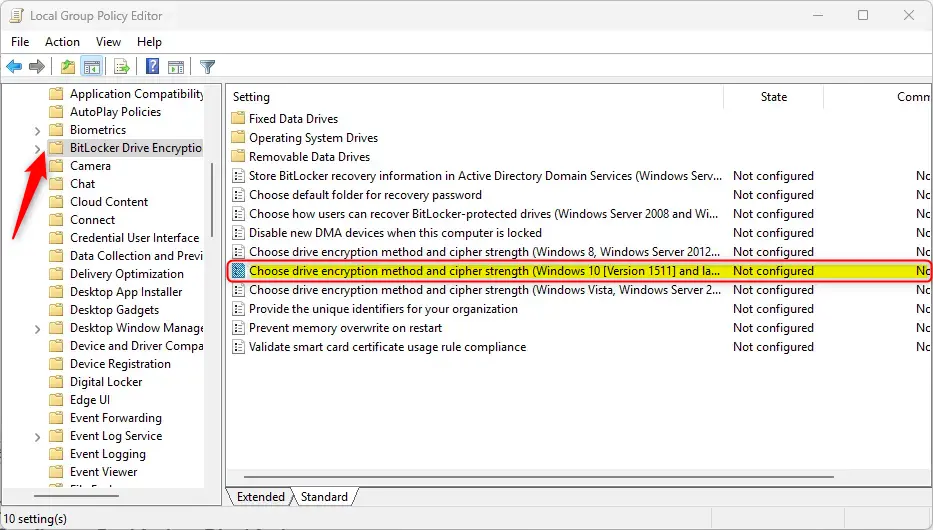
Computer Configuration → Administrative Templates → Windows Components → BitLocker Drive Encryption - On the right side, find and double-click “Choose drive encryption method and cipher strength (Windows 10 Version 1511 and later)”.
- In the window that opens:
- Select Enabled.
- Now you can choose the encryption method and strength for:
- Operating system drives
- Fixed data drives
- Removable data drives
- Pick the desired encryption type from the drop-down menus (for stronger encryption, pick a 256-bit option).
- Click OK to save.
- Restart your computer to apply the changes.
How to Change BitLocker Encryption Using Registry Editor
If you prefer, you can also change encryption settings using the Windows Registry Editor. Be careful when using this tool, as wrong changes can cause problems.
- Open the Registry Editor: Click Start, type
regedit, and press Enter. ⚠️ Admin privileges required - If prompted, click Yes to allow changes.
- Go to this folder path:
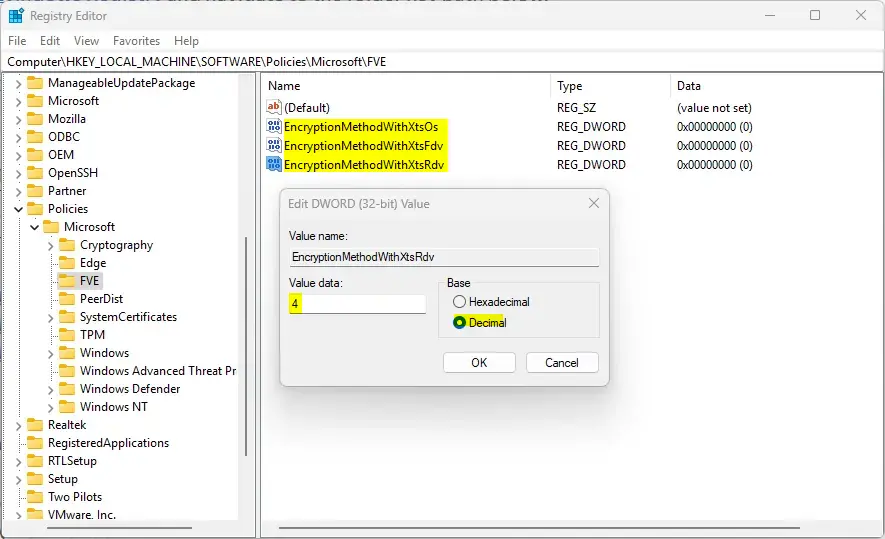
HKEY_LOCAL_MACHINE\SOFTWARE\Policies\Microsoft\FVE - Look for these three entries on the right side:
- EncryptionMethodWithXtsOs
- EncryptionMethodWithXtsFdv
- EncryptionMethodWithXtsRdv
- If you don’t see them, right-click on an empty space, choose New → DWORD (32-bit) Value, and create these three names exactly as above.
- Double-click each entry and set its value to:
- 4 for AES-CBC 256-bit encryption
- 7 for XTS-AES 256-bit encryption
- Click OK for each, then close the Registry Editor.
- Restart your PC to apply changes.
Reset to Default Encryption
If you want to go back to the original BitLocker encryption (XTS-AES 128-bit), just delete the three registry entries you created:
- EncryptionMethodWithXtsOs
- EncryptionMethodWithXtsFdv
- EncryptionMethodWithXtsRdv
Then restart your PC.
Summary
You can make BitLocker encryption stronger in Windows 11 by changing its settings. This can help keep your files safer from hackers or unauthorized users. The easiest way is using the Local Group Policy Editor, but the Registry Editor also works. Remember to restart your computer after changing these settings so they take effect. By following these simple steps, you can customize how BitLocker protects your data and make your computer more secure!



Leave a Reply