
This guide shows you how to save and restore your Microsoft Edge data on Windows 10 or Windows 11.
Why Back Up Microsoft Edge?
Your browser holds your digital life. You have bookmarks, saved settings, and extensions that make your browsing easier. If your computer breaks or you buy a new one, you do not want to start from scratch. Backing up Microsoft Edge ensures you keep your personal setup. Why do this? It saves time and prevents data loss. What happens when done? You get a portable copy of your browser environment that you can move to any Windows PC.
Cloud Sync vs. Manual Backup
Microsoft offers a built-in sync feature. It connects your browser to your Microsoft Account (MSA) or Entra ID. This is the easiest way to keep data current across devices. However, manual backups are better for offline storage or when you want a physical snapshot of your data. If you use sync, go to Edge Sync Settings to manage what gets uploaded.
What Gets Backed Up?
Your manual backup includes:
- All browser settings
- Favorites and bookmarks
- User profiles
- Installed extensions
Important: Passwords are not included in this local folder. They are encrypted and tied to your account. You must export them separately or use the sync feature to move them.
Step-by-Step: How to Back Up Microsoft Edge
Step 1: Close Microsoft Edge Completely
Close Edge and all its tabs. If the browser is running, files will be locked and the backup will fail. What happens when done? The files become accessible for copying.
Step 2: Find Your Edge Folder
Open File Explorer. Copy and paste this path into the address bar:
C:\Users\YourUsername\AppData\Local\Microsoft\Edge\User Data
Step 3: Copy Your Edge Folder
Right-click the User Data folder and select Copy. Paste it onto a USB drive or cloud storage. This folder contains your Chromium-based browser architecture data.
Step 4: Export Your Registry Settings
Requires Admin Privileges: Open the Registry Editor by typing “regedit” in the search bar. Navigate to this path:
HKEY_CURRENT_USER\SOFTWARE\Microsoft\Edge
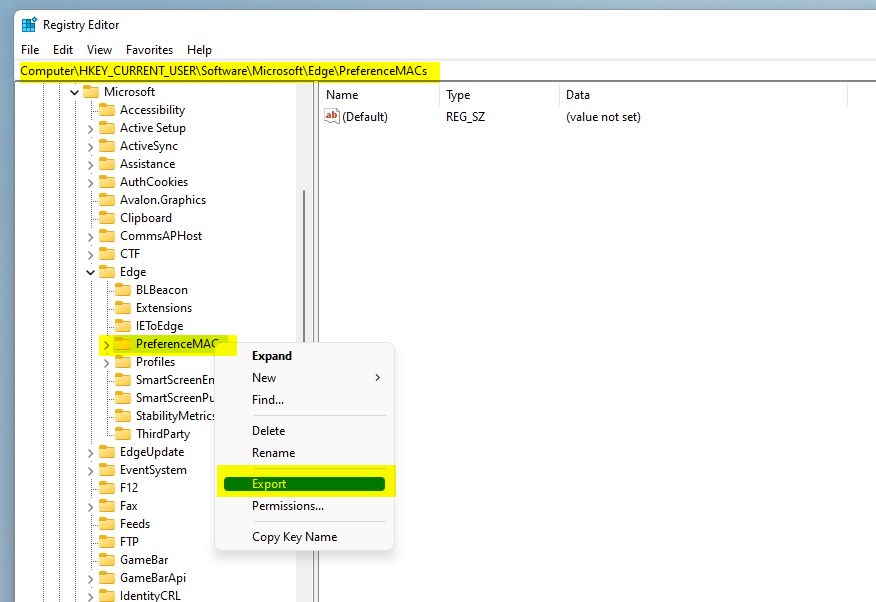
Right-click the Edge folder and select Export. Save this as a .reg file. This saves your specific browser configuration.
How to Restore Microsoft Edge
Step 1: Restore the User Data Folder
On your new PC, close Edge. Navigate to the same path as in Step 2. Paste your backed-up User Data folder here. Choose to overwrite existing files if asked.
Step 2: Restore Registry Settings
Double-click your saved .reg file. Click Yes to confirm. This applies your old settings to the new browser installation.
Troubleshooting
If your passwords are missing, it is because they are stored in the Windows Credential Manager, not just the User Data folder. If you see errors while copying, ensure Edge is fully closed in the Task Manager. If you are moving from Windows 10 to 11, the folder structure remains the same, making migration seamless.
Summary
Backing up Microsoft Edge protects your bookmarks, extensions, and settings. By copying the User Data folder and exporting your registry keys, you create a complete snapshot of your browser. Why do this? To ensure a smooth transition to a new computer. What happens when done? You restore your files to the new PC, and your browser looks exactly like it did before. Remember to use the sync feature for passwords to avoid manual export issues.
Does backing up the Edge folder include my browser extensions?
Yes, backing up the User Data folder includes your browser extensions. Because Edge is built on Chromium, all your installed extensions and their specific settings are stored within the profile subfolders. When you restore this folder to a new machine, your extensions will be ready to use immediately upon opening the browser.
Can I restore Edge settings from a Windows 10 PC to a Windows 11 PC?
Yes, you can easily migrate your Edge profile between Windows 10 and Windows 11. The underlying Chromium file structure is identical across both operating systems. Simply copy the User Data folder from your old machine and paste it into the corresponding directory on your new Windows 11 computer to restore your settings.
Is it safe to copy the User Data folder while Edge is running?
No, it is not safe to copy the User Data folder while Edge is running. The browser actively writes to these files, which can cause corruption or incomplete backups. Always close all Edge windows and ensure no background processes are running before you attempt to copy or move your browser data.
Was this guide helpful?

About the Author
Richard
Tech Writer, IT Professional
Richard, a writer for Geek Rewind, is a tech enthusiast who loves breaking down complex IT topics into simple, easy-to-understand ideas. With years of hands-on experience in system administration and enterprise IT operations, he’s developed a knack for offering practical tips and solutions. Richard aims to make technology more accessible and actionable. He's deeply committed to the Geek Rewind community, always ready to answer questions and engage in discussions.




No comments yet — be the first to share your thoughts!