

This post describes the steps to disable or enable the use of Wi-Fi in Windows 11.
By default, your Windows device with WiFi adapters will allow users to enable or disable the ability to connect to a WiFi network. No particular actions are needed.
Administrators can also limit users’ ability to turn WiFi connections on or off using the registry editor in Windows. These settings in the Windows registry will allow or disallow WiFi connection.
The most restricted value is 0.
The following list shows the supported values:
- 0 – A WiFi connection is not allowed.
- 1 (default) – WiFi connection is allowed.
Enabling or disabling Wi-Fi in Windows 11 can be useful for various reasons. For example, if you’re using a laptop, you may want to disable Wi-Fi when you’re not using it to conserve battery life.
Additionally, if you’re sharing your computer with others, you may want to restrict their ability to turn on or off the Wi-Fi connection to prevent unauthorized access to your network.
By default, Windows allows users to enable or disable Wi-Fi, but administrators can use the registry editor to restrict this ability.
How to restrict users from turning on or off WiFi in Windows 11
As mentioned, administrators can restrict users from turning on or off WiFi in Windows 11.
When WiFi is restricted, users cannot turn on or off a WiFi adapter to connect to a network.
Below is how to do that.
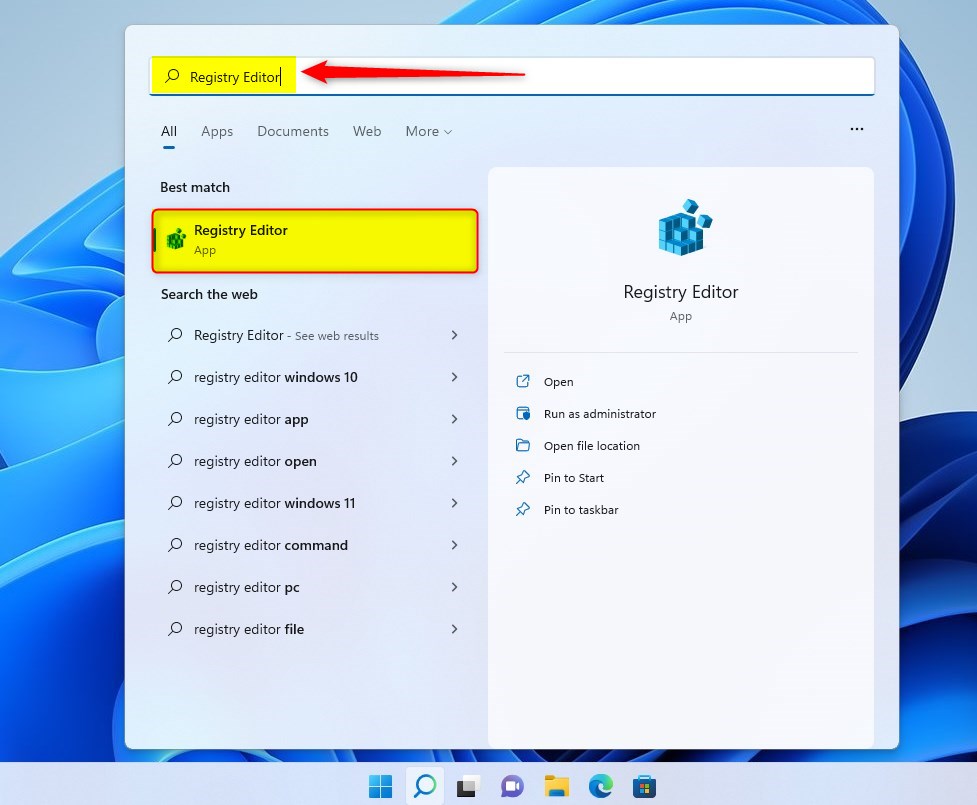
Open the Windows registry editor by clicking the Start Menu and searching for Registry Editor, as highlighted below.
Under Best match, select Registry Editor app to launch Windows Registry Editor.
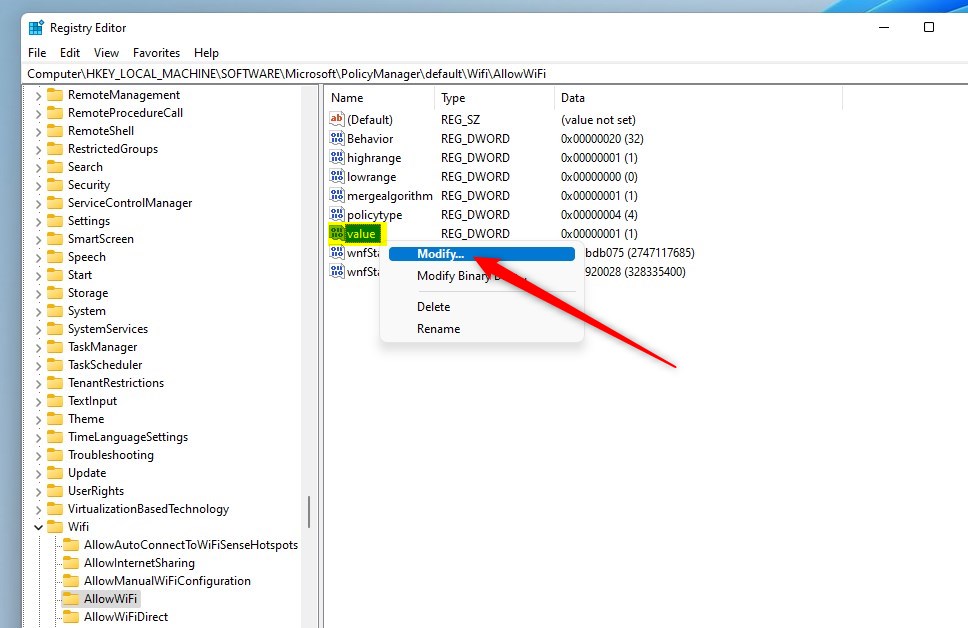
In the left pane of Registry Editor, expand the tree:
HKEY_LOCAL_MACHINESOFTWAREMicrosoftPolicyManagerdefaultWifiAllowWiFi
You may be able to copy and paste the line above in the navigation box in Windows Registry Editor.

In the AllowWiFi config page on the right-hand side, look for the REG_DWORD name value.
Right-click the value and select Modify or double-click to open.
Use the value below to allow or disallow the WiFi connection on the pop-up window.
The most restricted value is 0.
The following list shows the supported values:
- 0 – A WiFi connection is not allowed.
- 1 (default) – WiFi connection is allowed.
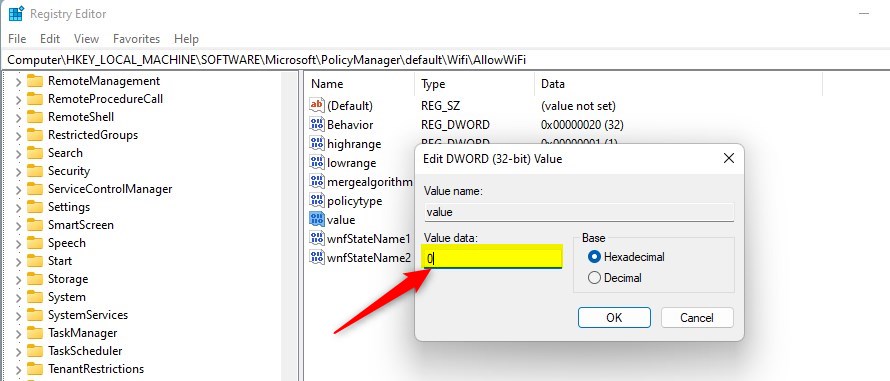
Select OK when done.
Close Windows Registry Editor.
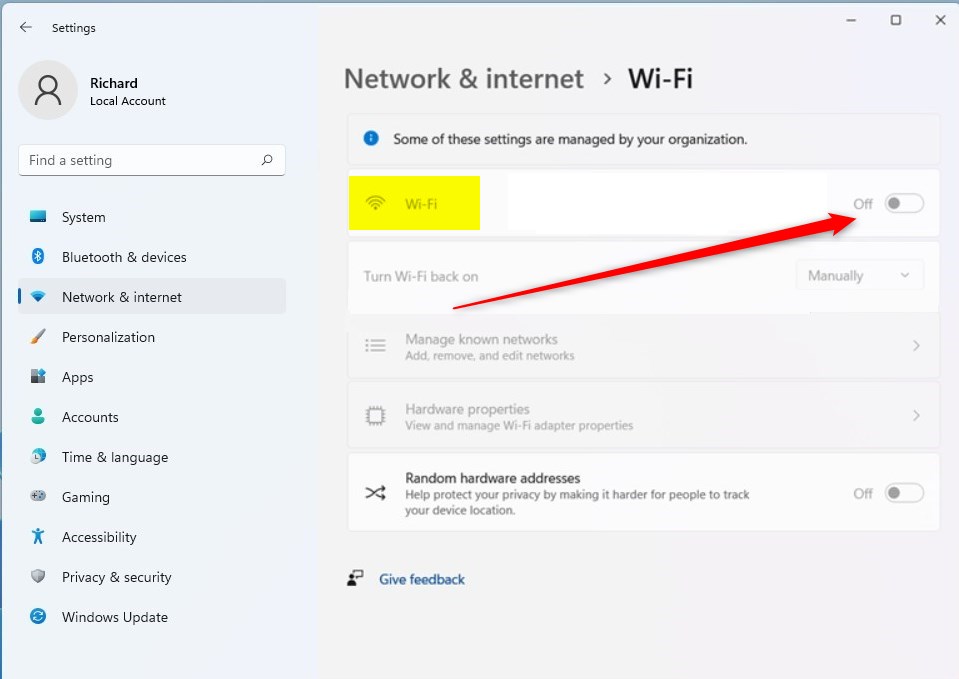
That should do it! With a value data 0, users will lose the ability to turn on or off the WiFi feature in Windows 11.
Conclusion
- Disabling or enabling Wi-Fi in Windows 11 can be beneficial for conserving battery life, especially on laptops.
- Administrators can restrict users from turning on or off Wi-Fi by using the Windows registry editor, effectively controlling access to Wi-Fi connections.
- Administrators can use the Windows registry editor to set the value to 0 to prevent users from altering the Wi-Fi connection, thereby enhancing network security and control.



Leave a Reply