
Do you use Narrator on your Windows 11 computer? You might want to make its voice easier to hear. This guide shows you how to lower the volume of other apps when Narrator is talking. Why? Because other sounds can get in the way. Let’s make Narrator clearer to listen to.
What is Narrator?
Narrator is a built-in Windows tool. It reads text out loud from your screen. It helps people who have trouble seeing. It speaks the words and describes what’s on your screen.
You can also:
- Turn keyboard shortcuts for Narrator on or off
- Set Narrator to open automatically when you start your PC
- Change how fast or loud the Narrator’s voice sounds
- Add or remove different voices for Narrator
Why Lower Other Apps’ Volume When Narrator Speaks?
When Narrator talks, sounds from other apps play at the same time. This makes it hard to hear Narrator. Turning on this feature lowers those other sounds. You can focus on what Narrator says. This helps if you depend on Narrator to use your computer.
How to Turn On or Off the Volume Lowering Feature
Follow these simple steps:
- Open the Windows Settings app. Click the Start button. Choose Settings. Or press Windows key + I on your keyboard.
- In the Settings window, click Accessibility on the left side menu.
- Click Narrator on the right side. You’ll see its settings.

- Scroll down to the section called “Narrator’s voice”.
- Look for the option that says “Lower the volume of other apps when Narrator is speaking”.
- Toggle the switch to On. This lowers other sounds when Narrator talks. Toggle it to Off to hear all sounds at the same volume.
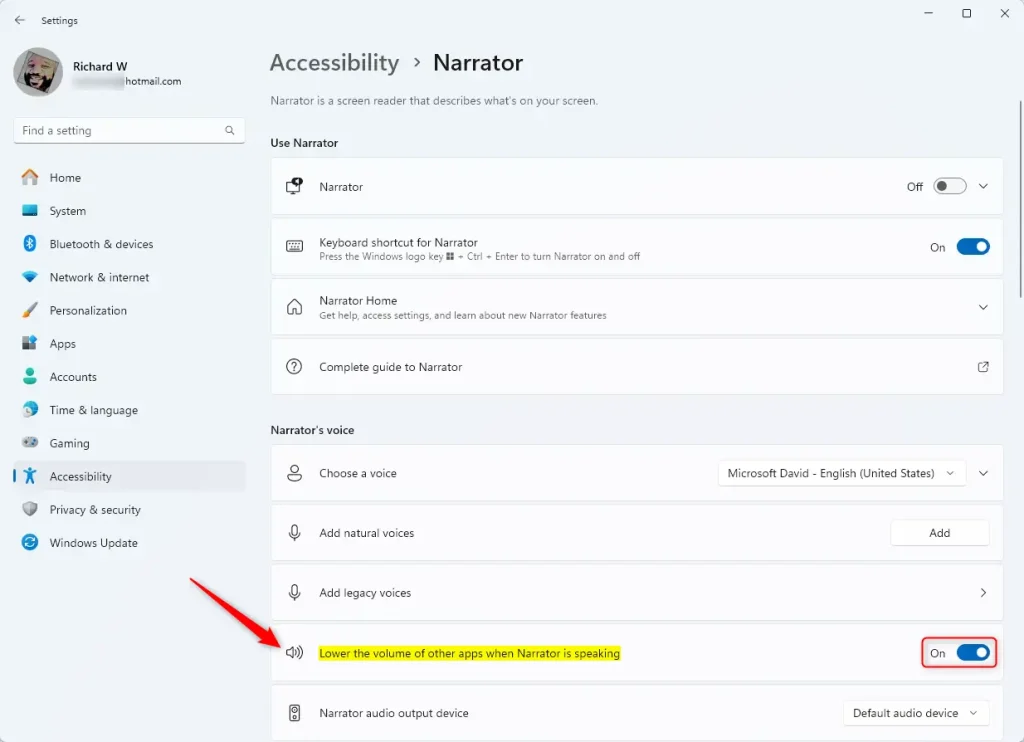
That’s it! Your computer will now lower other sounds when Narrator speaks. Or it will keep all sounds at the same level. It depends on what you chose.
Summary
- Turning on this feature helps you hear Narrator better. Other app sounds get quieter.
- It makes using your PC easier. This is true if you depend on Narrator for reading screen content.
- This setting helps people with vision problems or other disabilities.
- Want to learn more? Check out the other guides on Geek Rewind.


Leave a Reply Cancel reply