How to Enable or Disable Copilot to Read and Edit Text in Shared Apps in Windows 11

Open the Copilot app and sign in. Navigate to Account > Settings > Preferences. Toggle the “Allow Copilot to read and edit text in apps” option to enable or disable this feature.
What is Copilot?
Microsoft Copilot is an AI assistant built into Windows 11. It helps you with everyday tasks on your computer.
Why Would You Use This Feature?
This feature lets Copilot read text from your apps while you work. It can also suggest edits when you’re sharing your screen. This is useful if you want AI feedback without switching between programs.
What Happens When You Turn This On?
When you enable this feature, Copilot gets permission to read text from your apps. It can also suggest edits while you’re sharing your screen. This means you get AI feedback without leaving your current app.
How to Enable or Disable This Feature
- Open the Copilot app on your Windows 11 computer.
- Sign in with your Microsoft account. This keeps your settings synced.
- Click or tap the Account button on the left side. Then click or tap Settings.
- Click or tap Preferences on the left side of Settings.
- Find the toggle that says “Allow Copilot to read and edit text in apps.” Turn it on or off based on what you want.
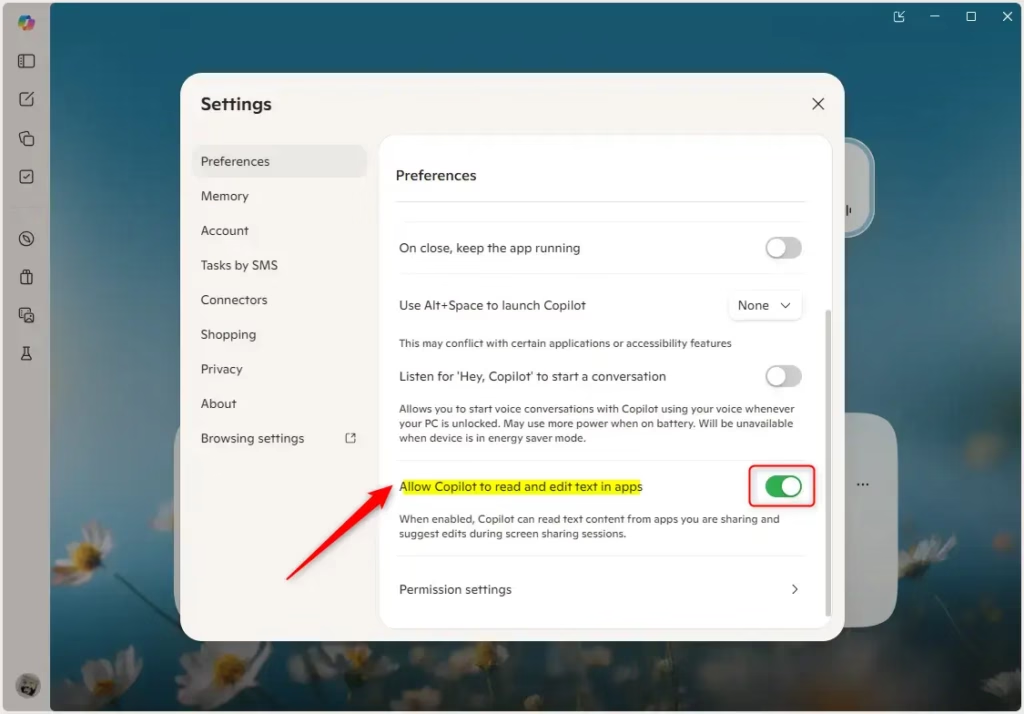
You can turn the Copilot read and edit text in apps feature on or off right from the Copilot app itself. Just open Copilot, go to your Account settings, then Preferences, and look for the toggle switch to control this setting.
Summary
Copilot in Windows 11 can help you by reading and editing text in your apps, but you control if it does. To manage this, open Copilot, go to Account, then Settings, and finally Preferences to find the toggle for allowing Copilot to read and edit text.
Can Copilot edit text?
Yes, Copilot can edit text when you enable the specific permission in your Windows 11 settings. Once enabled, it can read text from your active apps and provide suggestions or edits while you work. This feature allows for seamless AI feedback without needing to switch between different programs or windows.
How to use Copilot to analyze text?
To let Copilot analyze text in your apps, you first need to turn on the ‘Allow Copilot to read and edit text in apps’ setting in Copilot’s preferences. Once this is on, Copilot can see the text in your apps to help you with summaries or edits.
What apps does Copilot work with?
Copilot works with a wide range of Windows 11 applications where text is displayed or edited. By enabling the read and edit permission, Copilot can interact with most standard desktop apps, browsers, and productivity tools, offering AI help right inside the app you’re using.
Can I use Copilot for text messages?
Yes, you can use Copilot for your text messages on Windows 11, as long as you’re using a supported app. Just make sure you’ve turned on the setting that lets Copilot read and edit text in apps, and it can then help you with your messages.
Was this guide helpful?

About the Author
Richard
Tech Writer, IT Professional
Richard, a writer for Geek Rewind, is a tech enthusiast who loves breaking down complex IT topics into simple, easy-to-understand ideas. With years of hands-on experience in system administration and enterprise IT operations, he’s developed a knack for offering practical tips and solutions. Richard aims to make technology more accessible and actionable. He's deeply committed to the Geek Rewind community, always ready to answer questions and engage in discussions.




No comments yet — be the first to share your thoughts!