How to Adjust Font Size in Windows 11

If the text on your Windows 11 computer looks too small or too big, you can change the font size to make it easier to read. This is especially helpful if you have trouble seeing small letters or if your screen is very small or very large.
Changing font size can help reduce eye strain and make your computer more comfortable to use.
How to change font size in 🪟 Windows 11
Follow these simple steps to make the text on your screen bigger or smaller:
- Open Settings: Press the Windows key and the letter I at the same time on your keyboard. This will open the Settings window.
Or, click the Start button (the Windows icon) in the bottom-left corner and then click Settings. - In the Settings window, click on Accessibility from the list on the left side.
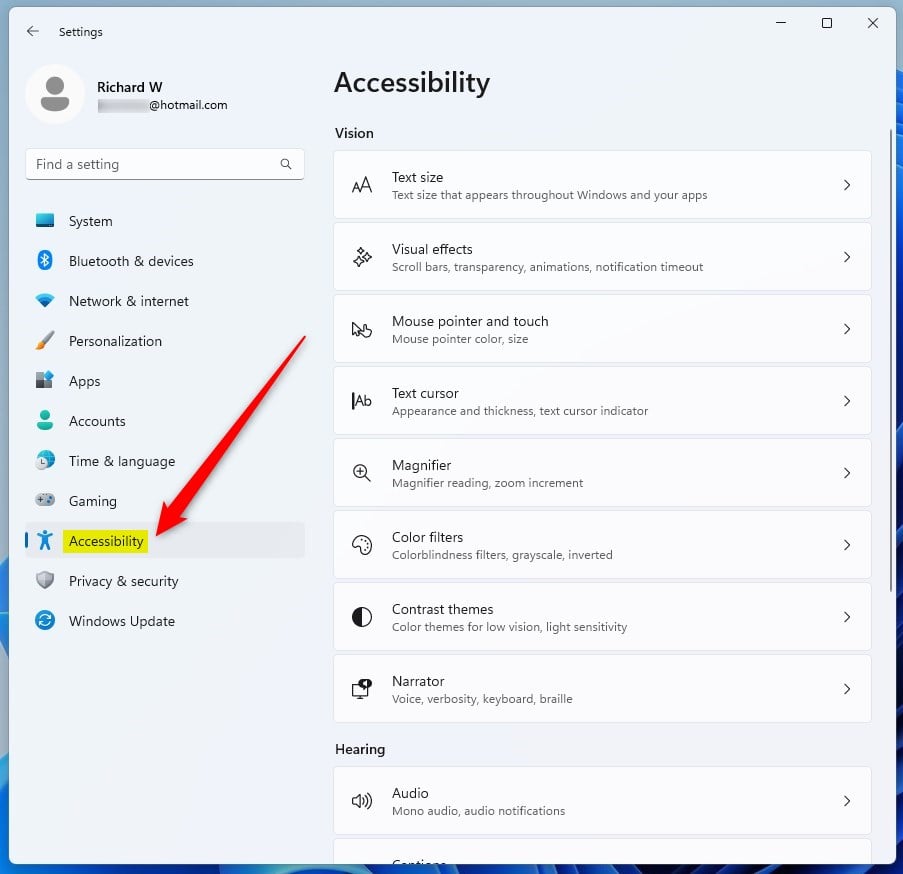
windows 11 accessibility tile
- On the right side, find and click on the Text size option to open it.
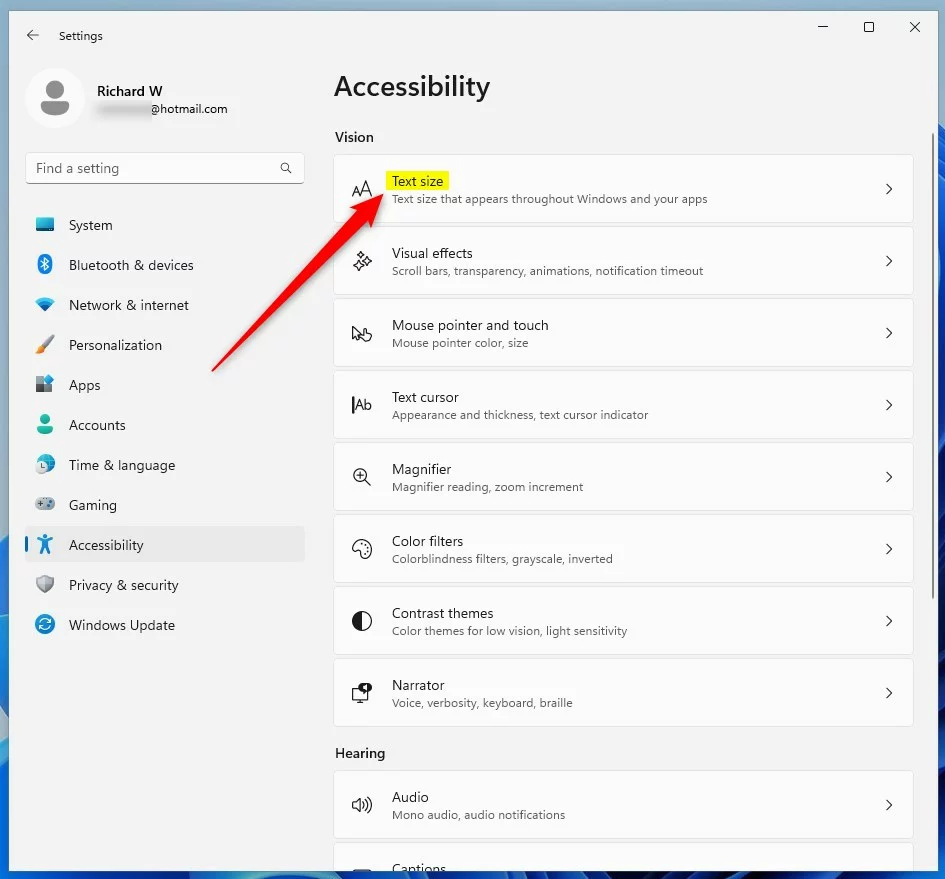
windows 11 accessibility text size tile
- You will see a slider labeled Text size. Drag the circle on the slider to the right to make the text bigger or to the left to make it smaller.
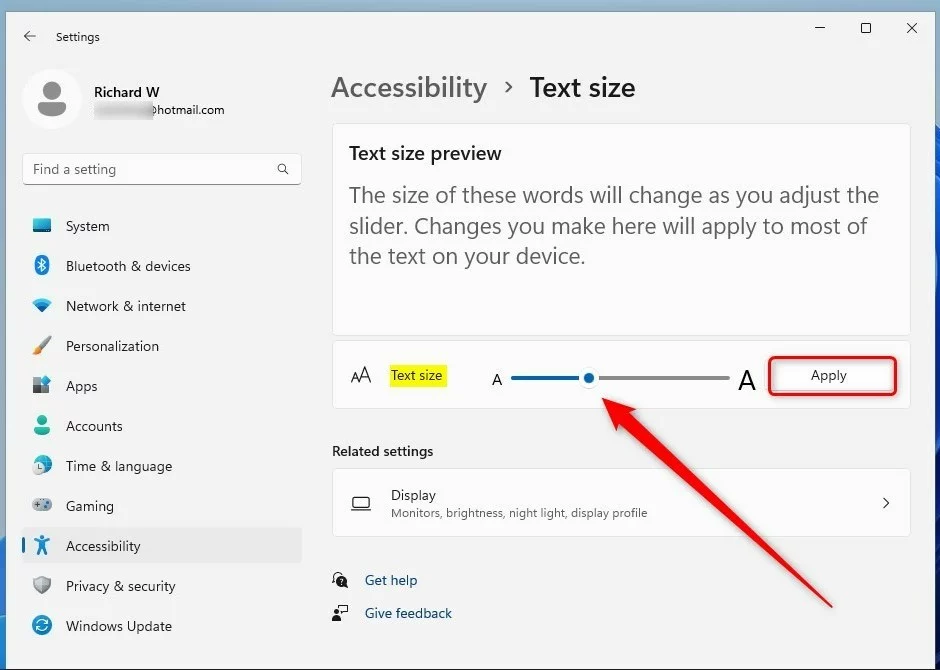
windows 11 increase or decrease font size slider updated
- As you move the slider, you will see a preview showing how the text will look. When you find a size you like, click the Apply button below the slider.
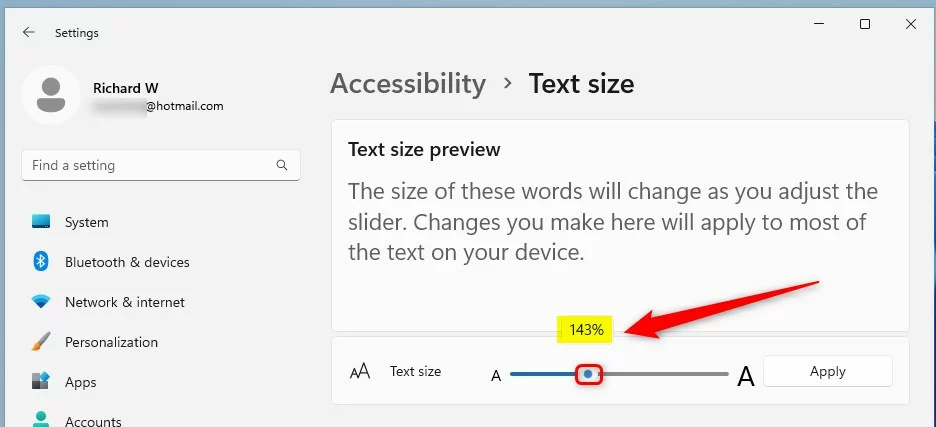
windows 11 increase or decrease font size slider
That’s it! Your font size should now be updated.
Why change font size?
- It makes reading on your computer easier and more comfortable.
- It helps if you have poor eyesight or use a small or high-resolution screen.
- You can quickly change it anytime if you want to try a different size.
- It can reduce eye strain and make using your PC more enjoyable.
If you’d like to learn more about Windows 11 accessibility features, visit the official Microsoft page here: Make your PC easier to see – Microsoft Support.
Was this guide helpful?

About the Author
Richard
Tech Writer, IT Professional
Richard, a writer for Geek Rewind, is a tech enthusiast who loves breaking down complex IT topics into simple, easy-to-understand ideas. With years of hands-on experience in system administration and enterprise IT operations, he’s developed a knack for offering practical tips and solutions. Richard aims to make technology more accessible and actionable. He's deeply committed to the Geek Rewind community, always ready to answer questions and engage in discussions.


No comments yet — be the first to share your thoughts!