Check UEFI BIOS Version is a special menu built into your computer that controls how your device starts up and works. Sometimes, you might need to open this menu to change settings or fix problems.
What is UEFI BIOS?
It stands for Unified Extensible Firmware Interface. It’s the modern version of the old BIOS system, helping your computer start up faster and work better with new software.
Method 1: Use Keyboard Keys When Starting Your Computer
Most computers let you enter the UEFI BIOS menu by pressing a certain key right after turning on your PC. Watch the screen carefully when your computer starts — you might see a message like “Press F2 to enter Setup.”
Common keys to try include:
- Esc
- Delete
- F1
- F2
- F10
- F11
- F12
If you have a tablet, try holding the Volume Up or Volume Down buttons while turning it on.
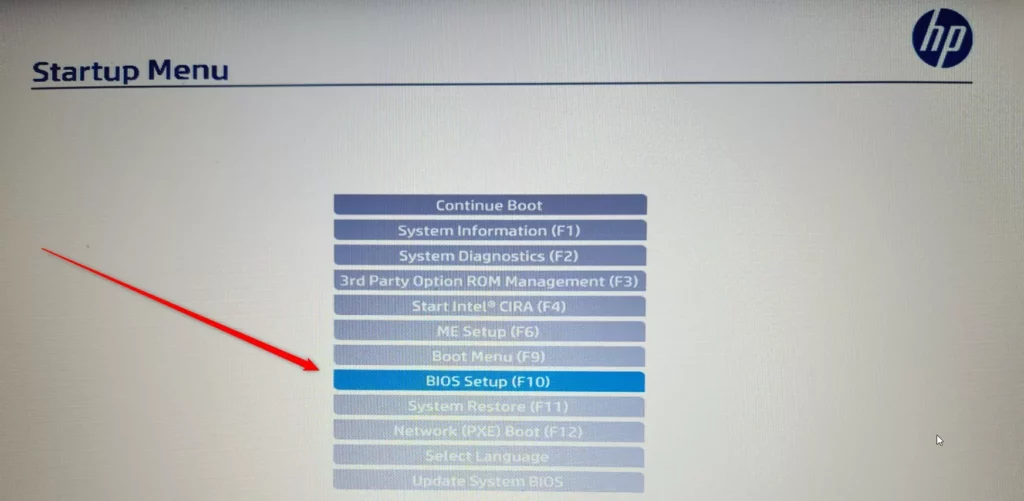
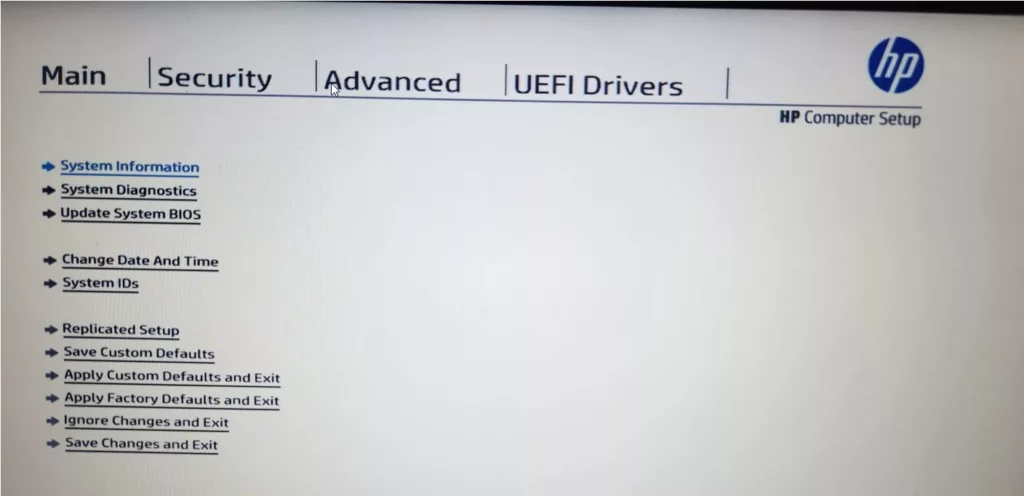
Once inside the UEFI BIOS screen, you can make changes like adjusting the boot order or enabling hardware features. Remember to save your changes before exiting!
Method 2: Use Windows 11 Advanced Startup Settings
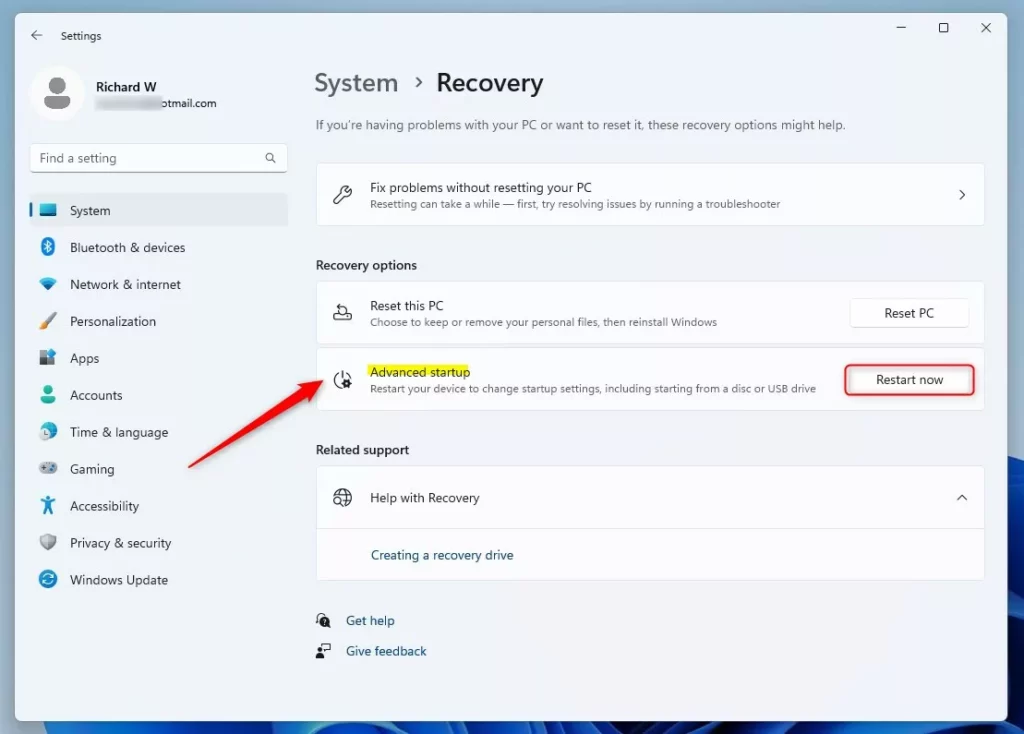
If the keyboard shortcut method is tricky, you can also access UEFI BIOS through Windows 11’s settings:
- Click the Start button, then go to Settings.
- Choose System > Recovery.
- Under Advanced startup, click Restart now.
After your computer restarts, follow these steps:
- Select Troubleshoot.
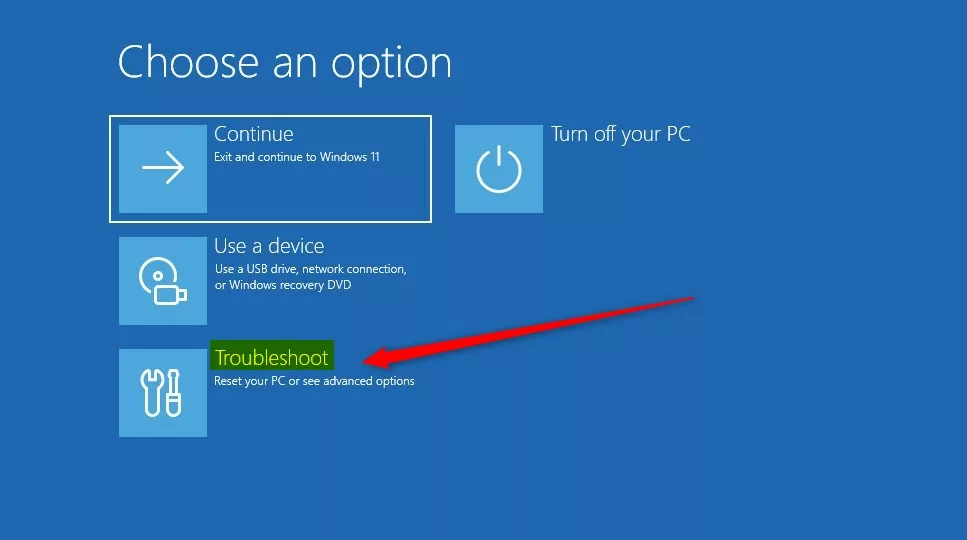
Select “Troubleshoot” - Select Advanced options.
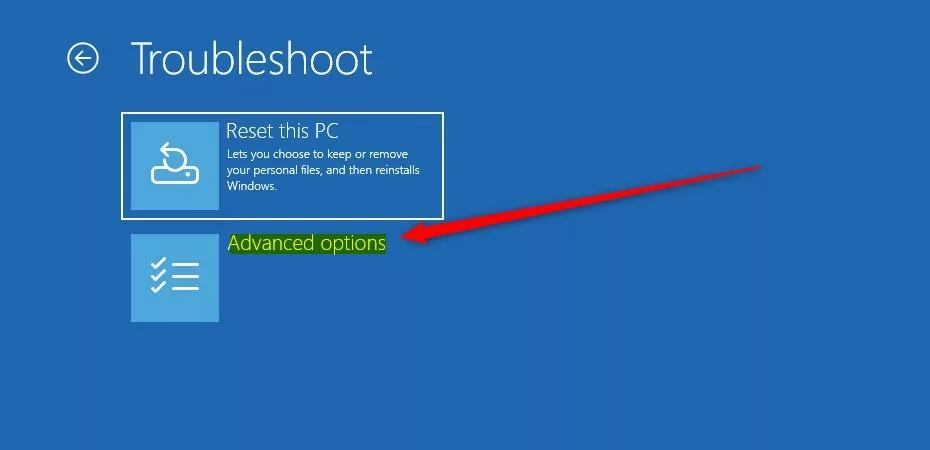
Select “Advanced options” - Select UEFI Firmware Settings.
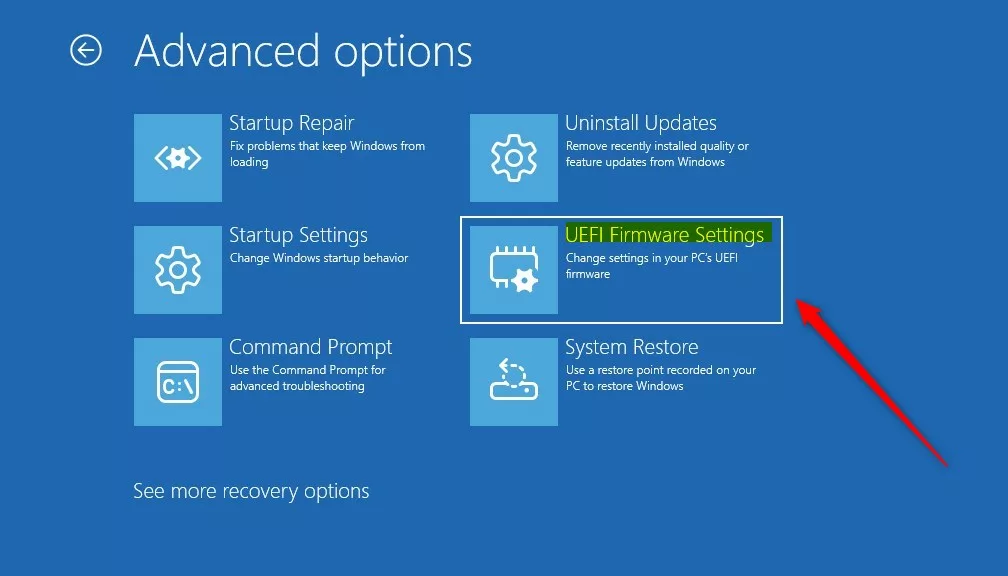
Select “UEFI Firmware Settings”
Your computer will restart and open the UEFI BIOS menu automatically.
Method 3: Use a Command to Restart into UEFI BIOS
You can also use a simple command to restart your PC directly into the UEFI BIOS menu:
shutdown /r /fw /t 0
Here’s how:
- Right-click the Start button and select Windows Terminal (or open Open Command Prompt at Boot or PowerShell).
- Type or paste the command above and press Enter.
Your PC will restart and take you straight to the UEFI BIOS settings.
Summary
- UEFI BIOS lets you control how your computer starts and runs.
- You can enter UEFI BIOS using keyboard keys during startup, Windows Advanced Startup, or a simple command.
- Knowing how to access UEFI BIOS helps you customize and fix your device.
Want to learn more? Visit the official Microsoft UEFI page here:
Microsoft UEFI Firmware Info
Leave a Reply