How add Shortcuts to Add a Shared Folder in Your OneDrive

Adding shortcuts to shared folders in OneDrive puts important files right at your fingertips.
OneDrive shortcuts let you create a quick link to a shared folder from another user, making it appear in your own OneDrive file list.
Accessing a shared folder in OneDrive differs from syncing a folder. Accessing a shared folder does not download files to your computer. Instead, shared folder access offers a convenient way to use shared documents or projects without filling your main storage.
For example, if a colleague shares a “Project Alpha” folder with you, adding a shortcut means you can quickly jump to it from your OneDrive dashboard, just like a bookmark for a website.
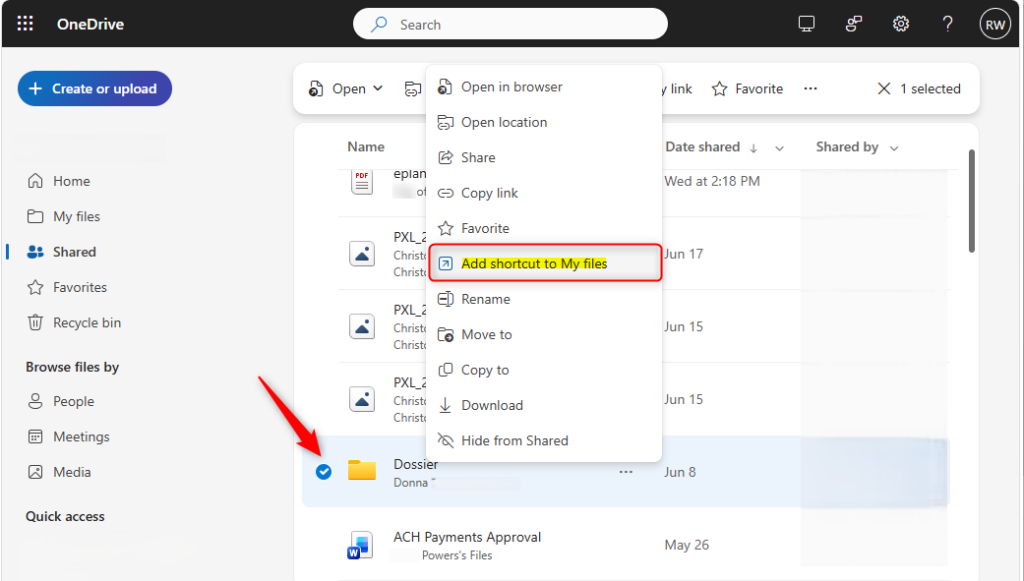
Navigate to the ‘Shared’ section on OneDrive.com, find the folder you want to add, and select “Add shortcut to My files” from the context menu. The shortcut will then appear in your ‘My files’ list.
Sign in to OneDrive Online
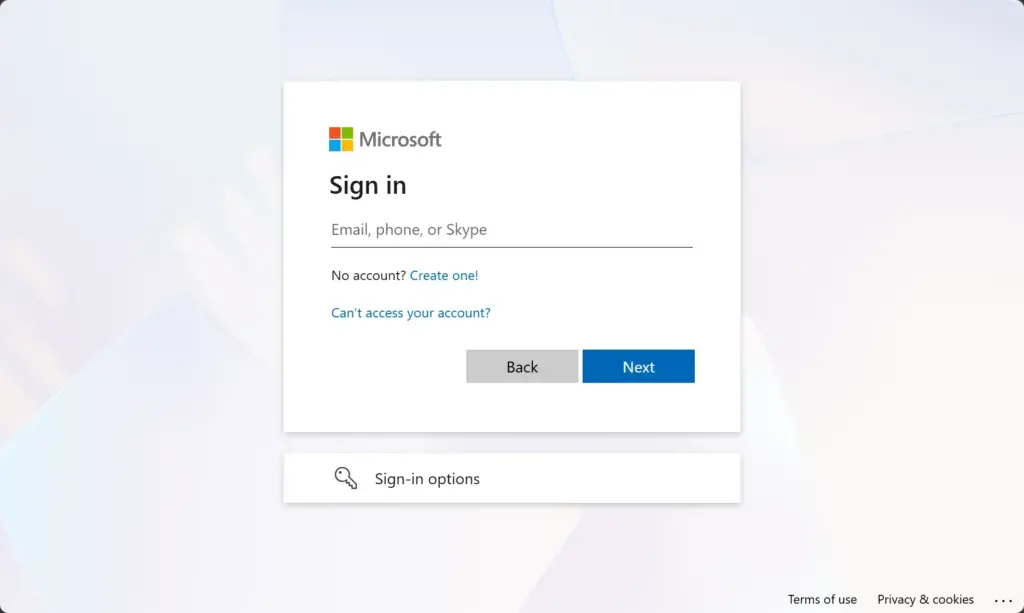
First, open your web browser and go to OneDrive.com. Sign in with the Microsoft account that received the shared folder. This is important because the shortcut will be added to the OneDrive account you are logged into.
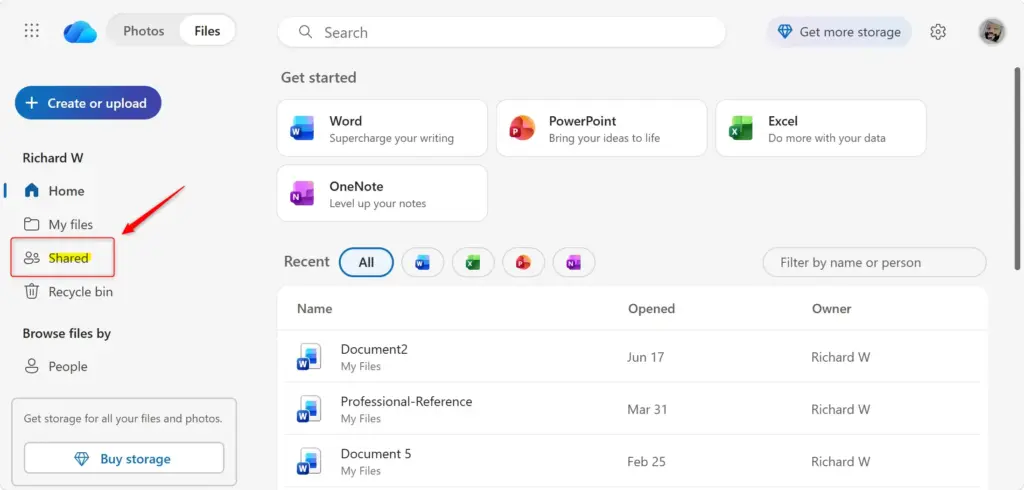
Navigate to the ‘Shared’ Section
The ‘Shared’ section in OneDrive shows you all the files and folders others have shared with you. After you sign in, look on the left side of the screen for options like ‘My files,’ ‘Recent,’ and ‘Shared.’ Clicking ‘Shared’ lets you see everything people have sent your way.
Locate the Folder You Want to Add
You can add a shared OneDrive folder as a shortcut to your ‘My files’ list to find it easily later. To do this, you need permission to edit the folder; you can’t add shortcuts to folders you can only view. Find the specific shared folder you want to add within the list of items others have shared with you.
Add the Shortcut to ‘My Files’
Adding a shortcut to a shared folder in OneDrive is simple and keeps important files handy.
Alternatively, right-click directly on the folder. A context menu will appear, listing “Add shortcut to My files” as an option. Select it.
Verify the Shortcut in ‘My Files’
After a shared folder shortcut appears in OneDrive, users can easily check if the shortcut is present in the 'My Files' list. This confirms the shared folder shortcut successfully added, making the shared files accessible from the primary user interface.
Accessing Your New Shortcut
When you add a shared folder shortcut in OneDrive, it shows up everywhere you access your OneDrive files. On the OneDrive website, the shortcut appears right in your ‘My files’ list, just like any other file. If you use the OneDrive app on your computer, the shortcut also shows up in Windows File Explorer.
- On OneDrive.com: You will see it in your “My files” list, just like we did.
- In Windows File Explorer: If you have the OneDrive app installed on your PC, the shortcut will appear in your OneDrive folder. It looks like any other folder, making it easy to access without opening your web browser.
- On Mac Finder: Mac users will also find the shortcut in their OneDrive folder within Finder.
- On OneDrive Mobile Apps: Your shortcuts will be available on your phone or tablet through the OneDrive app.
Reference:
https://support.microsoft.com/en-US/onedrive/add-shortcuts-to-shared-folders-in-onedrive
Summary
Adding a shortcut to a shared OneDrive folder is a great way to keep important files easily accessible across all your devices.
Can you add a shortcut to a shared drive?
You can use shortcuts in your drive or a shared drive. Shortcuts are visible to everyone with access to the folder or drive. Shortcuts point back to the original file so you always have the latest info. You can make up to 500 shortcuts per file or folder yourself.
Was this guide helpful?

About the Author
Richard
Tech Writer, IT Professional
Richard, a writer for Geek Rewind, is a tech enthusiast who loves breaking down complex IT topics into simple, easy-to-understand ideas. With years of hands-on experience in system administration and enterprise IT operations, he’s developed a knack for offering practical tips and solutions. Richard aims to make technology more accessible and actionable. He's deeply committed to the Geek Rewind community, always ready to answer questions and engage in discussions.
No comments yet — be the first to share your thoughts!