How to Enable or Disable Hide Recently Opened Files in Windows 11 Start Menu

You can enable or disable the display of recently opened files in the Windows 11 Start menu’s “Recommended” section.
This feature, known as “Recommended,” shows files, folders, and apps you’ve recently accessed, helping you quickly jump back into your work. Windows 11 by default displays these items to enhance productivity.
However, if you prefer to keep your recent activity private or simply want a cleaner Start menu, you can easily turn off this recommendation list.
Disabling this setting prevents Windows 11 from showing any of your last 10 recently opened files and apps in the Start menu’s dedicated area.
Why Hide Recently Opened Items?
Your Start menu shows files and apps you used recently. This is helpful if you want quick access. But it also means anyone using your computer can see what you’ve been working on. Hiding these items keeps your activity private.
What is the Start Menu in 🪟 Windows 11?
The Start menu is where you find your apps and files. It has three main parts:
- Pinned: Your favorite apps that you pin for quick access.
- All apps: A full list of all the apps you installed.
- Recommended: Shows recent files, folders, and apps you used.
You can remove one recent item at a time by right-clicking it and choosing “Remove from list.” But if you want to stop Windows from showing any recent items, follow the steps below.
How to Hide Recently Opened Items and Apps in the Start Menu
Follow these simple steps to turn off recent items in the Start menu:
- Open Settings
Click the Start menu button (the Windows icon at the bottom left). Then click Settings. Or press Windows key + I together on your keyboard to open Settings quickly. - Go to Personalization
In the Settings window, click on Personalization on the left side. - Select Start
On the right side, click on Start to open Start menu settings.
- Turn off recent items
You will see two switches under Layout:- Show recently added apps
- Show recently opened items in Start, Jump Lists, and File Explorer
- Close the Settings window. Your Start menu will no longer show recent files or apps.
Click each switch to turn them off (so they are no longer blue).
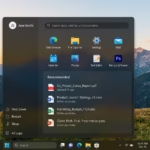
Here is how your Recommended section will look after hiding recent items:

Summary
- You can easily remove or hide recent files and apps from the Windows 11 Start menu.
- Use the Settings app under Personalization > Start to turn off recent items.
- This also stops showing recent files in File Explorer and Jump Lists.
- These simple steps help keep your recent activity private and your Start menu cleaner.
- If you want to learn more about using Windows 11, visit the Geek Rewind Windows 11 Start menu guide.
Was this guide helpful?
100% of readers found this helpful (1 votes)

About the Author
Richard
Tech Writer, IT Professional
Richard, a writer for Geek Rewind, is a tech enthusiast who loves breaking down complex IT topics into simple, easy-to-understand ideas. With years of hands-on experience in system administration and enterprise IT operations, he’s developed a knack for offering practical tips and solutions. Richard aims to make technology more accessible and actionable. He's deeply committed to the Geek Rewind community, always ready to answer questions and engage in discussions.
No comments yet — be the first to share your thoughts!