
This article explains how to delete diagnostic data from your Windows 11 device.
Diagnostic data in Windows refers to the information collected from your device by Microsoft. This data helps identify and fix problems with your operating system and applications.
Users can turn on or off required or optional diagnostic data collection, turn on or off diagnostic data viewer, enable or disable tailored experiences, and more.
Why Delete Diagnostic Data?
There are several reasons why someone might want to delete diagnostic data from their Windows device.
Some users want to protect their privacy. They don’t want to share information with Microsoft. Others want to free up storage space on their device by removing unnecessary data. Some users may also want to remove sensitive information that Microsoft has collected.
Whatever your reason, Windows 11 lets you manage and delete diagnostic data whenever you want.
How to Remove Diagnostic Data from Windows
Remove diagnostic data in Windows 11 by opening Settings, navigating to Privacy & Security, selecting Diagnostics & Feedback, clicking Delete Diagnostic Data, and confirming the deletion. This process permanently removes collected diagnostic information from your device in approximately one minute.
- Open the Windows Settings app.
- Select Privacy & security on the left side.
- Select the Diagnostics & feedback tile on the right to expand it.
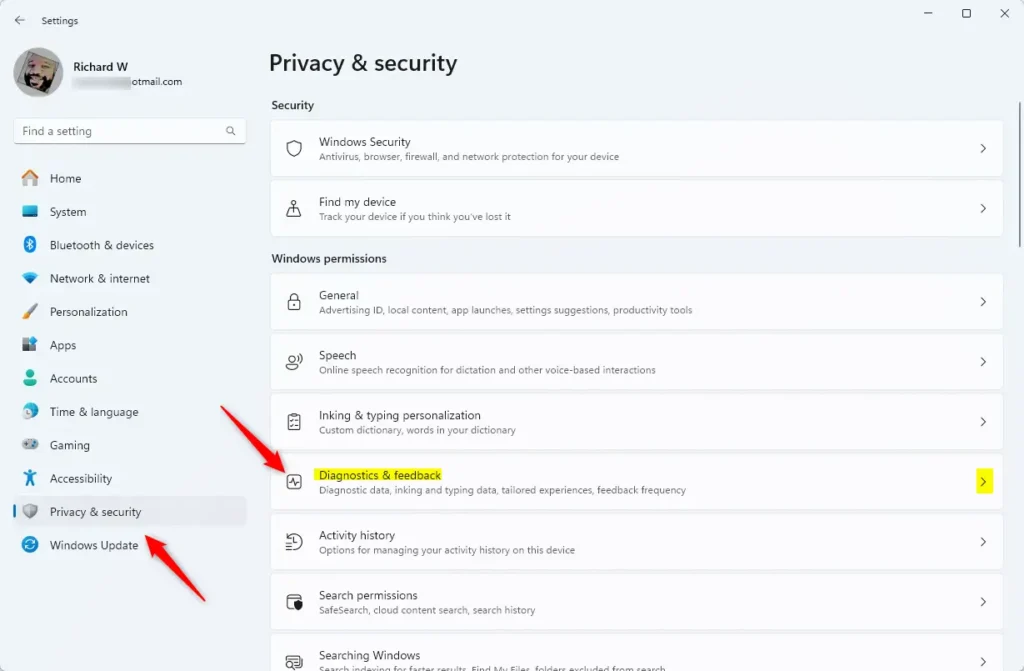
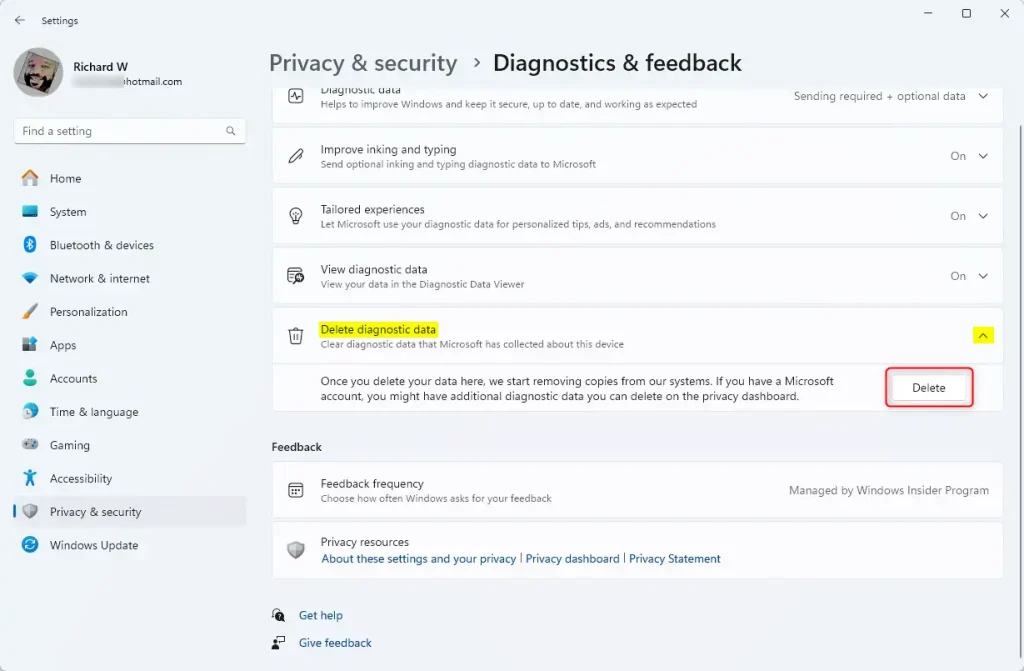
- Select the Delete diagnostic data tile to expand it.
- Click the Delete button to remove your device’s diagnostic data.
- Exit the Settings app when you’re done.
That’s all there is to it!
What Happens After You Delete the Data?
Your diagnostic data gets removed from Microsoft’s servers. You gain more control over your privacy. You also free up some storage space on your device. You can still enable or disable tailored experiences and control required or optional diagnostic data collection anytime you want.
Summary
Deleting diagnostic data in Windows 11 is simple and important for maintaining your privacy and freeing up storage space. You can easily manage and delete diagnostic data by accessing the Windows Settings app. Whether you’re concerned about privacy or want to manage your data better, Windows 11 gives you the power to remove sensitive information collected by Microsoft and stay in control of your own data.
Frequently Asked Questions
Why Delete Diagnostic Data?
What Happens After You Delete the Data?



Leave a Reply