How to View Your Print Queue on Windows 11


Printing a document is usually fast. Sometimes, you might send a large file and wonder why it hasn’t come out of the printer yet. This is where the print queue comes in. The print queue is a digital waiting room for your files. It holds your documents until the printer is ready to process them.
Why check the print queue? You check it to see if a file is stuck, to cancel a print job, or to see how many pages are left in the line.
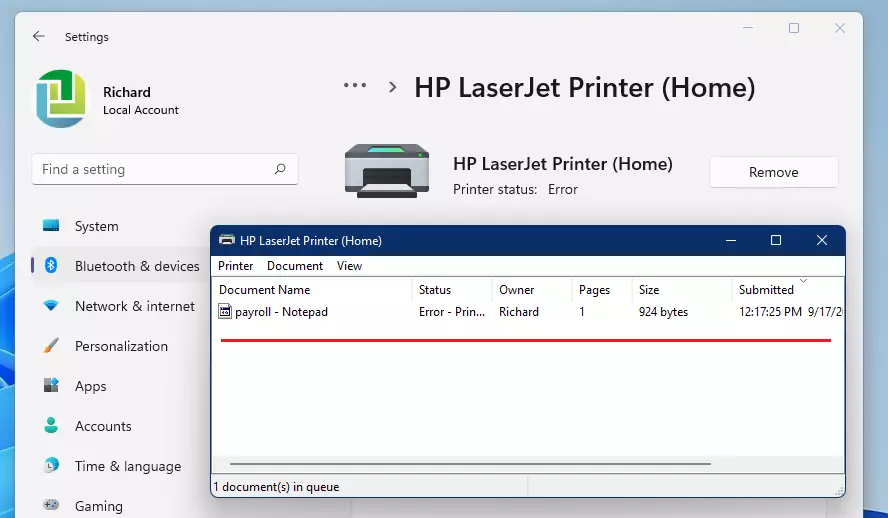
What happens when done? You will see a list of documents waiting to be printed. You can then manage, pause, or cancel these jobs to fix any printing delays.
How to see your print queue on Windows 11
Follow these steps to find your printer’s waiting list.
- Click the Start button and select Settings.

- On the left side menu, click Bluetooth & devices.
- Then, click on Printers & scanners %%LNK0%%.
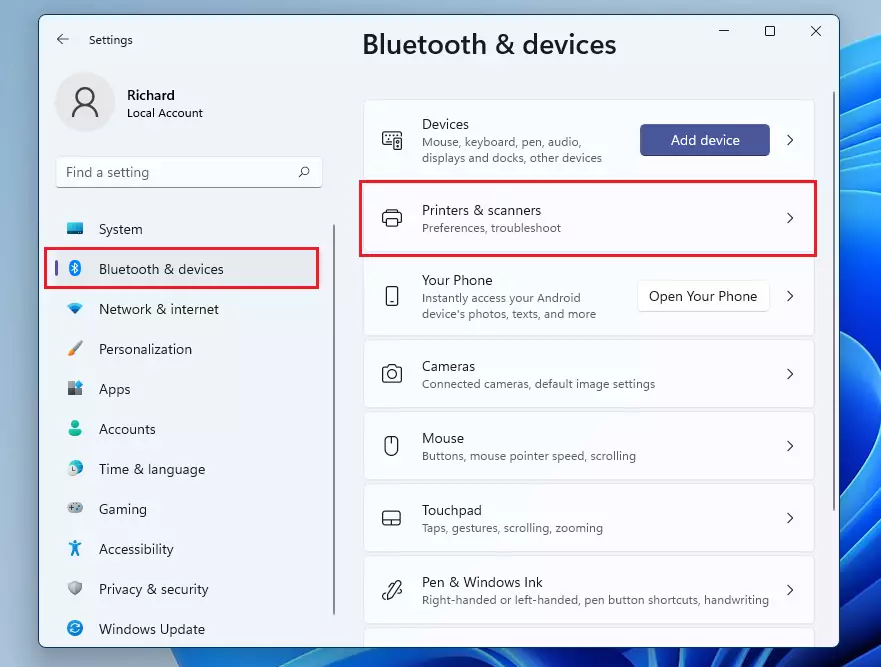
- Find your printer in the list and click its name.
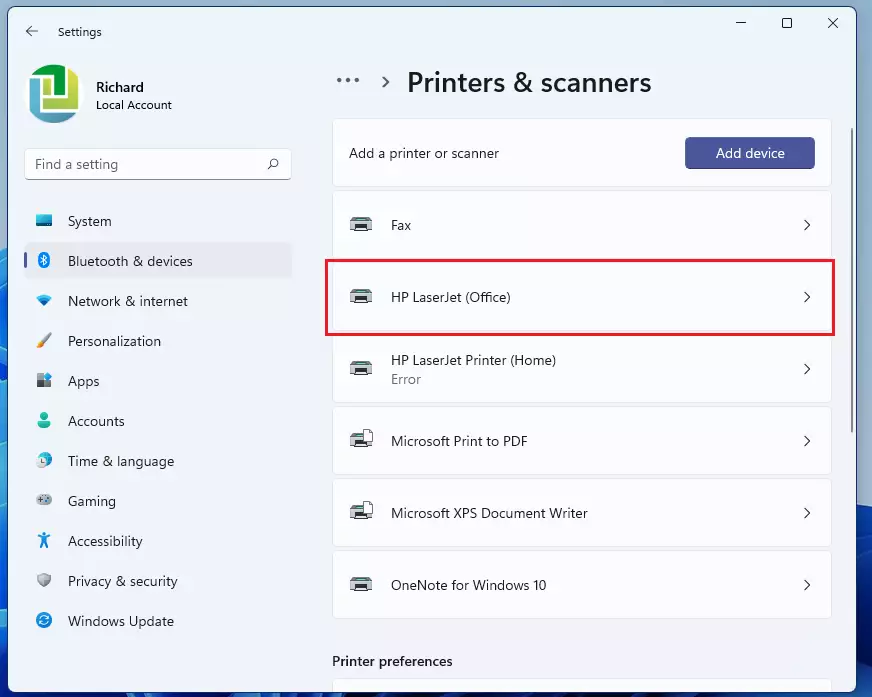
- Look for the button labeled Open print queue and click it.
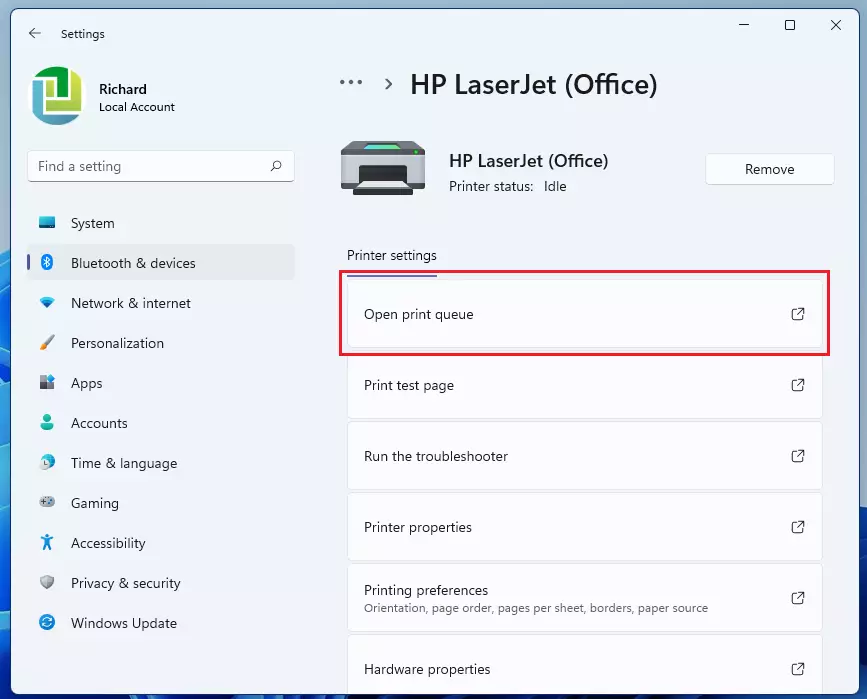
A new window will appear showing all your pending files. If the list is empty, your printer is ready for new jobs.
Note: If you need to clear a stuck job with administrative rights, you can use the Command Prompt. Run the following commands:
net stop spoolerdel /Q /F /S C:\Windows\System32\spool\PRINTERS\*.*net start spooler
Summary
Checking the print queue helps you manage your documents and clear up errors. By navigating through Settings, you can quickly see what is waiting to print. This simple process keeps your printer running smoothly and helps you avoid frustration when things go wrong.
Was this guide helpful?





When I open the box to cancel the printing, no name appears in regard to what is printing just a line at the bottom which I believe is the amount of printing completed.