How to Install FileZilla on Ubuntu 24.04

You install FileZilla on Ubuntu 24.04 using the Ubuntu Software Center or the command line.
FileZilla is a free, open-source FTP client that helps you transfer files between your PC and a server using FTP, SFTP, and FTPS protocols.
This powerful client simplifies file management with an intuitive graphical interface, making it easy for anyone to move files. You can drag and drop files directly and manage multiple transfers simultaneously with its built-in queue.
One of the fastest ways to get it running is by using the command `sudo apt install filezilla` in your terminal.
Install FileZilla using the terminal with `sudo apt install filezilla`. Alternatively, use the Ubuntu Software Center or Flatpak. After installation, find FileZilla in your Activities menu.
Install FileZilla from the Ubuntu repository
The quickest way to install FileZilla is from Ubuntu’s repository. Keep in mind, the version installed here might not be the absolute latest.
First, update your packages by running the command below.
sudo apt update
sudo apt upgrade
Then, run the command to install FileZilla.
sudo apt install filezilla
Once installed, you can launch it from Activities > Show Applications > FileZilla on your desktop.
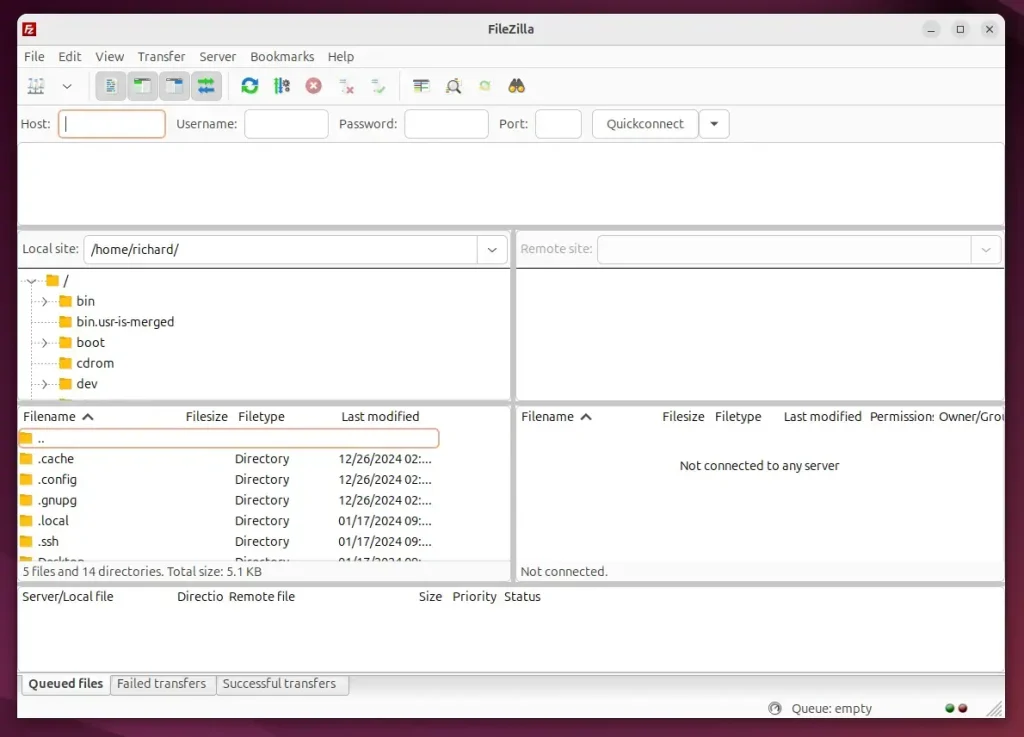
Install FileZilla from XtraDeb PPA
If you want to install the latest version, using the XtraDeb PPA is the way to go.
To do that, install the packages below.
sudo apt install software-properties-common apt-transport-https
Then, add the PPA by running the command below.
sudo add-apt-repository ppa:xtradeb/apps
Update and install FileZilla.
sudo apt update
sudo apt install filezilla
Once installed, you can launch it from Activities > Show Applications > FileZilla on your desktop.
Install FileZilla from Flatpak
Yet another way to install FileZilla is to use the Flatpak package manager. Flatpak uses sandboxing for package installations, which enhances security and makes updates simpler.
It’s a third-party application distribution system not included in Ubuntu by default.
You’ll need to install the Flatpak package manager first, and then install FileZilla.
Start by updating and installing Flatpak.
sudo apt update && sudo apt upgrade
sudo apt install flatpak
Next, add the Flatpak repository to Ubuntu.
sudo flatpak remote-add --if-not-exists flathub https://flathub.org/repo/flathub.flatpakrepo
Finally, install GoLand.
flatpak install flathub org.filezillaproject.Filezilla
Once installed, you can launch it using the command below or open the app in the desktop apps center.
flatpak run org.filezillaproject.Filezilla
Uninstall the app using the command below.
sudo flatpak uninstall org.filezillaproject.Filezilla
You can launch it from Activities > Show Applications > FileZilla on your desktop.
That should do it!
Conclusion:
Installing FileZilla on Ubuntu 24.04 offers several options, each with its own perks:
- Ubuntu Repository: Quick and straightforward, ideal for those who need basic functionality.
- XtraDeb PPA: Offers the latest version of FileZilla, ensuring access to new features and updates.
- Flatpak: Provides enhanced security through sandboxing and a robust system for managing software dependencies.
Choose the method that best fits your needs, and enjoy seamless file transfers with FileZilla!
How to install FileZilla in Ubuntu terminal?
All packages are up to date. Now, we need to install the dependencies for FileZilla. This will help with the installation.
Does FileZilla work on Ubuntu?
FileZilla is available in the default Ubuntu repositories. You can install it using the APT package manager. Open a terminal window.
What is the best FTP app for Ubuntu?
In short, FileZilla is the best FTP client on Ubuntu for 95% of users. It’s free and includes all the most useful features. On Ubuntu Server, lFTP and NcFTP are suitable alternatives for the command-line interface.
Was this guide helpful?

About the Author
Richard
Tech Writer, IT Professional
Richard, a writer for Geek Rewind, is a tech enthusiast who loves breaking down complex IT topics into simple, easy-to-understand ideas. With years of hands-on experience in system administration and enterprise IT operations, he’s developed a knack for offering practical tips and solutions. Richard aims to make technology more accessible and actionable. He's deeply committed to the Geek Rewind community, always ready to answer questions and engage in discussions.




No comments yet — be the first to share your thoughts!