How to Enable or Disable Copilot Responses in Bing


You can enable or disable Copilot responses in Bing search results to control AI-generated answers directly on the search page.
Copilot, integrated into Bing, provides AI-powered summaries and answers that appear below your search queries, aiming to streamline information discovery.
This feature began rolling out more broadly in March 2023, offering a new way to interact with search results.
You can toggle Copilot’s appearance on or off based on your personal preference for how you want to view search information.
Why use this feature?
You might want to keep Copilot on if you want instant summaries or quick facts. You might want to turn it off if you prefer to visit original websites to read the full context or perform deeper research.
What happens when you are done?
Once you change these settings, your search results page will update immediately. If you enable it, you will see AI-generated summaries at the top of your search results. If you disable it, the search page will show the traditional list of website links without the AI summary box.
How to turn Copilot responses on or off
You do not need special permissions for this change. It is a personal account setting.
- Open Bing Bing.
- Type any search query into the search bar.
- Click the main menu icon in the top-right corner of the page.
- Select Copilot Settings.
- Find the toggle switch labeled “Copilot response on result page” and switch it to your preferred setting.
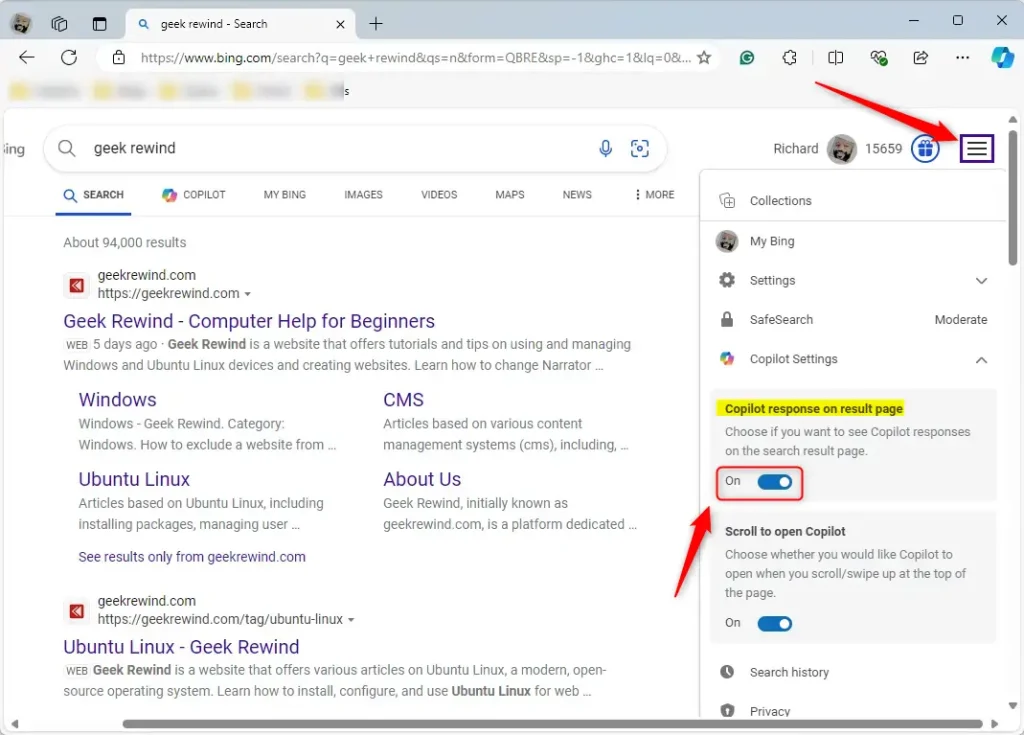
That is all you need to do!
Summary
Customizing your Copilot settings helps you control your search experience. Enabling the feature provides fast, concise answers directly on your screen. Disabling it gives you a cleaner search page that encourages clicking through to websites for more detailed information.
How do I enable Copilot responses in Bing?
What are the benefits of using Copilot responses in Bing?
Can I disable Copilot responses in Bing?
What happens when I disable Copilot responses in Bing?
Is it possible to customize Copilot settings in Bing?
Was this guide helpful?

About the Author
Richard
Tech Writer, IT Professional
Richard, a writer for Geek Rewind, is a tech enthusiast who loves breaking down complex IT topics into simple, easy-to-understand ideas. With years of hands-on experience in system administration and enterprise IT operations, he’s developed a knack for offering practical tips and solutions. Richard aims to make technology more accessible and actionable. He's deeply committed to the Geek Rewind community, always ready to answer questions and engage in discussions.




Even after switching Copilot answers off they are still appearing.