Where Are Windows Automatic Maintenance Tasks in Windows 11?


Windows Automatic Maintenance tasks in Windows 11 are located within the Task Scheduler, specifically under the “Task Scheduler Library” > “Microsoft” > “Windows” > “Maintenance” folders.
This feature bundles background PC chores, like security updates and disk optimization, running them when your computer is idle to ensure smooth performance.
These tasks are managed by Windows using its Task Scheduler API, a system designed to handle important background processes without interrupting you.
For instance, the “WinSAT” task, part of the Automatic Maintenance process, assesses your system’s performance metrics.
Why use Windows Automatic Maintenance?
Why? Your computer needs regular “housekeeping” to stay fast and secure. What happens when done? By running these background processes, your PC stays protected from malware, your hard drive stays organized, and your software remains up to date. This ensures your system runs smoothly without manual intervention.
How to see your maintenance tasks
Windows runs these tasks every day to keep things working well. If you want to see what is on your list, follow these steps.
Step 1: Open PowerShell as Administrator
Admin Required: You must have administrative rights to view these system tasks. Right-click the Start button and select Terminal (Admin) or PowerShell (Admin).
Step 2: Run the command to see your tasks
Copy and paste the command below into the window and press Enter.
Get-ScheduledTask | ? {$_.Settings.MaintenanceSettings} | Out-GridView
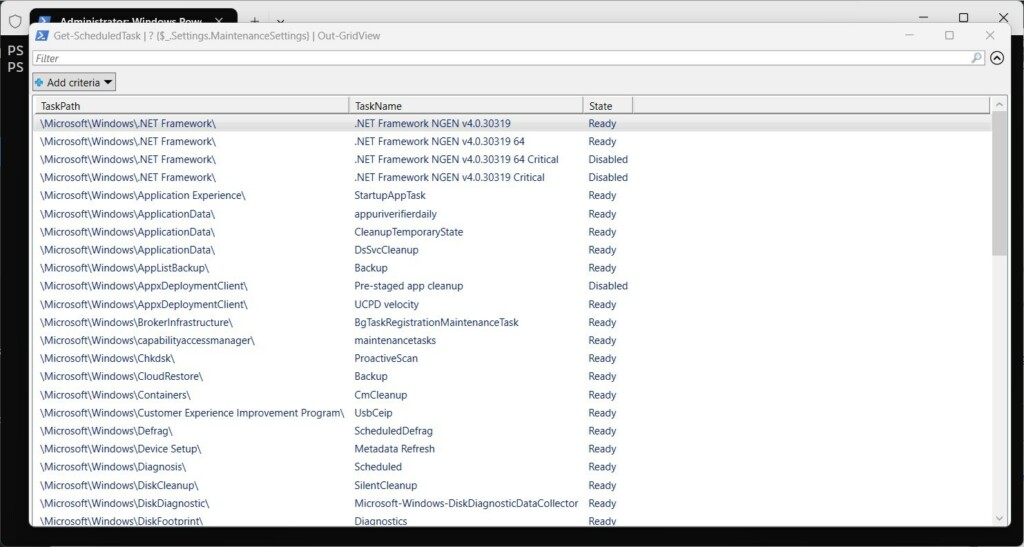
A new window will open showing all your maintenance tasks.
Step 3: Save the list to a file (Optional)
You can save this list to a text file on your desktop for easy reading later.
Get-ScheduledTask | ? {$_.Settings.MaintenanceSettings} | Format-Table -AutoSize | Out-file -FilePath "$Env:userprofile\Desktop\WAM.txt"
Troubleshooting and Configuration
If your PC feels slow, it might be running maintenance during your work hours. You can adjust these settings in the Control Panel under System and Security > Security and Maintenance > Automatic Maintenance. If your computer is off at 2 AM, you can schedule a different time for the tasks to run.
Can I disable Windows Automatic Maintenance?
While you can technically disable it, it is not recommended. Disabling these tasks prevents critical security scans and system updates from running automatically. This can leave your computer vulnerable to threats and cause performance issues over time. It is best to keep this feature enabled for a healthy, secure system.
Does Automatic Maintenance affect PC performance?
Windows is designed to run these tasks only when your computer is idle. If you start using your PC while maintenance is running, Windows will automatically pause the tasks to ensure your work is not interrupted. This design minimizes the impact on your daily performance and system responsiveness.
Why does my computer wake up at night for maintenance?
By default, Windows is allowed to wake your computer from sleep to perform scheduled maintenance tasks. This ensures that your system stays updated even if you leave it in sleep mode overnight. You can change this behavior in the Power Options settings if you prefer your computer to stay asleep.
Summary
Key Takeaways: Windows Automatic Maintenance tasks keep your PC healthy by running background processes like security scans and disk cleanup. While they run at 2 AM by default, you can manage these settings to suit your schedule. Keeping this feature enabled is vital for optimal system performance and security.
Was this guide helpful?
[…] Scheduled tasks are automated tasks that run at specified times or when certain events occur in Windows. These tasks can include launching programs, running scripts, backing up files, or performing system maintenance. […]