How to Enable Touch Mode in Microsoft Edge


You enable Touch mode in Microsoft Edge to make its interface easier to use with a touchscreen.
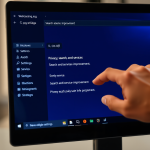
Enable touch mode in Microsoft Edge by going to Settings, then Appearance. Under the Touch section, select Auto, On, or Off from the Touch mode menu. Close and reopen Edge for changes to take effect.
Touch mode is a special setting in Microsoft Edge that enlarges interface elements like tabs and buttons, providing more space for finger taps. This feature is ideal for users of 2-in-1 laptops or Windows tablets.
When Touch mode is active, you’ll notice increased spacing between interactive elements. This helps prevent accidental clicks and makes navigation more fluid when you’re not using a mouse.
To activate Touch mode, simply navigate to Edge’s settings menu and select the appropriate option, usually found within the Appearance tab. This quick adjustment can significantly improve your browsing experience on touch-enabled devices.
Was this guide helpful?

About the Author
Richard
Tech Writer, IT Professional
Richard, a writer for Geek Rewind, is a tech enthusiast who loves breaking down complex IT topics into simple, easy-to-understand ideas. With years of hands-on experience in system administration and enterprise IT operations, he’s developed a knack for offering practical tips and solutions. Richard aims to make technology more accessible and actionable. He's deeply committed to the Geek Rewind community, always ready to answer questions and engage in discussions.



No comments yet — be the first to share your thoughts!