How to Enable Visual Alerts on Ubuntu Linux


You enable visual alerts on Ubuntu Linux to get a flashing screen or window notification instead of an audible sound.
Visual alerts provide a light signal for system notifications, which is crucial if you cannot hear default sounds or prefer a silent system.
When you enable visual alerts, your screen or a specific window will flash each time a system alert occurs, offering a direct visual cue.
Ubuntu Linux typically uses sound for notifications, but enabling visual alerts is beneficial if your computer lacks speakers, has sound disabled, or you’re in a quiet environment.
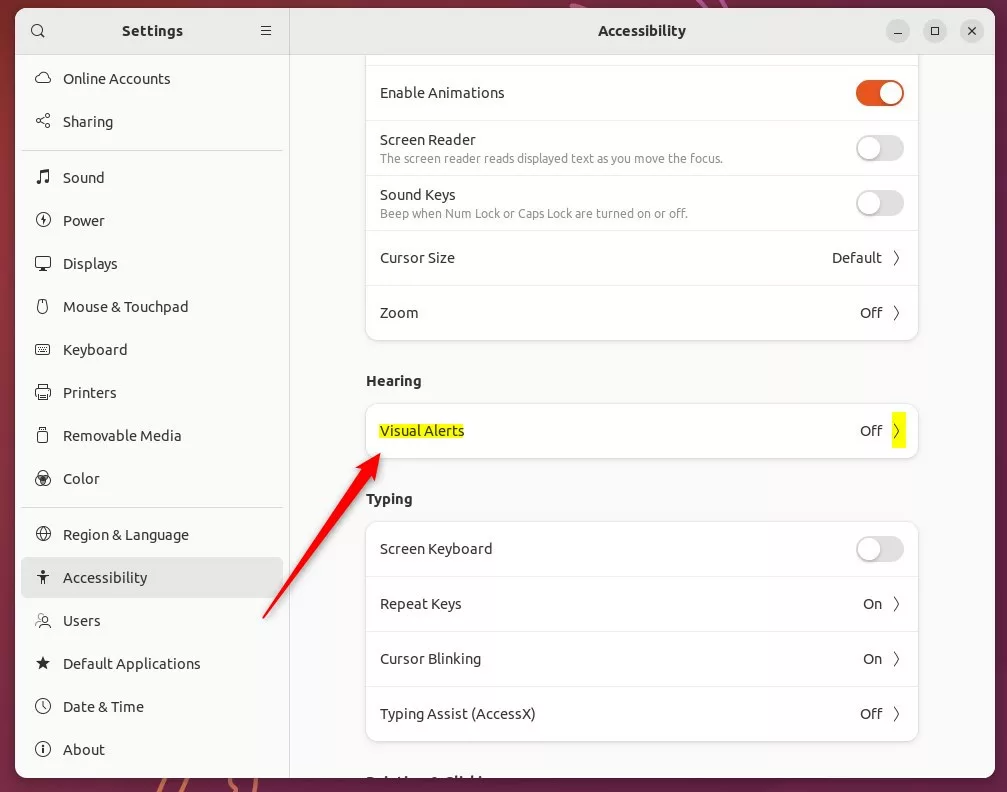
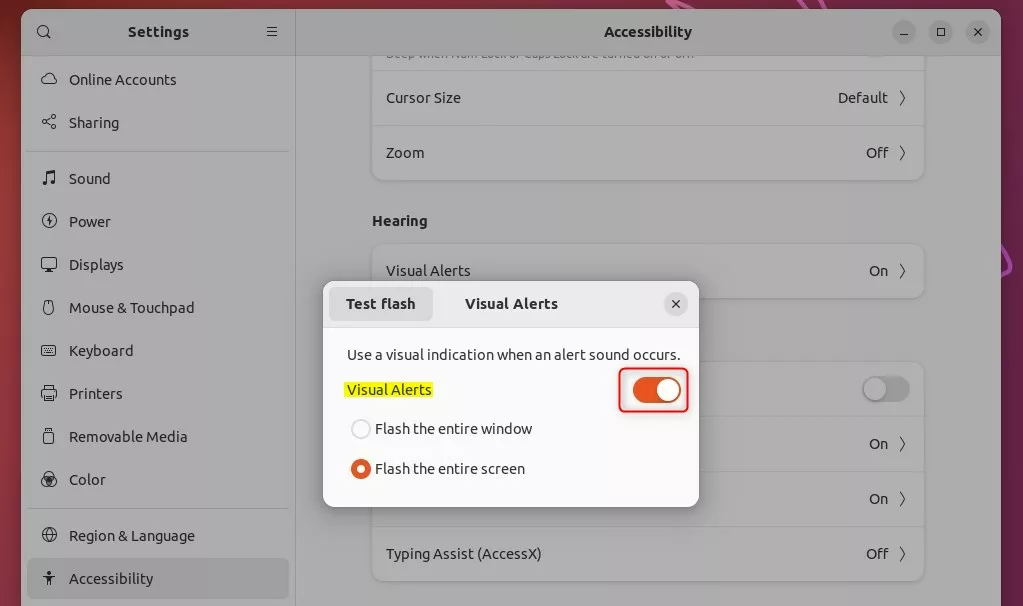
Go to Settings > Accessibility > Hearing and select Visual Alerts. Turn the switch on to enable flashing alerts for your window or entire screen. Flip the switch off to disable them.
Turn on or off visual alerts on Ubuntu Linux
Your computer can flash the entire screen or the current window when an alert occurs. Here’s how to adjust this setting in Ubuntu 24.04 LTS.
Ubuntu Linux keeps most settings organized in one place: the Settings panel.
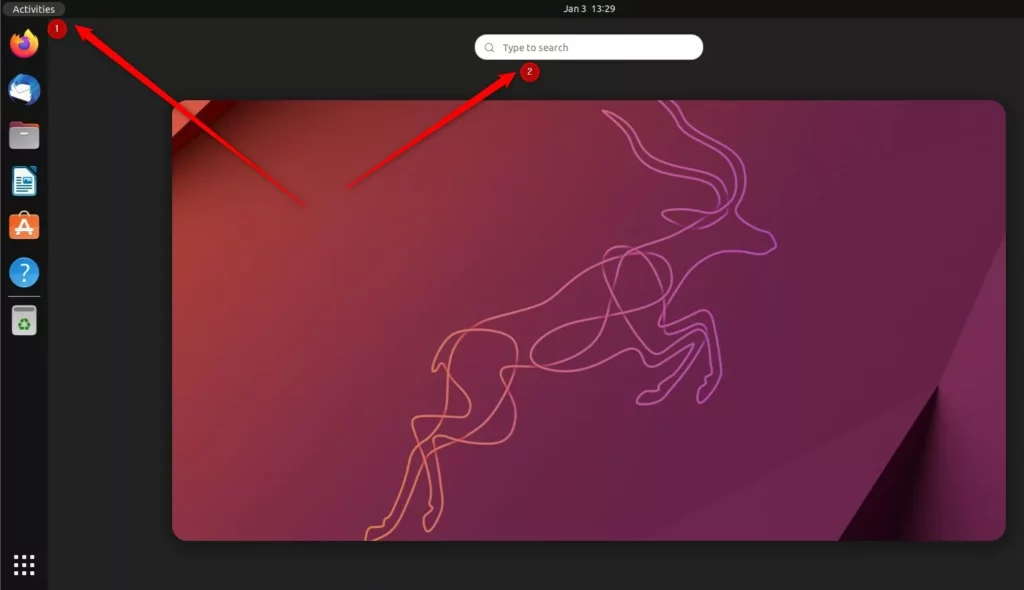
To access Settings, open the Activities overview and start typing “Settings.”
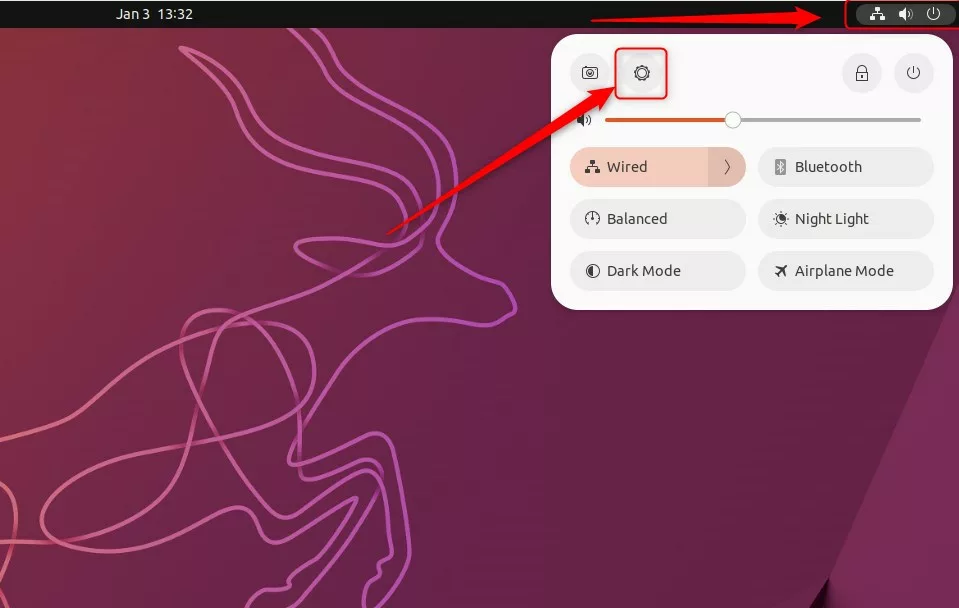
Alternatively, click the System menu in the top-right corner of your desktop and select Settings.
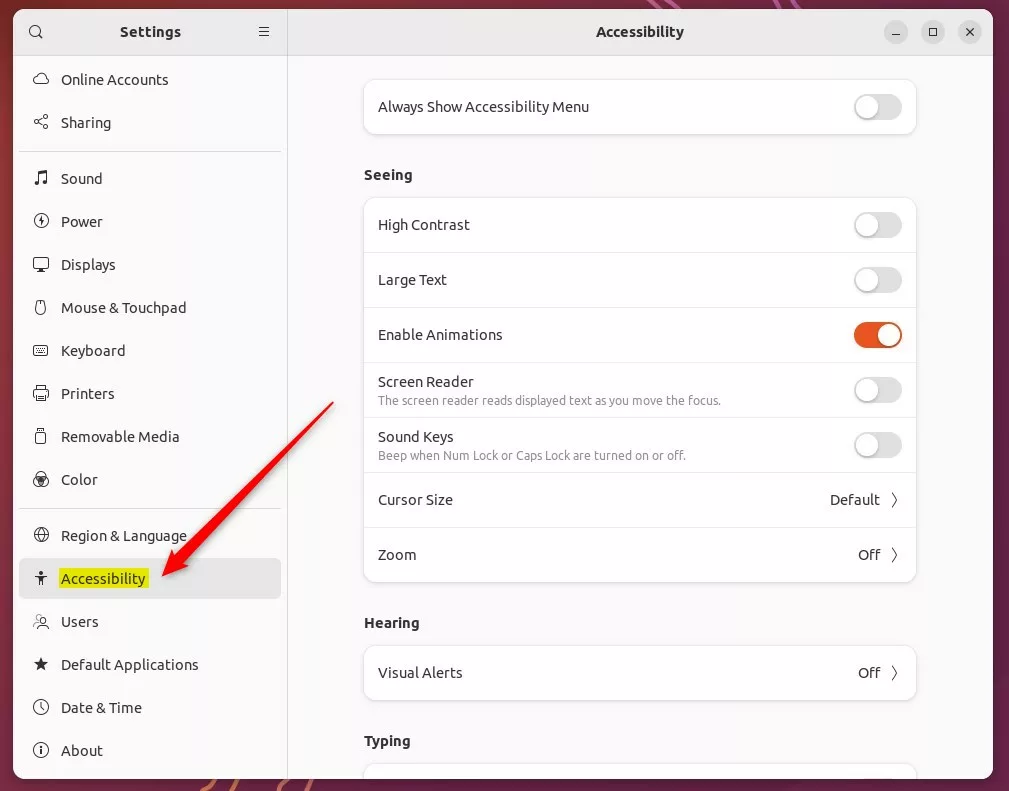
In the Settings app, click on Accessibility in the left-hand menu.
Within Accessibility settings, find the Hearing section. Select the Visual Alerts tile to open its options.
In the Visual Alerts window, move the switch to the On position. Then, choose how you want the alert to appear:
- Flash the entire window.
- Flash the entire screen.
To turn them off, flip the switch back to the Off position.
How to test your settings
You can test your settings by triggering a sound. Open your terminal and enter the following command:
canberra-gtk-play –id=bell (This command tells your system to play a test sound.)
Press Enter. If visual alerts are enabled, your screen or window will flash right away.
That’s all there is to it!
Reference:
https://help.ubuntu.com/stable/ubuntu-help/a11y-visualalert.html.en
Conclusion:
Enabling visual alerts on Ubuntu Linux is a great option if you have no speakers or often work in quiet environments. You’ll find these settings under Accessibility, within the Hearing section. You can choose to flash a window or the entire screen. Turning them off is just as simple.
Was this guide helpful?

About the Author
Richard
Tech Writer, IT Professional
Richard, a writer for Geek Rewind, is a tech enthusiast who loves breaking down complex IT topics into simple, easy-to-understand ideas. With years of hands-on experience in system administration and enterprise IT operations, he’s developed a knack for offering practical tips and solutions. Richard aims to make technology more accessible and actionable. He's deeply committed to the Geek Rewind community, always ready to answer questions and engage in discussions.




No comments yet — be the first to share your thoughts!