Hide or Unhide Trash Icon in Ubuntu Dock


You can hide or unhide the Trash icon on your Ubuntu Dock to customize your workspace.
The Ubuntu Dock, also known as the launcher, is the familiar panel typically found on the left side of your screen. It displays your most frequently used applications and essential system functions.
The Trash icon serves as a temporary holding place for files you delete before permanent removal. By default, it appears on the Dock after installing Ubuntu 22.04 LTS.
If you prefer a cleaner desktop or don’t utilize the Trash icon frequently, you can easily remove it. Conversely, if you previously hid it and wish to bring it back, this guide shows you how.
Open System Settings, navigate to Appearance, and then configure dock behavior. Toggle the switch for the Trash icon to show or hide it from the Ubuntu Dock.
How to hide or unhide the Tash icon on the Dock in Ubuntu Linux
Here’s how you can hide or unhide the Trash icon on the Dock in Ubuntu Linux.
Ubuntu Linux keeps most of its settings in one place. You can adjust system configurations, create new users, and update your system all from the System Settings panel.

Alternatively, click on the System menu in the top-right corner of your desktop’s top bar.
From the System menu, select Settings, as shown below.

Click on the Appearance tile to open that section in the Settings app.
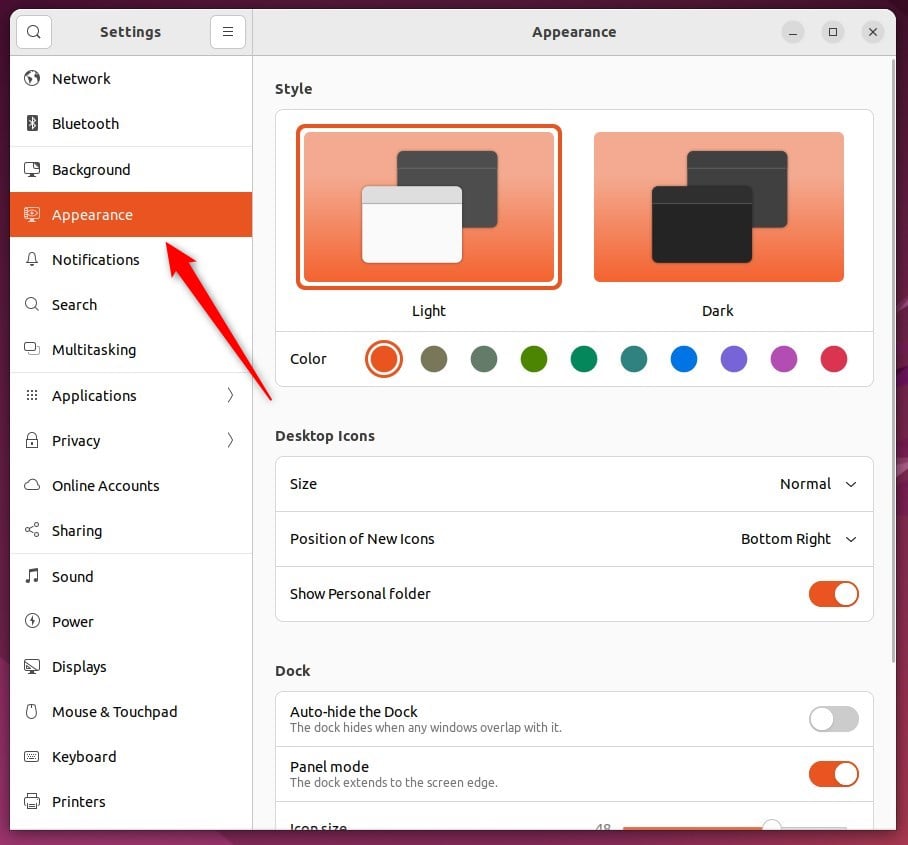
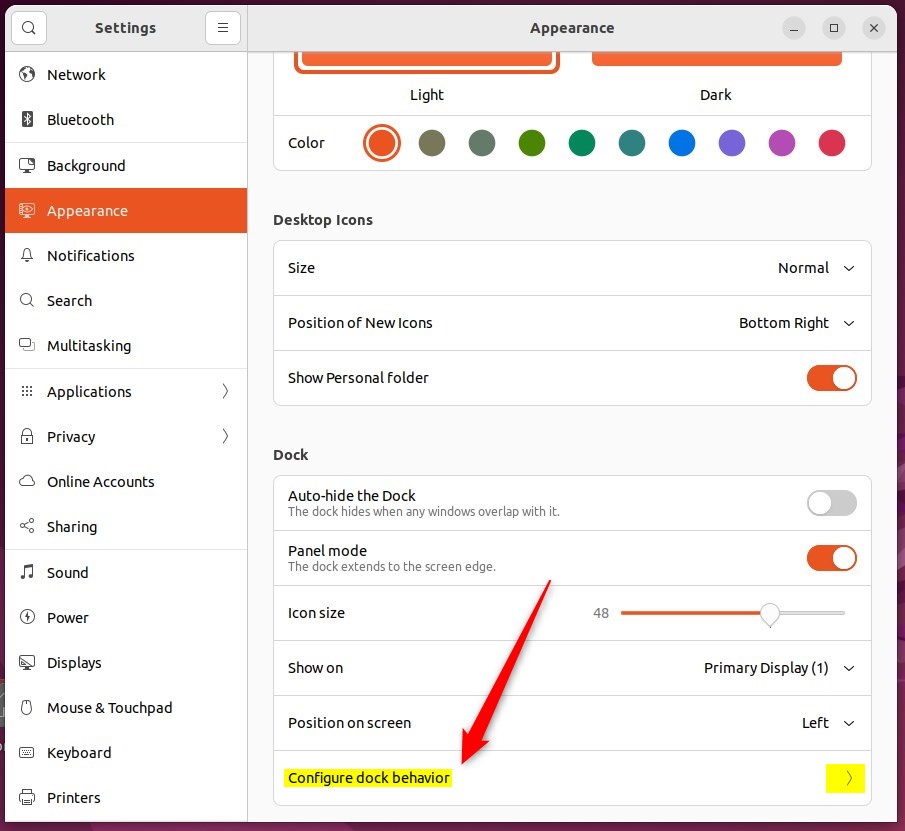
Then, in the System Settings -> Appearance panel, under Dock, select Configure dock behavior to expand its options.
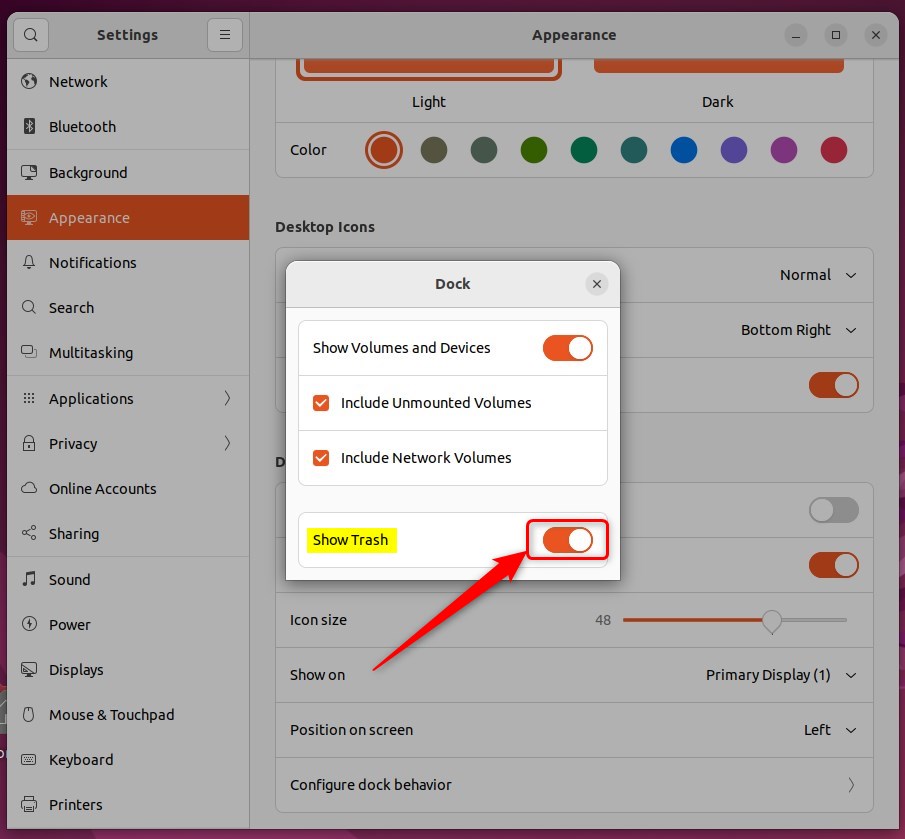
In the pop-up Dock window, flip the switch to the On position to show the Trash icon.
To hide the Trash icon, move the switch to the Off position.
That should do it!
Conclusion:
This post showed you how to hide or unhide the Trash icon on the Dock in Ubuntu Linux. Please use the comment form below if you find any errors above or have something to add.
- The steps provided are an easy way to manage the visibility of the Trash icon on the Dock in Ubuntu Linux.
- Users can hide or unhide the Trash icon using the System Settings panel or the top-right System menu.
- This feature allows for a personalized desktop, allowing users to keep the Dock clutter-free or retain the Trash icon for convenient access to deleted items.
Was this guide helpful?

About the Author
Richard
Tech Writer, IT Professional
Richard, a writer for Geek Rewind, is a tech enthusiast who loves breaking down complex IT topics into simple, easy-to-understand ideas. With years of hands-on experience in system administration and enterprise IT operations, he’s developed a knack for offering practical tips and solutions. Richard aims to make technology more accessible and actionable. He's deeply committed to the Geek Rewind community, always ready to answer questions and engage in discussions.



No comments yet — be the first to share your thoughts!