Enable or Disable Sound Keys in Ubuntu Linux


You can enable or disable sound keys in Ubuntu Linux to get auditory feedback when pressing Caps Lock, Num Lock, or Scroll Lock.
These “toggle keys” produce a beep when activated, helping you know if these modifier keys have changed state. This feature is particularly useful in Ubuntu 22.04 LTS to prevent accidental capitalization or incorrect number entry.
If you find the beeps helpful, you can easily turn them on. If they become distracting, you can just as quickly disable them.
How to enable or disable Toggle Keys Tone in Ubuntu Linux
As described above, Ubuntu Linux has a feature that plays a tone while pressing Caps lock, Num lock, and Scroll lock.
Below is how to enable or disable it.
Ubuntu Linux has a centralized location for the majority of its settings. From system configurations to creating new users and updating, all can be done from the System Settings panel.

Alternatively, click on the System menu at the top-right corner of the top bar on your desktop.
On the System menu, select Settings, as highlighted below.

In the Settings app, click on the Accessibility tile to open the panel.

In the System Settings -> Accessibility panel, under Seeing, select the Sound Keys tile to expand.
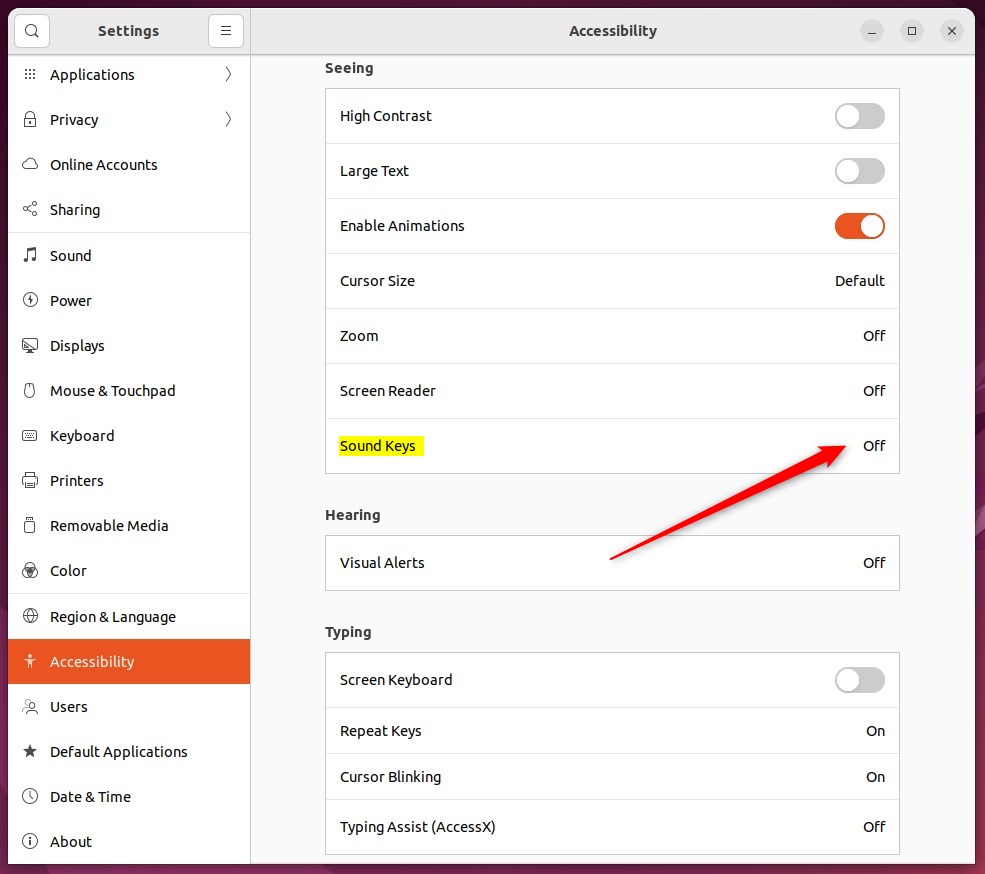
On the Sound Keys window, toggle the switch to the On position to enable Sound Keys. Your changes should apply immediately.
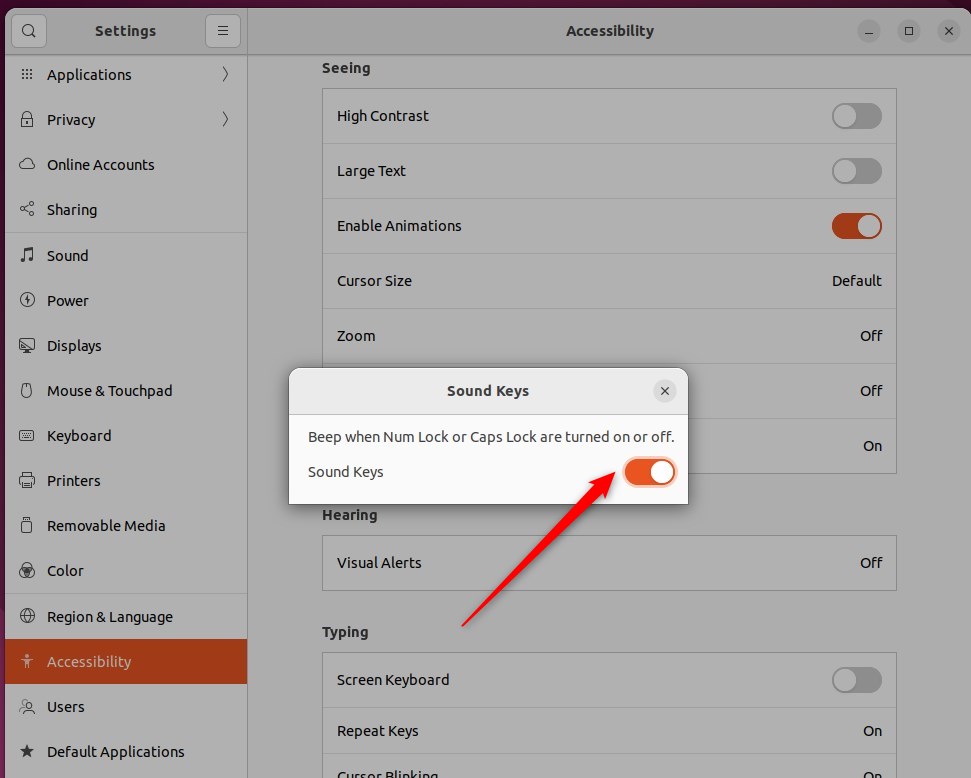
To disable it, toggle the switch back to the Off position.
That should do it! You can now close the Settings app.
Conclusion:
- Enabling or disabling sound keys in Ubuntu Linux is a simple process done through the System Settings panel.
- The feature provides auditory feedback for Caps lock, Num lock, and Scroll lock keys and can be easily toggled on or off according to individual preference.
- Following the steps outlined in this post, users can efficiently manage the sound keys feature to suit their needs.
Frequently Asked Questions
How do I enable sound keys in Ubuntu Linux?
What are sound keys in Ubuntu Linux?
Can I disable sound keys in Ubuntu Linux?
Is there a way to customize sound keys in Ubuntu Linux?
Why would I want to enable sound keys in Ubuntu Linux?
Was this guide helpful?

About the Author
Richard
Tech Writer, IT Professional
Richard, a writer for Geek Rewind, is a tech enthusiast who loves breaking down complex IT topics into simple, easy-to-understand ideas. With years of hands-on experience in system administration and enterprise IT operations, he’s developed a knack for offering practical tips and solutions. Richard aims to make technology more accessible and actionable. He's deeply committed to the Geek Rewind community, always ready to answer questions and engage in discussions.



No comments yet — be the first to share your thoughts!