How to Enable Two-Finger Right-Click on Windows 11 Touchpad

Do you want to right-click on your laptop without pressing the physical buttons? You can use a simple touchpad-in-windows-11/" class="sal-link" rel="noopener" target="_blank" data-sal-id="11767">two-finger tap on your touchpad instead. This makes navigating Windows 11 faster and more comfortable.
Why do this?
Using two fingers to right-click is a quick gesture that saves time. It is great if you prefer not to click the hard buttons on your touchpad.
What happens when done?
Once enabled, tapping your touchpad with two fingers at the same time will perform a right-click action on any file, folder, or icon you have selected.
How to Enable Two-Finger Right-Click
You can change this setting through the main Settings app in Windows 11. You do not need special permissions for this, so no admin privileges are required.
1. Open the Settings app. You can press the Windows key + I on your keyboard or click Start and then Settings.

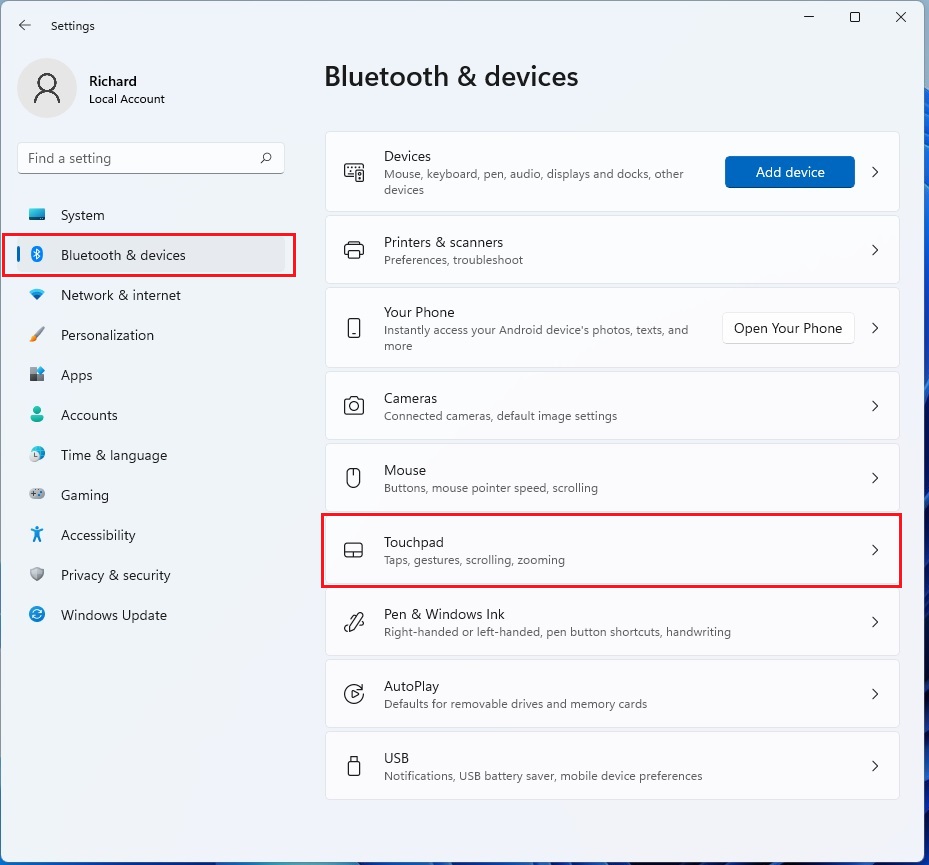
2. In the menu on the left, click Bluetooth & devices.
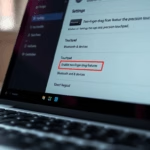
3. On the right side of the screen, look for the Touchpad tile and click it. %%LNK0%%
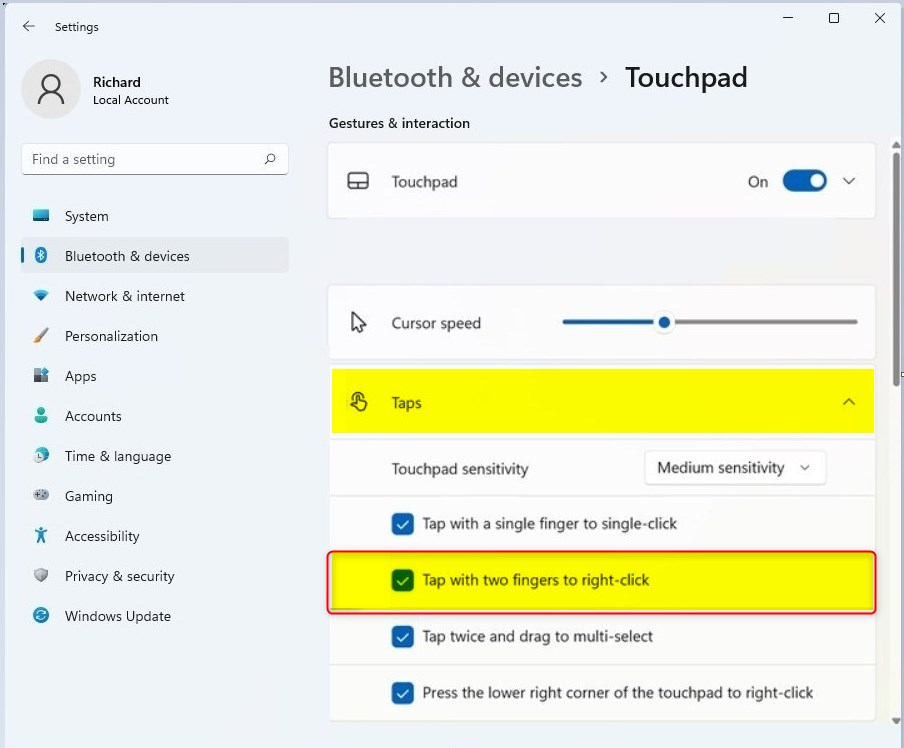
4. Scroll down until you see the Gestures & interaction section.
5. Click on the Taps section to expand the options.
6. Find the box labeled Tap with two fingers to right-click. Check this box to turn the feature on, or uncheck it to turn it off.
Your changes take effect immediately. You can now test it by tapping your touchpad with two fingers on your desktop.
Summary
Enabling the two-finger tap gesture allows you to right-click items easily using your touchpad. You can turn this feature on or off at any time by going to Settings > Bluetooth & devices > Touchpad > Taps. This simple adjustment helps you customize your laptop experience to fit your personal workflow.
Was this guide helpful?



Leave a Reply