How to Install Ampache with Nginx on Ubuntu Linux


You install Ampache with Nginx on Ubuntu Linux to create a powerful, self-hosted audio and video streaming server.
Ampache is a free, open-source web application that lets you stream and manage your music and video files from anywhere, essentially building your personal cloud-based media library.
This tutorial guides you through setting up Ampache on Ubuntu 20.04 or 18.04, integrating it with the Nginx web server for efficient performance.
Once configured, you can browse, play, and organize your entire media collection through a simple web interface, accessible from any device.
Install Nginx and MariaDB using `apt install nginx mariadb-server`. Then, add a PPA for PHP 7.4 and install it with `apt install php7.4-fpm`. Finally, create the Ampache database within MariaDB.
Install Nginx
Nginx HTTP Server is probably the second most popular web server today. Go and install Nginx since Ampache will need it to stream content over the Internet.
To install Nginx HTTP on the Ubuntu server, run the commands below.
sudo apt update
sudo apt install nginx
After installing Nginx, the commands below can be used to stop, start, and enable the Nginx service to always start up with the server boots.
sudo systemctl stop nginx.service
sudo systemctl start nginx.service
sudo systemctl enable nginx.service
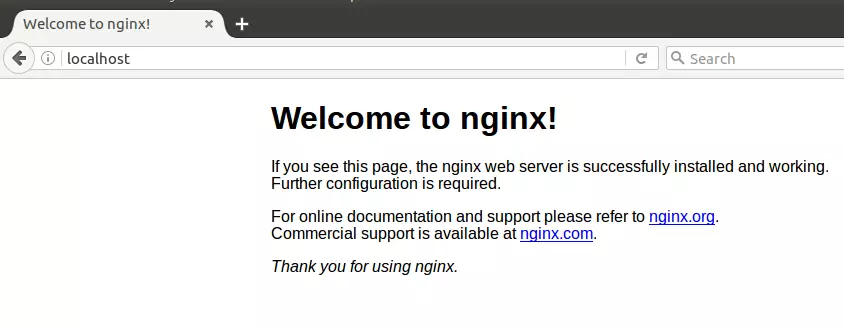
To test the Nginx setup, open your browser and browse to the server hostname or IP address. You should see the Nginx default test page, as shown below.
http://localhost
Install MariaDB
MariaDB database server is a great place to start when looking at open-source database servers to use with Ampache. Ampache uses a database to store its audio/video content.
To install MariaDB, run the commands below.
sudo apt install mariadb-server mariadb-client
After installing MariaDB, the commands below can stop, start, and enable the service to start when the server boots.
sudo systemctl stop mariadb.service
sudo systemctl start mariadb.service
sudo systemctl enable mariadb.service
After that, run the commands below to secure the MariaDB server by creating a root password and disallowing remote root access.
sudo mysql_secure_installation
When prompted, answer the questions below by following the guide.
- Enter current password for root (enter for none): Just press the Enter
- Set root password? [Y/n]: Y
- New password: Enter password
- Re-enter new password: Repeat password
- Remove anonymous users? [Y/n]: Y
- Disallow root login remotely? [Y/n]: Y
- Remove test database and access to it? [Y/n]: Y
- Reload privilege tables now? [Y/n]: Y
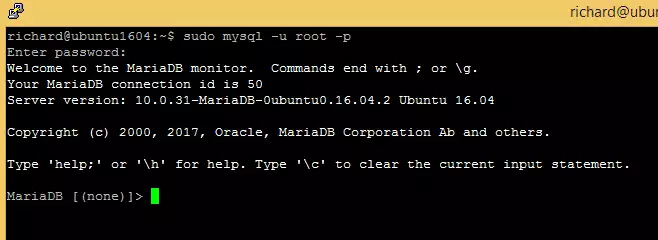
To test if MariaDB is installed, type the commands below to log on to the MariaDB server.
sudo mysql -u root -p
Then, type the password you created above to sign on… if successful, you should see the MariaDB welcome message
Install PHP 7.4-FPM
PHP 7.4-FPM may not be available in Ubuntu default repositories. To install it, you will have to get it from third-party repositories.
Run the commands below to add the below third party repository to upgrade to PHP 7.4-FPM
sudo apt-get install software-properties-common
sudo add-apt-repository ppa:ondrej/php
Then update and upgrade to PHP 7.4-FPM
sudo apt update
Next, run the commands below to install PHP 7.2-FPM and related modules.
sudo apt install php7.4-fpm php7.4-common php7.4-curl php7.4-mbstring php7.4-xmlrpc php7.4-mysql php7.4-gd php7.4-xml php7.4-cli php7.4-zip
After installing PHP 7.4-FPM, run the commands below to open Nginx’s PHP default config file.
sudo nano /etc/php/7.4/fpm/php.ini
Then, save the changes on the following lines below in the file. The value below is an ideal setting to apply in your environment.
file_uploads = On
allow_url_fopen = On
short_open_tag = On
memory_limit = 256M
cgi.fix_pathinfo = 0
upload_max_filesize = 100M
max_execution_time = 360
date.timezone = America/Chicago
Create Ampache Database
Now that you’ve installed all the packages required for Ampache to function, continue below to start configuring the servers. First, run the commands below to create a blank Ampache database.
To log on to the MariaDB database server, run the commands below.
sudo mysql -u root -p
Then, create a database called ampache
CREATE DATABASE ampache;
Create a database user called ampacheuser with a new password
CREATE USER 'ampacheuser'@'localhost' IDENTIFIED BY 'new_password_here';Then, grant the user full access to the database.
GRANT ALL ON ampache.* TO 'ampacheuser'@'localhost' WITH GRANT OPTION;
Finally, save your changes and exit.
FLUSH PRIVILEGES;
EXIT;
Download and Install Ampache
Download the Ampache package from its download page. You can simply run the commands below to create an Ampache directory and extract the content into the directory its home directory.
cd /tmp
wget https://github.com/ampache/ampache/releases/download/4.1.1/ampache-4.1.1_all.zip
sudo unzip ampache-4.1.1_all.zip -d /var/www/ampache
Next, run the commands below to change the root folder permissions.
sudo chown -R www-data:www-data /var/www/ampache/
sudo chmod -R 755 /var/www/ampache/
Configure Nginx Site
Next, configure the Nginx virtual host for the Ampache site. This file will control how users access Ampache content. Run the commands below to create a new configuration file called ampache.conf
sudo nano /etc/nginx/sites-available/ampache.conf
Then copy and paste the content below into the file and save it. Replace the highlighted line with your domain name and directory root location.
server {
    listen 80;
    listen [::]:80;

    server_name  example.com www.example.com;
    root   /var/www/ampache;
    index  index.php;

    access_log /var/log/nginx/example.com.access.log;
    error_log /var/log/nginx/example.com.error.log;

    client_max_body_size 100M;

    autoindex off;

#Rewrite rule for Subsonic backend
if ( !-d $request_filename ) {
    rewrite ^/rest/(.*).view$ /rest/index.php?action=$1 last;
    rewrite ^/rest/fake/(.+)$ /play/$1 last;
     }

# Rewrite rule for Channels
    if (!-d $request_filename){
    rewrite ^/channel/([0-9]+)/(.*)$ /channel/index.php?channel=$1&target=$2 last;
    }

#Rewrite rule for Channels
 if (!-d $request_filename){
   rewrite ^/channel/([0-9]+)/(.*)$ /channel/index.php?channel=$1&target=$2 last;
    }

location /rest {
       limit_except GET POST {
          deny all;
         }
   }

 location ^~ /bin/ {
       deny all;
       return 403;
       }

 location ^~ /config/ {
       deny all;
       return 403;
    }

 location / {
       limit_except GET POST HEAD{
          deny all;
         }
    }

    location ~ .php$ {
         include snippets/fastcgi-php.conf;
         fastcgi_pass unix:/var/run/php/php7.4-fpm.sock;
         fastcgi_param SCRIPT_FILENAME $document_root$fastcgi_script_name;
         include fastcgi_params;
    }
}
Save the file and exit.
After configuring the VirtualHost above, please enable it by running the commands below and restarting Nginx.
sudo ln -s /etc/nginx/sites-available/ampache.conf /etc/nginx/sites-enabled/
sudo systemctl restart nginx.service
Finally, open your browser and go to the URL.
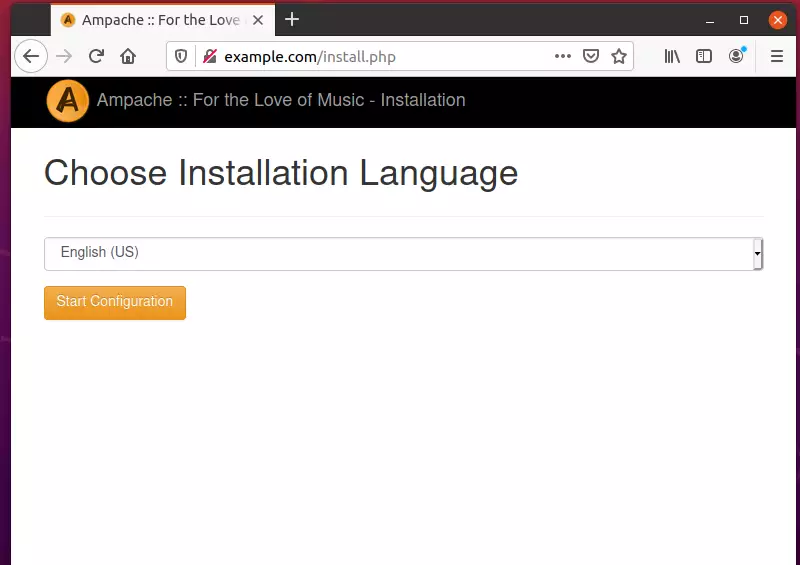
http://example.com
You should see the Ampache setup wizard. Choose the installation language and start the configuration.
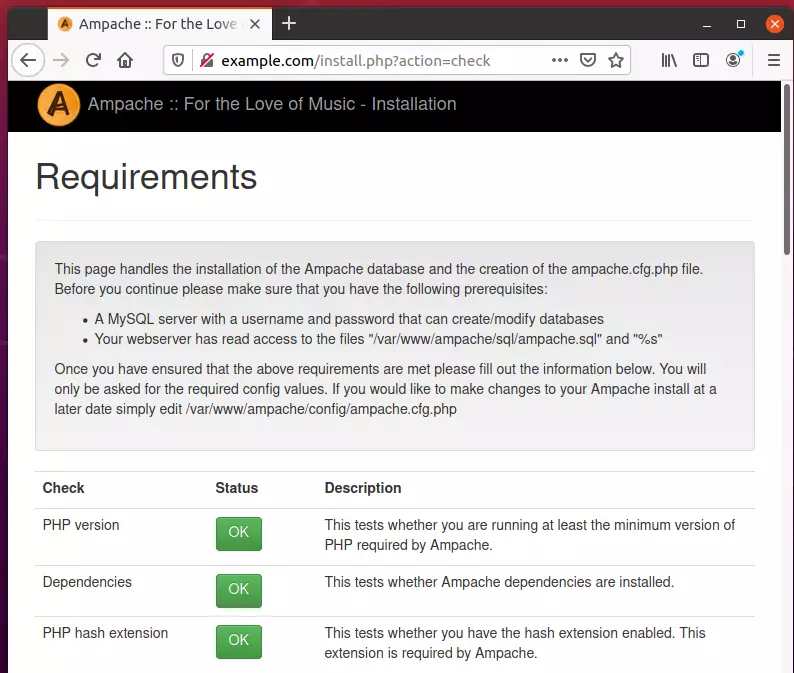
Next, make sure that all PHP requirements are met and continue.
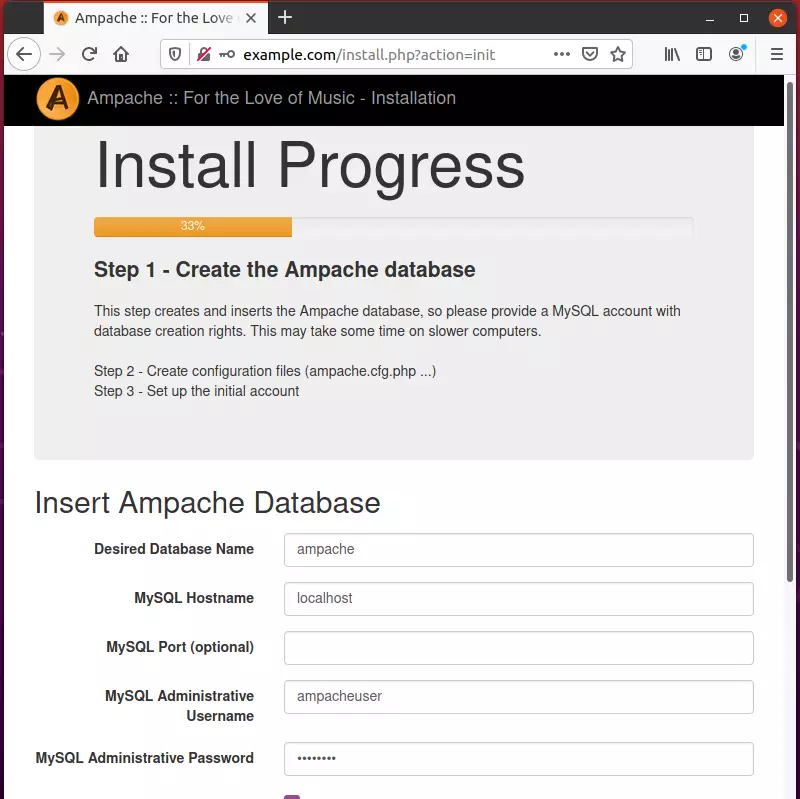
After typing in the database name, username, and password, continue with the wizard.
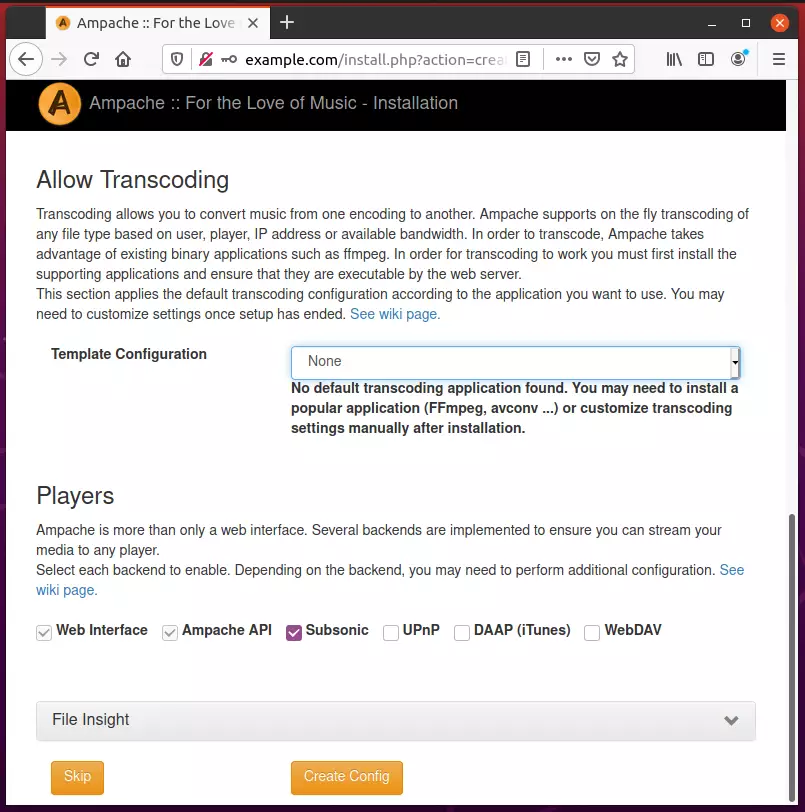
Next, choose the Subsonic backend for Ampache and continue.
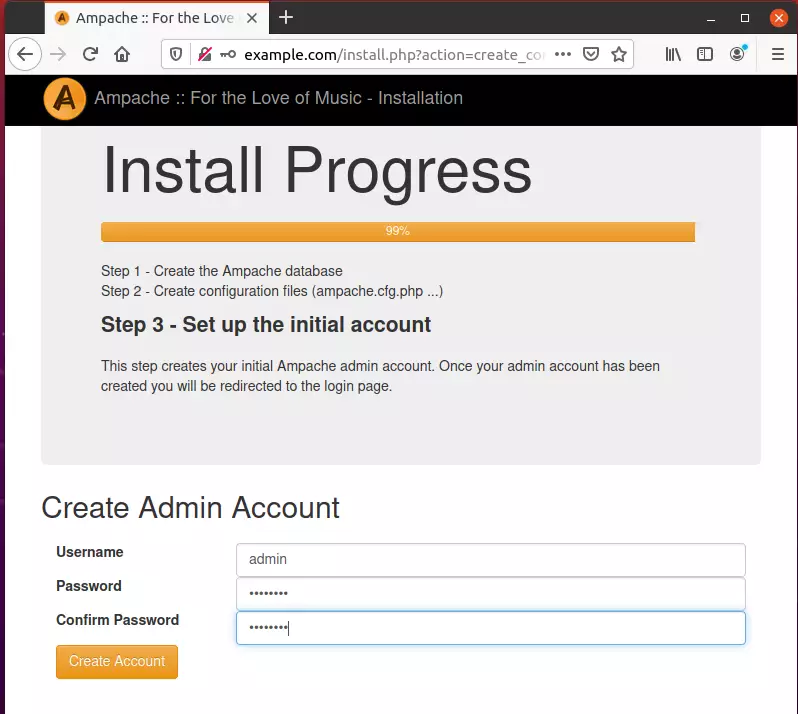
After that, create an initial admin account and continue.
That should complete the setup.
Log in with the admin account you created above when the setup is done.
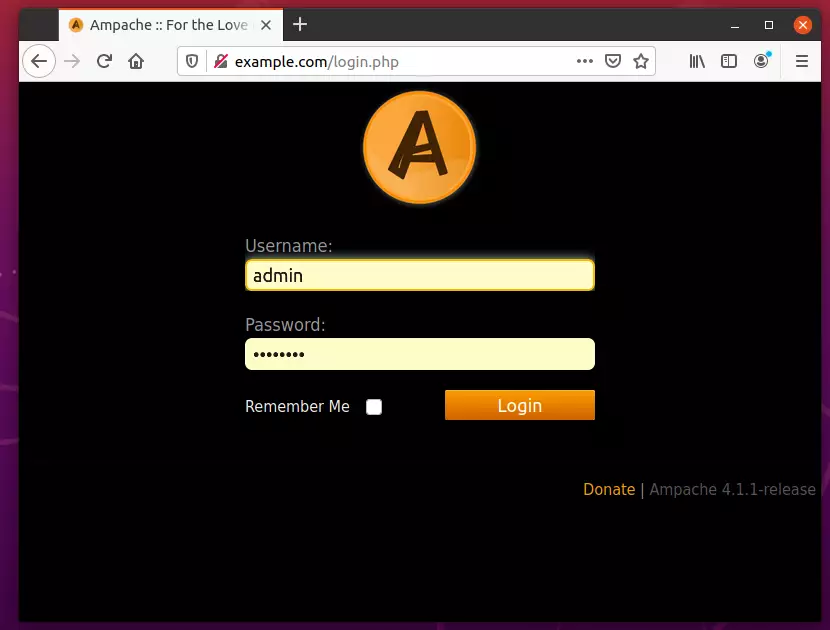
Log in and begin setting up your environment.
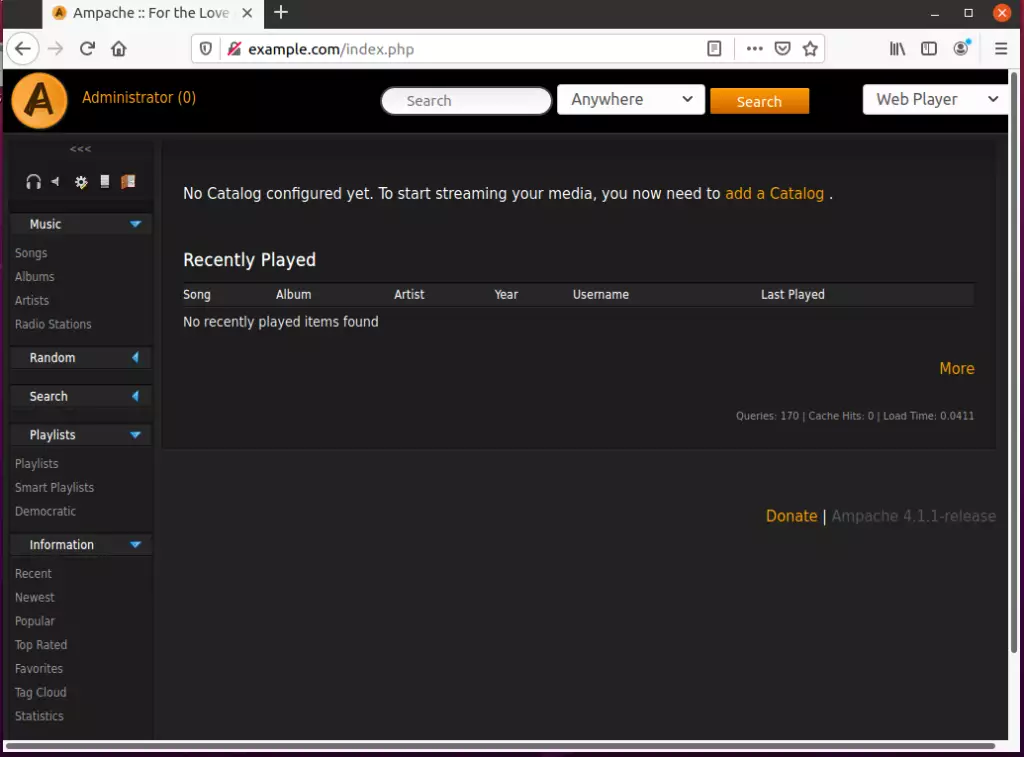
That should do it!
Conclusion:
This post showed you how to install Ampache on Ubuntu with the Nginx web server. If you find any error above, please use the comment form below to report.
Was this guide helpful?

About the Author
Richard
Tech Writer, IT Professional
Richard, a writer for Geek Rewind, is a tech enthusiast who loves breaking down complex IT topics into simple, easy-to-understand ideas. With years of hands-on experience in system administration and enterprise IT operations, he’s developed a knack for offering practical tips and solutions. Richard aims to make technology more accessible and actionable. He's deeply committed to the Geek Rewind community, always ready to answer questions and engage in discussions.



No comments yet — be the first to share your thoughts!