How to set your Color mode in Windows 11

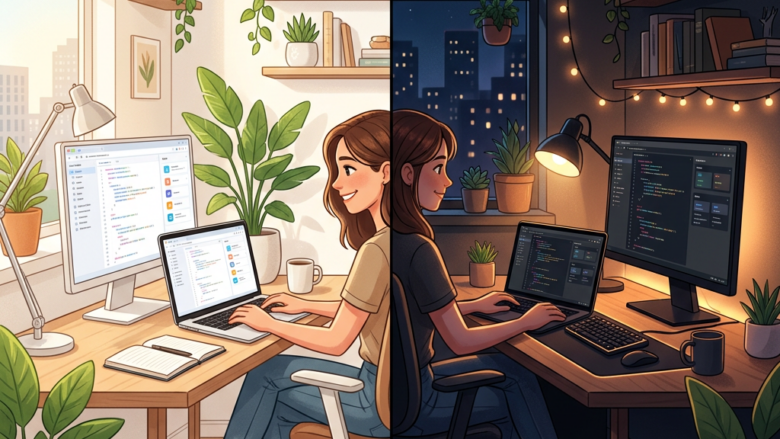
You set your color mode in Windows 11 to choose between light, dark, or custom color schemes that affect the appearance of windows, menus, and the taskbar.
This setting allows you to personalize your PC’s visual experience, reducing eye strain or simply matching your aesthetic preferences.
Windows 11 offers three main color modes: Light, Dark, and Custom, with the Dark mode, introduced in Windows 10, becoming a popular choice for many users.
You can easily access and change these color modes within the Personalization settings on your PC.
Go to Settings > Personalization > Colors. Use the “Choose your mode” dropdown to select Light, Dark, or Custom. The changes apply immediately to your Windows interface.
Pick Your Main Color Style
First, let’s talk about the main look of Windows. You have two main choices. These choices can make a big difference in how your eyes feel, especially with the lights on or at night.
Light Mode: Bright and Clear
Windows 11’s Light mode uses bright white and light colors, making everything look clean and open, similar to reading a book.
Step 1: Open Settings
Click the Start button (the Windows icon in the bottom-left corner). Then, click the gear icon to open the ‘Settings’ app. You can also press the Windows key + I keys on your keyboard.
Step 2: Go to Personalization
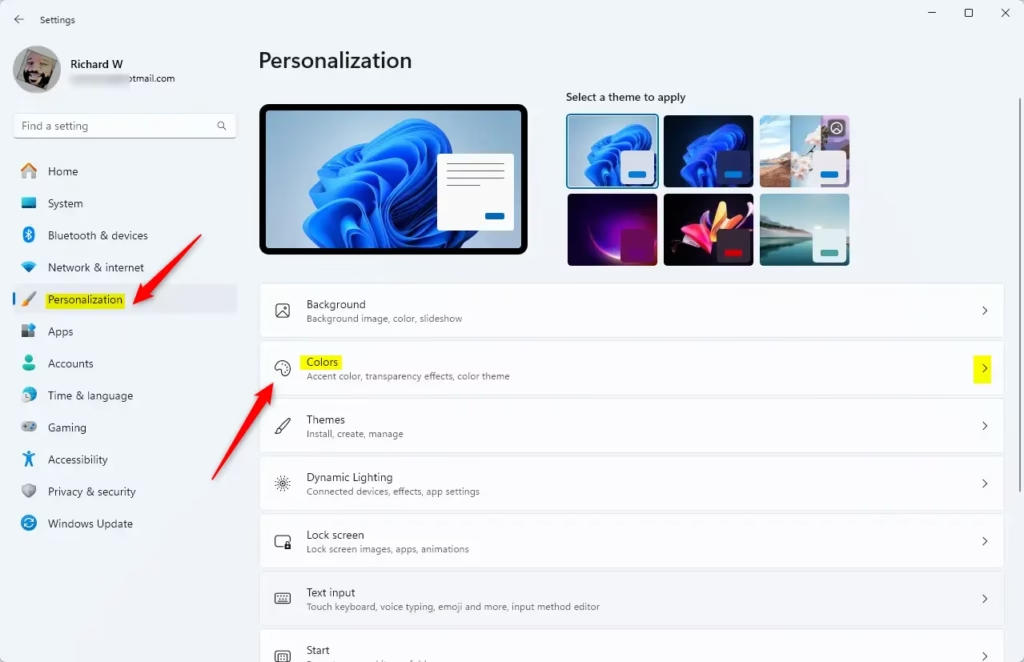
In the Settings window, you will see options on the left side. Click on ‘Personalization’.
Step 3: Choose Colors
On the Personalization screen, find ‘Colors’ on the left and click it.
Step 4: Pick Your Mode
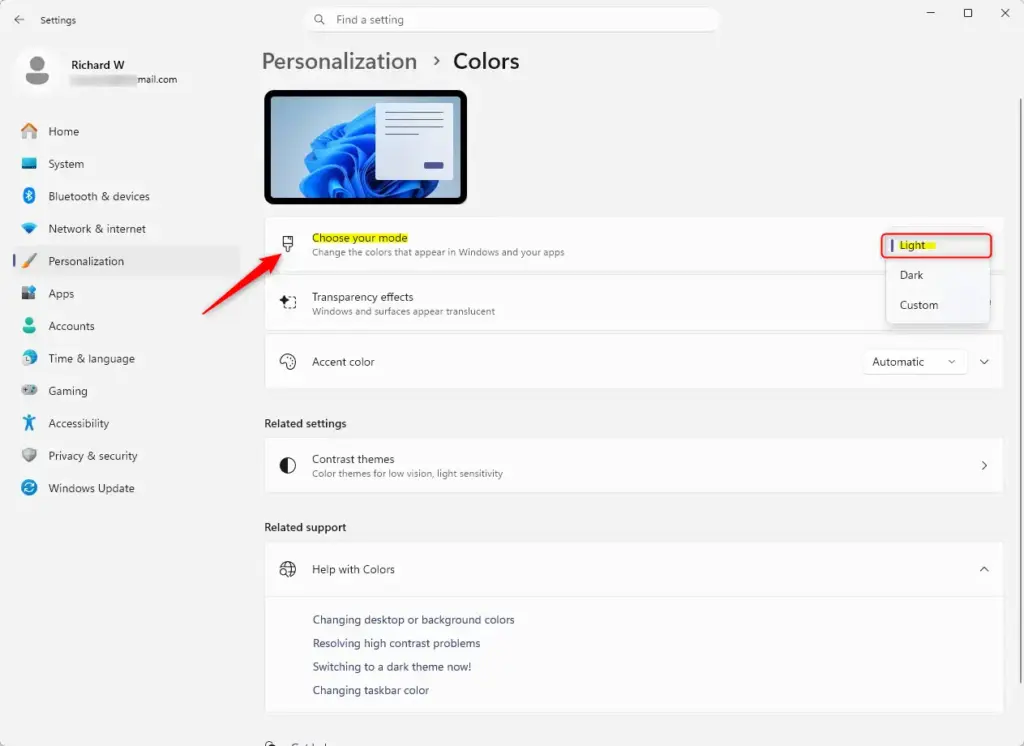
Under ‘Choose your mode’, there is a dropdown menu. Click it and choose ‘Light’. You will see the changes right away!
Dark Mode: Easy on Your Eyes
Windows 11’s Dark mode uses dark backgrounds with light text, which can make your screen feel less glaring and more comfortable, especially when it’s dark.
Step 1: Go to Color Settings
Follow Steps 1-3 from the ‘Light Mode’ section to get to the ‘Colors’ settings page.
Step 2: Choose Dark Mode
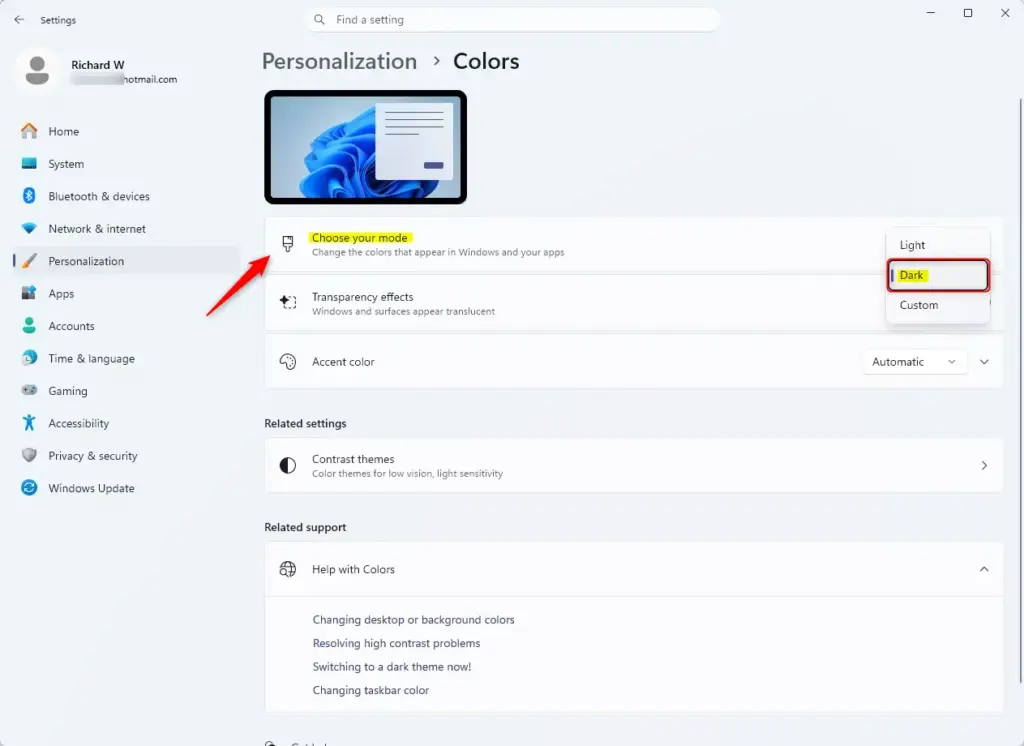
In the ‘Choose your mode’ dropdown menu, pick ‘Dark’. Watch your windows, Start menu, and taskbar change to a dark theme.
Custom Mode: The Best of Both
Windows 11’s Custom mode lets you pick and choose, allowing you to have dark apps with a light taskbar, or vice versa.
Step 1: Go to Color Settings
Go back to Settings > Personalization > Colors.
Step 2: Choose Custom Mode
Click the ‘Choose your mode’ dropdown and select ‘Custom’.
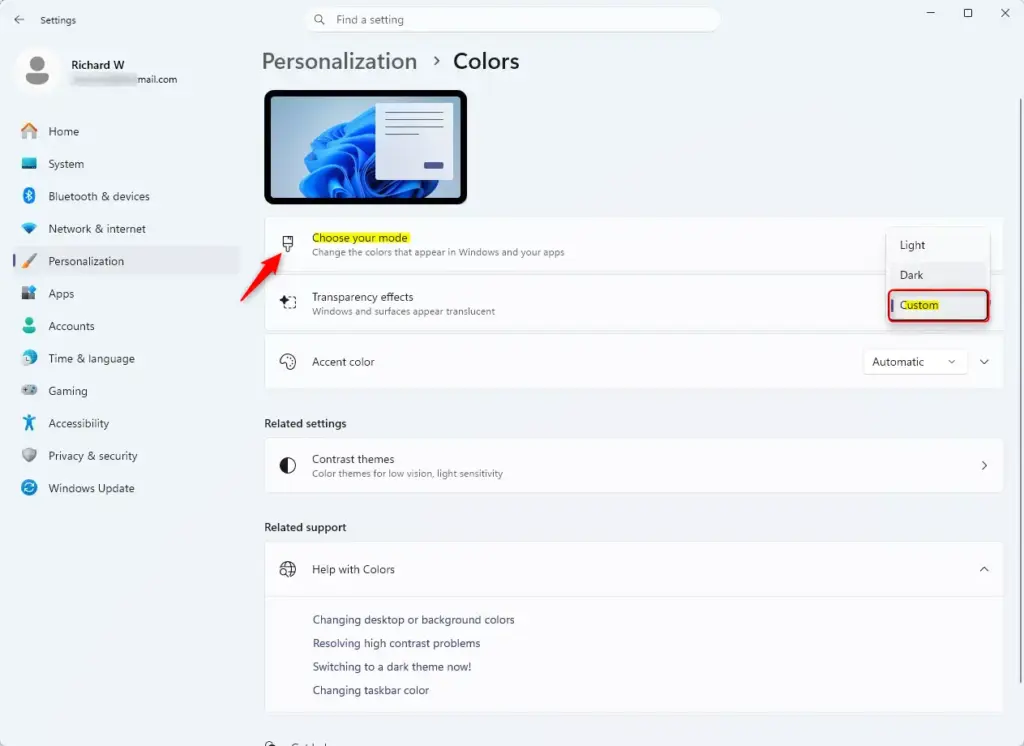
Experiment with these settings! You could have a dark Windows appearance with light apps, or a light Windows look with dark apps. It’s all about finding what works best for you.
Reference:
Summary
Windows 11 offers three main color modes: Light mode for bright environments, Dark mode for comfort in low light, and Custom mode to mix and match.
Why is my computer stuck in dark mode?
Check Personalization Settings: Go to Settings > Personalization > Colors. Ensure that the default app mode is set to Light. This is the primary method to set your Windows theme.
Was this guide helpful?

About the Author
Richard
Tech Writer, IT Professional
Richard, a writer for Geek Rewind, is a tech enthusiast who loves breaking down complex IT topics into simple, easy-to-understand ideas. With years of hands-on experience in system administration and enterprise IT operations, he’s developed a knack for offering practical tips and solutions. Richard aims to make technology more accessible and actionable. He's deeply committed to the Geek Rewind community, always ready to answer questions and engage in discussions.


No comments yet — be the first to share your thoughts!