How to Turn On or Off Keyboard Backlight Dimming with Energy Saver in Windows 11

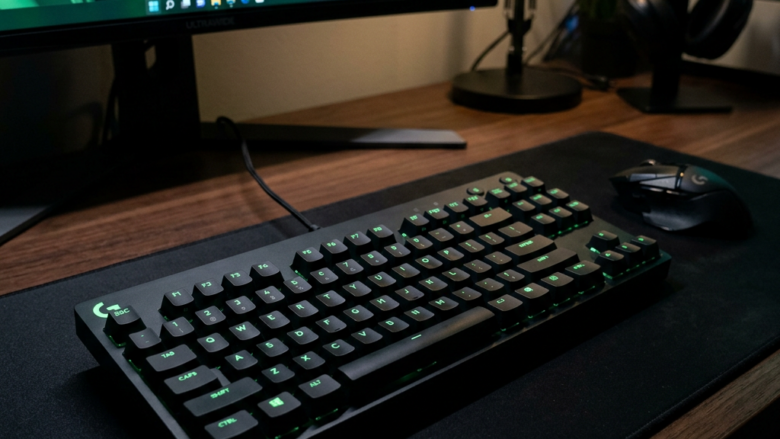
You can turn on or off keyboard backlight dimming with Energy Saver in Windows 11 by adjusting a specific setting within the Power & battery options.
This feature controls whether your laptop’s keyboard illumination automatically reduces brightness when Windows 11 enters its power-saving Energy Saver mode, helping you manage battery life.
By default, Windows 11 Energy Saver dims your keyboard backlight to 70% brightness to conserve power. However, you have full control over this behavior.
You can customize the dimming level anywhere from 0% (completely off) to 100% (no dimming at all) to suit your preferences.
Open Settings, go to System, then Power & battery, and toggle “Lower keyboard brightness when using energy saver” on or off. For advanced users, edit the BacklightEnergySaverEnabled value in Registry Editor at 🗝️HKEY_LOCAL_MACHINE\SOFTWARE\Microsoft\Windows\CurrentVersion\Personalization\Settings.
Option 1Using Windows Settings
You can easily turn on or off keyboard backlight dimming in Windows 11 using the built-in Settings app.
- Open Settings. You can do this by pressing the Windows key + I on your keyboard.
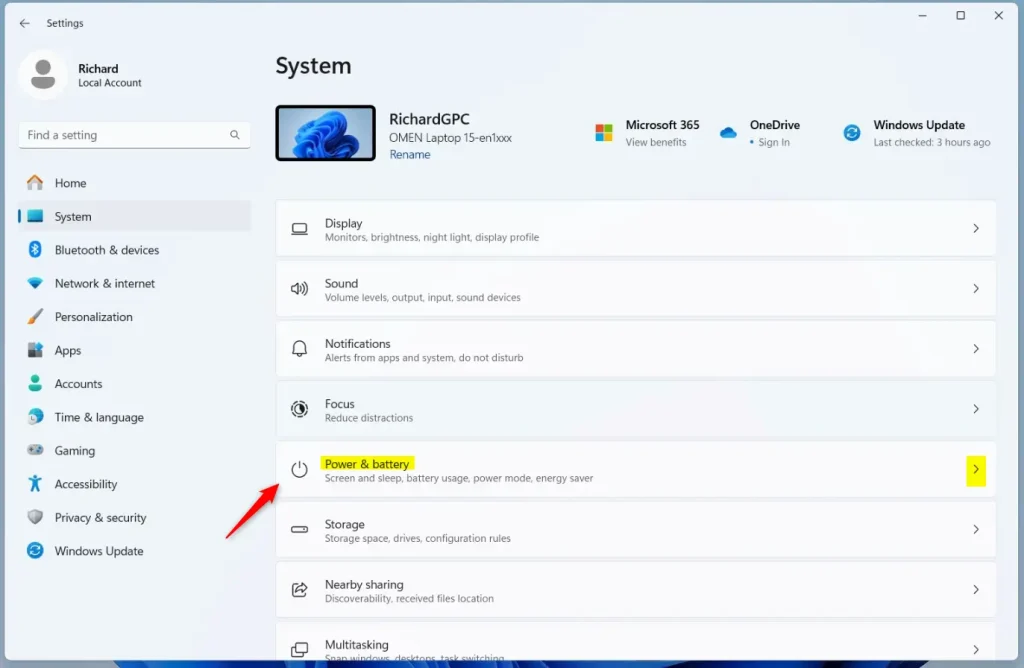
- On the left side, click on System. On the right side, click on Power & battery.
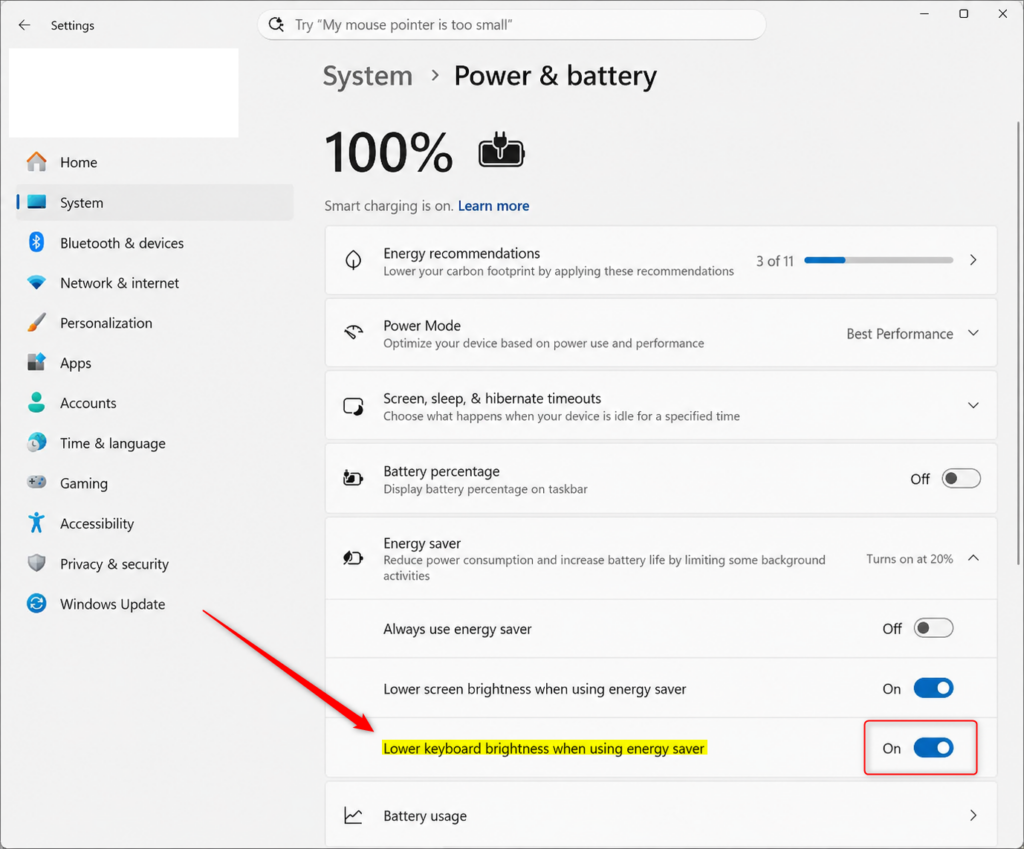
- Click on Energy saver to see its options.
- You will see an option called Lower keyboard brightness when using energy saver. Turn this on or off depending on what you want. By default, it is usually on.
- You can now close the Settings window.
Option 2Using the Registry Editor (Advanced)
For advanced users, you can change whether your keyboard backlight dims with Energy Saver in Windows 11 by editing the Registry Editor.
Why use this method? This method modifies a hidden setting. It’s useful if you want to automate this change or if the Settings app isn’t behaving as expected. It directly communicates to Windows whether to dim the keyboard in Energy Saver mode.
What happens when done? Your keyboard backlight will either dim or remain at its normal brightness when Energy Saver mode is active, depending on the setting you choose.
- First, you need to open the Registry Editor. Press the Windows key + R, type
regedit, and press Enter. You might need to click Yes if a User Account Control window pops up. - Navigate to the following location in the Registry Editor:
HKEY_LOCAL_MACHINE\SOFTWARE\Microsoft\Windows\CurrentVersion\Personalization\Settings - In the right-hand pane, look for a value named
BacklightEnergySaverEnabled. - To turn on dimming: Double-click on
BacklightEnergySaverEnabled. Set the Value data to1and click OK. - To turn off dimming: Double-click on
BacklightEnergySaverEnabled. Set the Value data to0and click OK. - Close the Registry Editor. The changes should take effect immediately.
Reference:
Summary
This guide showed you how to manage your keyboard backlight’s dimming behavior in Windows 11 when Energy Saver is on. You can adjust this setting in the Windows Settings app, or for more advanced control, by modifying a value in the Registry Editor, a tool for editing system settings.
Was this guide helpful?

About the Author
Richard
Tech Writer, IT Professional
Richard, a writer for Geek Rewind, is a tech enthusiast who loves breaking down complex IT topics into simple, easy-to-understand ideas. With years of hands-on experience in system administration and enterprise IT operations, he’s developed a knack for offering practical tips and solutions. Richard aims to make technology more accessible and actionable. He's deeply committed to the Geek Rewind community, always ready to answer questions and engage in discussions.



No comments yet — be the first to share your thoughts!