
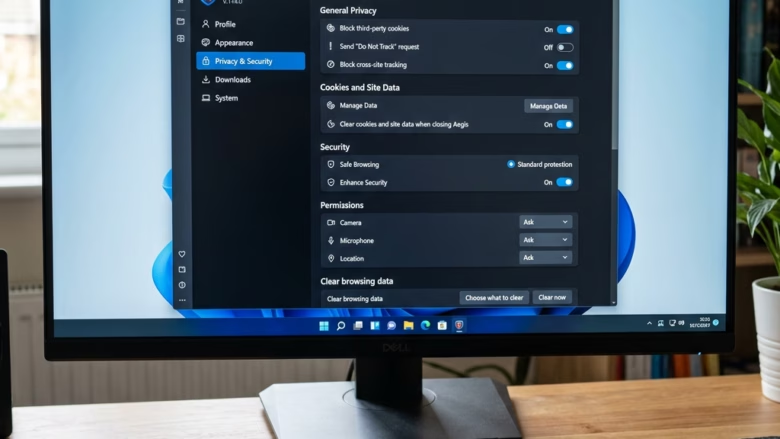
You can turn personalized advertising on or off in Microsoft Edge to control how the browser uses your online activity for ad targeting.
Personalized ads in Microsoft Edge leverage your browsing history to display advertisements deemed relevant to your interests. This feature aims to make your online experience more engaging, but you always have the final say.
Microsoft Edge uses data from your online behavior to tailor advertisements. For instance, it might show you ads for products you recently viewed or topics you’ve searched for.
You can easily manage these settings within Edge’s Privacy, search, and services menu. Here, you can disable ad personalization entirely or adjust its scope, giving you full control over your ad experience.
Turn off personalized ads by going to Settings, then Privacy, search, and services. Scroll to the personalization section and toggle off “Allow Microsoft to save your browsing activity…”. You can further manage ad interests on the Microsoft Privacy Dashboard.
How Your Information is Used
Before we dive into settings, let’s clarify what’s happening. Microsoft Edge might collect information about your browsing, but only if you permit it. This includes:
- Websites you visit: What pages you go to, in what order, and when.
- Favorite pages: Sites you save or add to your collections.
- How you use the browser: Which features you use and how often.
- What you see online: The actual pages and information you look at.
- Your device: Basic details about your computer and browser.
Picture this: you browse running shoes on several sites, and Microsoft might then display ads for athletic wear or shoe sales. If you’re researching a vacation, you might start seeing travel deals pop up. This is intended to enhance your online time. Remember, this data is only utilized if you give your consent.
Important Note: When you use InPrivate mode or browse as a guest, Microsoft Edge doesn’t save your activity for ads. Your personal notes within Collections are also never used for advertising purposes.
How to Change Your Ad Settings
You have the ability to toggle these features on or off. Let’s ensure your settings align with your preferences.
Step 1Open Microsoft Edge Settings
First, you’ll need to access the settings menu. This is where you can modify how the browser functions.
- Open Microsoft Edge on your computer.
- Look for the three dots (…) in the top-right corner. This is the Settings and more menu. Click it.
- From the list that appears, choose Settings.

Tip: You can also type `edge://settings` into the address bar and press Enter to jump directly to settings.
Step 2Go to Privacy, Search, and Services
Once you’re in the main Settings menu, scan the list on the left-hand side. Locate the section pertaining to your online privacy.
- In the left sidebar, click on Privacy, search, and services.
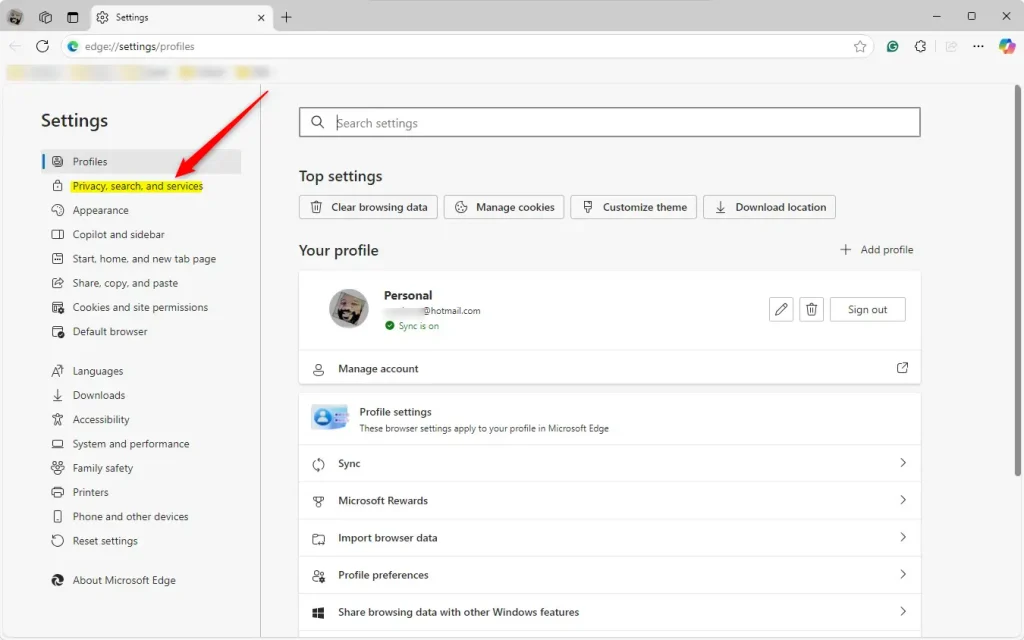
This area empowers you to manage how Microsoft Edge utilizes your information, including what it shares for personalized ads and other services.
Step 3Control Browsing Activity for Personalization
This is the primary setting that controls whether your online activity influences things like ads, search results, shopping suggestions, and news. You can choose to allow or block this functionality.
- Scroll down on the Privacy, search, and services page until you see the part about personalization.
- Select Privacy.
- Look for a switch that says something like: “Allow Microsoft to save your browsing activity including history, usage, favorites, web content, and other browsing data to personalize Microsoft Edge and Microsoft services like ads, search, shopping and news.”
- To turn OFF personalization based on browsing activity: Click the switch so it turns grey or shows it’s off.
- To turn ON personalization based on browsing activity: Click the switch so it turns blue or shows it’s on.
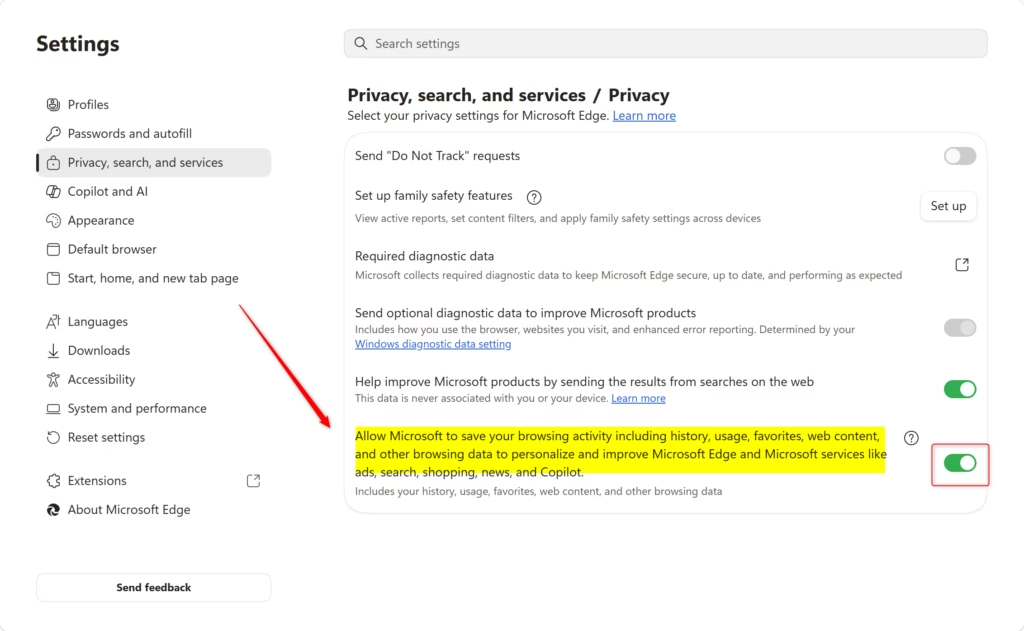
Warning: If you disable this, Microsoft will cease using your browsing activity for personalization. Consequently, ads, search results, and news may become less tailored to your interests. If you prefer them to be more relevant, ensure this setting remains enabled.
Step 4Manage Interests and Ad Settings on the Microsoft Privacy Dashboard
The setting within Edge governs whether your browsing activity is used for personalization. However, Microsoft also leverages other information you provide to personalize ads. You can manage this on the Microsoft Privacy Dashboard. Here, you can determine if Microsoft ads are personalized for you across all your devices.
- You usually need to be signed into Microsoft Edge with your Microsoft account to do this.
- Go back to the Settings menu in Edge.
- Under Privacy, search, and services, find a link that says something like “Manage your interests and ad settings” or “Manage Microsoft advertising.” This will likely take you to your Microsoft account’s privacy dashboard. You can also go directly to
account.microsoft.com/privacy. - Sign in to your Microsoft account if asked.
- On the privacy dashboard, look for settings about advertising. You will probably see a switch for “See ads that interest you” or something similar.
- To stop personalized ads completely: Turn the “See ads that interest you” setting OFF.
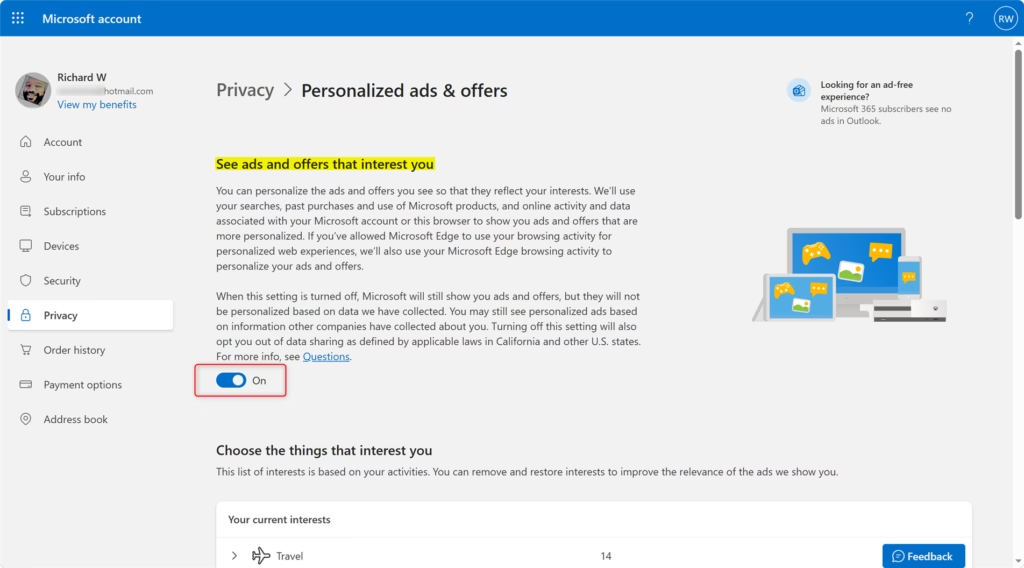
Important Difference: Disabling “See ads that interest you” on the Microsoft privacy dashboard offers a more comprehensive level of control. If this is turned OFF, Microsoft will NOT use your information for personalized ads, even if the Edge browsing activity setting (from Step 3) is enabled. Keep in mind, though, that this dashboard setting won’t stop personalization for search results, your news feed, or other Microsoft websites if they use your browsing activity. Those are still managed by the setting in Step 3.
Reference:
Summary
You can control whether Microsoft Edge uses your browsing activity to display personalized ads and suggestions. You can disable this within Edge’s settings under Privacy, search, and services. For broader control over all Microsoft personalized ads, navigate to the Microsoft Privacy Dashboard and turn off “See ads that interest you.” This empowers you to dictate the extent of online personalization you prefer.
Was this guide helpful?

About the Author
Richard
Tech Writer, IT Professional
Richard, a writer for Geek Rewind, is a tech enthusiast who loves breaking down complex IT topics into simple, easy-to-understand ideas. With years of hands-on experience in system administration and enterprise IT operations, he’s developed a knack for offering practical tips and solutions. Richard aims to make technology more accessible and actionable. He's deeply committed to the Geek Rewind community, always ready to answer questions and engage in discussions.




No comments yet — be the first to share your thoughts!