How to Control Your Music and Podcasts Directly from Your PC using Phone Link

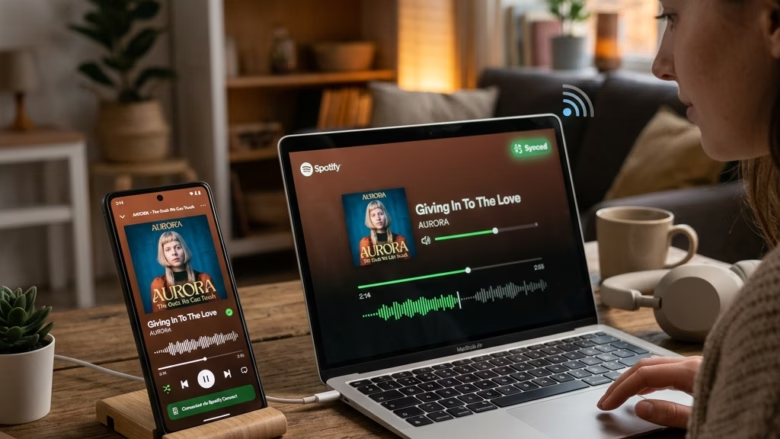
You can control your music and podcasts directly from your PC using Microsoft’s Phone Link app.
Phone Link allows you to manage your phone’s media playback, including streaming services, directly on your Windows computer. This feature leverages the app’s capabilities to extend your phone’s functionality to your desktop.
For example, you can use Phone Link version 1.22082.50.0 or later on Windows 11 to pause, play, skip tracks, and adjust volume without ever touching your phone.
This integration proves incredibly useful when you’re focused on your PC and want seamless control over your audio. You’ll find it simplifies managing your entertainment and productivity.
Control music and podcasts from your PC by enabling notifications for your audio apps on your phone. Then, in the Phone Link app on your PC, go to Settings and turn on “Show audio currently playing from my phone.” This provides basic playback controls within the app.
Control Your Music and Podcasts from Your PC
Imagine this: You are working hard on your computer. Your favorite podcast or music is playing on your Android phone. Instead of reaching for your phone, you can control the sound right from the Phone Link app. Sounds great, right?
Get Your Apps Ready
For this to work, the apps that play audio on your Android phone need to send notifications. This doesn’t mean you’ll get bombarded with alerts. It just lets Phone Link know that audio is playing, giving it the controls it needs.
Grab your Android phone and head to its Settings.
Look for and tap on Notifications.
Find the specific audio app you want to control, like Spotify, Pocket Casts, or YouTube Music.
Make sure the switch for Show notifications is turned On for that app.
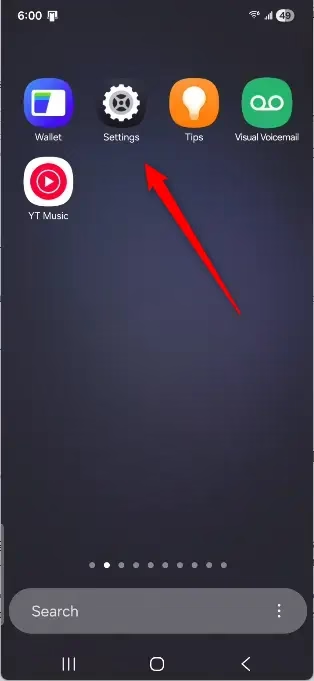
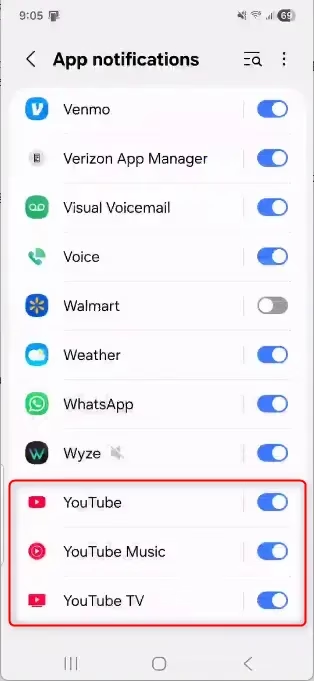
Good Tip: Even if you don’t want other alerts from an app, enabling its main notification setting often allows Phone Link’s audio playback controls to function. It’s a small but effective trick!
Turn On Audio Controls in Phone Link on Your PC
Now, let’s get your PC ready to act as your remote.
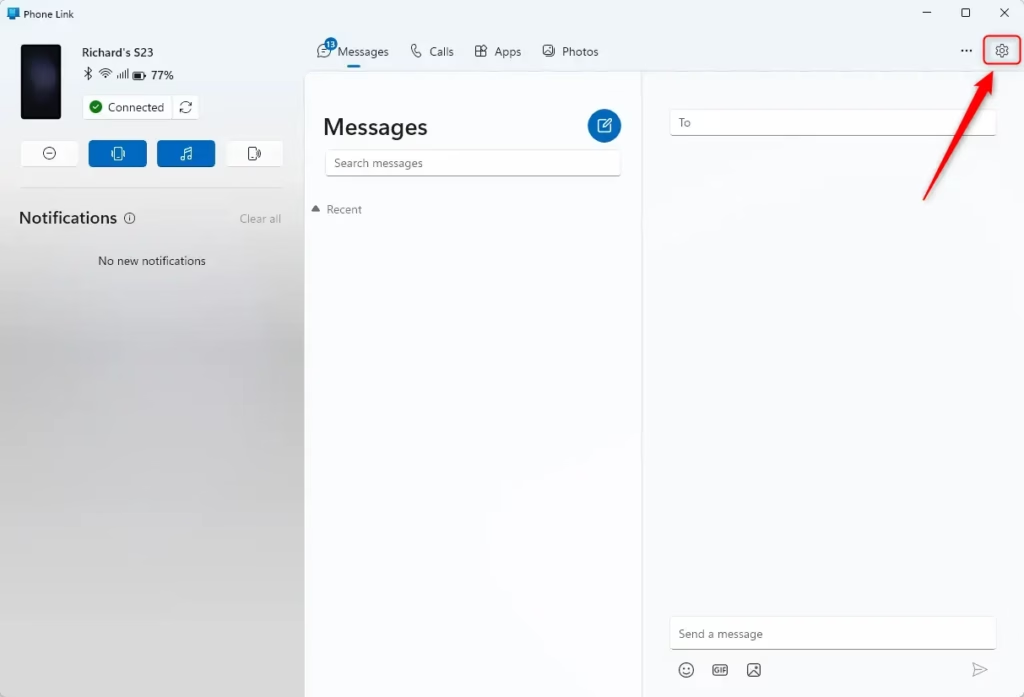
Open the Phone Link app on your Windows computer.
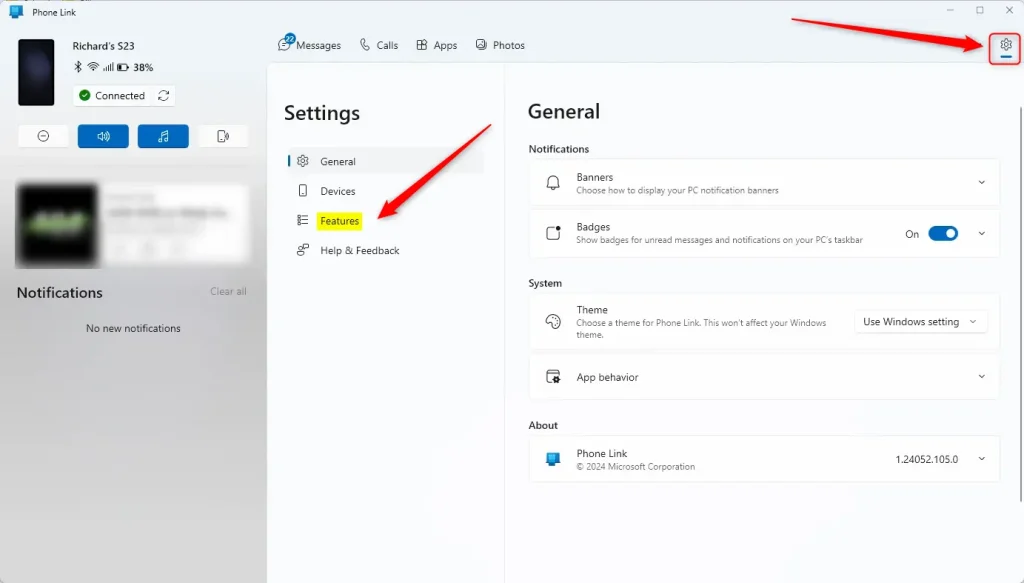
Go to the Settings in Phone Link. You can usually find this by clicking the gear icon.
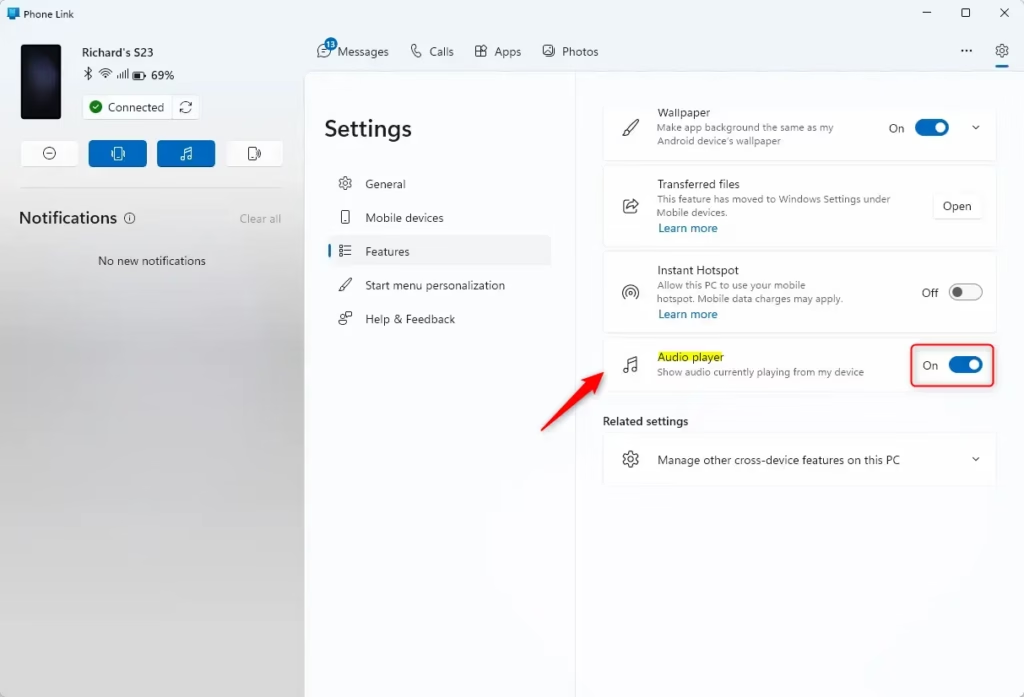
Under the Personalization section, you should see an option like Show audio currently playing from my phone.
Turn the switch next to this option to On.
What Happens When It’s All Set Up
Once everything is turned on, start playing any audio on your Android device. You should see a small audio player appear in the Phone Link app on your PC. This player will give you the basic controls you need:
- Previous Track
- Play/Pause
- Next Track
If you’re using more than one audio source, like music from one app and a podcast from another, you can switch between them. Use the dropdown menu right in the Phone Link player. Just start playing from the new source on your phone. Phone Link should automatically change what it shows.
Reference:
Summary
The Phone Link app can control audio playing on your Android phone directly from your PC. To make this work, you’ll need to make sure your audio apps on your phone are set to show notifications. Then, in the Phone Link app on your PC, enable the setting to show audio currently playing. This gives you basic playback controls like play, pause, and skip. Remember, the sound will still come from your phone, not your PC. Some apps may not be compatible.
Was this guide helpful?

About the Author
Richard
Tech Writer, IT Professional
Richard, a writer for Geek Rewind, is a tech enthusiast who loves breaking down complex IT topics into simple, easy-to-understand ideas. With years of hands-on experience in system administration and enterprise IT operations, he’s developed a knack for offering practical tips and solutions. Richard aims to make technology more accessible and actionable. He's deeply committed to the Geek Rewind community, always ready to answer questions and engage in discussions.



No comments yet — be the first to share your thoughts!