How to Always keep sites active while using Energy Saver in Microsoft Edge

You can keep specific websites active even when Microsoft Edge’s Energy Saver mode is enabled to prevent them from sleeping or slowing down.
Microsoft Edge’s Energy Saver is designed to conserve battery power by putting inactive tabs to sleep, a feature that automatically activates on battery power, typically around 15% battery remaining.
While beneficial for general power saving, this can interrupt essential online activities, like live streams or background web applications you rely on.
This guide shows you how to tell Edge which of your favourite sites you want to exempt from Energy Saver, ensuring they always remain responsive.
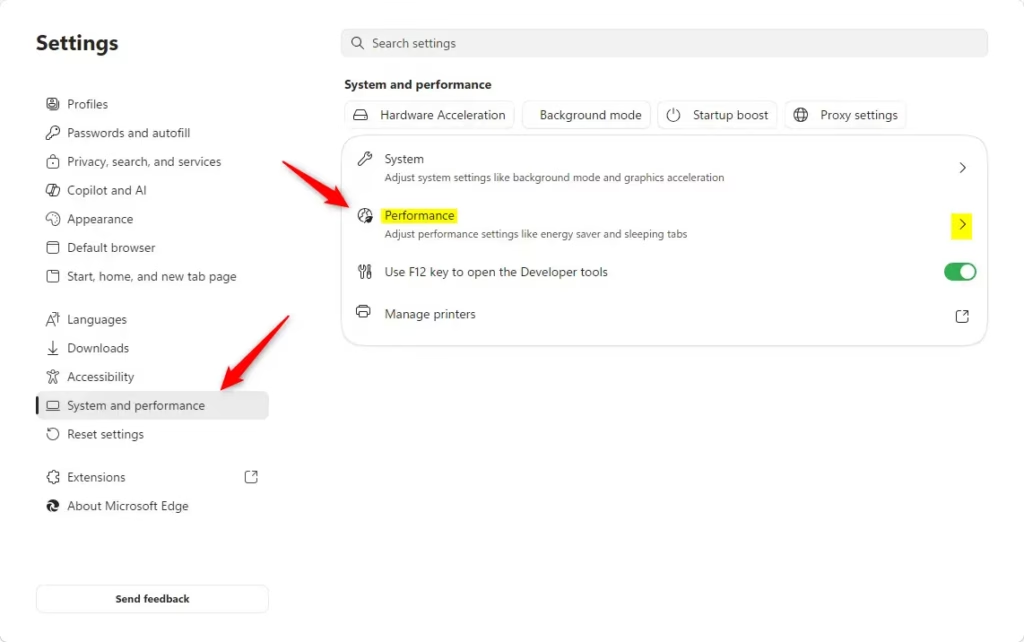
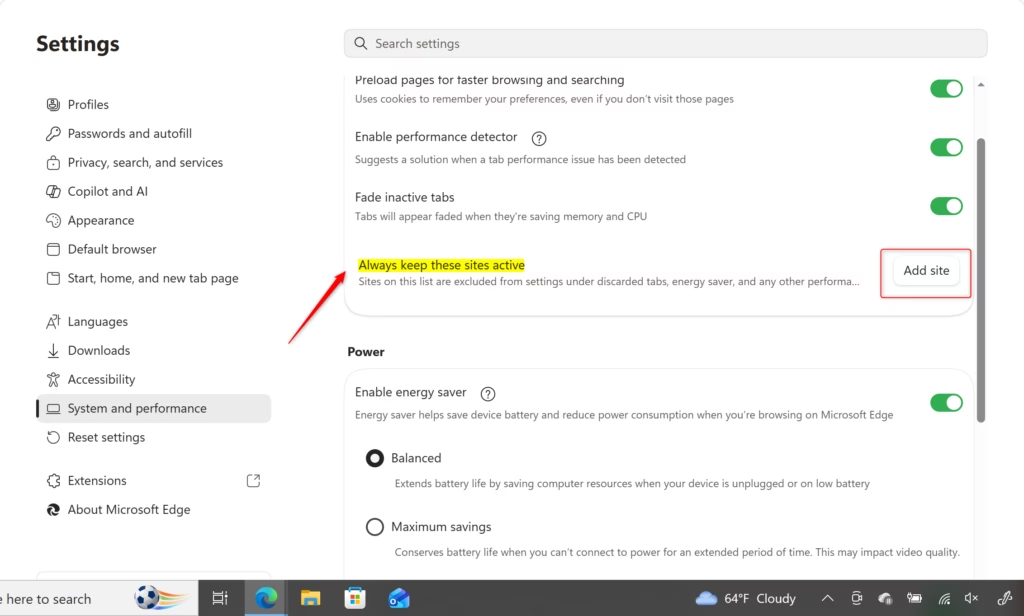
Go to Settings, then System and performance, and click Performance. Scroll to “Always keep these sites active,” click Add site, enter the website URL, and click Add. This prevents Edge from putting the site to sleep or slowing it down.
How to Add a Site to Your “Always Active” List
You can stop a site from being put to sleep or affected by energy saving right in Edge’s settings. Here’s how:
- Open Microsoft Edge.
- Click the three dots (
...) in the top-right corner. This opens the menu. - In the menu, click Settings.
- In the Settings tab, click System and performance on the left side.
- Under the “System and performance” section, click Performance. This is where the power-saving and tab settings are.
- Scroll down until you see a section called Always keep these sites active.
- Click the Add site button.
- A small box will appear. Type the full web address (URL) of the site you want to keep active. For example, to keep YouTube active, you would type
https://www.youtube.com. Make sure to includehttp://orhttps://. - After typing the address, click the Add button next to the box.

That’s it! The site is now on your “always active” list. Microsoft Edge will not put this tab to sleep, even if you don’t use it for a long time. It also won’t be slowed down by Energy Saver mode.
Reference:
https://support.microsoft.com/en-us/edge/learn-about-performance-features-in-microsoft-edge
Summary
This guide shows you how to prevent Microsoft Edge from putting specific websites to sleep or slowing them down when Energy Saver mode is active. By adding a website’s URL, which is its web address, to the “Always keep these sites active” list in the browser’s System and performance settings, you ensure that these sites remain fully functional and responsive. This is useful for web apps, live streams, or any site that requires constant activity and should not be interrupted by the browser’s power-saving features.
Was this guide helpful?

About the Author
Richard
Tech Writer, IT Professional
Richard, a writer for Geek Rewind, is a tech enthusiast who loves breaking down complex IT topics into simple, easy-to-understand ideas. With years of hands-on experience in system administration and enterprise IT operations, he’s developed a knack for offering practical tips and solutions. Richard aims to make technology more accessible and actionable. He's deeply committed to the Geek Rewind community, always ready to answer questions and engage in discussions.



No comments yet — be the first to share your thoughts!