Microsoft Edge Security Features Explained: Protecting Your Online Activity

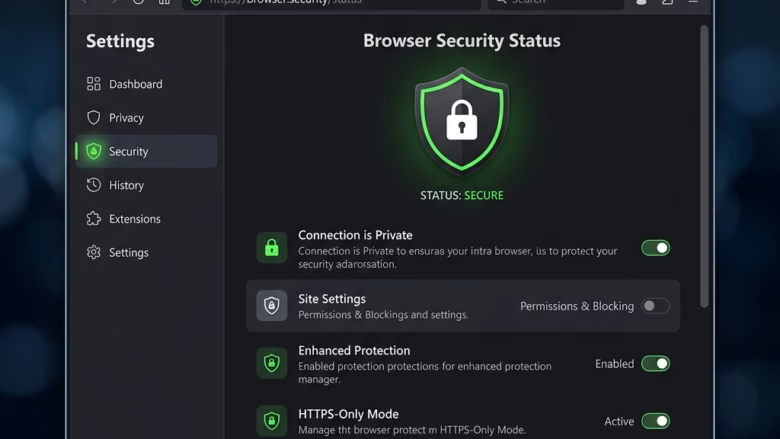
Microsoft Edge protects your online activity through its robust built-in security features.
These features act as your digital shield against threats like phishing, malware, and trackers, keeping your personal data safe while you browse.
For example, Microsoft Edge’s SmartScreen filter can block over 200 million malicious sites and downloads each week, actively preventing you from landing on dangerous pages.
You also gain control over tracking prevention, with three distinct levels—Basic, Balanced, and Strict—to manage how websites monitor your online behavior.
Edge also incorporates features like Password Monitor to alert you if your saved passwords appear in known data breaches.
Microsoft Edge protects you by blocking dangerous websites and trackers through features like SmartScreen. You can ensure this by going to Settings > Privacy, search, and services, and making sure SmartScreen is turned On. This helps prevent phishing and malware.
Why Microsoft Edge Security is Important
Your web browser is your main way to access the internet. Think of it like the front door to your house; if your door is unlocked, anyone can come in. In the same way, if your browser isn’t secure, bad people can get to your data. This data includes things like your passwords, credit card numbers, what you’ve looked at online, and your personal details. This information can be used for bad things. This could mean losing money, someone creating fake accounts in your name, or even being bothered with scam messages.
Microsoft Edge is a modern browser with advanced security tools. These tools are made to stop unauthorized access and protect your privacy.
What Happens When Edge Security Features Are On?
When you have Microsoft Edge’s security features enabled, several things happen automatically to protect you. Your browser actively blocks dangerous websites that try to steal your information and stops trackers from following you around the web, meaning fewer annoying ads and more privacy. Edge also warns you about sites known for phishing (trying to trick you) or malware (harmful software) and helps manage your passwords securely. Your online experience becomes safer and more private, letting you browse with greater confidence.
Understanding Microsoft Edge’s Main Security Features
Microsoft Edge has a strong set of security features. They work together to give you a complete safety net. Let’s look at the most important ones.
SmartScreen: Your First Line of Defense
Think of SmartScreen as your browser’s digital security guard. It’s designed to shield you from dangerous websites and harmful downloads by checking everything you visit and download against an ever-updating list of known threats. If a match is found, you’ll see a warning and access will be blocked. This is crucial because many websites appear legitimate but are actually crafted to trick you into downloading malware or revealing your personal information.
How SmartScreen Works
When you try to visit a website or download a file, SmartScreen checks its address or signature against Microsoft’s online service. This service has information about millions of websites and files, including those known to be unsafe.
- Phishing Protection: SmartScreen finds websites that are trying to look like real sites to steal your login information.
- Malware Protection: It finds and blocks downloads that are known to have harmful software.
- Reputation-Based Filtering: It uses a system to check how safe websites and downloads are.
Turning SmartScreen On or Off
SmartScreen is usually on by default, and it’s recommended for the best security. But you can check its status and change settings if you need to.
- Open Microsoft Edge.
- Click the three dots (…) in the top-right corner to open the menu.
- Select Settings.
- In the menu on the left, click Privacy, search, and services.
- Scroll down to the Security section.
- You will see options for SmartScreen. Make sure the switch is turned On.
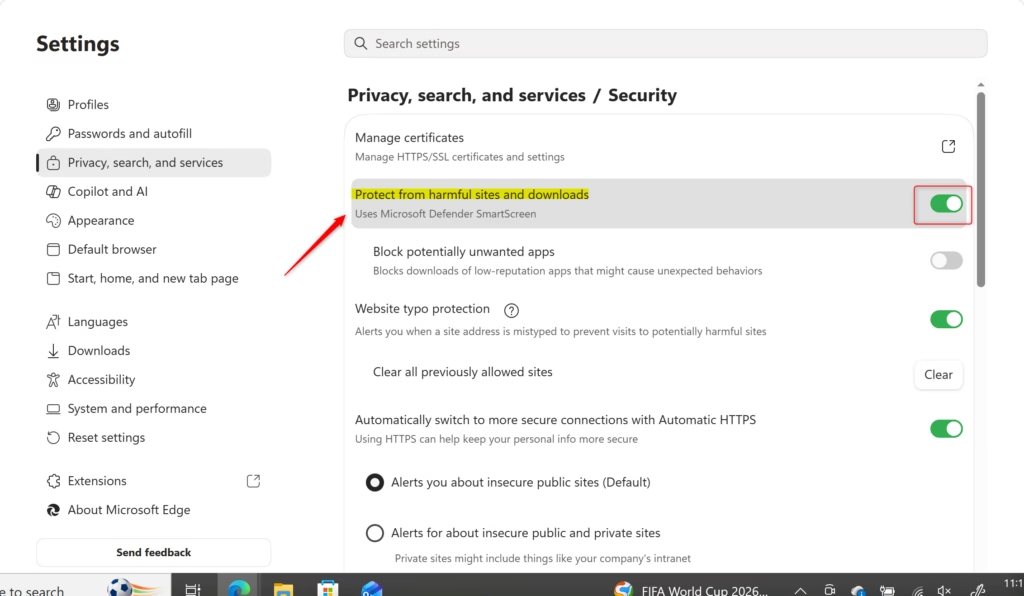
Why would you change this? Most people should keep SmartScreen on. Turning it off greatly increases your risk of running into malware or phishing scams. Only very experienced users who fully understand the risks and have other security measures might think about turning it off, but it’s usually not a good idea.
Tracking Prevention: Keeping Trackers Away
Websites often use trackers to watch what you do online. They collect information about the sites you visit, what you click on, and what you search for. This information is often used for ads targeted at you, but it can also be shared with other companies without your agreement. Tracking Prevention in Microsoft Edge tries to block these trackers, giving you more privacy.
Tracking Prevention Levels
Edge offers different levels of tracking prevention:
- Basic: Blocks some trackers that are known to be harmful or that collect your information across multiple websites.
- Balanced: This is the default setting. It blocks more trackers than Basic, including those that show you targeted ads, but it tries not to break how websites work.
- Strict: Blocks most trackers. This offers the highest level of privacy but might cause some websites to not work correctly.
How to Change Tracking Prevention Settings
You can easily change these settings to find the right balance between privacy and website function for you.
- Open Microsoft Edge.
- Click the three dots (…) in the top-right corner.
- Select Settings.
- In the menu on the left, click Privacy, search, and services.
- Under the Privacy section, you will find Tracking prevention.
- Click on the option for your preferred level: Basic, Balanced, or Strict.
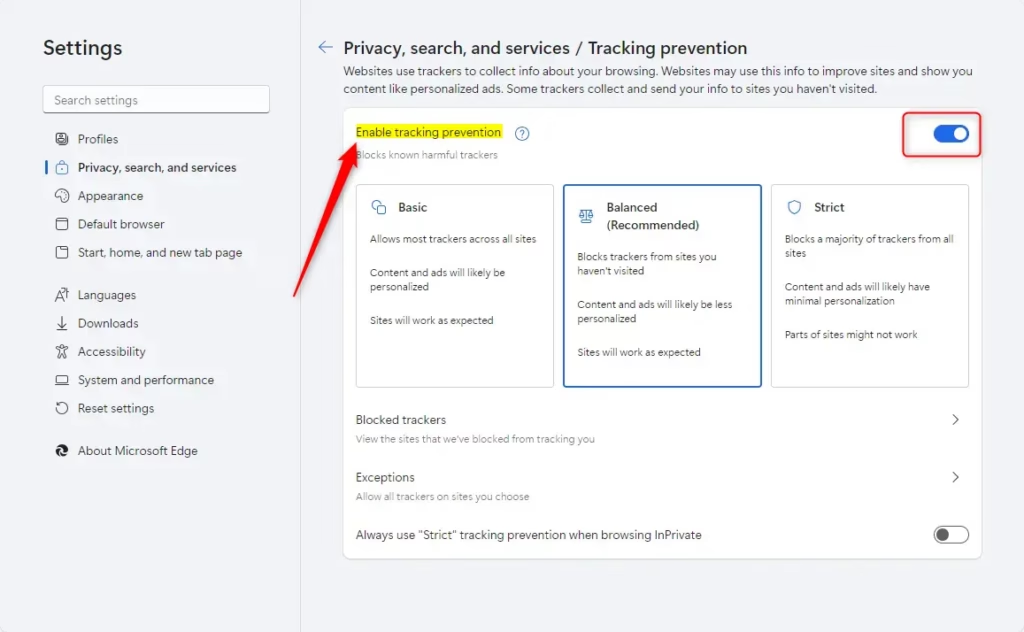
What happens when done? Choosing ‘Balanced’ means Edge will block many trackers that could be used for advertising or learning about you across different sites. ‘Strict’ will block almost all trackers, giving you maximum privacy but possibly making some sites not show content correctly. ‘Basic’ offers little protection, only blocking known harmful trackers.
Password Management: Safely Storing Your Login Details
Remembering complex passwords for every online account is hard. Many people reuse passwords or use simple ones, which is a big security risk. Microsoft Edge has a built-in password manager that can safely store, create, and automatically fill in your passwords.
How Edge Password Manager Works
- Password Saving: When you log in to a website, Edge will ask if you want to save your username and password.
- Password Generation: When creating a new account, Edge can suggest strong, unique passwords.
- Autofill: Once saved, Edge can automatically fill in your login details on websites.
- Security Check: Edge can check your saved passwords for any that are weak, reused, or have appeared in known data leaks.
Managing Your Saved Passwords
You can see, change, or delete your saved passwords at any time.
- Open Microsoft Edge.
- Click the three dots (…) in the top-right corner.
- Select Settings.
- In the menu on the left, click Profiles.
- Click Passwords.
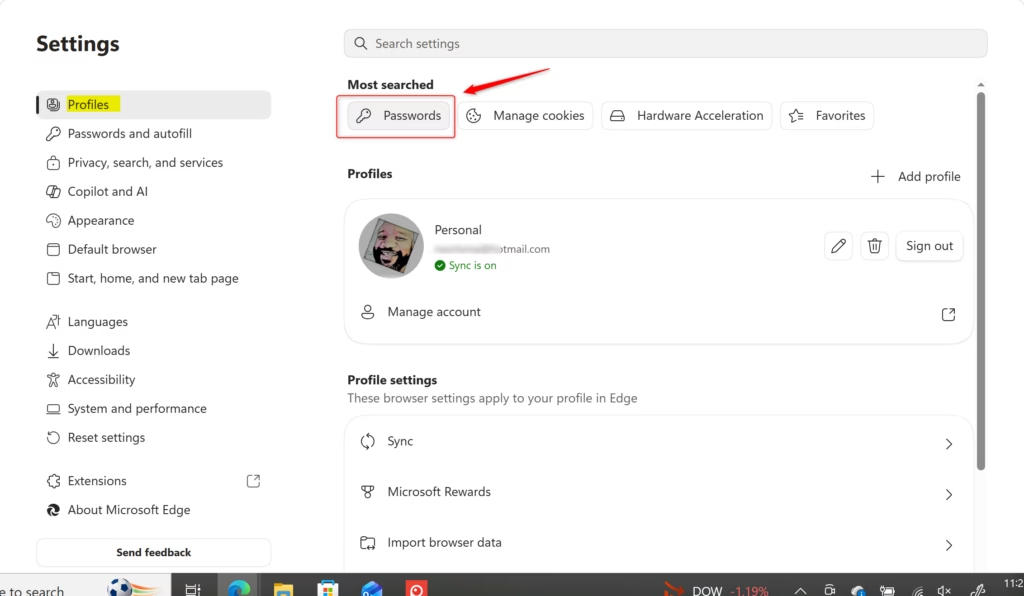
Here you can see all your saved passwords. You can click the eye icon to see a password, click Edit to change it, or click the three dots next to a password to Delete it.
To turn password saving on or off, use the switch next to Offer to save passwords.
To run a password security check, click Check passwords.
Why is this important? Using the password manager helps you avoid weak or reused passwords. If one website has a security problem, many of your accounts could be at risk if you use the same password everywhere. Edge’s password generator creates strong, unique passwords for each site, and its security check warns you about possible issues.
InPrivate Browsing: Temporary Privacy
Sometimes you don’t want your browsing activity saved on your computer. This could be for personal reasons, or if you are using a computer that others use. InPrivate browsing mode in Edge makes sure that your browsing history, cookies, site data, and information you type into forms are not saved on your device after you close all InPrivate windows.
How to Use InPrivate Browsing
- Open Microsoft Edge.
- Click the three dots (…) in the top-right corner.
- Select New InPrivate window.
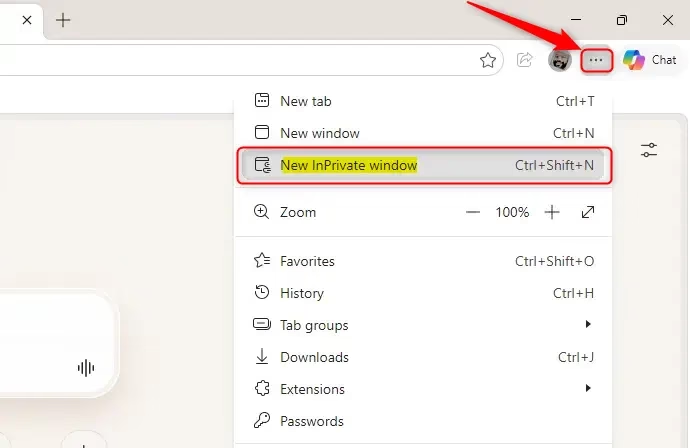
A new window will open with a special InPrivate icon (usually a dark theme with the InPrivate logo).
What happens when done? When you close the InPrivate window, your browsing session is cleared from your local history. Your search history, cookies, and temporary files from that session are deleted. However, remember that InPrivate browsing does not make you anonymous online. Your internet provider, employer, or the websites you visit can still see your activity.
Advanced Security Settings in Microsoft Edge
Besides the main features, Edge offers more detailed control over your security and privacy.
Enhanced Security Mode: A Stronger Defense
Enhanced Security Mode provides an extra layer of protection against online threats like malware and phishing. It works by using stronger security rules for websites, especially those that are less familiar or that you haven’t visited often.
How Enhanced Security Mode Works
This mode uses a technique called “site isolation.” It runs most websites in a separate, protected process. This means that if a website is compromised, the damage is contained and less likely to affect your computer or other browser tabs. It also helps block certain types of harmful code from running.
Turning On Enhanced Security Mode
You can choose between two levels: ‘Balanced’ and ‘Strict’. ‘Balanced’ is recommended for most users.
- Open Microsoft Edge.
- Click the three dots (…) in the top-right corner.
- Select Settings.
- In the menu on the left, click Privacy, search, and services.
- Scroll down to the Security section.
- Find Enhanced security mode.
- Select Balanced (recommended) or Strict.
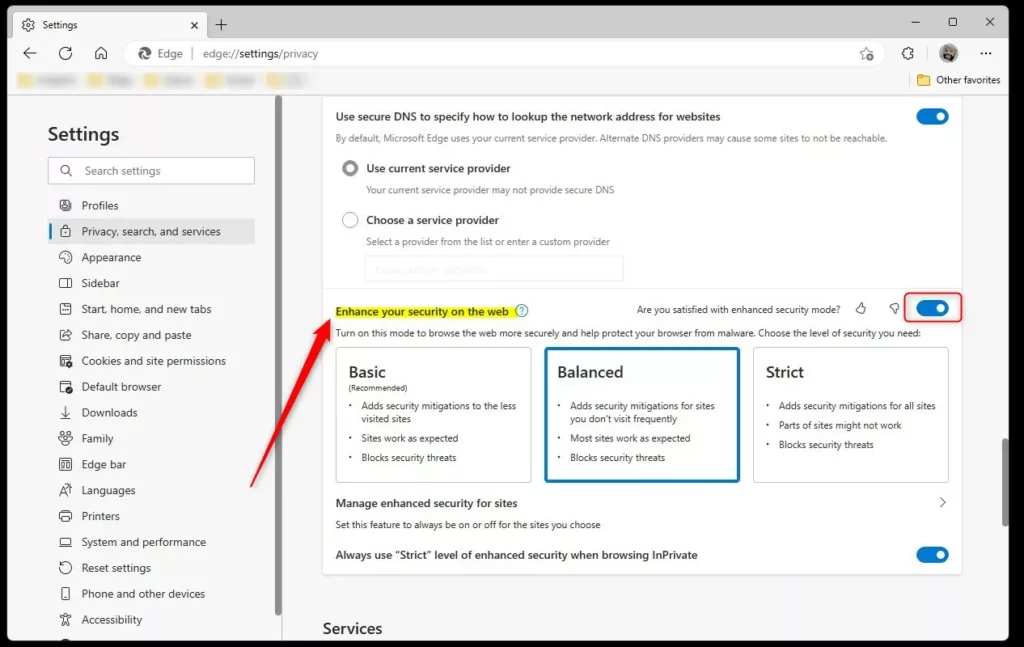
What happens when done? With ‘Balanced’ mode, Edge will use enhanced security for most sites, but it might temporarily turn it off for sites you visit often to make sure things work smoothly. ‘Strict’ mode applies enhanced security to all sites, offering the highest protection but possibly affecting how some websites perform or work.
Managing Cookies and Site Permissions
Cookies are small files that websites store on your computer to remember information about you, like login details or preferences. While often helpful, some cookies can be used for tracking. Site permissions allow websites to access your camera, microphone, location, and more. Managing these is key to privacy.
Cookie Settings
- Open Microsoft Edge.
- Click the three dots (…) in the top-right corner.
- Select Settings.
- In the menu on the left, click Cookies and site permissions.
- Under Cookies and data stored, you can:
- Turn on Allow sites to save and read cookie data to allow all cookies.
- Turn on Block third-party cookies to stop cookies from sites other than the one you are currently visiting.
- Click See all cookies and site data to view, search, edit, or delete individual cookies and stored data.
Site Permissions Management
- Follow steps 1-5 above to get to Cookies and site permissions.
- Under All permissions, you can control access for:
- Camera
- Microphone
- Location
- Notifications
- And many others.
- Click on a specific permission (e.g., Location).
- Here you can:
- Turn on Ask before accessing to control if sites need your permission.
- Click Add under Allow or Block to manage permissions for specific websites.
Why is this important? By controlling cookies and site permissions, you stop websites from collecting unneeded data or accessing sensitive hardware like your camera or microphone without you knowing. Blocking third-party cookies is a big step in reducing tracking across different sites.
HTTPS-Only Mode: Making Sure Connections are Encrypted
When you visit a website, your connection can be either encrypted (secure, using HTTPS) or unencrypted (insecure, using HTTP). HTTPS scrambles the data sent between your browser and the website, making it unreadable to anyone trying to listen in. HTTPS-Only Mode in Edge forces connections to use HTTPS, making your connection more secure.
How to Turn On HTTPS-Only Mode
- Open Microsoft Edge.
- Click the three dots (…) in the top-right corner.
- Select Settings.
- In the menu on the left, click Privacy, search, and services.
- Scroll down to the Security section.
- Find Turn on HTTPS-Only Mode and toggle the switch to On.
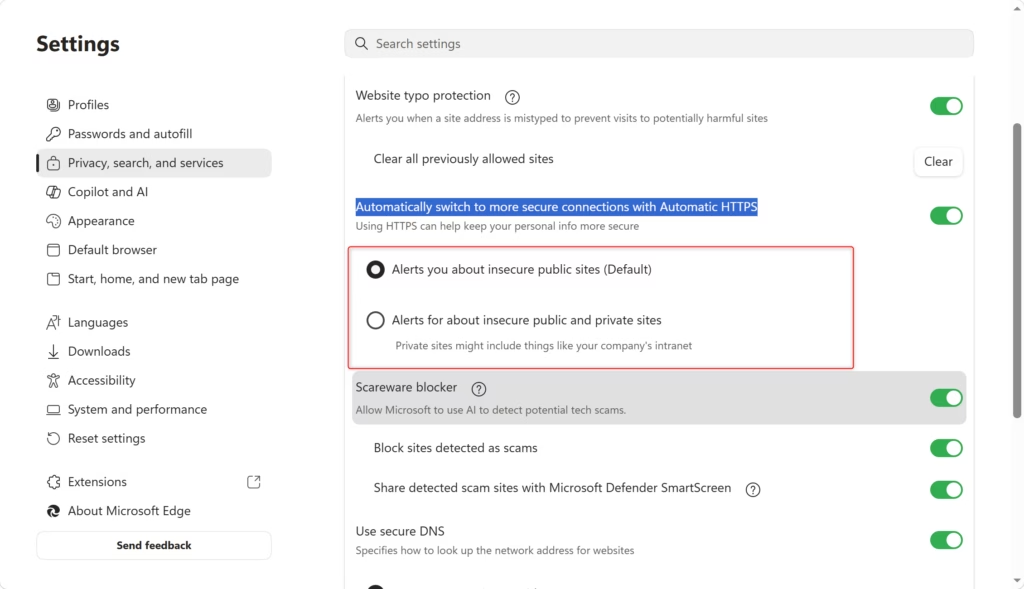
What happens when done? If you try to visit a website that only supports HTTP (unencrypted), Edge will show a warning page instead of connecting. This stops you from accidentally sending sensitive information over an insecure connection. If you really need to visit a site that doesn’t support HTTPS, you can choose to proceed, but be aware of the risks.
Special Security Tips for Microsoft Edge Users
Beyond the regular settings, here are some expert tips to further improve your security.
Using Extensions Wisely
Browser extensions can add useful features, but they can also be a security risk. Harmful extensions can steal data, add ads, or even install malware. Always be careful when installing extensions.
- Source Matters: Only install extensions from the official Microsoft Edge Add-ons store or trusted developers.
- Permissions Check: Before installing an extension, carefully look at the permissions it asks for. Does it really need access to your browsing history or all website data?
- Regular Review: Check your installed extensions from time to time. Remove any you no longer use or don’t recognize.
- Reputable Extensions: Consider using well-known security and privacy extensions like AdBlock Plus, uBlock Origin, or Privacy Badger. These can work alongside Edge’s built-in features.
Keeping Your Browser Updated
Microsoft releases updates for Edge regularly. These updates often include important security fixes that repair newly found weaknesses. If you don’t update your browser, you will be exposed to these known threats.
Automatic Updates
Edge is set to update automatically by default. However, you can check for updates yourself.
- Open Microsoft Edge.
- Click the three dots (…) in the top-right corner.
- Hover over Help and feedback.
- Click About Microsoft Edge.
Edge will automatically check for updates and download them. You might need to restart the browser for the updates to be applied.
Why is this crucial? Think of browser updates like fixing holes in your armor. Cybercriminals are always looking for weak spots. Developers fix these weak spots as soon as they find them. If you don’t update, those holes stay open, making you an easy target.
Using Microsoft Defender SmartScreen with Downloads
SmartScreen doesn’t just protect you from dangerous websites; it also checks downloaded files. This feature is very helpful for stopping malware from getting onto your system.
When you download a file, Edge checks its reputation. If the file is known to be harmful or from a source you don’t trust, Edge will block the download and show a warning. If you try to open a downloaded file that SmartScreen marks as potentially harmful, you will get another warning.
What happens when done? This acts as a vital safety step. Many viruses and malware are spread through downloads that seem harmless. SmartScreen finds these threats, stopping them from running on your computer and protecting your system.
Exploring “Children’s Mode” (for families)
If you have children who use your computer or a device, Microsoft Edge has a “Children’s Mode.” This feature provides a safer browsing environment for younger users, with approved content and stricter privacy settings.
How to Use Children’s Mode
- Open Microsoft Edge.
- Click on your Profile icon in the top-right corner.
- Select Browse in Children’s mode.
A new, simpler browser window will open. You can set a timer for how long the child can browse.
To exit Children’s mode, you will need to enter your user account password.
Why is this helpful? Children are often more likely to encounter inappropriate content and online scams. Children’s Mode uses a list of approved websites and blocks access to adult content, making it a much safer online experience for kids.
Protecting Your Identity with Edge
Your online identity is linked to the information you share and the accounts you access. Edge provides tools to help protect this.
Password Security Check
As mentioned in the password management section, the Security Checkup is a powerful tool. It checks your saved passwords and warns you if any are weak, reused on multiple sites, or have been exposed in known data breaches.
Conclusion
In today’s digital world, keeping your personal information safe online is incredibly important. Microsoft Edge provides a strong set of security features to ensure your browsing is both safe and private. From SmartScreen protecting you from phishing and malware to Tracking Prevention and InPrivate browsing offering more privacy, Edge puts you in charge of your online safety.
Tools like the built-in password manager and Enhanced Security Mode help you protect your personal data and keep your online transactions secure. Features like HTTPS-Only Mode and cookie management also give you more control over your data and your online presence.
By staying aware of your browser’s capabilities and keeping its settings up-to-date, you can boost your online security even further. With Microsoft Edge, you can browse knowing that multiple layers of protection are working hard to keep your information safe. Remember, a secure browsing experience benefits you and contributes to a safer online environment for everyone.
Was this guide helpful?

About the Author
Richard
Tech Writer, IT Professional
Richard, a writer for Geek Rewind, is a tech enthusiast who loves breaking down complex IT topics into simple, easy-to-understand ideas. With years of hands-on experience in system administration and enterprise IT operations, he’s developed a knack for offering practical tips and solutions. Richard aims to make technology more accessible and actionable. He's deeply committed to the Geek Rewind community, always ready to answer questions and engage in discussions.


No comments yet — be the first to share your thoughts!