How to Set App and Game Limits on Windows 11 using Microsoft Family Safety


You can set app and game time limits on Windows 11 through Microsoft Family Safety to manage screen time effectively.
Microsoft Family Safety is a feature designed to help families manage their digital lives, allowing you to control how long children (or anyone using a managed account) can spend on specific applications or games each day on their Windows 11 devices.
For example, you can restrict a particular game to a maximum of 2 hours per day. This helps ensure a healthy balance between digital activities and other responsibilities.
You can set these limits easily through the Microsoft Family Safety app on your smartphone or via a web browser.
Go to family.microsoft.com and sign in with your organizer account. Select the family member, then navigate to the “Apps and games” tab. Toggle “App and game limits” on, then choose a specific app or game to set daily time restrictions.
Step 1Go to the Microsoft Family Safety Website
You need to get to your Microsoft Family Safety settings. Both of the following methods lead to your family dashboard.
Option A: Use the Family Safety App
If you have the Microsoft Family Safety app on your phone, this might be the fastest way. Make sure the person you want to manage is already in your Microsoft family group.
- Open the Microsoft Family Safety app on your phone.
- You will see a list of your family members. Tap the name of the person you want to set limits for.
- On their profile page, you will see options for different devices. Choose the one for the device you want to manage, usually “Windows/Xbox” or “Mobile.”

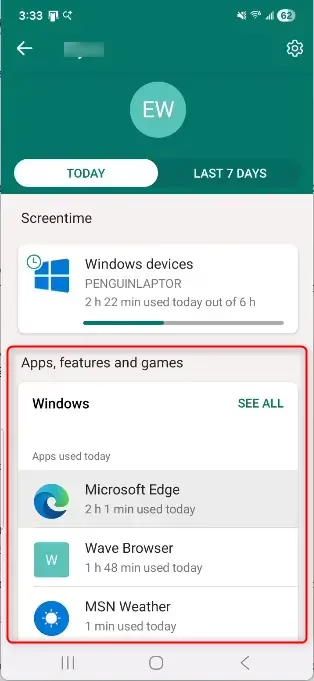
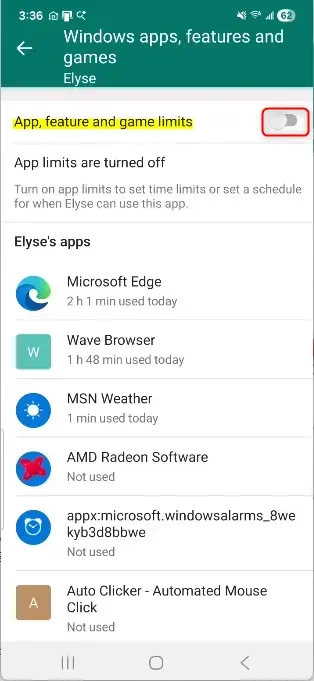
Important: Make sure your child or family member is already in your Microsoft family group. If not, invite them online through your Microsoft account settings.
Option B: Use a Web Browser
You can also manage these settings using any web browser. This is handy if you are not near your phone or prefer using your computer.
- Open your favorite web browser (like Edge, Chrome, or Firefox).
- Go to the Microsoft Family Safety website: family.microsoft.com
- Sign in using the adult organizer’s Microsoft account details for your family group.
- On your family dashboard, you will see a list of everyone in your family group. Click on the name of the family member you want to set app and game limits for.
- Just like with the app, select the device type you want to manage. Look for “Windows/Xbox” or “Mobile.”
Warning: Make sure you are signed in with the correct adult account. If you sign in with a child’s account, you won’t be able to set limits for others.
Step 2Find the Apps and Games Settings
After you select the family member and the correct device type (Windows/Xbox or Mobile), you will go to a page with management options. Look for the section about app and game usage.
- On the family member’s profile page for the chosen device, find and click on the “Apps and games” tab or section.
- This is where you will see a list of apps and games the family member has used or installed on their devices. You will also see how much time they have spent on them.
Step 3Turn On App and Game Limits
Before you can set specific time limits, you need to turn on this feature. It’s usually a simple switch.
- Look for a switch that says “App and game limits” or “Set limits.”
- Click or tap this switch to turn it On.
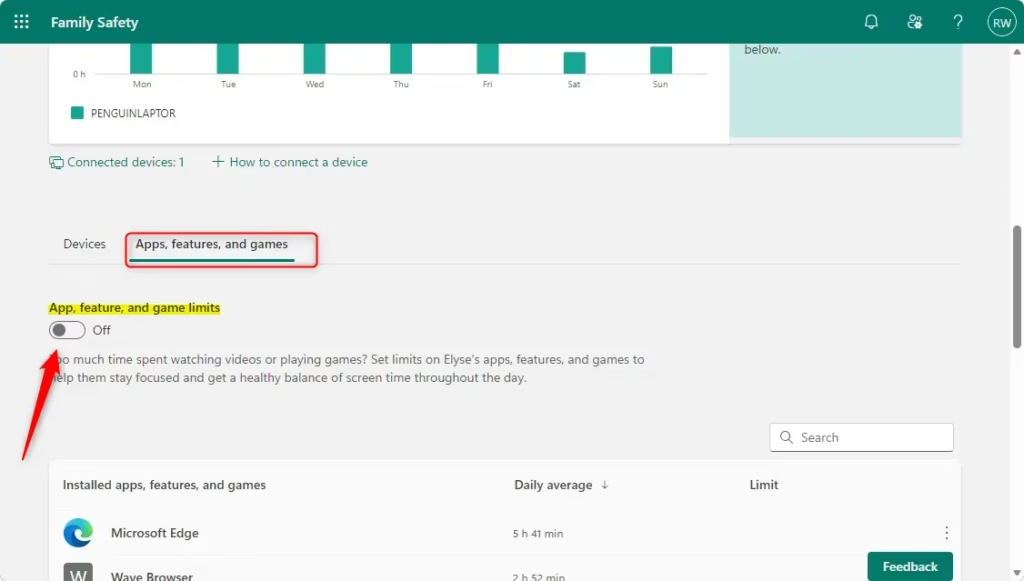
The first time you turn this on, Windows will begin tracking how the user spends time on apps and games for that device type. You might see a message saying it’s collecting data, which is normal.
Step 4Choose an App or Game to Limit
Now you can choose which specific apps or games you want to limit. The list should show what the user has been running.
- In the “App and game limits” section, you should see a list of apps and games.
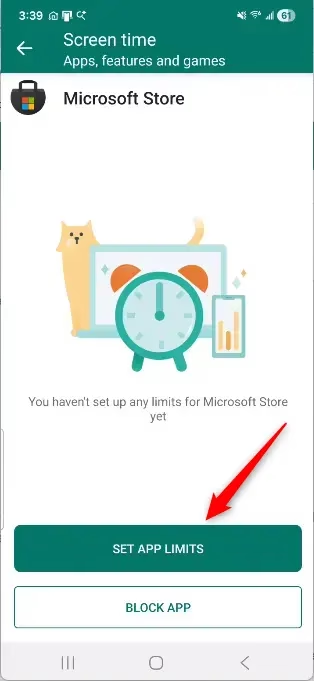
- Click or tap on the specific app or game you want to set a time limit for.
You might see apps or games listed more than once. This can happen if the same app is installed on different devices linked to the same Microsoft account. For now, you can set limits for each one. Microsoft is working to make this simpler.
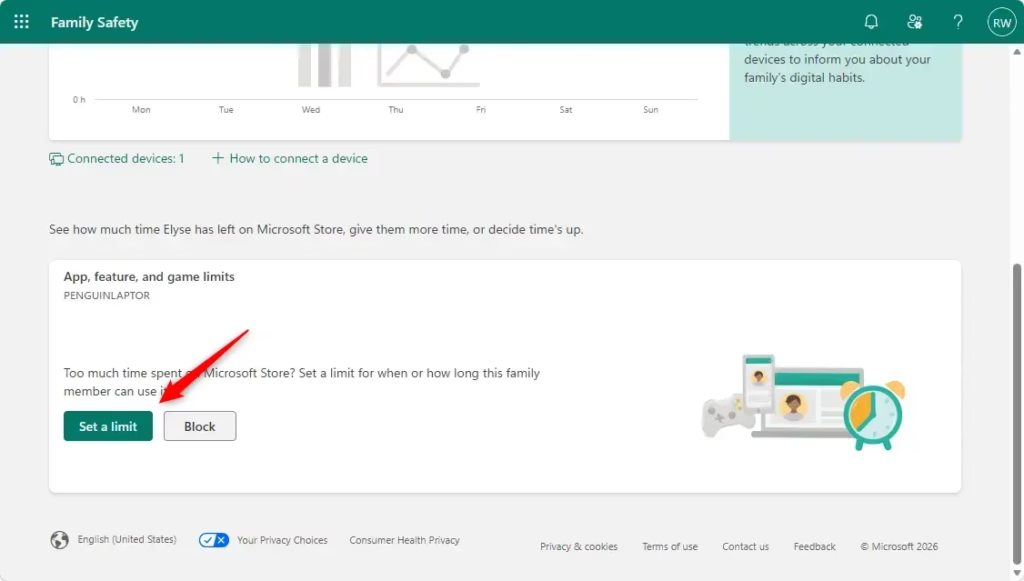
Step 5Set the Time Limits
This is the main part. You can decide exactly how much time can be spent and even when that time can be used.
- After selecting an app or game, you will see options to set the time limits.
- You can choose a specific amount of time (like 1 hour or 2 hours) that the family member can use that app or game each day.
- You can also set a schedule for when that time can be used. This is very useful. You can set the same limits for every day of the week, or you can create a different schedule for each day. For example, you might allow more game time on weekends than on weekdays.
Reference:
https://support.microsoft.com/en-us/family-safety/set-app-and-game-limits
Summary
Windows 11, through Microsoft Family Safety, allows you to set daily time limits for specific apps and games. You can access these settings via the Family Safety app or a web browser. After enabling the feature and selecting a family member and device, navigate to the “Apps and games” section. Here, you can turn on limits, choose an app or game, and define daily time allowances and usage schedules. This helps manage screen time effectively across Windows, Xbox, and Android devices.
Is there a parental control app for 🪟 Windows 11 that allows to limit time?
The Microsoft Family Safety app allows parents to set screen time limits on all Microsoft-affiliated devices, including Xbox, Xbox 360, Xbox One, Microsoft Surface, Windows 11 devices, Windows 7 devices, and Windows Vista devices.
Does 🪟 Windows 11 work with Family Safety?
Screen time limits work on Windows (Windows 10 and Windows 11), Xbox (Xbox One, Xbox Series X, Xbox Series S), and Android apps and games. They can be managed using the Microsoft Family Safety app on Android and iOS.
Was this guide helpful?

About the Author
Richard
Tech Writer, IT Professional
Richard, a writer for Geek Rewind, is a tech enthusiast who loves breaking down complex IT topics into simple, easy-to-understand ideas. With years of hands-on experience in system administration and enterprise IT operations, he’s developed a knack for offering practical tips and solutions. Richard aims to make technology more accessible and actionable. He's deeply committed to the Geek Rewind community, always ready to answer questions and engage in discussions.




No comments yet — be the first to share your thoughts!