How to Uninstall AI Components on Windows 11 PC

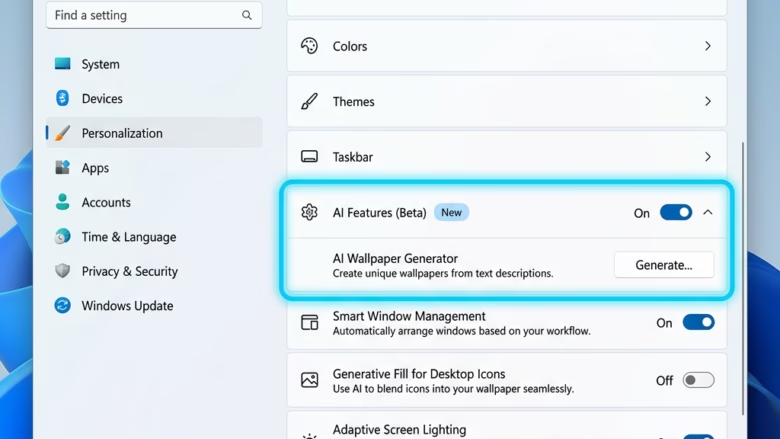
You can uninstall AI components on Windows 11 directly from the settings-app-in-windows-11/" class="sal-link" rel="noopener" target="_blank" data-sal-id="43108">Settings app.
These components are specific AI models designed to run locally on your PC, often leveraging hardware like Neural Processing Units (NPUs).
Recent Windows 11 updates, such as those found in preview build 26300, introduced a dedicated ‘AI components’ section within Settings > System, allowing you to manage these pre-installed AI elements.
For example, you might find and uninstall the ‘AI Phi Silica’ model if it’s present and you wish to remove it.
This process requires administrator privileges to ensure system integrity.
Here’s How:
- Open Settings. You can do this by pressing the Windows key + I on your keyboard.
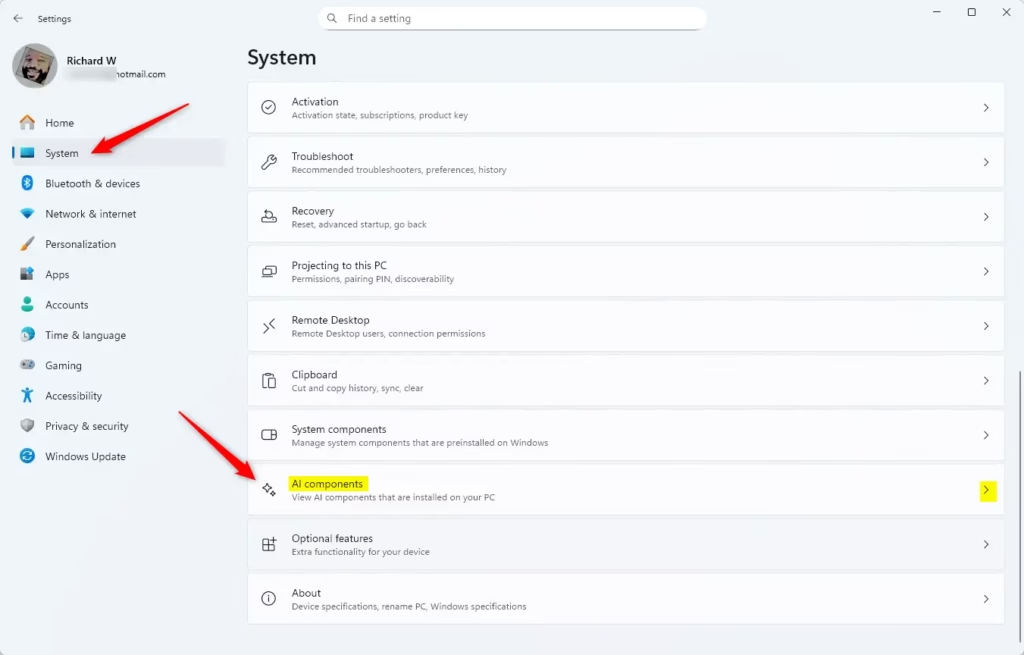
- On the left side, click on System. Then, on the right side, click on AI components.
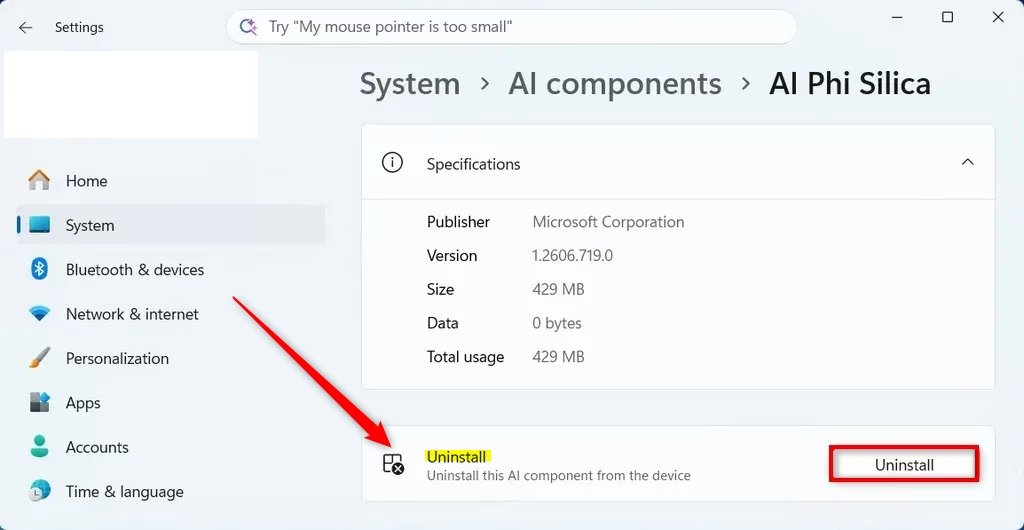
- Click on the AI component you want to remove. For example, you might see ‘AI Phi Silica’.
- If the option is available, click the Uninstall button.
- Click OK to confirm.
- Restart your computer. This makes sure the changes are saved.
And that’s it! You have successfully removed an AI component.
Reference:
Summary
This tutorial explained how to uninstall AI components on Windows 11. You can find these options under Settings > System > AI components, but only if your PC has an NPU. You must have administrator rights to perform the uninstall. The process involves navigating to the AI components page, selecting the component, clicking Uninstall, confirming with OK, and finally restarting your computer.
Was this guide helpful?

About the Author
Richard
Tech Writer, IT Professional
Richard, a writer for Geek Rewind, is a tech enthusiast who loves breaking down complex IT topics into simple, easy-to-understand ideas. With years of hands-on experience in system administration and enterprise IT operations, he’s developed a knack for offering practical tips and solutions. Richard aims to make technology more accessible and actionable. He's deeply committed to the Geek Rewind community, always ready to answer questions and engage in discussions.


No comments yet — be the first to share your thoughts!