

You perform a hard page refresh in Microsoft Edge on Windows 11 to force the browser to download the latest version of a webpage directly from the server, ignoring cached files.
A hard refresh is different from a normal refresh. While a normal refresh may use saved copies of files from your computer to load a page faster, a hard refresh ensures you are seeing the most up-to-date content.
This action is crucial when a standard refresh, like pressing F5 or Ctrl+R, doesn’t resolve issues like outdated information or display errors on a specific website. It clears the browser’s cache for that particular page.
Learn how to use your keyboard to move around in Microsoft Edge. Keyboard shortcuts in Microsoft Edge | Microsoft Support
Option 1Refresh or Hard Refresh Using Keyboard Shortcuts
Why try this? It’s a quick way to refresh a page right from your keyboard.
What happens when done? The page will reload, either with saved data or by fetching the latest version from the server.
- Open the web page you want to refresh in Microsoft Edge.
- Use one of the following keyboard shortcuts:
- F5 or Fn+F5: This does a normal refresh.
- Ctrl+R: This also does a normal refresh.
- Shift+F5: This does a hard refresh.
- Ctrl+Shift+R: This also does a hard refresh.
Option 2Refresh or Hard Refresh Using the Refresh Button
Why try this? You’ll use the refresh button right on the browser, which is easy to spot.
What happens when done? The page will reload. Holding Shift while clicking the button forces a hard refresh.
- Open the web page you want to refresh in Microsoft Edge.
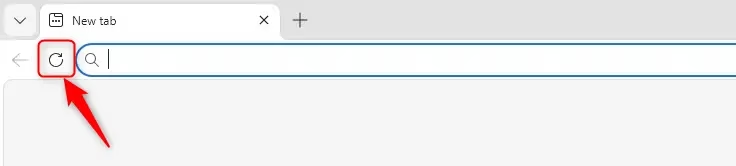
- Find the refresh button, which looks like a circular arrow, usually to the left of the address bar.
- To do a normal refresh: Click the refresh button.
- To do a hard refresh: Press and hold the Shift key on your keyboard, then click the refresh button.
Option 3Refresh or Hard Refresh from the Tab
Why try this? This lets you refresh a specific tab by interacting with it directly.
What happens when done? The page in that tab will reload. Using Shift while clicking Refresh forces a hard refresh.
- Open the web page you want to refresh in Microsoft Edge.
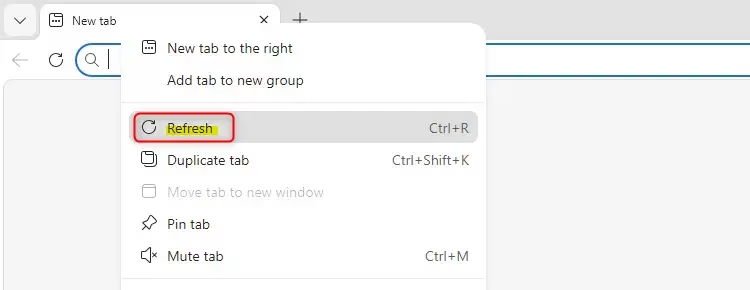
- Right-click on the tab containing the web page.
- To do a normal refresh: Click Refresh.
- To do a hard refresh: Press and hold the Shift key on your keyboard, then click Refresh.
Option 4Refresh or Hard Refresh Using Developer Tools
Why try this? This method gives you more control over refreshing, including clearing the cache entirely.
What happens when done? You can choose between a normal refresh, a hard refresh, or a hard refresh that also clears the cache for that page.
- Open the web page you want to refresh in Microsoft Edge.
- Open Developer Tools. You can do this by:
- Pressing the F12 key.
- Pressing Ctrl+Shift+I.
- Going to the Edge menu (three dots), then selecting More tools, and then Developer tools.
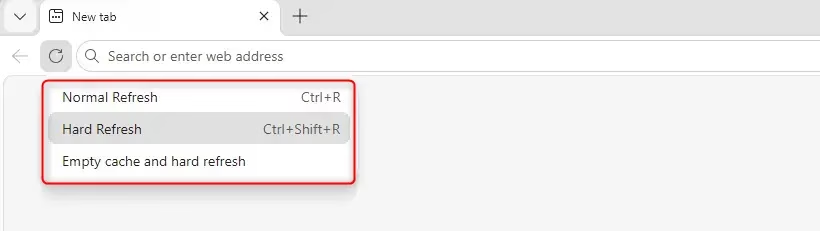
- Once Developer Tools are open, right-click on the refresh button (the circular arrow) in the browser window.
- A menu will appear. Choose one of the following:
- Normal Refresh
- Hard Refresh
- Empty cache and hard refresh
Summary
Refreshing a web page helps update its content. A normal refresh might use saved data from your computer, while a hard refresh forces the browser to download the latest version from the internet. You can perform these refreshes using keyboard shortcuts, the refresh button, by right-clicking the tab, or through the Developer Tools in Microsoft Edge.
Was this guide helpful?

About the Author
Richard
Tech Writer, IT Professional
Richard, a writer for Geek Rewind, is a tech enthusiast who loves breaking down complex IT topics into simple, easy-to-understand ideas. With years of hands-on experience in system administration and enterprise IT operations, he’s developed a knack for offering practical tips and solutions. Richard aims to make technology more accessible and actionable. He's deeply committed to the Geek Rewind community, always ready to answer questions and engage in discussions.

No comments yet — be the first to share your thoughts!