

You can temporarily allow cookies in Microsoft Edge by adjusting your site permissions for specific websites.
Cookies are small files websites store on your computer to remember your preferences and login information. Sometimes, Edge’s default privacy settings can block these essential cookies, causing websites to malfunction.
Allowing cookies for a single site, like enabling them for Facebook.com, can resolve issues like login problems or content not loading. This guide shows you how to grant this permission without changing your global privacy settings.
Why Websites Need Cookies and Site Data
Before we start, let’s quickly explain what cookies and site data are. Think of cookies like little notes websites leave on your computer. These notes help websites remember details about your visit, like what’s in your shopping cart or your login information so you don’t have to sign in every time. They also remember your site preferences. Site data is a broader category that includes cookies and other information a website might save on your device. This could be things like images or files that have been saved (cached) to help the site load faster on future visits.
This information is important for a smooth online experience. Without it, websites would treat every page load like it was your very first visit. Imagine having to log in every time you clicked a new link. Or losing your shopping cart when you looked at a different product. It would be very inconvenient!
How Microsoft Edge Protects Your Privacy
Microsoft Edge has robust privacy features. A key one is Tracking Prevention, which stops websites from monitoring your online activity. It operates on three levels:
- Basic: This is the least strict. It allows most trackers. Websites and ads will likely be personalized, and most sites will work normally.
- Balanced (Recommended): This is the default for most people. It blocks trackers from sites you haven’t visited yet. Your ads might be less personalized, but most sites should still work.
- Strict: This is the most aggressive. It blocks most trackers from all sites. This offers the best privacy. But some parts of websites might not work because they rely on blocked elements.
It’s the “Strict” or even the “Balanced” setting that can sometimes cause website issues. When Edge blocks a tracker or site data that a website needs, you might see a message, or the site might just break.
Step 1: Knowing When You Need to Allow Site Data
How do you know if your privacy settings are the problem? The most common sign is a message from Microsoft Edge. You might see something like:
“Allow [website name] to access cookies and site data?”
This message usually appears when you try to see content or do something on a website that needs temporary permission to store cookies or site data. If you see this, it clearly means Edge’s privacy settings are stopping the site from working correctly.
Quick Tip: Don’t just click “Block” if you’re not sure! If the content is important or from a site you trust, consider allowing it. You can control how long this permission lasts.
Step 2: Letting a Website Use Cookies and Data for a While
When you see the message asking if you want to allow a site to access cookies and site data, do this:
- Read the Message Carefully: Make sure you know which website is asking for permission and what it’s asking for (cookies and site data).
- Click “Allow”: If you trust the website and need the content to work, click the “Allow” button.
After you allow it, the website should be able to access its cookies and site data while you are on that specific site. This permission isn’t forever. It usually lasts for 30 days from when you first allow it.
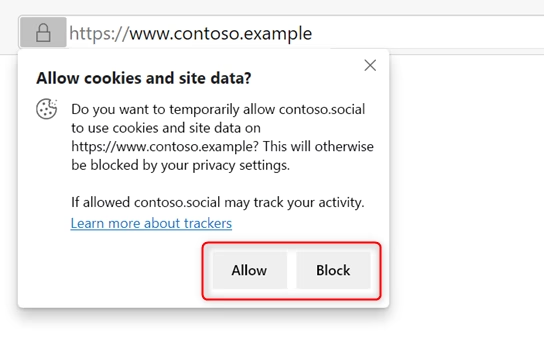
Warning: While this is helpful, remember that allowing this permission *can* let the site track your activity online during that 30-day period. Only allow permission for websites you know and trust.
Step 3: Managing and Removing Temporary Permissions
What if you allowed a site and want to remove that permission later? Or you want to see all the sites you’ve given temporary access to? Microsoft Edge makes it easy to manage these permissions.
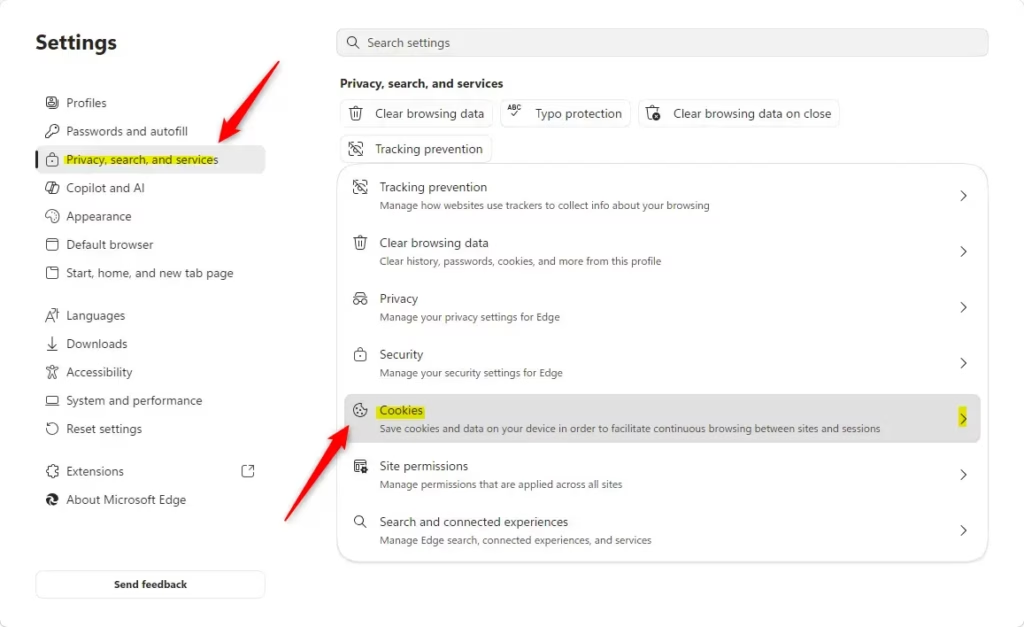
- Open Microsoft Edge Settings: Click the three dots (
...) in the top-right corner of your Edge window. From the menu, choose Settings. - Go to Privacy Settings: In the Settings menu, find and click on Privacy, search, and services in the left-hand menu.
- Find Cookies and Site Data: Scroll down in the “Privacy, search, and services” section until you find the option for Cookies. Click on it.
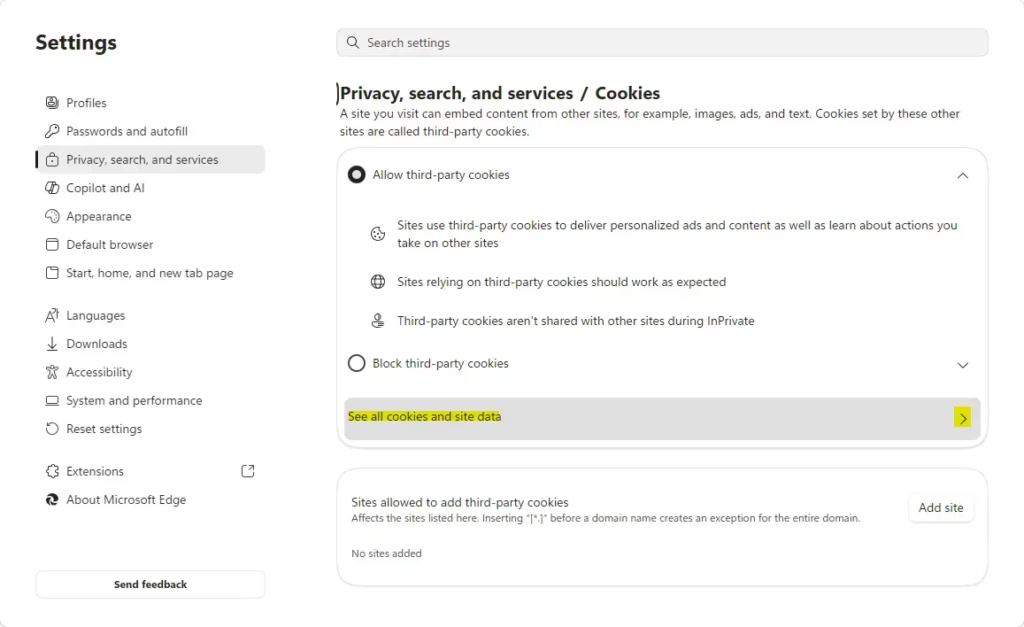
- See All Cookies and Site Data: Under the “Cookies and site data” settings, you’ll see an option like See all cookies and site data. Click this to see a list of all websites that have saved data on your computer. This includes sites you’ve temporarily allowed.
- Remove Specific Site Data: You’ll see a list called “Cookies and data stored for sites you have browsed.” To remove data for a specific site, find that site in the list. You’ll see a small trash can icon (Delete icon) next to it. Click this icon to remove all cookies and site data for that website.

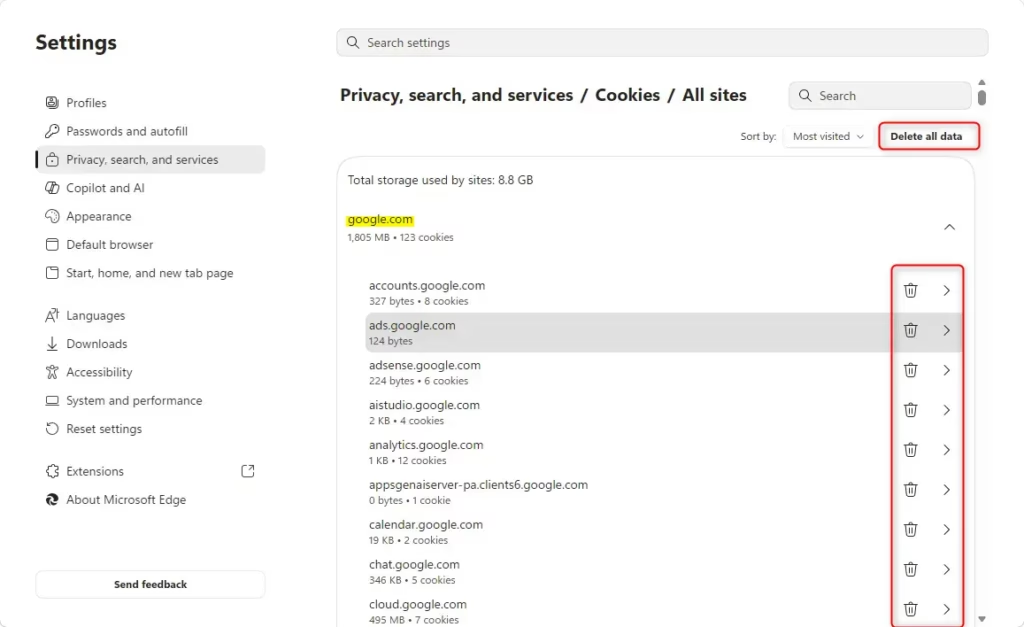
Quick Tip: If a website consistently causes problems even after you’ve allowed it, or if you’re worried about data from a site you no longer use, regularly clearing its cookies and site data can help. This also frees up a little disk space.
Step 4: Changing Tracking Prevention Settings (If You Need To)
If you find yourself often needing to grant temporary permissions, or if you want a different balance between privacy and website function, you might want to change your Tracking Prevention settings.
- Go to Settings: As before, click the three dots (
...) in the top-right corner and choose Settings. - Select Privacy, search, and services: Click this option in the left-hand menu.
- Choose Your Tracking Prevention Level: You’ll see the Tracking prevention option near the top. Click on it. Here, you can choose between Basic, Balanced, and Strict.
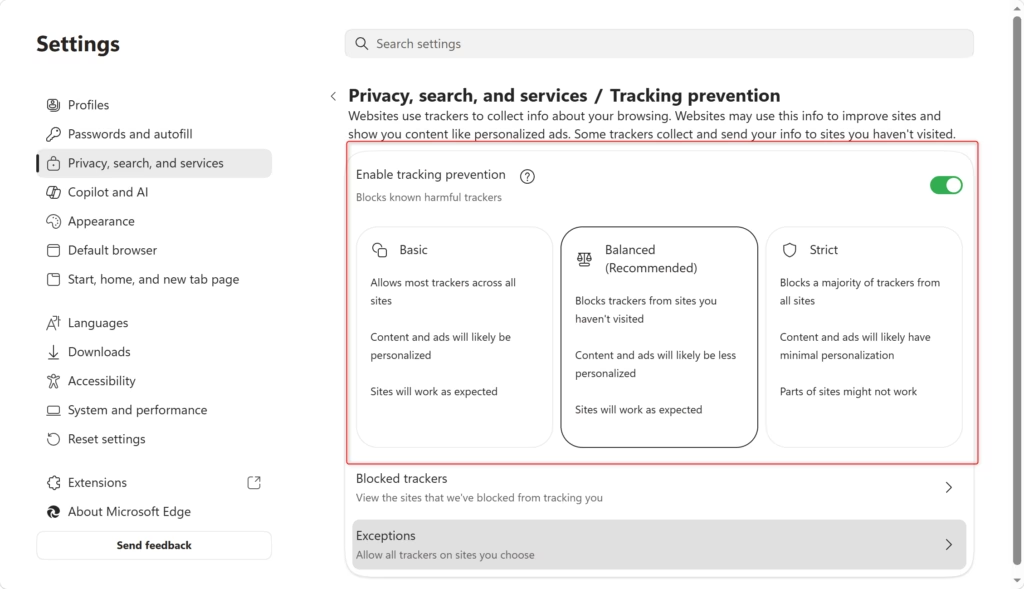
Think about this: If you have problems on many different websites, switching from “Strict” to “Balanced” might fix it without you needing to allow each site. If you’re already on “Balanced” and still have trouble, you might need to accept that some very specific or older websites might not work perfectly with strong privacy settings.
Warning: Remember, the stricter the setting, the more likely it is that some website features will be blocked or won’t work right. For most people, the “Balanced” setting offers a good mix of privacy and compatibility.
Reference:
https://support.microsoft.com/en-us/edge/temporarily-allow-cookies-and-site-data-in-microsoft-edge
Summary
This guide showed you how to temporarily allow cookies and site data in Microsoft Edge when websites aren’t working correctly. We explained why websites need this data and how Edge’s privacy settings, like Tracking Prevention, can sometimes interfere. You learned how to recognize when a site needs permission, how to grant it temporarily, and how to manage or remove these permissions later. We also covered how to adjust your overall Tracking Prevention settings if you’re frequently encountering issues. By following these steps, you can fix website problems while maintaining control over your online privacy. [Website Name]
Should you allow cookies?
Yes, allowing cookies is generally recommended for a better browsing experience. They enable websites to remember your preferences, login details, and shopping cart items, making sites function correctly and saving you time.
How to enable cookies and site data?
In Microsoft Edge, navigate to Settings > Cookies and site permissions > Manage and delete cookies and site data. You can then toggle 'Allow sites to save and read cookie data' on or off globally, or manage exceptions for specific sites.
What happens if I don't enable cookies?
If cookies are disabled, websites may not function correctly. You might be unable to log in, your shopping cart could empty, and personalized settings or preferences won't be saved, leading to a less convenient browsing experience.
What are the risks of enabling cookies?
While generally safe, some cookies (third-party) can be used for tracking your online activity across different websites for advertising purposes. Edge's privacy settings help manage this, but enabling all cookies might slightly increase tracking potential.
Was this guide helpful?

About the Author
Richard
Tech Writer, IT Professional
Richard, a writer for Geek Rewind, is a tech enthusiast who loves breaking down complex IT topics into simple, easy-to-understand ideas. With years of hands-on experience in system administration and enterprise IT operations, he’s developed a knack for offering practical tips and solutions. Richard aims to make technology more accessible and actionable. He's deeply committed to the Geek Rewind community, always ready to answer questions and engage in discussions.


No comments yet — be the first to share your thoughts!