Accessing the Windows Studio Effects Settings in Windows 11

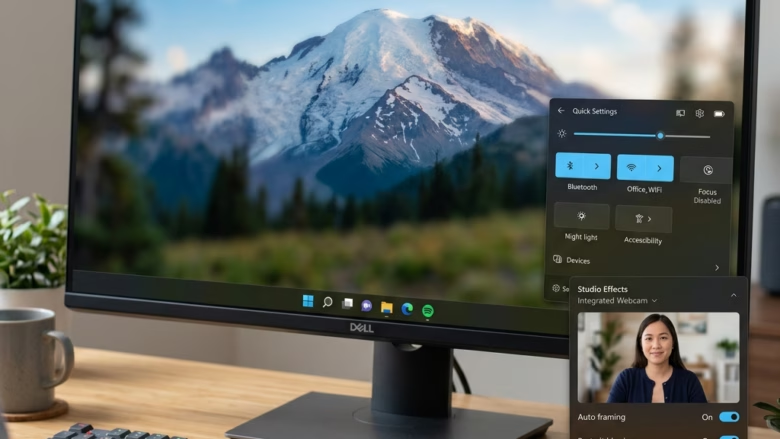
Do your video calls need a little something extra? Maybe you want to hide a messy room behind you, or just make sure you stay in the center of the screen. Windows Studio Effects can help! These cool features use your computer’s power to make you look and sound great during calls without needing special equipment. Let’s see how to find them.
What Are Windows Studio Effects?
Think of Windows Studio Effects as a smart helper for your video calls. They work with your computer’s hardware, especially if you have a special chip called an NPU. These effects can change your camera and microphone in real-time. This means they can blur your background, keep you in the frame, or even make it look like you’re looking right at the camera. This all happens automatically!
Here’s what they can do:
- Automatic Framing: This keeps you in the middle of the picture, even if you move around. You won’t disappear off the screen!
- Eye Contact: Sometimes you might look away from the camera. This effect makes it seem like you’re looking directly at the person you’re talking to. It makes calls feel more personal.
- Background Effects: This is a popular one. You can blur your background to hide a messy room or keep your privacy. There are different blur levels, from a soft blur to a strong “Portrait Blur” that makes you stand out. You can even use effects like “Illustrated,” “Animated,” or “Watercolor” to make your video look artistic.
- Voice Focus: Do you hate background noise during calls? Voice Focus listens for your voice and removes sounds like a barking dog or an air conditioner.
A Note About Your Computer’s Hardware: Some of these effects, like background blur and eye contact, work best or only work on computers with a good NPU. An NPU is a special chip that helps with these tasks. If your computer doesn’t have a strong NPU, you might only see basic effects, or none at all. But don’t worry, you can still access the settings!
Method 1: Quick Settings – The Fastest Way
Sometimes, the easiest way to get to a feature is right from your taskbar. This is true if you add the Studio Effects button to your Quick Settings.
Look at the icons near the clock on your screen. On the bottom-right, you’ll see icons for Network, Sound, and Battery. Click the one that looks like a speech bubble or a combined icon for these things. This opens your Quick Settings.
Find the Studio Effects button. Look at the buttons and tiles that show up. If you see one called “Studio Effects,” click it. This turns the effects on or off.
If it’s not there, don’t worry! The Studio Effects button might not be there by default. You might need to add it. To do this, go to Settings > Personalization > Taskbar. Look for options to manage which icons appear in Quick Settings. You can also click the pencil icon in the Quick Settings panel to change what’s shown.
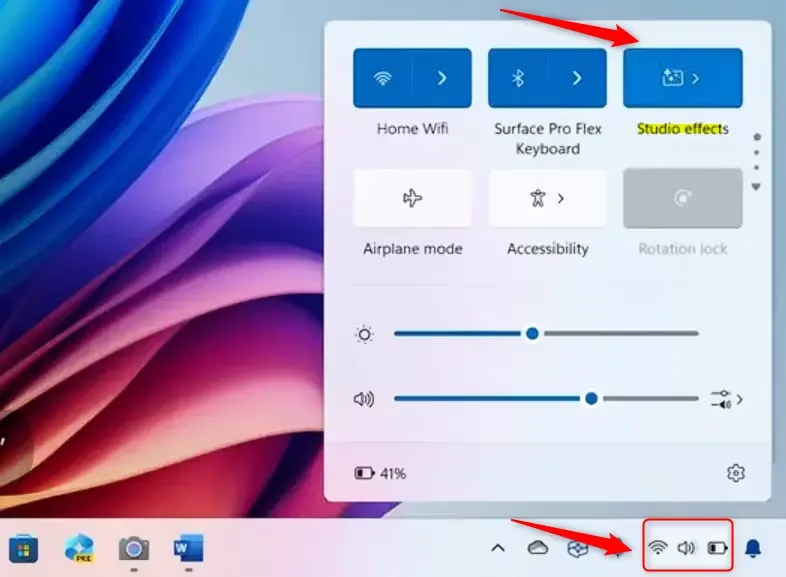
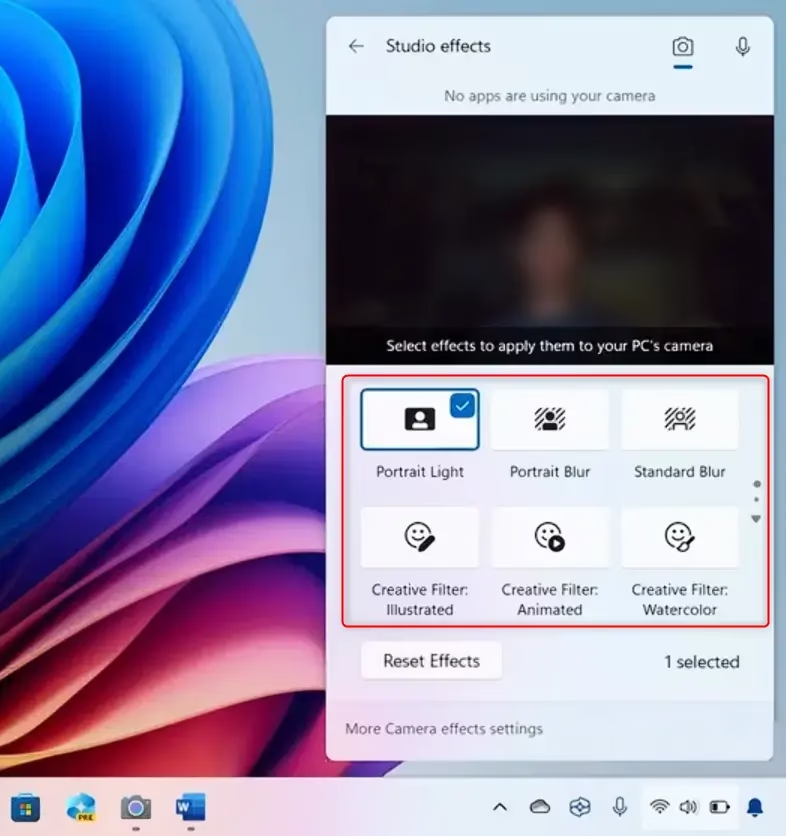
Good Tip: If you use Studio Effects a lot, make sure to add the button to your Quick Settings. It saves you time every time you want to change something!
Important Warning: Some of these effects, like background blur, eye contact, and automatic framing, use a lot of your computer’s power. This can slow down your computer and use more battery, especially on laptops. Pay attention to how your computer is running when these effects are on.
Method 2: The Settings App – For More Control
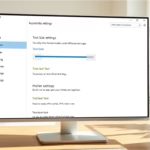
If you can’t find the button in Quick Settings, or you want to change more camera settings, use the main Settings app.
Open Settings. Click the Start button, then click the gear icon labeled Settings. Or, press the Windows key + I on your keyboard.
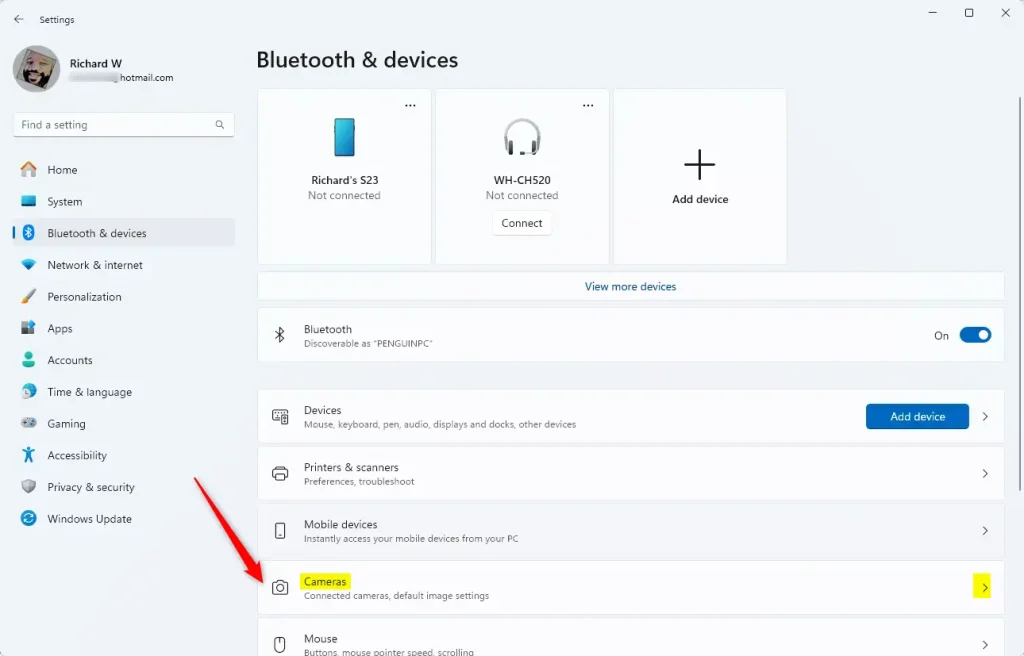
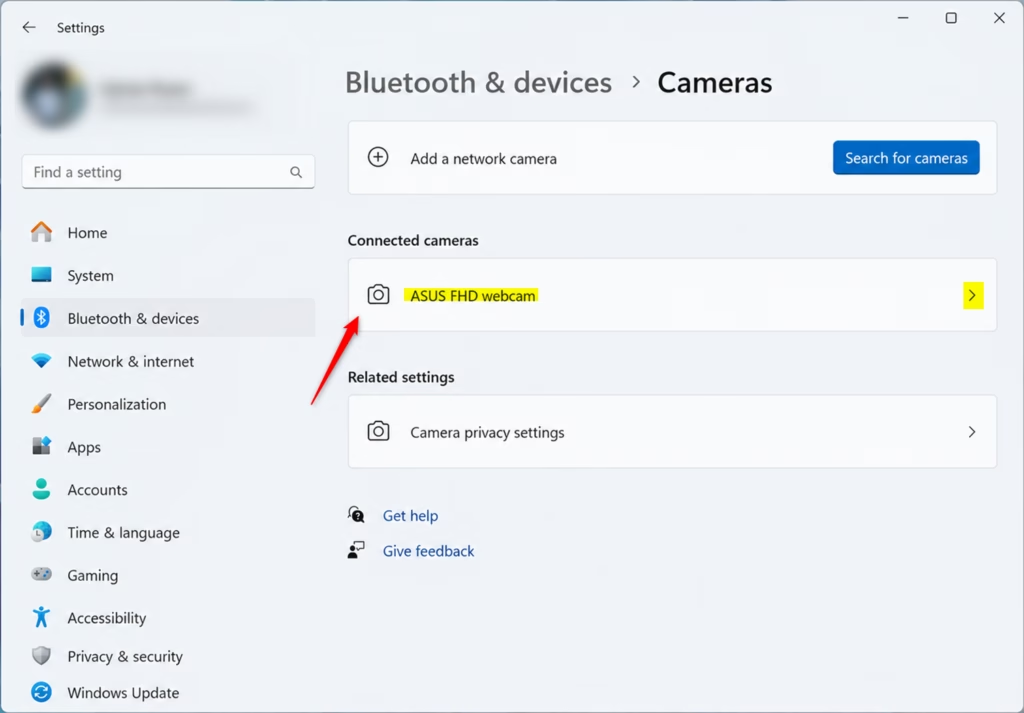
Go to Cameras. In the Settings window, click Bluetooth & devices on the left side. Then, on the right side, scroll down and click Cameras.
Choose your camera. You should see a list of cameras connected to your computer. Click on your main webcam. It might say something like “Integrated Webcam” or the brand name of your camera.
Adjust Studio Effects. In your camera’s settings, you will find the Windows Studio Effects options. Here, you can turn on or off effects like Automatic framing, Eye contact, and Background effects. You might also see sliders to change how strong an effect is, like the blur level.
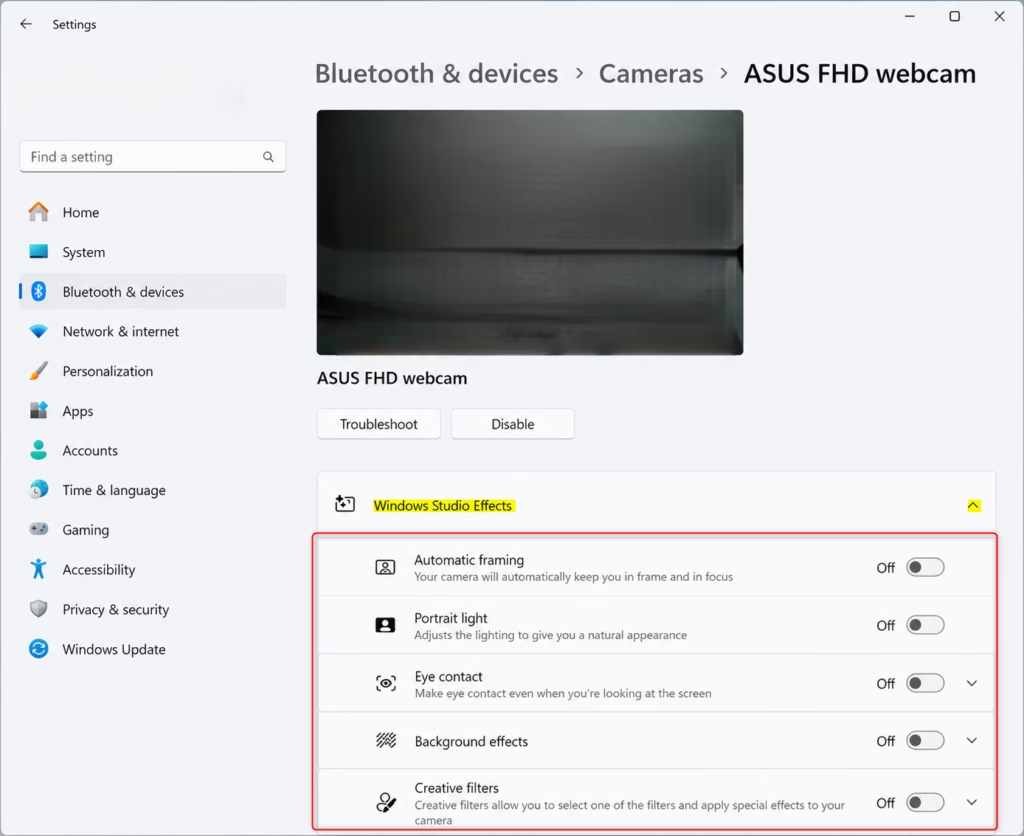
You can reset settings! If you change a lot of settings and want to go back to the start, look for a Reset Effects button. This will put everything back to how it was.
Good to Know: If you follow these steps and don’t see any Windows Studio Effects listed under your camera settings, it likely means your computer doesn’t have the right hardware (like a compatible NPU) to use these features. Check the information for your computer or webcam if you’re not sure.
Method 3: The Camera App – For Quick Previews
Want to see how these effects look before you change system settings? The built-in Camera app is great for this.
Open the Camera app. Click the Start button and type “Camera” in the search bar. Select the Camera app from the results.
Look for the magic wand. Once the Camera app is open and shows your webcam view, look at the top-right corner of the app window. You should see an icon that often looks like a magic wand or a star. This is the Windows Studio Effects icon.
Use the effects. Click on that icon. A panel will open showing you the available Windows Studio Effects. From here, you can turn on or off features like background blur, eye contact, and automatic framing. You can often change how strong the effects are or pick different styles right in this panel.
Why This Method is Useful: The Camera app is good because you can see the effects right away. You can see how the background blur looks or how automatic framing moves as you change position. This makes it easier to set things up just right before an important call.
Summary
Windows Studio Effects in Windows 11 offer features like Automatic Framing, Eye Contact, Background Effects, and Voice Focus to improve video calls. You can access these settings through the Quick Settings panel (by adding the Studio Effects tile), the main Settings app (under Bluetooth & devices > Cameras), or the built-in Camera app (using the magic wand icon). Some advanced features require a capable NPU. Using these effects can sometimes impact PC performance and battery life.
Was this guide helpful?

About the Author
Richard
Tech Writer, IT Professional
Richard, a writer for Geek Rewind, is a tech enthusiast who loves breaking down complex IT topics into simple, easy-to-understand ideas. With years of hands-on experience in system administration and enterprise IT operations, he’s developed a knack for offering practical tips and solutions. Richard aims to make technology more accessible and actionable. He's deeply committed to the Geek Rewind community, always ready to answer questions and engage in discussions.

No comments yet — be the first to share your thoughts!