How to Turn On or Off Align Icons to Grid on Desktop in Windows 11

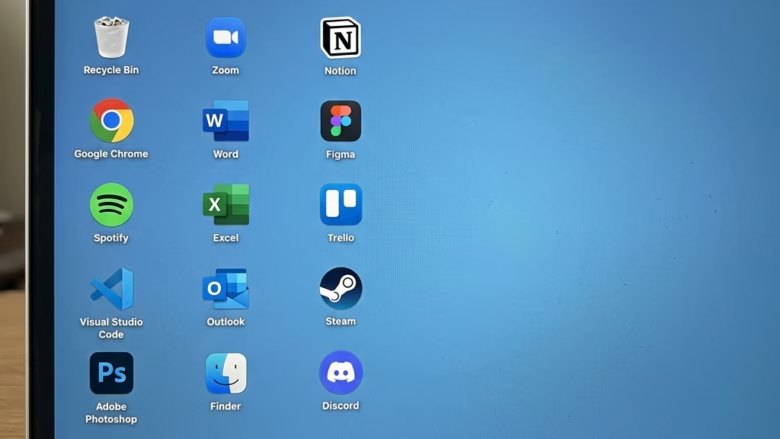
This guide explains how to manage the alignment of your desktop icons in Windows 11. We’ll cover how to turn this feature on or off using simple methods.
Why use it? It helps keep your desktop looking clean and professional. It makes it easier to find icons because they are always in neat rows and columns.
Why turn it off? Some users prefer to place icons exactly where they want them, even if it’s not perfectly aligned. Turning it off gives you complete freedom over icon placement.
Understanding ‘Auto Arrange Icons’ vs. ‘Align Icons to Grid’
You might see two options related to icon arrangement: ‘Auto arrange icons’ and ‘Align icons to grid’. They work together but do different things.
‘Align icons to grid’ makes sure your icons snap to the invisible lines on your desktop. This is about the neatness of placement.
‘Auto arrange icons’ takes it a step further. When this is on, Windows will automatically move your icons to fill any empty spaces and keep them sorted by name, type, date, or size. If you delete an icon, ‘Auto arrange’ will shift others to fill the gap. ‘Align icons to grid’ must be on for ‘Auto arrange icons’ to work effectively.
How to Turn On or Off ‘Align Icons to Grid’ Using the Desktop Context Menu
This is the easiest way to manage the ‘Align icons to grid’ setting.
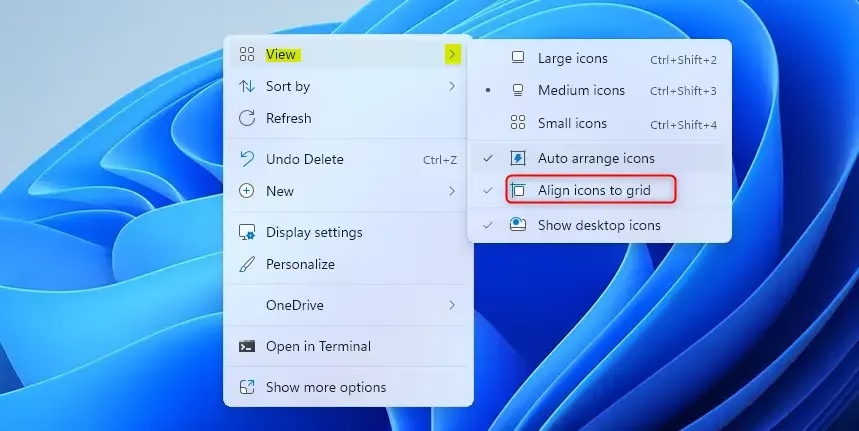
1. Right-click anywhere on an empty space on your desktop. A menu will pop up.
2. Hover your mouse cursor over the ‘View’ option in the menu.
3. In the sub-menu that appears, you will see ‘Align icons to grid’.
4. Click on ‘Align icons to grid’. A checkmark next to it means it’s ON. Clicking it again will remove the checkmark, turning it OFF.
How to Manage ‘Auto Arrange Icons’ and ‘Align Icons to Grid’ Using the Registry Editor
Warning: Editing the Windows Registry can be risky if not done carefully. Incorrect changes can cause system instability. It’s recommended to back up your registry before making any changes. This method requires administrator privileges.
The Registry Editor allows for more detailed control over these settings. Here’s how to use it:
1. Press the Windows key + R on your keyboard to open the Run dialog box.
2. Type regedit and press Enter or click OK. You may need administrator permission to open it.
3. Navigate to the following key in the Registry Editor:
HKEY_CURRENT_USER\Software\Microsoft\Windows\Shell\Bags\1\Desktop
4. In the right-hand pane, look for a value named FFlags. If it doesn’t exist, you may need to create it (Right-click in the empty space > New > DWORD (32-bit) Value).
5. Double-click on FFlags to modify its value data. The value determines the state of ‘Auto arrange icons’ and ‘Align icons to grid’:
To Turn OFF ‘Auto arrange icons’ and Turn OFF ‘Align icons to grid’:
Set the FFlags value to 40200220.
To Turn ON ‘Auto arrange icons’ and Turn OFF ‘Align icons to grid’:
Set the FFlags value to 40200221.
To Turn OFF ‘Auto arrange icons’ and Turn ON ‘Align icons to grid’ (Default):
Set the FFlags value to 40200224.
To Turn ON ‘Auto arrange icons’ and Turn ON ‘Align icons to grid’:
Set the FFlags value to 40200225.
6. After changing the value, click OK and restart your computer or log out and back in for the changes to take effect.
Summary
Managing how your desktop icons are arranged in Windows 11 is straightforward. You can easily toggle ‘Align icons to grid’ on or off using the desktop’s right-click menu for quick organization. For more advanced control, including managing ‘Auto arrange icons’, the Registry Editor can be used, but proceed with caution and administrator privileges. Understanding the difference between these two settings helps you maintain a tidy and functional desktop experience.
What’s the difference between ‘Align icons to grid’ and ‘Auto-arrange icons’?
‘Align icons to grid’ snaps icons to an invisible grid for neatness. ‘Auto arrange icons’ goes further by automatically positioning icons to fill spaces and sort them, requiring ‘Align icons to grid’ to be active.
Why are my desktop icons rearranging on their own in Windows 11?
This usually happens if ‘Auto arrange icons’ is turned on. Windows will reposition icons to maintain order, especially after changes like deleting shortcuts or changing screen resolution.
How do I fix it if the ‘Align to grid’ option is missing or grayed out?
If the option is grayed out, it might be controlled by a system policy or another setting. Ensure you are logged in as an administrator and check if any third-party software is managing your desktop icons.
Can I customize the spacing between desktop icons in Windows 11?
Yes, you can adjust desktop icon spacing. This is typically done via the Registry Editor by modifying specific values under the Desktop icon settings, allowing for finer control over layout.
Was this guide helpful?

About the Author
Richard
Tech Writer, IT Professional
Richard, a writer for Geek Rewind, is a tech enthusiast who loves breaking down complex IT topics into simple, easy-to-understand ideas. With years of hands-on experience in system administration and enterprise IT operations, he’s developed a knack for offering practical tips and solutions. Richard aims to make technology more accessible and actionable. He's deeply committed to the Geek Rewind community, always ready to answer questions and engage in discussions.



No comments yet — be the first to share your thoughts!