How to Start, Stop, and Restart Services in Windows 11

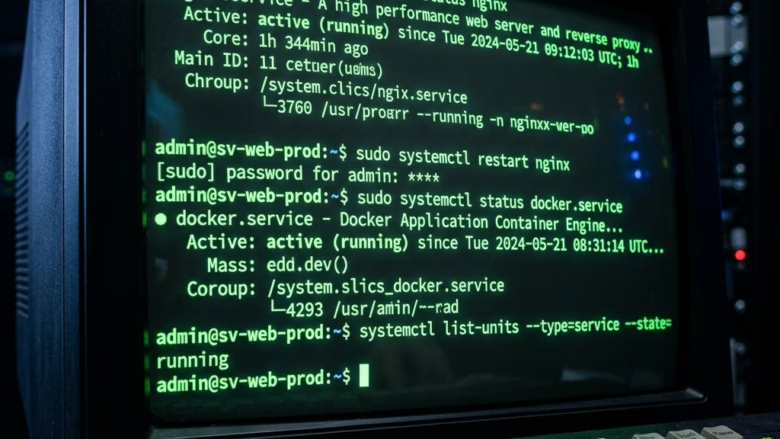
You start, stop, and restart Windows 11 services primarily through the Services management console or the command prompt.
Windows services are background processes that handle essential system functions and support your applications. Think of them as the unseen helpers for everything from your network connection to your printer driver.
You might need to manage these services if a particular feature isn’t working correctly, or if you suspect an unresponsive service is slowing down your PC. For example, a simple restart of the “Print Spooler” service can often resolve printing issues.
This lets you manually control these vital background processes, helping your Windows 11 experience run smoothly.
You can start, stop, and restart Windows 11 services using the Services console or command prompt. Open Services, find the service, then right-click and select Start, Stop, or Restart. Alternatively, use command prompt commands like “net start service name”.
Understanding Service Startup Types
Windows services have different startup types that tell Windows when to run them, which helps you manage how your computer starts and works.
- Automatic: The service starts as soon as Windows boots.
- Manual: The service only starts when a program or user asks for it.
- Disabled: The service will not run under any circumstances.
- Automatic: The service starts as soon as Windows boots.
- Manual: The service only starts when a program or user asks for it.
- Disabled: The service will not run under any circumstances.
Troubleshooting Service Failures
If you see an Error 1053 or Access Denied message, it usually means the service is taking too long to respond, or you don’t have the right permissions. Always ensure you are using an account with administrative privileges.
Pro Tip: Using the Command Line
For quick status checks, open Command Prompt as an administrator and type sc query followed by the service name. This shows you exactly if a service is running or stopped without opening any windows.
Note: You must be logged in as an administrator to perform these actions.
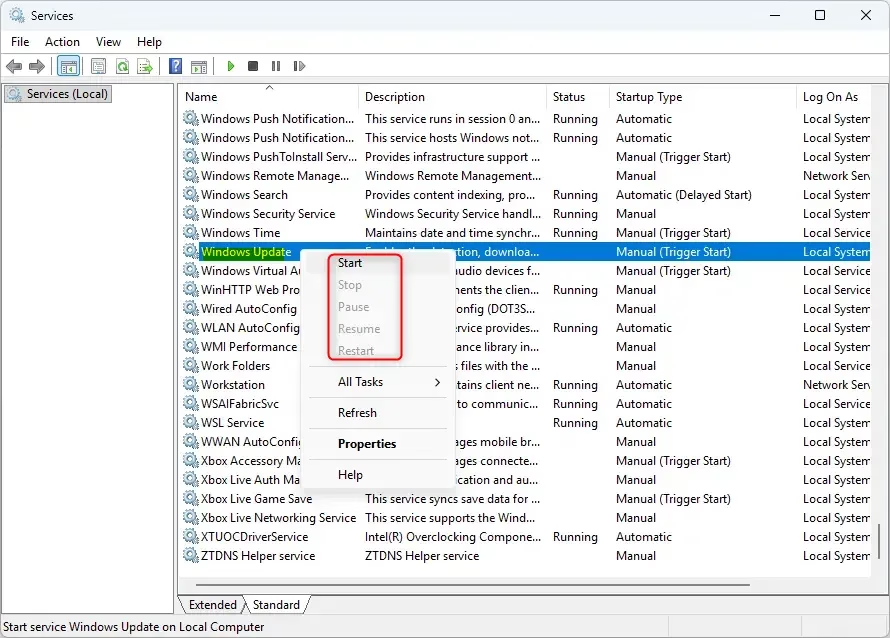
Option 1Using the Services Console
- Click the Start button, type “Services,” and press Enter.
- Find the service you want to manage.
- Right-click the service name and select Start, Stop, or Restart.
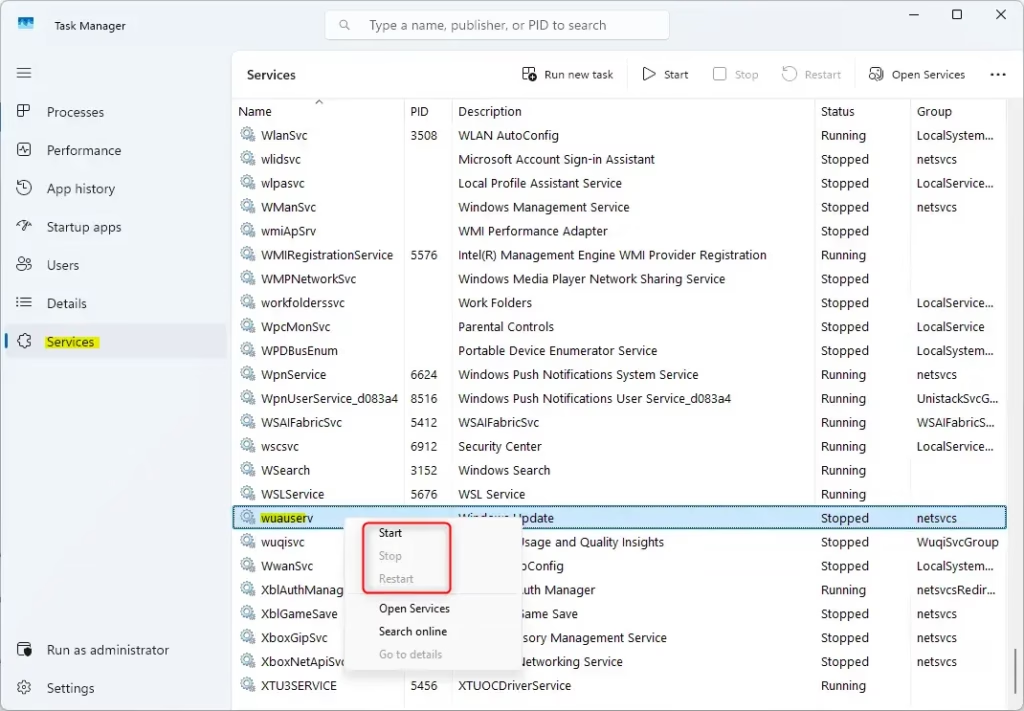
Option 2Using Task Manager
- Press Ctrl+Shift+Esc to open Task Manager.
- Click the Services tab.
- Right-click the service and choose Start, Stop, or Restart.
Option 3Using the Command Prompt (Admin)
Requires Administrator Privileges.
- Right-click the Start button and select Terminal (Admin).
- To start a service, type the following and press Enter:
net start service nameornet start "display name" - To stop a service, type the following and press Enter:
net stop service nameornet stop "display name"


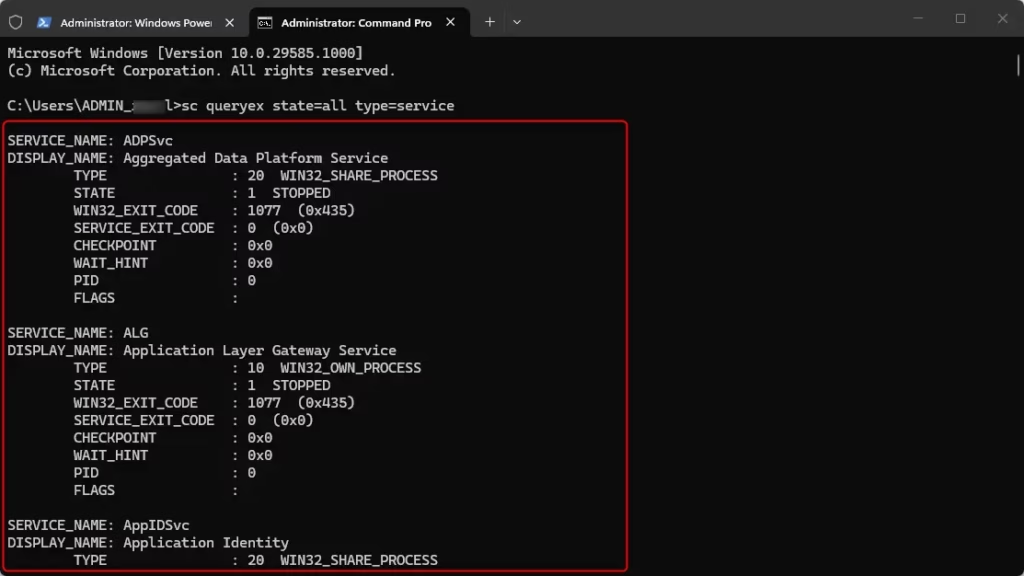
Option 4Using the SC Command
Requires Administrator Privileges.
- Open Terminal (Admin).
- To see the status of all services, type:
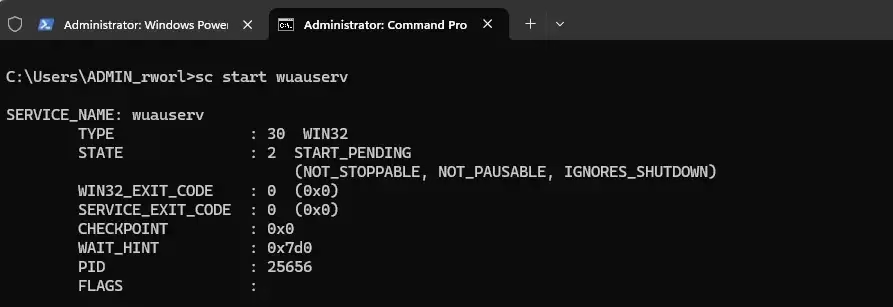
sc queryex state=all type=service - To start a service, type:
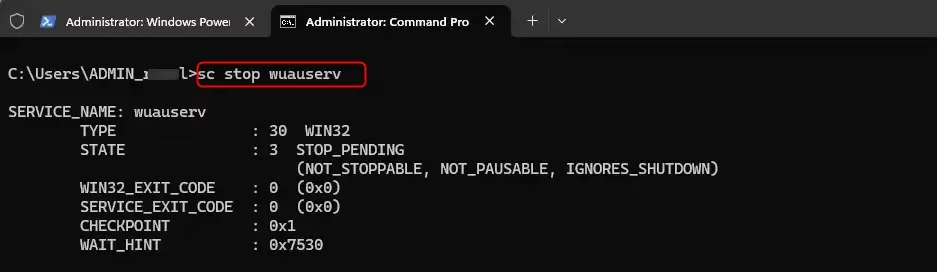
sc start service name - To stop a service, type:
sc stop service name
Option 5Using PowerShell
You can manage Windows services using PowerShell, a powerful tool that lets you start, stop, and restart services quickly after you open it as an administrator.
- Open Terminal (Admin) and select PowerShell.
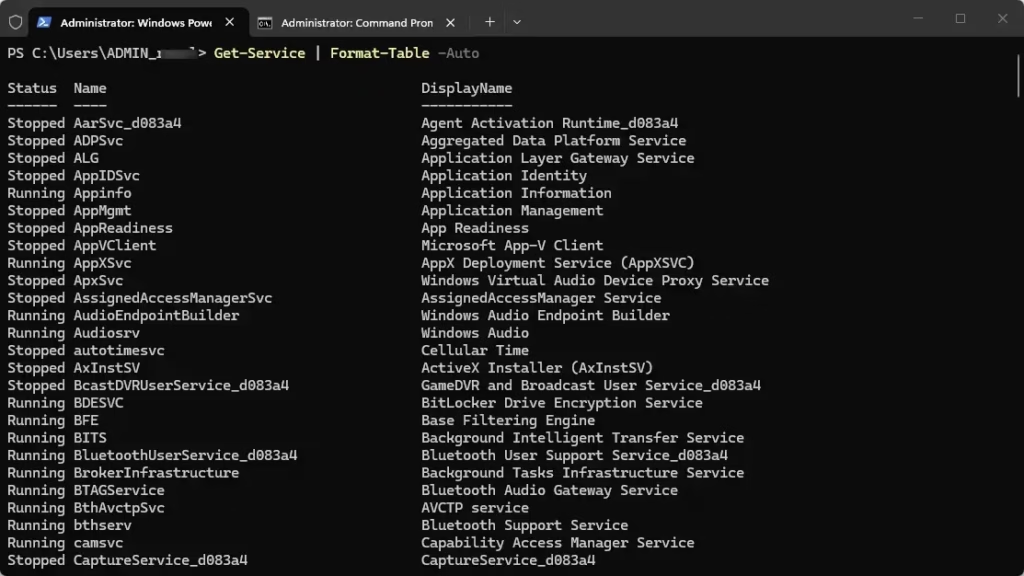
- To see all services, type:
Get-Service | Format-Table -Auto - To start a service, type:
Start-Service -Name "service name"orStart-Service -DisplayName "display name" - To stop a service, type:
Stop-Service -Name "service name"orStop-Service -DisplayName "display name" - To restart a service, type:
Restart-Service -Force -Name "service name"orRestart-Service -Force -DisplayName "display name"


Summary
Managing Windows services helps you fix broken features and optimize your system. You can use the Services console for a visual interface or the command line for faster control. Always remember that administrative privileges are required for these changes, and be cautious when stopping system-critical services.
What should I do if a service is stuck on ‘Stopping’?
If a service is stuck, open Task Manager, go to the Details tab, find the process associated with the service, and select End Task. If that fails, a simple system restart is the most effective way to clear the hung process and restore normal operation.
Can I restart Windows services without administrative privileges?
No, you can’t. Windows requires administrative privileges to modify services because they are core system components. Attempting to stop or start them without these rights will result in an ‘Access Denied’ error, protecting your system from unauthorized changes by standard user accounts.
Was this guide helpful?

About the Author
Richard
Tech Writer, IT Professional
Richard, a writer for Geek Rewind, is a tech enthusiast who loves breaking down complex IT topics into simple, easy-to-understand ideas. With years of hands-on experience in system administration and enterprise IT operations, he’s developed a knack for offering practical tips and solutions. Richard aims to make technology more accessible and actionable. He's deeply committed to the Geek Rewind community, always ready to answer questions and engage in discussions.


No comments yet — be the first to share your thoughts!